
Voice to Text for Dyslexia: A Writing Loop That Works
Voice to text for dyslexia changes the writing loop: you speak the sentence and read clean text back instead of fighting the keyboard twice. The draft arrives spelled and punctuated, so review becomes about meaning rather than decoding. This guide shows a routine for drafting, reading back, and fixing errors by voice in the apps you already use.
 Voiskey Team
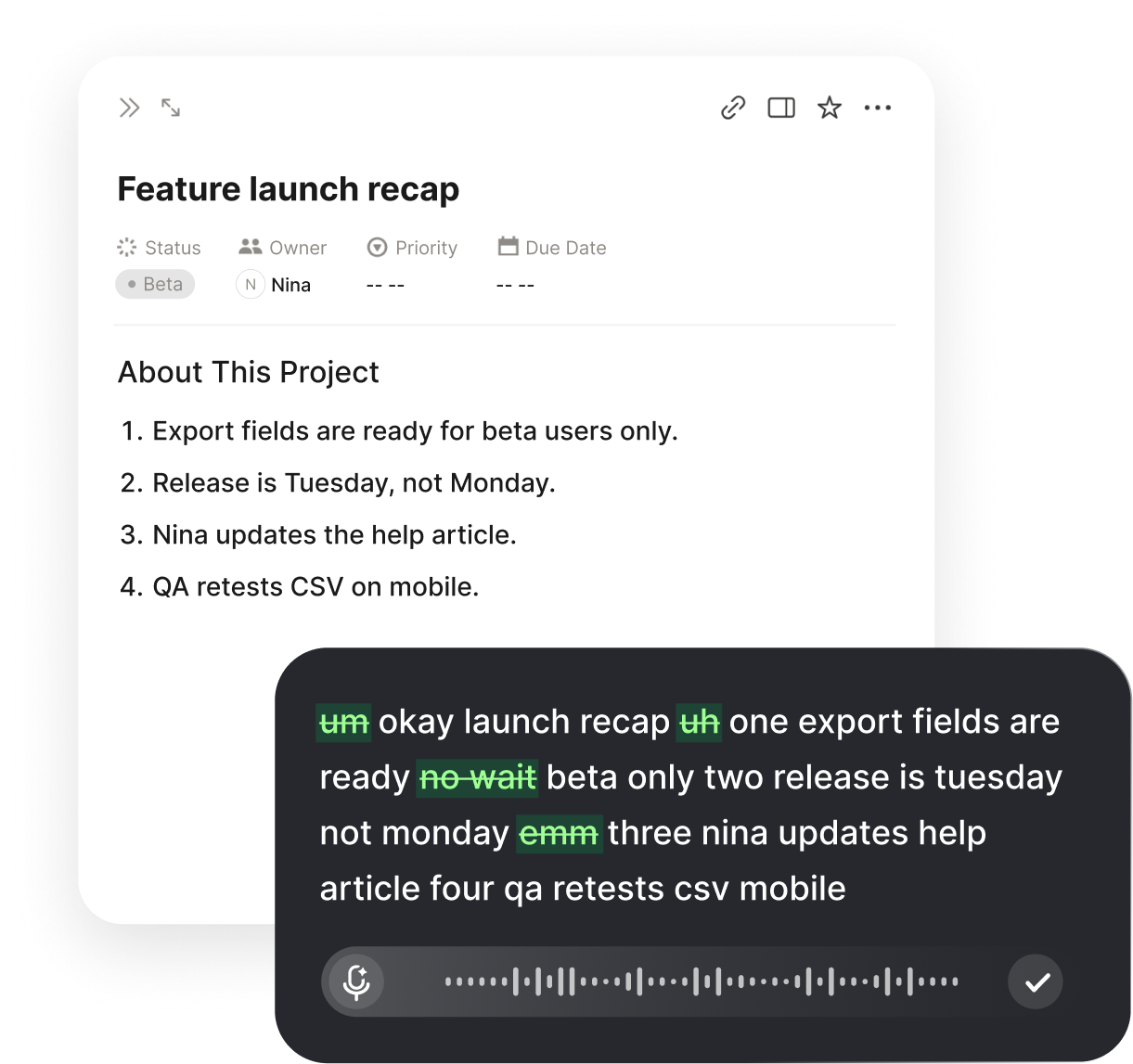
The Daily Friction of Reading Back and Typing
Voice to text for dyslexia is not a cure and not a shortcut around reading. It is a change in the order of the work. Instead of pulling a sentence out of the keyboard letter by letter and then trying to read it back through the same fog, you say the sentence out loud and let clean text appear on the screen. The words arrive spelled and punctuated, so the first thing you read is your own idea rather than a row of red squiggles.
The hardest part of writing with dyslexia is often the second pass, not the first. You have to decode your own draft to check whether it says what you meant, and when that draft is full of spelling errors, missing words, and tangled endings, reading it costs as much as reading an unfamiliar page. The meaning hides behind the mechanics. Many people stop revising altogether because the review step is more tiring than the writing itself.
That is why so many pieces stall at the first paragraph. Typing is slow, the spelling checker interrupts every few words, and each correction breaks the thread of the thought. The loop rewards the exact skills that dyslexia makes hard: holding a sentence in mind while producing it, then scanning text quickly for mistakes. A different input method does not erase the challenge, but it can move most of the effort to places where you have room to work. That shift is small in theory and large in a working day.
How Voice to Text Changes the Writing Loop
When you dictate, the sentence leaves your mouth at speaking speed and lands on the page as text. Voiskey adds punctuation and basic formatting as you go, so a paragraph appears in roughly the shape you would have typed. The keyboard step, where spelling and letter-by-letter assembly slow you down, mostly disappears. What is left is the part of writing that carries meaning: choosing words, ordering ideas, and deciding what comes next.
The second half of the loop changes too. With a draft that is already spelled and punctuated, reading back becomes a check on meaning instead of a decoding exercise. You can use the read-aloud feature in Word, Google Docs, or your operating system to hear the draft in a neutral voice while you follow along. Hearing your own words in someone else's voice makes repeated phrases, dropped ideas, and sudden jumps much easier to notice.
The loop becomes think, speak, read or listen, fix, and move on. Each pass is shorter than typing the same paragraph, and each pass produces text you can actually read. That matters for confidence as much as for speed. A writer who can read their own draft without fighting it is far more likely to revise it, and revision is where writing improves. Speed alone would not change much; a readable draft is what changes the next decision.
A Practical Routine: Speak, Listen, Read, Fix
A routine helps more than a feature. Try this sequence on your next piece of writing, whether it is a school essay, a work update, or a long email. It takes about as long as typing badly and then giving up, and it leaves you with a draft you can send. Write the plan badly on purpose: it is a map, not a final document. The map exists so you never sit in front of a blank page wondering what the second paragraph should do.
Start by speaking a rough plan into the document in short bursts: the main point, two or three supporting ideas, and the ending. Then dictate one paragraph at a time, pausing between paragraphs instead of trying to speak a whole page in one breath. After each paragraph, read it once silently and once with the read-aloud tool. If something sounds wrong, say a short marker such as check this line at the end and keep going. Fix the marked lines in a second pass, so you never interrupt your flow to hunt for a key.
The second pass is where voice editing earns its place. Put the cursor where the problem is, select the phrase, and speak the replacement, then remove the old words. Voiskey supports editing by voice, so commands such as delete that, replace the last sentence, or new paragraph can keep the whole revision hands-free when your setup supports them. If a particular action has no command, select the text with the keyboard once and dictate over it. The aim is to keep your hands off the letter keys, because that is where the friction lives.
The four-step writing loop:
- Plan out loudSpeak the point and the ending first
- Paragraph by paragraphOne thought per pause, no rushing
- Read and listenSilent pass, then an audio pass
- Fix onceCorrect the marked lines by voice
Getting Clean Output and Fixing Misheard Words
Dictation is only useful if the output is clean enough to read. Voiskey removes filler words, repairs false starts, and adds punctuation and paragraph breaks as you speak, so the text looks like writing rather than a transcript. That matters for dyslexia because a messy transcript is just one more hard-to-read page. Clean output keeps the review step short enough to finish.
Misheard words still happen, and homophones are the usual suspects: there, their, and they are; to, too, and two; affect and effect. Fix them by voice instead of reaching for the keyboard. Select the wrong word, say the right one clearly, and continue. A spoken correction is faster than hunting for a key, and it keeps your train of thought intact. Names, subject terms, and technical vocabulary are worth teaching the tool once through its vocabulary memory, after which they come out correctly in every document.
Punctuation is a personal setting more than a rule. You can say comma, period, question mark, or new paragraph as you dictate, or let automatic punctuation decide and fix the rare mistake later. Most people find a mix works best: let the tool punctuate, and speak a command only when a sentence needs a deliberate pause. After a few sessions you will notice which habits produce clean text for you, and the routine becomes automatic. Keep a short note of the habits that work, so a bad week does not send you back to the keyboard.
Essays and assignments
Dictate an essay paragraph by paragraph and read it back with audio before you revise. The draft arrives punctuated, so the first pass is about ideas instead of spelling. Use the same routine for reports, applications, and long answers.
Study notes
Capture notes while you read or listen, speaking in short blocks that are easy to check. Clean text makes the notes searchable later, which matters when you need to find one name or one date. The notes land in the app you already use, with no extra step.
Work documents
Draft updates, proposals, and internal pages by speaking the structure first and filling in the paragraphs. Reading back with audio catches the gaps that silent reading misses. You keep your usual tools and your usual files, just with less typing.
Working Across School and Work Apps
The point of voice input is that it works where the writing already happens. Voiskey types into whatever app has the cursor, so the same habit covers Google Docs, Microsoft Word, Gmail, Outlook, Slack, and the browser forms that schools and workplaces run on. There is no separate transcription app to open, no file to export, and no copy-and-paste step between tools. The fewer steps between the thought and the file, the more likely the file gets finished.
In practice you can dictate an essay in Docs, a lab report in Word, a note to a teacher in Gmail, and a status update in Slack without changing how you work. Students meet the assignment portal and the learning platform as ordinary text boxes. Employees meet the internal wiki, the ticket tracker, and the chat tool the same way. Nothing special has to be installed in the middle of the workflow, which makes the change easy to explain and easy to keep.
Voice helps with the reading side too. Instructions, long email threads, and dense documents can be read aloud by the browser or the operating system while you follow the highlighted text. Your own drafts can go through the same audio loop. You are not limited to writing faster; you can also get through the material other people send you without it becoming a wall of text.
Email to teachers and managers
Say the request once and send a clear, polite message without drafting it three times. Punctuation and paragraph breaks arrive with the text, so the tone holds up. Corrections can be made by voice before you hit send.
Professional email
Speak a full reply in your own words instead of shortening it out of fatigue. Clean, formatted text lands in the message body you already use. That means fewer one-line answers that create follow-up questions later.

Team chat
Dictate quick updates in Slack or another chat tool without switching windows. The text appears in the compose box, punctuated and ready to send. Short messages become easier than avoiding them.
Reading Back Without Draining Your Energy
Reading back is the step dyslexia makes expensive, so it deserves its own strategy. Do not review a whole document at the end when you are already tired. Review in small blocks, one or two paragraphs at a time, while the idea is fresh and the text is short enough to hold in mind. Short reviews catch more, and they cost less. They also make the task feel finite, which matters when avoidance is the real risk.
Use audio as a second channel. The read-aloud voice in Word, Docs, or your system settings reads at a steady pace and does not skip words, which exposes missing words and doubled phrases that silent reading slides past. Follow the highlighted text with your eyes as it reads. Listening and looking at the same time gives you two chances to catch each error without asking more of your decoding skills than they can give at the end of a long day.
Stop when the quality of your attention drops, not when the document ends. Ten focused minutes on two paragraphs beats an hour of tired scanning. If you notice yourself reading the same line three times, take a break and come back with the audio pass. The goal of review is not to touch every sentence; it is to make sure the sentences that carry the argument are clear and complete.
FAQ s
Yes. Dictate one paragraph at a time and pause between paragraphs rather than speaking a whole page in one breath. The text arrives punctuated, and you can read it back with audio in small blocks before revising, which keeps a long document manageable.
It removes most of the spelling burden from the moment of writing, because you speak whole words and the tool produces spelled text. Homophones can still come out wrong, so keep a quick voice-based correction step for there and their, to and too, and similar pairs.
The output is ordinary text in a normal document, so it looks like any other draft. What matters is the quality of the writing and any accommodation process your school or workplace already has. Voice is simply a different way to produce the same file.
Voiskey supports 100+ languages and can keep your terms and names correct through vocabulary memory. You can speak in the language you think in and still get clean text that matches how you write.
Voice recognition usually depends on a speech service, so treat a stable connection as the safe assumption. Test Voiskey in the room where you plan to work before an exam or an important deadline, and keep a typed backup for sessions with no connection.


 Voiskey
Your voice, amplified.
Put the keyboard down for one paragraph and read back clean text instead. Try Voiskey in the document you already use.
Use it across macOS, Windows, iOS, and Android