
Voice to Text for Hearing Loss: Read What People Say With Voiskey
Voiskey is voice to text for hearing loss: a hearing person speaks and their words become clean, readable text on your screen in real time, so you follow the conversation by reading even when the sound is hard to catch.
 Voiskey Team
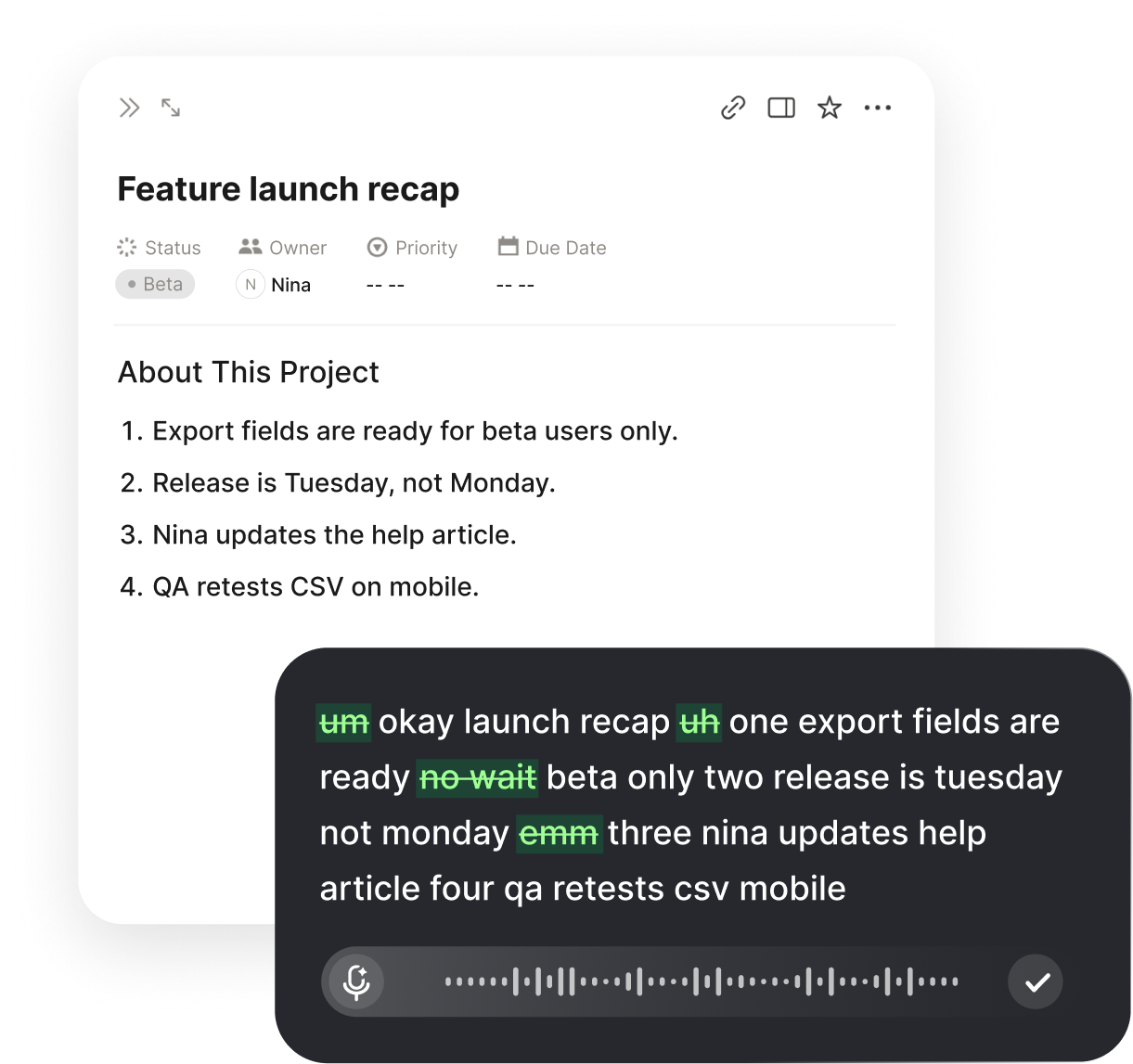
What Voice to Text for Hearing Loss Actually Does
Voice to text for hearing loss does one clear thing: it takes the words a hearing person is saying out loud and puts them on your screen as clean, readable text while they speak. Instead of straining to catch every sound, lip-read across a room, or ask people to repeat themselves, you read what was just said. The person talking uses the microphone and does nothing unusual; you simply watch their speech appear as text and follow along. The sound may be muffled or missing for you, but the meaning arrives in full on the screen.
This matters because hearing loss rarely erases sound evenly. A word drops here, a name blurs there, background noise swallows a sentence, and you are left stitching gaps together and hoping you guessed right. That constant repair work is tiring and it makes you hesitant to join in. Seeing the words removes the guessing: the text is there to read, re-read, and trust, so you spend your attention on the conversation itself rather than on decoding the audio.
Voiskey is built so the text comes out ready to read rather than as a raw dump of sound. It trims the ums and false starts, adds punctuation, and shapes loose talking into clean sentences, so a glance tells you what the speaker meant without untangling a messy transcript. The goal is a readable record of the conversation as it happens, not a rough stream you have to decode a second time.
How It Works in a Real Conversation
Setup happens once and takes a couple of minutes. Install Voiskey, allow the microphone and accessibility permissions it asks for on first launch, and you are ready. From then on the person speaking presses a single key and talks, and their words land as text wherever your cursor is, punctuated and formatted, with no separate window to arrange and no mode to switch on first. You read; they speak; the screen keeps up.
Because Voiskey works at the system level, that same key turns speech into text anywhere on the computer, in a notes window, a chat box, a document, or a form in the browser. There is no special captioning app to open and no copy-and-paste between tools, so a quick exchange at a desk and a long sit-down talk use the exact same habit. One key covers every situation where someone needs to say something to you.
For a back-and-forth, the flow stays simple. The other person speaks and you read their text; you reply by typing, or by speaking yourself if your own voice is clear, and they read or hear your answer. Because the transcript stays on screen, you can scroll back to a name, a time, or a detail you want to double-check instead of asking for it again, which keeps the conversation moving at a natural pace.
Where It Helps Most
One-on-One Talks
Let a friend, colleague, or family member speak into the microphone and read their words as clean text, so a quiet voice or a noisy room no longer hides what they said.
Meetings and Appointments
Capture what a doctor, teacher, or coworker says as readable text, so you leave with the details right instead of half-guessed.

Phone and Video Calls
Have the person on the call speak and watch their words appear on screen, turning a call you would dread into one you can actually follow.
Notes You Keep
Because the text stays on screen, save the parts that matter as a record, so names, dates, and instructions do not slip away after the talk ends.
Keeping a Conversation Two-Way
Reading what others say solves only half of a conversation; you also need to answer. Voiskey keeps your side easy by letting you reply however suits you in the moment. If your own speech is clear, you can talk and let Voiskey turn your words into text the other person reads, so two people who both prefer reading can hold an entire exchange on screen. If you would rather type, you type, and the thread stays one clean, readable record either way.
This flexibility matters because hearing loss does not mean you cannot speak, and many people with it speak perfectly well. The hard part is catching the reply, not giving one. By turning the other person's voice into text and letting you respond by voice or keyboard, Voiskey levels the exchange: both sides end up reading the same clear thread, and nobody has to shout, repeat, or slow down to an awkward crawl.
Having the whole exchange as on-screen text also removes the small misunderstandings that pile up with hearing loss. When a name, a number, or an instruction is written down rather than half-heard, you act on what was actually said instead of on a hopeful guess. That accuracy builds confidence over time, so you join conversations you might once have avoided because the risk of mishearing felt too high.
Getting the Cleanest, Most Readable Text
A few habits make the on-screen text noticeably cleaner, which matters when reading is how you follow the talk. Ask the speaker to talk in full thoughts at a steady, conversational pace rather than in clipped fragments, because Voiskey uses the surrounding sentence to punctuate and to choose the right spelling for names and similar-sounding words. Natural talking usually reads better than slow, broken speech, so there is no need for anyone to perform or over-enunciate.
A laptop or phone microphone is normally enough, and a simple external mic helps when the speaker sits farther away or the room is noisy. The speaker does not have to raise their voice, since Voiskey handles quieter, close-mic speech, so a calm indoor conversation transcribes well without anyone straining to be loud.
For the words that come up again and again, names of people, places, medical or work terms, add them to your custom vocabulary once. That dictionary syncs across your devices, so the same words are recognized on a desktop or a phone, and the text grows more accurate over time, which means fewer moments where a misspelled name makes you stop and wonder what was meant.
It Works With Your Hearing Aids and Habits
Voice to text does not replace hearing aids, cochlear implants, or lip-reading; it backs them up for the moments they fall short. Aids and implants do a great deal, yet noisy rooms, fast talkers, and poor acoustics still let words slip past. Reading the text alongside what you hear fills those gaps, so you catch the sentence you would otherwise have lost and never have to choose between listening and understanding.
It is also not all-or-nothing, which keeps it practical. You might read the text only in a loud restaurant, lean on it fully in an important appointment, or keep it running quietly through a long meeting as a safety net you glance at when a word gets away. Because the shortcut is the same key every time, turning it on and off fits naturally into however you already manage your hearing.
Related workflows:
- Read what the speaker says liveSpeech to on-screen text
- Reply by voice or keyboardTwo-way conversation
- Keep the talk as a recordSaved transcript
Who Voice to Text for Hearing Loss Helps Most
This helps anyone who misses spoken words and would rather read them than guess. People with age-related hearing loss who find voices harder to pick out in noise, those with partial loss in one or both ears, and anyone whose hearing has dropped after illness or injury all gain the same thing: the words on screen instead of a sound they have to reconstruct. The common need is to follow a conversation without the constant strain of filling in blanks.
It matters just as much for quick daily exchanges as for big appointments. The steady stream of short questions, quick instructions, and passing comments can be as hard to catch as a long talk, simply because they come fast and unannounced. Turning those into text you can read means you stop missing the small things that keep a day running smoothly, from a changed meeting time to a quick request from a colleague.
Because the habit is one key in any app, it fits into real life instead of demanding a separate routine. A speaker can talk in the morning at home, a coworker can talk at a desk in the afternoon, and a doctor can talk in an evening appointment, all turning into text you read through the same key press. Over a week, the conversations that once left you anxious about mishearing become ones you follow with confidence, and asking people to repeat themselves stops being the price of staying in the loop.
FAQ s
The hearing person speaking uses the microphone. They press one key and talk, and their words appear as text on your screen for you to read. You do not have to speak to make it work; you are the reader following the conversation.
Volume makes sound louder but not always clearer, especially in noise or with distorted hearing. Voiskey gives you the words as text, so you read exactly what was said instead of straining to decode a louder but still unclear sound.
Yes. You read what the other person says, then reply by speaking if your voice is clear or by typing if you prefer. Everything stays as one clean, readable thread, so the exchange works in both directions.
Yes. Because Voiskey works at the system level, the same key turns speech into text in a notes window, a chat box, a document, or a browser form, so it covers one-on-one talks, meetings, and phone or video calls alike.
Add the names, places, and medical or work terms you hear often to your custom vocabulary once. It syncs across devices, so those words are spelled correctly everywhere, which means fewer moments where a wrong name makes you stop and wonder.
Yes. Because the text stays on screen, you can save the parts that matter, so names, dates, and instructions are there to check later instead of fading the moment the conversation ends.


 Voiskey
Your voice, amplified.
Speak naturally, write effortlessly, and move faster. Turn your voice into polished, ready-to-use text wherever you work.
Use it across macOS, Windows, iOS, and Android