
voice typing outlook apple mail: A Practical Guide to Voice Typing for Outlook and Apple Mail Drafting
One dictation shortcut for Outlook and Apple Mail, wherever the cursor is.
 Voiskey Team
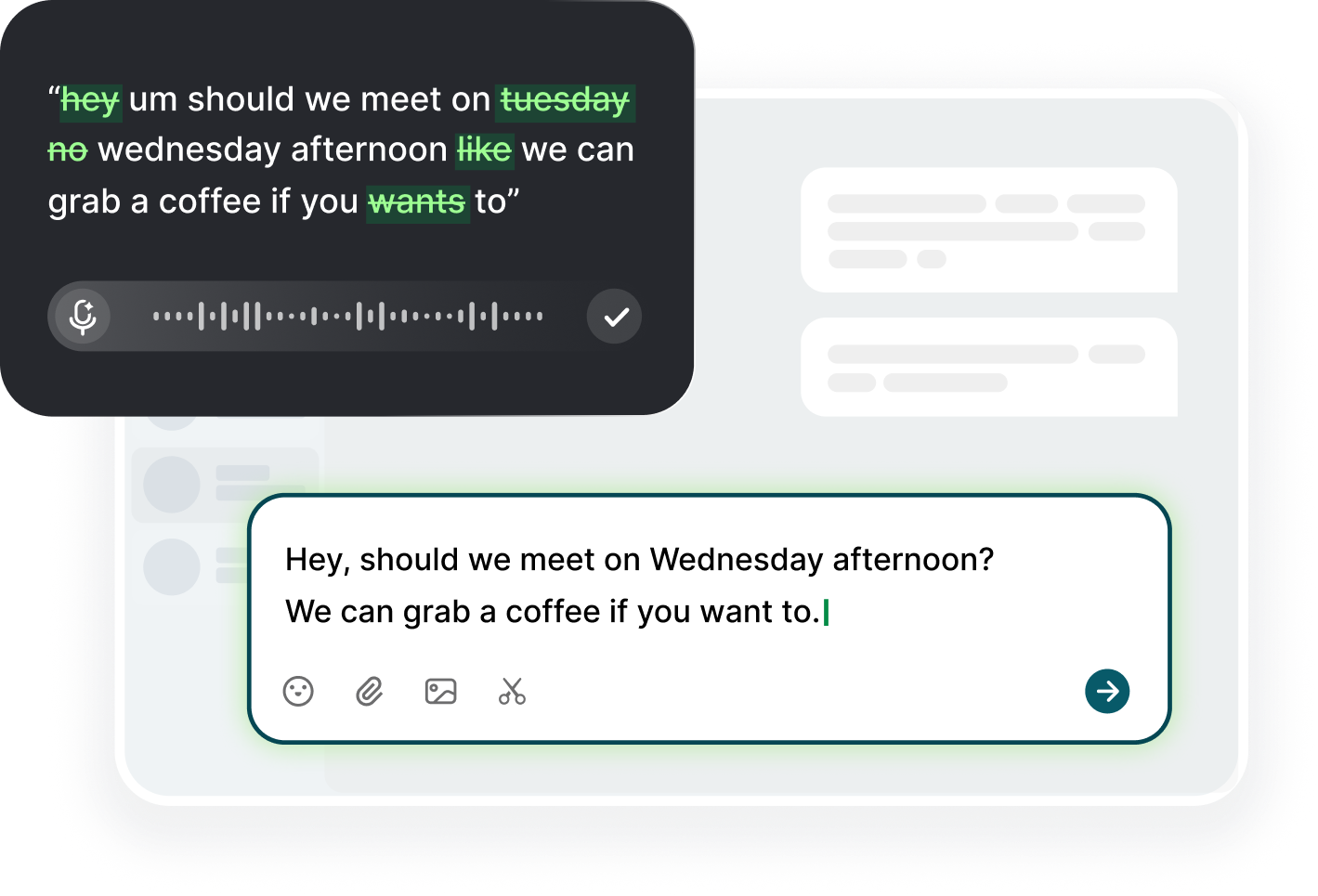
Dictation Wherever the Cursor Is
Outlook and Apple Mail have one thing in common: they both have a compose box, and that box is where your cursor goes. Voice typing outlook apple mail drafts works the same in both, because Voiskey writes wherever the cursor is. Open Outlook on Windows or Mac, click into the message window, press the dictation shortcut, and speak. Then do the same in Apple Mail on the Mac, or on the phone: compose, keyboard, speak, review, send. No setup, no separate transcription app, and no copy-paste between windows. The flow is one shortcut and one field, whichever client you live in, and that is exactly what makes the habit survive the first busy week.
The absence of setup is the feature that matters. Dictation tools that live inside one app save that app and change nothing for the other, and office workers live in the client their company chose. Because Voiskey replaces the keyboard instead of the app, the same workflow covers the Outlook desktop client, Outlook on the web, Apple Mail, and the mobile versions. Learn the habit once and it moves with you when your company migrates to another client next year. The habit survives the tool change, which is the real return on the few minutes you invest in learning it.
This also means the output is the same text, and the text is where your writing quality lives. You do not need a second drafting style for Outlook and a third for Apple Mail. You speak once, Voiskey's dictation removes the filler and tidies the prose, and the same clean draft appears in either client. Keep the review discipline identical too: read the draft once, check names and dates, send. The clients differ, the writing does not, and that consistency is what people notice in your correspondence over a whole year of emails. The standard travels with the shortcut, not with the client, which is where it belongs.
Outlook Rules and Signatures
Outlook rewards the preparer. Set the default signature once, with your name, title, and contact lines, and it is attached to every new message. Then dictate only the body, because the voice has no business speaking the signature every time. Profile the reply settings too: match the signature to the thread, keep a separate one for internal versus external, or let the client attach per account. The rule is simple: let the settings do the repetitive work, and let the voice do the thinking. Once the defaults are right, the only decisions under pressure are the ones about the message itself.
Use Outlook rules to make dictation cheaper. Create rules that move the recurring messages into folders: the weekly report request, the vendor notices, the manager's sync threads. Then their replies are dictated in batches from the folder, with the context already separated. For the messages you must answer now, use the flag, and let the flagged view be the voice-session list. Outlook's Quick Parts can hold the boilerplate, but keep them few: one for the meeting confirmation and one for the out-of-office style blurb. If you reach for one more than a few times a week, it is body text, and the body should be dictated, not pasted.
Be careful with the visible recipient names. Outlook displays the display name, not always the email address, and a dictated greeting to the group can land on the whole department. So speak the recipient policy before you hit send: reply to sender only, or reply to all because they asked. Use reply to all even less than you think, because every extra copy is an interrupt for someone else. The dictated discipline here is cheap insurance: a two-second look at the addressee line is the same check as the glance at the body, and it is the one that saves the afternoon.
Apple Mail Flags and Follow-Ups
Apple Mail rewards the flippers. The flag menu is the whole system: flag for follow-up, flag for today, flag the thread. Use one flag for replies that owe you a decision, and let the flagged mailbox be your voice session queue. Open it, read the thread, dictate the nudge, flag done. The strength of the habit is in the review: once a day, the flagged list answers the question of what you promised and what you forgot. And because the nudge is a spoken sentence, the list clears in minutes instead of sitting there memorized until it turns into guilt.
Use Apple Mail's smart mailboxes so the dictation targets the right inbox. A mailbox for messages from the boss, a mailbox for anything where the last message is yours, and a mailbox for the tagged project, all without folders you have to maintain by hand. Then the voice session starts from a mailbox that only contains what needs a reply. When you send a dictated message, the smart mailbox recalculates, and you watch the list shrink in front of you. The shrinking is the feedback, the feedback is the habit, and Apple Mail is at its best when the mail arrives answered.
Remember that Apple Mail is also a Mac app, and the Mac is where the full keyboard and the good microphone live. Reserve the heavy dictate sessions, the long draft, the weekly summary for the desktop, and use the phone keyboard version of Voiskey for the thirty-second replies. The desktop session has the quiet room and the good mic; the phone session has the timing. Both run the same dictionary, so the client names and the product terms stay right on both. Match the machine to the message, and both stay fast. The machine is the tool, the message is the work, and the work does not change with the screen.
Calendar Times Spoken Clearly
Times are where dictated email most often fails, and it fails in one direction: vague. Next week sometime or let us connect soon is a spoken-by-default reply, and every vague time creates a second email to pin it down. So make the time rule: dictate dates and times in full, with the day of the week, the exact hour, and the time zone when the counterpart is not local. Tuesday, November 10, at 2 p.m. your time reads perfectly and needs no follow-up. The calendar is a precise tool, and the precise tool deserves the precise sentence. Say the date, say the day, say the hour, and the calendar reply is done in one breath.
When you offer times, offer two, and offer both in the language people stop reading. I can do Thursday at 10 a.m. or Friday at 3 p.m. is a complete answer, and it is one breath. Dictate the options while checking the calendar: say the day, the hour, and the minute, exactly, then paste the invite link if the client prefers the button over the sentence. The sentence is the trust, because it proves you looked before you offered. Assign the meeting owner too: I have booked the room, or you send the invite and I will accept. The ownership line is the last thing that used to go missing.
The reminder email deserves the same precision. The day before the meeting, dictate the one-liner: looking forward to tomorrow at 10, and the call link is below. If the person needs to prepare, add the one sentence that says why: bring the numbers and we will close the budget. That is the whole message. The reminder does not restate the meeting; it confirms the readiness. And if the meeting needs moving, move it in the spoken reply with the new slots and a question about which works, so the calendar decides itself. Precision is the courtesy, and courtesy is the calendar habit.
One Flow Across Clients
The office runs on two mail clients, and sometimes two companies, and the flow should run on one habit. The habit is the sequence: cursor, shortcut, speak, read once, check the addressee, send. It does not care which client launched the compose box, does not care whether it is the desktop app or the web mail, and does not care whether you are on the Mac or the phone. Any message, any client, one sequence, and the same drafting quality. That is the fair trade for giving up the tool-specific expertise: you get a portable skill instead, and the portability is what pays. The client sees the same sentence in January and in June, whichever tool the company sends from.
Keep the preamble identical across clients so the writing stays identical. Your greeting, your one-line opening, your ask, and your close, in the same order in Outlook and Apple Mail. Companies mail from both clients to the same partners, and the partners notice which version reads better. Dictate to the same standard in both, and the partners can never tell which tool you used, because they are not supposed to tell. The brand is the voice, not the client, and the voice is the same sentence structure on every platform. The preamble is the fingerprint, and the fingerprint is what the partner recognizes as you.
Finally, keep the dictionary and the phrasing consistent so the flow has no reset. Voiskey's dictionary carries the names, company terms, and spelling preferences across macOS, Windows, iOS, and Android, so a term you correct in Outlook stays corrected in Apple Mail and on the phone. And when the company changes clients in the new year, the same shortcuts work, the same dictionary follows, and the same habits stand. Tools churn and workflows move; the flow is the asset. Teach the flow to your team, and the client notices nothing but reliability. The reliability is the reputation, and the reputation is built one dictated sentence at a time.
FAQ s
Yes. Voiskey is a dictation keyboard that writes wherever your cursor is, so it works in the Outlook desktop app, Outlook on the web, Apple Mail, and the mobile apps. Click into the compose or reply field, press the dictation shortcut, and speak. You need no plugin, no separate transcription window, and no copy-paste.
Keep one writing standard and one flow: greeting, one-line opening, the ask, the close, in the same order. Dictate to that standard in both clients and review the draft the same way, checking the addressee and the facts. Because the flow is client-independent, your work reads the same wherever you write it.
Say the time in full, with the day of the week and the hour: Thursday at 10 a.m., or Friday at 3 p.m. Offer two options, name the time zone if the person is remote, and confirm who books the meeting. Add a day-before reminder line with the link and one preparation note. Precise spoken times avoid the follow-up email entirely.
Yes. Add Voiskey as a keyboard on iOS or Android and switch to it on the Outlook or Apple Mail compose screen. The spoken text lands where your cursor is, and your custom dictionary and preferences carry across desktop and phone, so term spelling stays right on both.


 Voiskey
Your voice, amplified.
Choose a real task, follow the steps, and review the results with your team before expanding the rollout.
Use it across macOS, Windows, iOS, and Android