
voice to text claude gemini: A Practical Guide to Voice to Text for Claude, Gemini, and Other AI Chatbots
One dictation shortcut types into Claude, Gemini, and every other bot.
 Voiskey Team
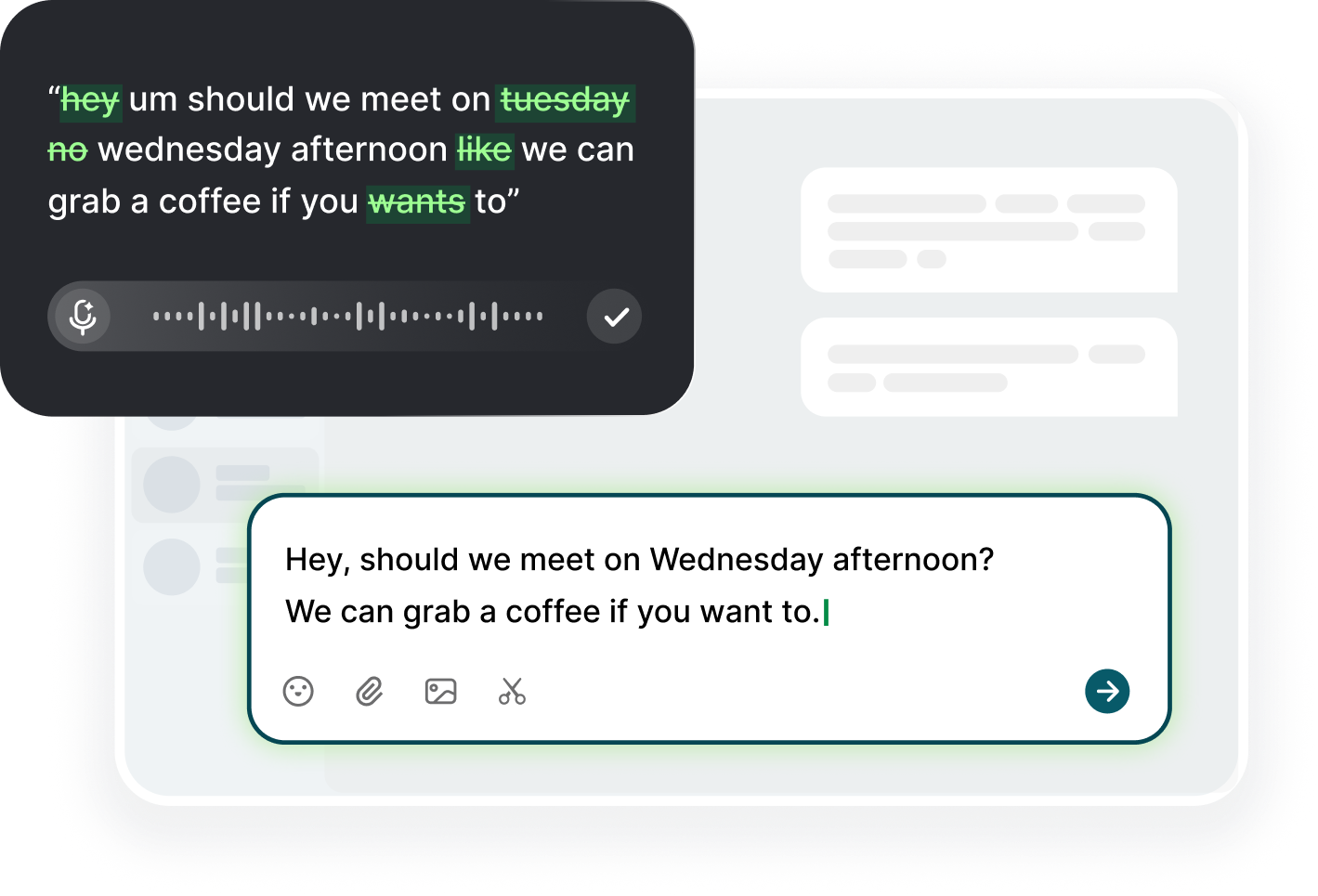
One Voice Setup, Many Chatbots
A single voice to text claude gemini setup carries across every chatbot you use, because dictation types at the cursor and the cursor is part of your operating system, not part of one website. Install a voice app once, grant it microphone access, and the same held shortcut fills the Claude prompt box, the Gemini input, and the chat field on whichever new model you try next month. You do not install a plugin per bot, and you do not learn a new shortcut per site. The setup work happens once and the typing layer follows you everywhere. This is the practical upside of system-level input, and it is why a subscription to five AI chats still costs you a single microphone permission.
Each chatbot expects the same thing from you: a prompt in a text field. Claude, Gemini, and the rest differ in models, pricing, and interface, but the input box is functionally identical, an editable text area that accepts keystrokes. A voice tool that produces keystrokes is therefore model-agnostic by construction. The moment you understand that framing, the whole job becomes simpler, because you stop asking which app supports your tool and start asking whether your caret is in the box. Focus, permission, and vocabulary are the three variables, and all three live on your machine rather than in the vendor's cloud.
Voice wins on chatbots for the same reason it wins on email: prompts are often long, conversational, and composed of ideas you already hold in order. Speaking a request that includes context, tone, and constraints takes a fraction of the typing time, and the draft you produce is richer because you do not trim it down to what your fingers tolerate. When you dictate, click the chat input first and watch for the blinking caret, then speak your brief. Review the transcript, fix the jargon, and send. The model cannot tell the difference between your keystrokes and your voice, so the quality of the answer depends on the prompt, not on the input channel.
If you already type prompts into two or three chatbots, the smallest useful test is this: pick one prompt you ask often, dictate it into Claude, then dictate the same text into Gemini, and compare the answers. You are testing two things at once, your dictation quality and the model difference, and separating them matters for how you read the result. If the transcript arrives with a technical term wrong in both, the problem is vocabulary, not the model. If the transcript is clean and the answers still differ, you are seeing model behavior. Knowing which layer failed tells you precisely where to spend your next five minutes, and the answer is rarely the model.
Claude, Gemini, and Where the Keys Are
Claude's prompt box sits at the bottom of the conversation, and it is the place where your spoken words land as literal text. The box is a textarea like any other, so it accepts system dictation with no extra mode, no voice toggle, and no project-specific permission. Click inside it, confirm the caret is blinking, then speak. If you use Claude with projects or artifacts, the same field serves both, and dictation is equally happy delivering a question or a code request. The only Claude-specific detail worth remembering is that long-form context lives in the project notes, so when you dictate a prompt that depends on project knowledge, name the file or note you are referencing, because the model sees it but your voice does not.
Gemini puts its input at the bottom of the screen too, and it behaves like a normal textarea with one quirk worth noting: it grows as you type or dictate, which can shift the caret view without moving focus. That visual shift is harmless but confusing, since the text seems to move while your focus stays put. Just check the caret before speaking rather than trusting the visual position. Gemini also offers extensions and live features that appear beside the field, and dictation leaves those untouched, because a voice input method only types characters. Add terms to custom vocabulary if the engine mishears product names, then the same list quietly benefits your Claude prompts as well.
The other chatbots follow the same recipe: click the field, hold the shortcut, speak. Whether it is a coding assistant, a note summarizer, or a niche model on a side panel, the input is a text field and the keystrokes land the same way. What varies is keyboard focus behavior, so a browser extension that steals focus or a page that reacts to arrows may interfere. Test once in each app you care about and note the ones that behave oddly, then create a routine for them: click the field twice or open the app in its own window. A five-minute test across your usual apps saves you daily confusion, and you will already have the answer when a new bot appears.
Finally, keep the shortcut consistent across chatbots instead of rebinding it per site, because muscle memory is the whole game. A single combo that works everywhere means your hands never have to think about which app you are in. Bind it once, keep it out of the way of browser and system combos, and practice the click-then-speak sequence until it is automatic. The sequence matters more than the key: click the field, wait a beat, hold, speak, release, review. If you make the click part of the habit, the text never goes astray. That rhythm, repeated across Claude, Gemini, and the next ten chatbots, is the one voice skill that actually pays for itself.
Testing the Same Prompt Across Models
Testing the same prompt across models is the cleanest way to learn what your dictation produces and how models differ. Pick a prompt with one technical term, one number, and one instruction that changes output, then dictate it into Claude and into Gemini without retyping. Compare the transcripts first: if they are identical, your engine is stable and the difference you see later comes from the models. Keep the same wording for both, because retyping introduces noise and silently turns the comparison into a test of your typing. A shared dictated prompt is more than a convenience, it is a controlled experiment, and the discipline of changing one variable at a time makes the results worth reading.
When a transcript differs between apps, look for the culprit in your input path rather than in the app. The usual suspects are focus, a stale dictionary, and app-level text processing such as an extension that corrects spelling or an input that transforms dashes. Dictate the same sentence into a plain notes field and compare; if the notes version is clean, the chatbot is transforming your characters, so inspect its auto-format and autofill settings. This narrowing method took two minutes and prevents the classic mistake of tuning your vocabulary against a problem that is actually a browser extension. Know which layer changes the text and you will stop fighting the wrong one.
There is a subtle benefit to testing by dictation: it forces you to keep the wording unchanged. Typing the test a second time invites edits, and edited tests are weak evidence. Speaking the same text into both boxes preserves a truly identical prompt, because the transcript comes from the same source audio or the same scripted words. If you want to be exact, paste the prompt once into a note and dictate from the note into each app, or use the copy and paste of the first transcript. The point of the experiment is isolation of the model variable, and dictation is one of the easiest ways to achieve it without wearing out your fingers.
The most useful habit on a busy day is the A/B send: take a decision you are about to make, and ask two models in parallel with the same spoken prompt. Read both before you choose, and let the winning answer tell you which model you should have used all along. This works because the extra send is nearly free once dictation is set up, so the marginal cost of a second opinion is a minute, not a hunt. Over a month, the A/B sends accumulate into a personal map of which chatbot answers which kind of question better, and that map is worth more than any feature tour. The map is built one dictated prompt at a time.
Per-Chat Habits That Transfer
Habits you build in one chat transfer to the next, and the first of them is role-first phrasing. Once you learn to open with you are a senior editor, you will find yourself speaking the same shape into a different box without thinking, because the structure lives in your phrasing, not in an app. The same holds for constraint-first requests, for labeled context, and for the one-sentence follow-up that points at the specific weakness. These are prompt-craft skills, and they move with you because they are properties of the words. That is the quiet promise of a standard input: the skills you practice are portable, while the keyboard shortcuts you memorize per site are not.
The second transferable habit is the pre-send read. Dictate, look at the transcript, and edit before you hit send, in every chatbot, because the ritual is what catches the dropped not and the misheard name. People frequently skip the read when they are excited about speed, and that is precisely when the errors hurt most. Train the sequence: click, hold, speak, release, scan, fix, send. The scan is ten seconds, and the fix is usually a select-and-speak. When the habit is in place, it costs you nothing to move it to a new model, and the quality of your prompts stays constant across vendors instead of dipping on the second one.
Vocabulary lists are the third habit, and they pay off in every chat at once. Add a term once, a product name, an acronym, a filename, and its spelling is fixed machine-wide, so a dictation tool that types at the cursor applies it everywhere. The term then appears correctly in Claude, in Gemini, and in the email you dictate afterwards, without any per-app duplication. Review the list monthly and cut the entries you no longer need, because a bloated list can start matching out-of-date words. A twenty-entry list that reflects your actual work is worth more than a hundred-entry archive you never touch, and it keeps every chat on the same standard.
Finally, transfer the habit of talking through a task before prompting. When you are stuck, say the problem out loud in your own words first, and let the pause do the thinking. This works in any chat, because the model never sees the thinking and benefits from the clarity it produces. You will find yourself doing it at a whiteboard and before speaking to a colleague, and the quality of every prompt improves. The input method is a tool, but the reframe is the skill: speaking turns vague intentions into testable sentences. Feed that habit to every chatbot you open, and the answers will start arriving more complete before you even look at them.
When a Chatbot's Own Voice Mode Beats Dictation
Some chatbots offer their own voice mode, and the honest answer is that it beats dictation in exactly one situation: when you want a conversation, not a prompt. Voice mode is a live dialogue where the model responds to your speech out loud, and it is built for thinking out loud, asking questions, and iterating through an idea with someone who talks back. Dictation, by contrast, produces text for a carefully prepared request, and it wins when the output must be edited, pasted, or reused, such as a draft that needs review before anyone sees it. Choose by the artifact, not by the novelty.
Use voice mode when the goal is discovery. If you are unsure what you want to ask, or the answer is a direction rather than a document, a back-and-forth in one sitting is the fastest path. The model can steer with a clarifying question, and you can pivot mid-sentence without a formatting pass. Dictation is the wrong tool for discovery because it prepares a single request and waits, and a prepared request usually means you already know the question. The boundary is clean: discovery is spoken dialogue; production is dictated text. Crossing between them is normal, and it is exactly where both features earn their keep.
Use dictation when the output must be precise. Code, a contract clause, a table for a report, or a message that will be sent, each of these wants text you can verify, edit, and format before it leaves your hands. The selector and the cursor are the deciding factors: a dictated prompt can be revised with a select-and-speak edit while a voice-mode exchange is difficult to edit after the fact. When the deliverable is the words, dictation gives you control that dialogue cannot, and the artifact itself benefits from the review pass. Precision tasks deserve the slower path that leaves evidence.
Do not let the presence of voice mode end your dictation practice. It is tempting to assume that a vendor's talk feature makes an external input method redundant, but they solve different problems: voice mode is a feature of one chat, while dictation is input to every chat and every field on your machine. You can dictate a prompt into a design tool that has no voice mode at all, and you can dictate into an email or a doc with the same shortcut. The universal layer is the thing worth keeping, and the vendor feature is a nice extra. Keep both, use each honestly, and your work benefits from a two-tool vocabulary.
FAQ s
No. A system dictation tool types at the cursor, and every chatbot prompt box is a normal text field. Install and grant the microphone once, set one shortcut, and the same held key delivers text into Claude, Gemini, and any other chat. Only focus behavior differs per app, so just click the field before you speak.
Yes, and it is the cleanest way to test both your dictation and the models. Keep the wording identical by dictating the same text into each, check that both transcripts match, then read the answers. If transcripts differ, fix vocabulary first, because the model comparison is only valid on clean input.
Use voice mode when you want a live conversation and the goal is discovery, like thinking through an idea or exploring a direction that changes as you talk. Use dictation when the output must be editable and precise: a draft, code, a table, or anything you will send. Dictation also leaves a transcript you can keep.


 Voiskey
Your voice, amplified.
Choose a real task, follow the steps, and review the results with your team before expanding the rollout.
Use it across macOS, Windows, iOS, and Android