
voice text chrome firefox: A Practical Guide to Voice to Text Not Working in Chrome and Firefox
Chrome and Firefox keep separate voice settings; walk each one in order.
 Voiskey Team
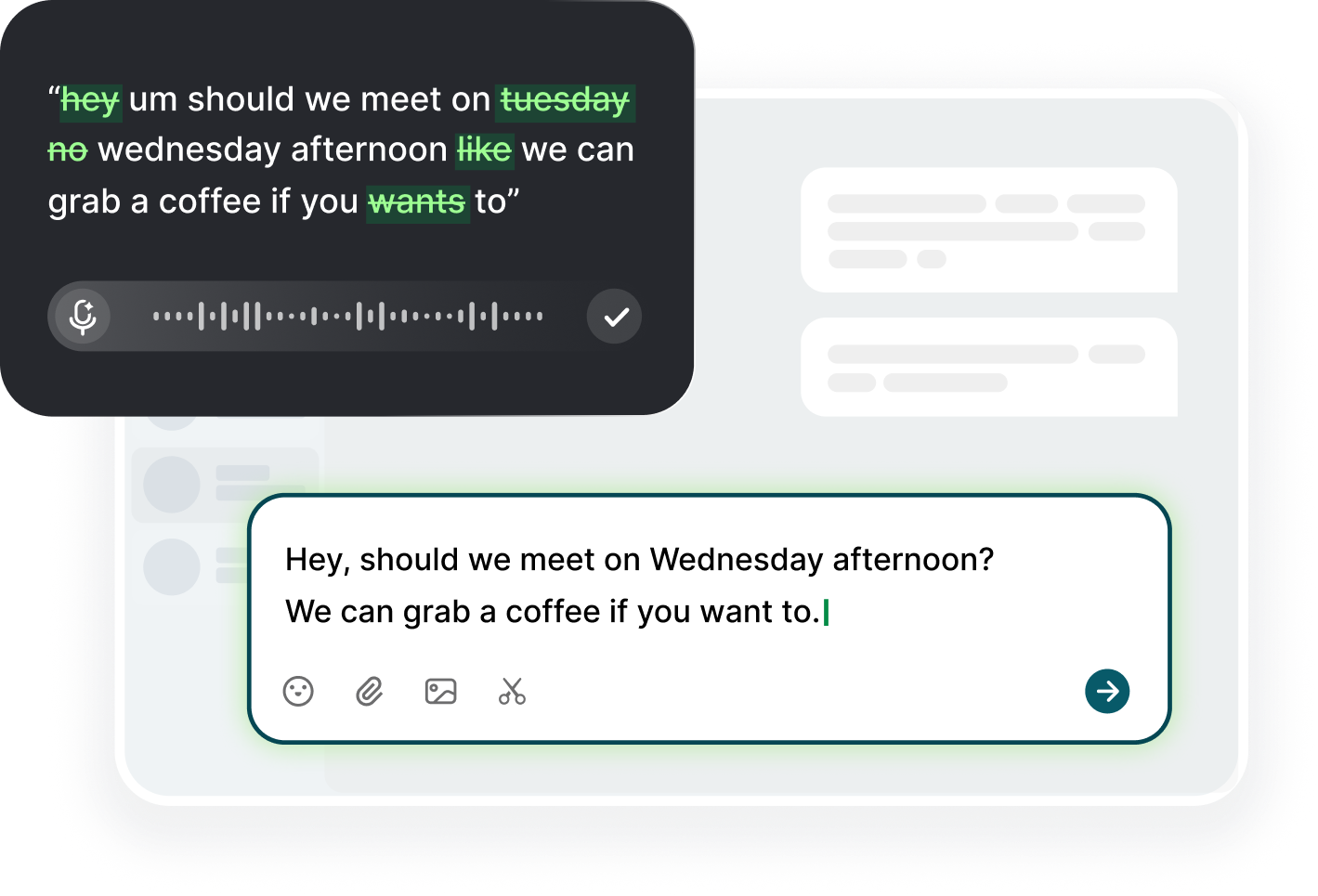
Browser-Specific Dictation Behavior
Before you change anything, understand why voice text chrome firefox problems behave differently on the two browsers. Chrome and Firefox do not share a permission store; each keeps its own record of which sites may use your microphone, its own blocklist, and its own speech behavior. A site you allowed in Chrome is still unknown to Firefox, and a denial you granted in one browser never shows up in the other. On top of that, the built-in speech engines differ in how long they keep a session open between pauses, how they handle punctuation, and whether they need an online connection. That is why the same page can dictate perfectly in one browser and stay silent in the other, and it is why the fixes below are organized per browser rather than as a single universal checklist.
Two browser behaviors cause most of the confusion. First, permission prompts: Chrome often drops a queued microphone request when the page changes, so a prompt you never saw is a permission that silently remains unanswered, and dictation simply does nothing. Second, both browsers keep an old grant for a changed domain, so a site that moved to a different host starts from scratch while you keep adjusting a permission that no longer applies. Know what your voice tool depends on: if it types into the focused page through an extension, the blocker is usually extension-level; if it uses the browser's own speech service, the blocker is the site permission and the speech endpoint. Matching the symptom to the layer is half the diagnosis.
Set expectations about the engines themselves before you judge the fix. The browser's native speech service is sensitive to silence: pause for a few seconds to think and the session closes, leaving the rest of your sentence on the floor. It also stumbles on names, technical terms, and code, and it rarely punctuates unless you dictate punctuation out loud. If your words appear but your sentence never finishes, you are seeing an engine limit rather than a permission error. If nothing appears at all, you are looking at a permission or capture problem, and that is what the next two sections fix.
One more difference worth noting: the address bar visual. Chrome shows a dedicated microphone icon with a clear state, a cross when blocked and a filled dot when recording, while Firefox shows a simpler permission indicator, so the same symptom can look different depending on which browser you are in. Know what your browser displays before you conclude that the feature is broken, because a gray icon and a red icon point to different fixes, and a state you misread sends you to the wrong section of this guide. Spend the first thirty seconds reading the icon, then pick the fix that matches what you actually see.
Chrome: Permissions and the Mic Icon
Start Chrome with the candidate site open and look for the mic icon in the address bar: gray means nothing is granting audio, red means the page is blocked, and a color-filled icon means capture is active. Click the padlock or the tune icon on the left of the address bar, open Site settings, and find the Microphone row. Set it to Allow, then click Reload to re-ask if the row shows Ask. Chrome stores a per-origin decision, so make sure you are setting the permission for the exact host, including a different subdomain if the site uses one. This one row explains a large majority of Chrome voice failures.
If the row already reads Allow but the icon stays gray, the permission is stale or the OS is holding the stream. Open chrome://settings/content/microphone, and from the Allow list pick the site and choose Delete. This clears the stored grant so the next prompt appears fresh; click Allow when Chrome asks. Then confirm the default device in the same page matches the microphone you want. Chrome also has a universal toggle at the top of that page that can turn microphone access off for all sites; confirm it is set to the ask-or-allow mode rather than blocked, because that master switch silently overrides every site entry.
Extensions are the hidden third party in Chrome. A dictation or meeting extension can register its own origin permission, and an extension can also grab the foreground tab when you press a shortcut, which looks exactly like a site permission failure. Go to chrome://extensions, toggle everything off, reload the page, and try speaking again. If dictation returns, re-enable your extensions one by one to find the culprit rather than assuming the browser is broken. Also try Incognito mode, where extensions are off by default: if voice works there, the block lives in an extension or a profile-level setting, not in the site permission, and you can then decide whether to keep that extension installed or to launch dictation in a clean window.
Firefox: Site Settings and Pipes
Firefox stores microphone decisions per site as well, but the entry point differs. Click the padlock icon to the left of the address bar, open the connection or site information panel, then find the Permissions section and the Microphone row. Click the X next to any saved decision to delete it; that forces Firefox to ask again the next time the site wants the mic. If the row shows a cross rather than a permission, use the arrow to open the detailed list and confirm the site is not sitting in the Blocked column. A remembered block is the classic Firefox trap because it never shows a prompt again.
Firefox quirks often live outside the site menu. Open Settings, then Privacy and Security, then scroll to Permissions and open Microphone to see both the Allowed and Blocked lists; delete the site from Blocked if it is there. Also check that Firefox's strict privacy protections are not interfering with the page's speech request, and confirm the version of the site you loaded is the one you granted access to. A DNS or proxy setting in Firefox, like a custom proxy or private network access, can silently change the endpoint the speech service reaches on a corporate or filtered network, producing a permission that looks fine and a service that never connects.
If the padlock menu shows no microphone controls at all, test with a fresh profile. Type about:profiles in the address bar, create a new profile, and launch it in its own window, since a fresh profile re-reads Firefox defaults instead of your accumulated settings. A clean profile keeps extensions and preferences out of the picture entirely, so if dictation works there, the problem is in your main profile's stored data, and you can safely clear it without losing browsing history. Clear the site's cookies and site data from the padlock menu, then reload, which clears stale grants that survive a normal refresh, and retest in the normal profile afterward.
Firefox also remembers permission state per container or per window if you use containers to separate work and personal browsing. Dictation that works in a normal window but fails in a container tab is almost always a stored container decision, so check the same padlock menu inside that container rather than clearing everything globally. Open the container's own menu, find the microphone entry, delete it, and let that container ask again. This saves you from resetting permissions you did not need to touch, and it explains the strangest pattern of all, voice input that works everywhere except exactly one tab you use every day.
Testing, Clearing, and Resetting Browser Permissions
Run the same test in both browsers before changing anything. Use one speech demo page in each, speaking the same phrase while watching the address-bar icon, because a matched test is the only way to compare two browsers honestly. If Chrome records and Firefox does not, the microphone, the OS, and the page are healthy, and Firefox holds the bad grant. If both fail, the problem is upstream: OS permission, wrong input device, or a video call holding the mic. Keep the result written down so you do not repeat the same check after each toggle, because the comparison between browsers is the diagnostic that most people skip, and it narrows the search space in one step.
When a stubborn grant survives, reset the browser permission store. In Chrome, chrome://settings/content/microphone offers Reset permissions on the right; pick it to remove stored decisions cleanly. In Firefox, on the Privacy and Security page, the Microphone row offers a full list where you can open and delete entries one at a time. After the reset, close and reopen the browser rather than reloading a tab, since some permission state binds to the session and a fresh process reads the store again, and half-loaded state is the classic source of a fix that works for one session. Then set the site back to Allow at the prompt and test.
Test in a window with everything else closed. Close meeting tools, voice note apps, and any other tab that uses the mic, because browsers grant active capture to one page at a time and a background call quietly wins, killing your session with no message. Then check the OS mixer: Windows Sound settings and macOS System Settings both show which inputs are live, and both show the level when the OS is listening. If the meter is flat in both browsers and flat in the OS recorder too, the problem is hardware or a physical mute, and no amount of clearing will change it. Move to that layer before you reset another permission, and you will stop fixing settings that were never broken.
Log the version of the browser you are running alongside the test results. Updates change permission defaults and speech behavior more often than users expect, and a version note next to your results makes the difference between a mystery and a known regression. If the problem appeared right after an update, the version column tells you in one glance, and you can check the release notes instead of resetting settings blindly. Keep the log for both browsers, and once a quarter run the ten-second both-browser test so a drifted permission is caught the day it appears rather than the week it becomes urgent.
Fallback When Both Browsers Fail
If both browsers stay silent after the permission reset, move to the operating system's own speech input. Windows Voice Typing and macOS Dictation run outside the browser and type into whatever field has focus, which means they bypass site permissions entirely. Test the same page with OS dictation: if it types, your browser or the web page refuses the mic, and the OS path becomes your working route while you debug the browser layer at your own pace. The OS path is not a workaround to apologize for; it is a legitimate input method that works everywhere, and it keeps your words moving.
When you want a consistent experience rather than a patchwork of settings, use one dictation tool across every field you type in. With Voiskey, which runs as a Chrome extension and a desktop app, you get one dictation experience that behaves the same in Chrome's text areas, Firefox, and the other apps you work in, because it does not depend on each site's separate permission or the browser's inbuilt engine. Its real-time transcription keeps going through natural pauses, which is exactly where the browser engines give up, and punctuation voice commands plus filler-word cleanup produce text that is ready to send rather than a rough draft sitting in a gray box.
Whichever route you take, build a small routine: keep the OS path enabled as a backstop, test in both browsers after any browser update, and know which layer your dictation actually uses. Updates change permission defaults more often than people expect, and a silent dictation morning is usually one stale grant rather than a product regression. Add the routine to your calendar once a month and spend two minutes on it. If nothing recovers, and site permissions, OS access, and the meter checks are all green, then look at the network path, because both browsers can be healthy while the speech endpoint they need is still unreachable, and that last check is the one that saves the final hour.
FAQ s
Chrome and Firefox keep separate permission records. Firefox either never asked for the site or holds a blocked entry. Open the padlock menu, delete the stored Microphone decision, reload so the browser asks again, and confirm the site is not on the blocked list in Settings, Privacy and Security, Permissions, Microphone.
Open the site, click the padlock or tune icon left of the address bar, choose Site settings, and set Microphone to Allow. If the row already says Allow but nothing happens, delete the entry and let Chrome ask again, or check chrome://settings/content/microphone for a site-wide block.
Yes. Gray usually means no capture is granted, red means the site is blocked from using the microphone, and an active or filled icon means audio is flowing. Match that to your symptom: gray or red is a permission problem, while text that stops mid-sentence is an engine timeout.
Test with a fresh Firefox profile or a Chrome incognito window to rule out extensions and profile data, then test the OS recorder to confirm the hardware. If the meter is flat everywhere, check cables and mute switches; if it moves, the issue is the speech engine or the network, not the permission.
Generally no. Native engines require you to say punctuation like comma and period or leave a wall of unpunctuated text, and they stop on short pauses. A dedicated dictation tool handles punctuation voice commands and filler-word cleanup, so the text arrives closer to ready to send.


 Voiskey
Your voice, amplified.
Choose a real task, follow the steps, and review the results with your team before expanding the rollout.
Use it across macOS, Windows, iOS, and Android