
voice prompts claude code: A Practical Guide to Voice Prompts for AI Coding Tools like Claude Code
Speak the problem in plain sentences and get a useful first answer
 Voiskey Team
Talking to Your Coding Assistant
Voice prompts Claude Code and other assistants respond to work best when they describe a problem the way you would explain it to a colleague standing at your desk. The usual failure mode is the opposite: a vague two-line request, a guess instead of a question, and three extra turns spent correcting the misunderstanding. The fix is not a secret syntax; it is context. Say what you are building, which file it lives in, what you already tried, and what you do not want it to touch. Thirty seconds of talking produces a prompt with enough in it to get a useful answer on the first pass.
The medium matters as much as the content. A good prompt is longer than anyone wants to type, so it gets shortened into something vague, the model guesses, and you spend the next three turns fixing it. Speaking removes that pressure: you can hold the whole explanation in your head and let it come out as fast as you think. Around 220 words per minute versus 45 for typing, the constraint disappears. Click into the chat panel, the terminal, or the editor pane, speak, and the text lands where you were about to type, with no integration to install. Say the whole thing before you summarize it.
Start conversations instead of issuing commands. The first message sets the frame, so make it a short story: the goal, the current behavior, the desired behavior, and the constraint. Ask the assistant to restate the problem before solving it, and check whether the restatement matches your intent; if it does not, say so in one sentence and let it adjust. This cheap first exchange prevents the expensive fifth exchange. The assistant's job is to make the second draft better, and your job is to make its first draft possible. The restatement check is the difference between a conversation and a gamble. Say the correction once and the loop tightens.
Describing the Problem in Plain Sentences
Describe like a person, not like a test case. Say: my retry helper is being called from inside the request handler and it is blocking the queue during the timeout window. That one spoken sentence gives the assistant a component, a location, a failure mode, and a symptom, which is more signal than most written prompts carry. Then add the boundary: I do not want it to touch the logging path. Boundaries are what written prompts leave out, because they take effort to phrase; speaking makes them cheap to volunteer. Boundaries are the difference between a fix and a rewrite. Say them early.
Talk about the code you actually have, not the code you wish you had. Name the file and the function, paste or describe the relevant lines, and show the output instead of describing it. If the error is long, read it aloud in the order it appears, or paste it and let your voice describe what surrounds it. Include what you have already ruled out, because that saves the assistant from re-proposing it. Reviewers of your work, human or machine, remember the context you volunteered more than the request you issued. A prompt that quotes the error is a prompt the assistant cannot misunderstand.
Use your team's words. Repo names, service names, and internal terms are vocabulary the assistant never saw in training, and spelled-out guesses turn into wrong answers. Say the names normally; tools that learn your vocabulary turn them into correct tokens, and the prompt reads like your codebase instead of like an outsider describing it. The habit pays off twice: the assistant gets precise terms, and you stop transliterating Kubernetes or your internal codename for the tenth time. Say the whole thing instead. The correct token is the difference between a prompt that compiles mentally and one that needs a glossary. Say the name once, teach it, and move on.
Prompts for Reproduce, Refactor, and Explain
Three prompt shapes cover most of the workflow, and each one is easy to dictate. The reproduce prompt asks for the minimal failing example: describe the setup, the input, and the observed output, then ask the assistant to write a script or test that fails the same way. The refactor prompt hands over the current function and the constraint: rename this for clarity, extract this helper, keep the behavior identical and tell me what you changed. Say which parts must stay untouched. The reproduce prompt is the one the assistant can verify itself, so give it the input and the observed output and nothing else.
The explain prompt is the one that turns an unfamiliar file into a map. Point at a function, a config, or a piece of legacy code, and ask for the walkthrough: what it does, why it exists, and what would break if you deleted it. These answers are short and dense, and they are exactly the content that reference docs skip. Dictating the prompt takes seconds because you are only describing the thing in front of you. Build the habit of asking for explanation before you refactor anything. The map you get back is the map you would have drawn from scratch, at a tenth of the effort.
Combine the shapes for bigger jobs: reproduce first, explain second, refactor third. For a failing test, say the full sequence out loud, then ask the assistant to suggest the smallest change that fixes it without expanding scope. One explicit pass is cheaper than iterating on a guess. Ask for the diff in a form you can review: what changed, why it changed, what it does not touch. The prompt is a request for an argument, and arguments need your context more than your typing. The smallest change is the change you can review; the review is the point of the whole exercise. Ask for the diff, not the description.
Reviewing the Assistant's Output Critically
The output is a draft from someone who does not see your system. Read it as you would read a pull request: check the diff, look for assumptions, and refuse to accept words without code. Ask for the reasoning behind the approach in plain language, then decide whether the reasoning fits your codebase or only its tests. If the answer looks plausible but you cannot explain it, say so instead of merging it. Critical review is the part of the workflow that keeps the assistant useful, and it cannot be delegated. Reading the answer with the diff in view is the review habit; the habit is what makes the tool safe.
Keep the loop conversational. When the answer is wrong, describe the mismatch instead of just saying no: the error is in the retry path, not in the queue, and the log shows the timeout before the call. Then ask for the corrected version with the specific change. The correction passes are cheaper when each one adds one fact. Reviewing by voice also helps because you narrate your suspicion before you act on it, and the narration itself often reveals the flaw in your own thinking. Describing the mismatch is the cheapest way to move the loop, and it is almost always quicker than a screenshot.
Watch for the silent retreats: functions that now catch and swallow errors, behavior changed without explanation, or shortcuts dressed as improvements. Ask what tests changed and why. Ask for the minimal version if the assistant produced the grand version. The review standard is not perfect code; it is code you could explain to the team if asked, and the assistant's job is to make that explanation short. Anything you cannot say out loud in two sentences does not merge. Silent retreats are the failure mode that costs you the most, and they usually announce themselves in the diff. Scan the tests before you scan the code.
The Loop That Makes Voice Coding Stick
The loop has four steps and each one is faster spoken: describe, request, review, refine. Run the whole loop in one session and end it by dictating a note about the outcome, because the note is the thing you will re-read when the same problem appears. A one-line lesson is enough: retry helper belongs outside the handler. Keep the notes in the same file so the vocabulary of your lessons is stable. The day stops feeling like manual labor when every loop produces an artifact. The note is the artifact that turns a good session into a reusable lesson. Write it the same day.
Make the setup effortless so the habit survives. The assistant lives in the same tools you already use, and dictation works anywhere you can type: the chat panel, the editor, the terminal, or a browser tab. Nothing to install, nothing to configure, which means the friction is zero on a bad day, and zero friction is what a habit needs. Speak at a normal volume or whisper in an open-plan office; the tools pick up softer speech. The best tool is the one you use at 4pm when the deadline is real. Zero setup is the feature that keeps the habit alive when the day is long.
If the results stay mediocre, the loop is missing context, not talent. Check your prompts on two dimensions: specificity and boundary. Make the assistant state what it assumed, then correct only those assumptions. A small daily experiment beats a Sunday tutorial: ten minutes, one real task, one artifact. Keep the notes, reuse the phrasing, and let the vocabulary accumulate. The more you talk, the better your prompts get, and the better your prompts get, the more the assistant earns its place. That is the whole loop, and it starts with a single spoken sentence. Ten minutes a day is where the skill compounds.
FAQ s
Do the opposite. Say the prompt first, because speaking pushes you to include the context typing would skip: what you built, what you tried, what must not change. Then read the result and edit. A dictated first draft is usually longer and richer than a typed one, and the extra context is exactly what saves the correction turns. Write nothing until you have said the whole thing once.
As long as it takes to be understood, usually twenty to forty seconds. Give the goal, the relevant code, the symptom, and the boundary. More context beats longer phrasing. If the assistant still guesses wrong, add one fact per message instead of repeating the whole prompt. The first prompt does not need to be perfect; it needs to be complete enough that the first correction is small.
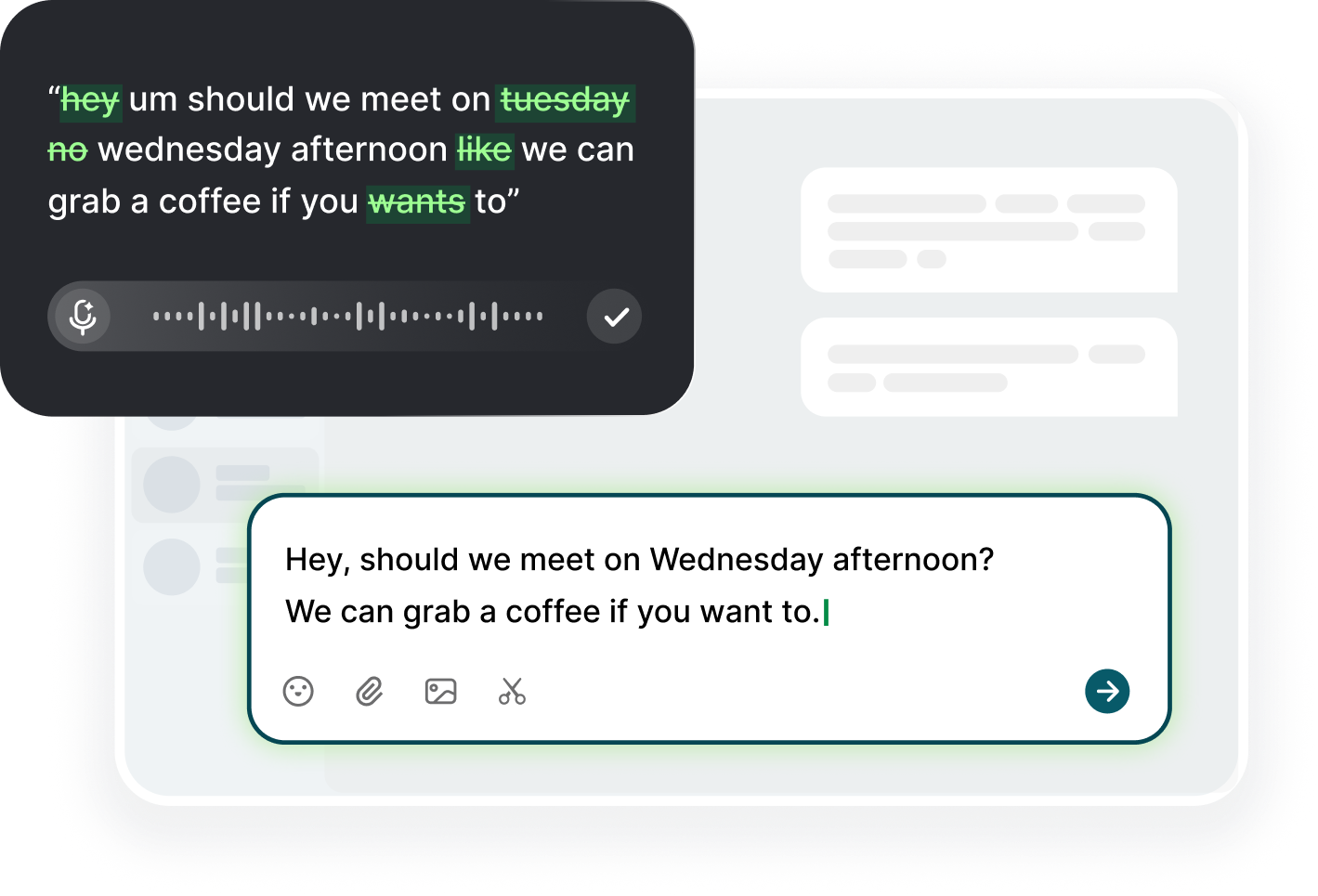
That is fine. Dictation tools clean up fillers and restarts, so the text that lands is usable. You edit the structure after, not during, the speaking. Being natural while speaking is the point: the version you would say out loud usually contains the context the typed version leaves out. Clean up the phrasing in one pass, then send it.
No, it removes a barrier. You still drive the conversation: you ask, you review, you reject. Dictation just makes the asking faster, so you can add context and boundaries you would otherwise skip. Speak a correction instead of typing it, and the loop tightens. The tool turns the words into text; the thinking stays yours.


 Voiskey
Your voice, amplified.
Choose a real task, follow the steps, and review the results with your team before expanding the rollout.
Use it across macOS, Windows, iOS, and Android