
Voice Drafting Website Terms Updates
Scope the change log, map references, and verify effective dates.
 Voiskey Team
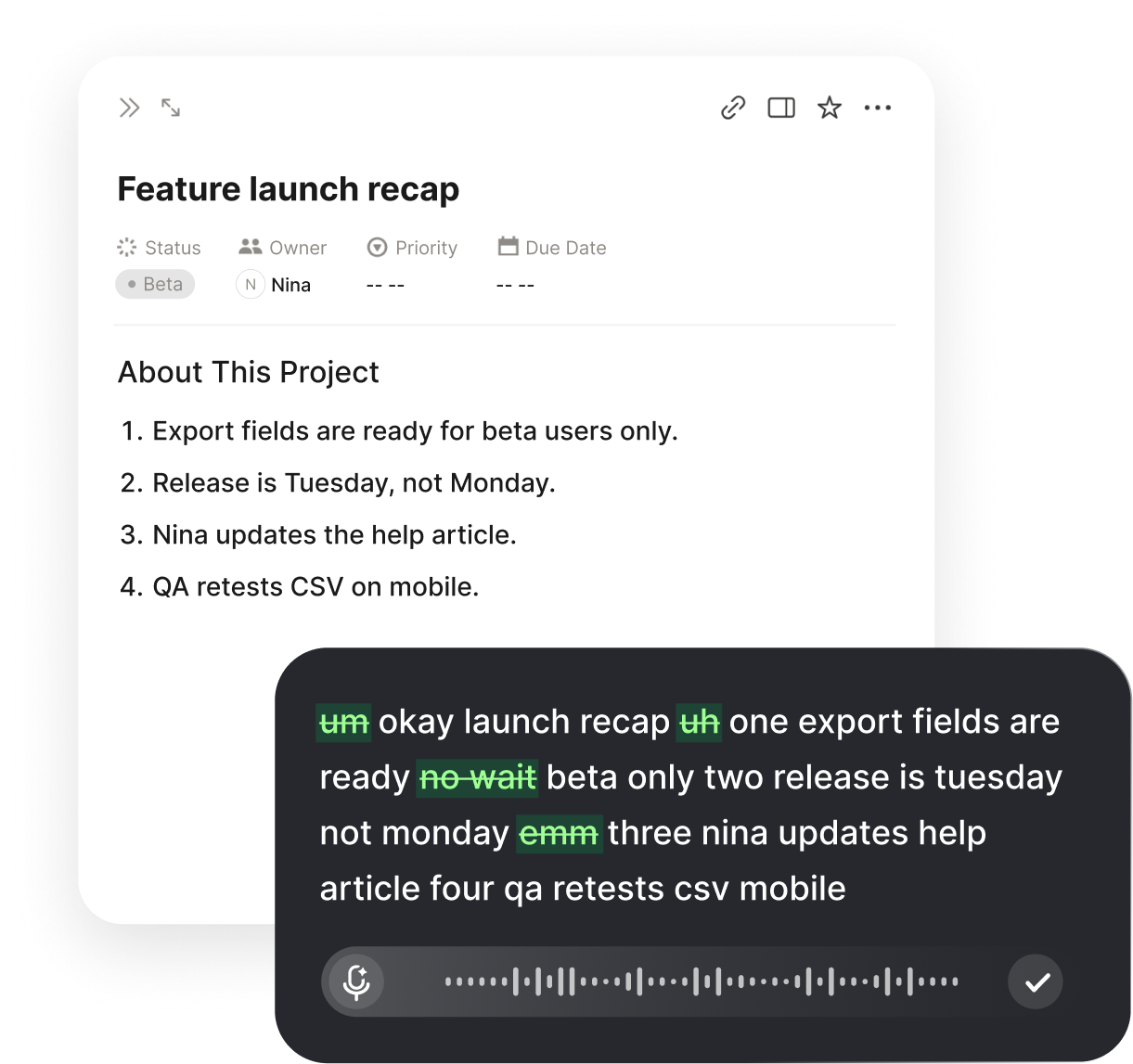
Scope the Terms Update and Change Log
Voice Drafting Website Terms Updates begins with a clear statement of what is changing and why. Open the current terms and the proposed business change side by side, then list the clauses affected. Name the reason for each change: a new feature, a change in the contracting entity, a shift in the dispute process, or a correction of an ambiguity. Record the owner of the business change and the date it takes effect. Write a one-paragraph summary at the top of the change log. A terms update without a stated reason is hard to review, hard to explain to a customer, and easy to expand beyond what the business actually needs.
Decide the scope boundary before you dictate. State which documents are in scope: the website terms, the related policies, the order form, the service description, or the help pages that restate contractual language. State which are out of scope and why. Note whether the change affects a mobile experience, an application, or a partner site that incorporates the same terms. If a document is incorporated by reference, record the reference and confirm that the incorporated version will also be updated. A boundary agreed at the start prevents the update from drifting into unrelated pages and makes the final review a closed set.
Set up the change log with fields that match the review. Record the clause number, the current text, the proposed text, the reason, the owner, and the status. Add a field for the customer-facing summary and a field for the effective date. Decide how a deleted clause is recorded, since a deletion is easy to miss in a redline that only shows insertions. Decide how a moved clause is recorded, because renumbering can make an unchanged clause look new. A change log that captures deletions and moves as carefully as insertions is what lets a reviewer confirm that nothing changed by accident.
Name the reviewers and the approval sequence. The legal reviewer checks the drafting and the risk allocation; the business owner confirms that the clause matches the product; the support lead confirms that the help pages and the scripts will match the new terms. If the change affects billing, add the finance reviewer. Agree on the order in which comments are resolved, because a comment from one reviewer can reopen a question for another. Set a freeze date for the text and a separate date for publication. A short approval map, kept with the change log, keeps a terms update from turning into an open-ended negotiation.
Collect Current Terms and Dependencies
Collect the current terms and every document that depends on them. Pull the published version, the archived version, the order form, the service level description, and the pages that summarize the terms for customers. Record the version identifier and the publication date of each. If the terms are available in more than one language, collect each language version and note which one controls in a conflict. If the terms are incorporated into a partner agreement, collect that agreement too. A dependency list built before drafting shows which documents must change together and which can follow later. Record which documents the customer actually sees, since a summary page can contradict a clause without anyone noticing.
Map the internal cross-references before you touch the text. List every reference to a clause number, a section title, a defined term, and an external policy. Note the source clause and the target. When a clause is inserted or deleted, each reference may need to change. A reference map turns that mechanical work into a checklist, and it prevents the common failure of updating a clause while leaving a cross-reference to the old number. Keep the map beside the change log and mark each reference as checked when the text is final. Check references in headings and tables too, because those are often missed when only body text is reviewed.
Record the defined terms and the places they are used. Terms such as user, account, content, service, and subscription often appear in several clauses. If a definition changes, every use changes with it. List each defined term, its definition, and the clauses that rely on it. Note any term that is defined in one document and used in another, because an update to one definition can create an inconsistency across the set. A defined-term map makes the review faster and catches the subtle changes that a redline alone will not show. Where a term is used but never defined, record the gap and decide whether to define it or replace it.
Check the effective date rules and the notice requirements. Record the current effective date, the proposed effective date, and any contractual or legal requirement for advance notice. Note how notice is given to existing users and where that method is described. If the terms require notice by a specific channel, record the channel and the owner. If the change applies only to new users, record how the two versions will coexist. These rules shape the publication plan, and they need to be confirmed before the final text is frozen rather than after the announcement is drafted. Put the notice owner and the notice date in the publication checklist, not only in the email thread.
Dictate the Clause-by-Clause Change Notes
Dictate the change notes clause by clause, in the order of the document. For each clause, state the number, the current rule, the proposed rule, and the reason. Then state the customer-facing effect in one sentence. Keep the note factual and short. Do not argue the business case in the clause note; put that in the summary at the top of the change log. If a clause is deleted, say so and state what replaces it, if anything. If a clause is moved, say where it moved from and to. This structure lets a reviewer read the change log without opening the redline.
Dictate the customer-facing summary in plain language. Explain what changes, when it takes effect, and what the user needs to do, if anything. Avoid quoting the clause verbatim; a summary that repeats the legal text adds no value. Keep the summary to a short paragraph or a few bullets. If the change affects a right or an obligation, say so directly. A clear summary reduces support questions and gives the business a consistent answer to use in messages, help pages, and sales conversations. If a change removes a benefit, say so plainly rather than burying it in a list of improvements.
Dictate the internal briefing note separately from the customer summary. Cover the reason for the change, the clauses affected, the questions the team is likely to receive, and the approved answers. Note the date the team can begin using the new language and the date the old language stops applying. If the change affects a process, such as cancellation or a refund, describe the process step by step. Keep the note short enough to read before a meeting. A briefing note that answers the obvious questions in advance keeps the front line from improvising an answer. Add the name of the person who approved each answer, so the front line knows whom to trust.
Close the dictation block by reading the change log against the redline. Confirm that every changed clause appears in the log, that every log entry matches the redline, and that every deletion and move is recorded. Confirm that the summary mentions each customer-facing change. If a clause changed for a technical reason with no customer effect, mark it as technical so the reader does not look for a customer impact that is not there. A short reconciliation at the end of the block catches the omissions that are hardest to see in a long document. Keep the reconciliation note with the change log so a reviewer can see that the check happened.
Verify Cross-References and Effective Dates
Verify cross-references and effective dates before the text is frozen. Read each reference in the map and confirm that it points to the correct clause number and title after the changes. Confirm that the effective date appears the same way in the terms, the summary, and the notice. Confirm that a reference to an external policy uses the current title and location. Voiskey helps here because it learns names, jargon, acronyms, and spelling preferences, so product names and defined terms stay consistent across the terms, the summary, and the briefing note. Download Voiskey before the verification pass and dictate corrections at the insertion point.
Verify the version identifiers and the archive. Confirm that the new version has a number, a date, and a label that distinguish it from the prior version. Confirm that the prior version is archived and that the archive page will point to it. Confirm that the change log identifies the version it describes. Check that a document incorporated by reference points to the new version and not the old one. Version errors are easy to make and hard to explain, because a user who reads the wrong version may rely on a clause the business believes it has replaced. Check that the version number in the change log matches the version on the page itself.
Verify the notice and the customer summary. Confirm that the notice states the effective date, the documents changed, and where the new terms can be found. Confirm that the summary does not promise something the terms do not say. Confirm that the language in the summary matches the language in the help pages that the support team will use. Voiskey adapts punctuation, formatting, and tone to the document you are working in, so the summary and the briefing note read consistently. Download Voiskey when a legal team runs terms updates across several products and wants one editing routine. Confirm that the help pages do not describe an old process that the new terms have replaced.
Record the verification and the open items. Keep a log with the reviewer, the date, the version checked, the cross-references confirmed, and any item pending. List each pending item with the owner and the date by which it must be resolved before publication. Note whether the text is frozen or still open for comment. Voiskey turns spoken requests into AI-ready prompts, including file names, paths, and commands, so the log and the archive naming can be dictated in one pass. Download Voiskey and attach the log to the change file so the approval trail is complete. If a pending item blocks publication, say so in the log rather than leaving the status ambiguous.
Publish, Archive, and Brief the Team
Publish on the agreed date and confirm each step. Update the terms page, the summary page, and any help page that restates the language. Publish the notice through the channel the terms require. Confirm that the new version is live and that the prior version is reachable from the archive. Check that the links in the notice work. Record the publication time and the person who confirmed it. A publication checklist is what prevents the common failure of updating the main page while leaving a linked summary or a help article on the old language. Assign one person to confirm the publication, so the checklist has a single owner.
Brief the team before the first customer question arrives. Send the internal note, the customer summary, and the approved answers to support, sales, and account management. Hold a short session for the people who will answer questions, and record the questions that come up. Add the answers to the briefing note. If a question has no approved answer, route it to the legal owner rather than letting each person improvise. Voiskey supports 100+ languages and translation when the team must brief colleagues or customers in more than one language, and it adapts formatting to the document. Download Voiskey to prepare the briefing note and the answers in one pass.
Archive the complete file for the update. Keep the prior version, the new version, the change log, the reference and defined-term maps, the verification log, the notice, and the publication confirmation together under the product and the date. Name the files so a later reader can identify the version and the date without opening each one. Record the approval names. An archive that contains the reasoning as well as the text is what lets a later team answer a question about why a clause changed, not only what it said. Record the archive location in the change log so a later reader can find the prior version quickly.
Review the update routine after publication. Note which clauses caused the most discussion, which cross-references were missed on the first pass, and where the notice or the summary needed correction. Update the change log template and the checklist. Voiskey supports a team plan with shared vocabulary and workflows, which helps when several lawyers run updates for different products and want consistent terms. Download Voiskey and keep the template, the maps, and the lessons note together so the next update is faster and cleaner. Note which step took the longest, since that is usually where the next update can save time.
FAQ s
Voiskey is an AI voice typing app for the desktop. Press a shortcut and speak a change note or a customer summary, and the text appears at the insertion point in the document you already have open. It removes filler words, stutters, false starts, and grammar slips, so each note lands as clean text while you compare it with the current terms.
Yes. Voiskey learns names, jargon, acronyms, and spelling preferences, which helps when a change log repeats product names, defined terms, and clause titles across many entries. You still confirm each reference against the current text and the cross-reference map, and the final review checks that each term appears the same way in the terms and the summary.
Press a shortcut and speak the note or the notice language, and the text appears at the insertion point. Voiskey removes filler words, stutters, and false starts and adapts punctuation, formatting, and tone. The polish step is where you confirm the effective date, the version, and the cross-references. At up to 220+ words per minute, the routine produces a full draft for the final review.
Yes. Voiskey is system-level, so text appears at the insertion point in whatever app or text field holds the draft. You speak change notes and corrections directly into the document and revise them in the same place, with no separate suite to open. The workflow is Speak-Polish-Type-Edit, so fixes land in the version the reviewers will approve.


 Voiskey
Your voice, amplified.
Download Voiskey for Mac and Windows and keep every draft moving from first note to final check.
Use it across macOS, Windows, iOS, and Android