
Vibe Coding at the Speed of Speech
A speech-first workflow for faster prompts and a steadier coding rhythm
 Voiskey Team
Set Up a Speech-First Coding Session
Most teams begin Vibe Coding at the keyboard, then wonder why the loop feels slow. The practical shift is to treat speech as the primary input and the keyboard as a correction tool. Before you open a project, press the shortcut, say one sentence, and confirm the text lands at the insertion point in your code editor. Set the device aside for a moment and speak the goal of the session aloud: what you want built, which file it lives in, and how you will know it works. Write those three answers on a sticky note. This small ritual turns a vague session into a scoped task and gives every later prompt a fixed reference point.
Choose one small feature for the first session, such as adding a settings toggle or renaming a component. Open the file where the change belongs and place the cursor on the line you want to extend. Speak a short framing sentence before the request: the feature name, the file path, and the behavior you expect after the change. Keep the framing sentence under twenty spoken words so the agent receives a clean starting point. If the project uses unusual names, say each name once slowly so the app can learn the spelling. Then dictate the actual request in plain language. End by asking for a summary of what changed so you can compare it with your intent.
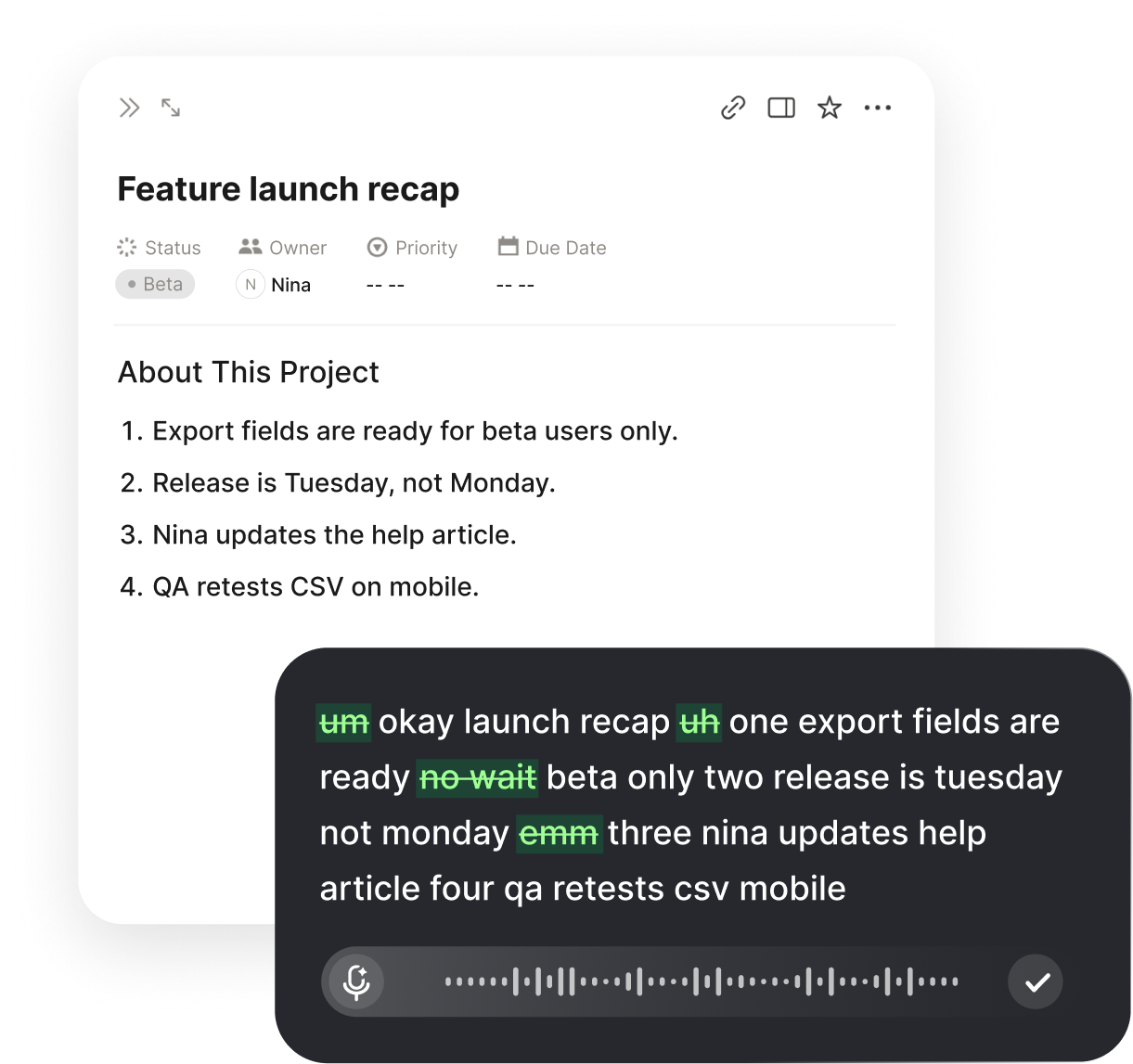
Decide in advance how you will correct mistakes without breaking rhythm. The cleanest habit is to finish the thought, pause, and then say the correction explicitly, letting the app remove the false start and keep the clean version. Rehearse this once on a throwaway sentence before the real work begins. Keep a scratch note open for names the app still spells differently, and add them after the session rather than interrupting every prompt. Set a two minute limit on any single spoken prompt; if you exceed it, stop and split the request into two smaller ones. This limit protects both clarity and the pace you are trying to gain.
Close the setup by defining what done looks like for the session. Write one sentence that describes the visible result, one sentence that describes the check you will run, and one sentence that describes what you will not touch. Read all three aloud and confirm the transcript matches what you meant. If a sentence sounds ambiguous when spoken, it will read ambiguously in the prompt. Fix the wording now, while the cost is low. Save the three sentences at the top of the file as a comment block so the next session starts from the same definition. Setup that takes three minutes usually saves thirty.
Structure Prompts for Spoken Delivery
Spoken prompts work best when they follow a predictable skeleton. Start with the object, naming the file or component you want changed. Then state the action in one verb. Then give the constraint, such as keeping the existing function signature or matching the current style. Finish with the check, the behavior that must hold after the change. This object, action, constraint, check order mirrors how people describe work out loud and gives the agent a stable parse. Say the four parts as separate short sentences, pausing between them. Do not compress everything into one long breath; the pause is part of the structure and helps the app punctuate correctly.
Keep each spoken sentence to a single idea. When you hear yourself saying and then, and also, or plus, treat that as a signal to start a new sentence. Short sentences are easier for the app to clean up because it can drop a false start without guessing which clause you meant. Read the request back to yourself once before sending. If the read-back sounds like a list, you have structured it well; if it sounds like a paragraph from a report, split it. Aim for six to ten short sentences per prompt, which is roughly the amount a person can hold in mind while reviewing the result in full.
Name things the way the codebase names them, even if the spoken form feels awkward. Say the exact component name, the exact route, and the exact field. If a name contains symbols that are hard to pronounce, spell it once letter by letter and then use the short form consistently. The app learns preferred spellings over time, so the first careful session pays back quickly. When you must refer to something new, introduce it with a definition in the same sentence where it first appears. Unintroduced shorthand is the most common reason a spoken prompt returns a result that looks confident but addresses the wrong target.
Separate instructions from examples, and say which is which. A useful pattern is to state the rule, then say for example, then give one concrete case, then say that is the only example. This prevents the agent from treating an illustration as a requirement. For multi-part requests, number the parts out loud, first, second, third, and repeat the number when you return to a part after a correction. Numbers survive the cleanup step and give you a handle for follow-up prompts. If a request has more than four parts, split it into two prompts and send them in order.
Keep the Screen and Voice in Sync
Voice input only helps when your eyes and your mouth point at the same place. Before speaking, select the exact line or block you want changed. If nothing is selected, say where the change belongs using the nearest visible anchor, such as the function just above it. Glance at the insertion point after the text appears and confirm it landed where you intended. Two seconds of checking prevents a prompt from being applied to the wrong region. When you switch files, say the new file name out loud as you switch so the context of the next sentence is always explicit rather than assumed.
Use the keyboard for navigation and the voice for content. Scrolling, searching, and moving between panes are faster by hand; describing an intent in prose is faster by mouth. Mixing the two intentionally keeps you in control of position while removing the slow part of composing text. If you notice yourself typing a long explanation, stop and say it instead. If you notice yourself dictating a file path, stop and paste it. The division of labor is simple: hands move, voice explains. Teams that adopt this split report less fatigue because the two channels do not compete for the same moment.
Watch for the moment the transcript and the screen disagree. The most common case is a spoken correction that arrives after the agent has already started acting. When that happens, stop the run, select the affected block, and say the correction as a fresh statement rather than as a patch. Restating the full sentence is slower for one prompt but far more reliable than layered edits. Keep a visible marker, such as a comment line, where you stopped, so the next spoken sentence starts from a known point. Recording the stop point turns an interruption into a clean and useful handoff.
Review the visible diff after every two or three prompts, not after every prompt and not at the end. A short cadence keeps the change set small enough to read and keeps your mental model aligned with the file. Read the diff aloud if a change looks surprising; hearing it often reveals that the prompt and the result diverged early. If the diff is larger than the request implied, revert it and send a narrower prompt. This habit is the practical version of the speak, polish, type, edit loop: speak, let the app polish, type only small corrections, and edit the result deliberately.
Measure the Speed Advantage
A speed claim only matters if you can see it in your own session. Before changing anything, time a typical prompt you would normally type, from first keystroke to sent message. Then install Voiskey, press the shortcut, and time the same prompt spoken aloud, including the small pause to check the result. Repeat this with five different prompts in the same session covering setup, a bug description, a refactor request, a check request, and a question. Write the times in a simple table. Most people find the spoken version finishes sooner, and the gap grows with prompt length. The download takes a minute; the measurement habit is what makes the gain visible.
Count the hidden costs as well as the obvious ones. A typed prompt often includes several rewrites before sending; count each rewrite. A spoken prompt often includes one correction after sending; count that too. Add the time spent moving your hands between keyboard and pointer, and add the time lost when you forget the thread of a long request. Longer prompts show the widest margin because speech scales with ideas rather than with characters. Compare the totals at the end after ten prompts rather than after a single one, and keep the same task types on both sides so the comparison stays honest and fair.
Set a simple target and check it weekly. A reasonable target is to speak at least half of your prompts for a week and to keep a running note of which task types feel slower rather than faster. Some tasks, such as pasting a long error trace, are genuinely faster by hand; mark those and stop forcing them through voice. Other tasks, such as describing intended behavior, are almost always faster by voice. The point of measurement is not to win an argument but to route each task to the channel that suits it best. After a month the routing is mostly automatic and rarely needs thought.
Report results in a way a teammate can reproduce. Give them the prompt text, the task type, the time for typing, the time for speech, and the number of corrections on each side. Ask them to run the same five prompts with Voiskey installed so the comparison is not based on one person's rhythm. If the numbers differ, look at prompt length first, since that is usually the largest factor. Keep the table in the shared project notes and refresh it whenever the team changes its tools. A measurement that cannot be repeated is just a personal anecdote, and personal anecdotes rarely survive a busy week.
Build a Repeatable Voice Workflow
Turn the first good session into a routine with a fixed opening and a fixed closing. The opening is always three short spoken sentences: the goal, the file, and the check. The closing is one spoken sentence that asks for a summary, followed by a quick read of the diff. Keep the same order every time so the habit carries the effort when you are tired. Write the routine on a card and tape it near the screen for the first two weeks. Repetition is what converts a clever trick into a dependable way of working that survives deadlines and context switches.
Assign clear roles in a team setting so voice sessions do not collide or overlap. One person drives the editor and speaks the prompts, another watches the diff closely and calls out regressions, and a third keeps the list of names and conventions the app should learn. Rotate the roles weekly so everyone builds the same muscle. When a prompt produces a poor result, the watcher describes what went wrong in one sentence, and the driver restates the request rather than arguing with the output. This division keeps the session calm and makes the review step real instead of merely ceremonial.
Build a small, tested library of prompt patterns the team reuses. Patterns for a new component, a bug report, a refactor, and a check each have a known skeleton and a small set of checks. Say the pattern name out loud at the start of the prompt so everyone in the room knows which structure is coming. Update a pattern only when two different sessions show the same weakness, and write the change with a concrete example. A shared library lowers the everyday skill floor and keeps output quality steady when people rotate between projects or return after a long break.
End each week with a short ten minutes of review. Pick one prompt that worked and one that failed, read both transcripts carefully, and name the single sentence that made the difference. Add the lesson to the pattern library if it generalizes, or to a personal note if it does not. Then download the latest Voiskey build so the team stays on the same version and can compare notes honestly with each other. Close by choosing the next week's first task and speaking its goal aloud. A routine that includes a short review compounds, while a routine that never looks back slowly drifts.
FAQ s
Voiskey is an AI voice typing app for desktop computers. It works at the system level: press a shortcut, speak, and text appears at the insertion point in your code editor. It removes filler words, stutters, false starts, self-corrections, and grammar slips, and it adapts punctuation and formatting to the task. It reaches up to 220+ words per minute, about five times faster than typing.
Before the first prompt, choose one small feature, open the file that contains it, and place the insertion point on the line you want to extend. Speak a short framing sentence with the feature name, the file path, and the expected behavior. Set a two minute limit per spoken prompt and split longer requests. Keep a scratch note for names the app still spells differently.
Voiskey supports up to 220+ words per minute, about five times faster than typing, so a spoken idea can be captured before it fades. It removes filler words, stutters, false starts, and self-corrections, then adapts punctuation and formatting to the task. The workflow is Speak-Polish-Type-Edit, which means you speak the draft, let the app polish it, type small fixes, and edit the result in place.
Press the shortcut, speak, and the text appears at the insertion point in whatever app or text field you are using, including your code editor. Voiskey is a system-level tool, so you compose where you already work instead of moving text from a separate window. It also learns names, jargon, acronyms, and spelling preferences so repeated identifiers come out the way your project writes them.


 Voiskey
Your voice, amplified.
Download Voiskey for Mac and Windows and speak your prompts right where your editor is focused.
Use it across macOS, Windows, iOS, and Android