
Vibe Coding a Prototype in One Session
Plan, prompt, and review a working prototype inside a single sitting
 Voiskey Team
Scope One Deliverable Before You Speak
Vibe Coding a Prototype in one session works best when the session has one named deliverable and a hard stop. Write the sentence you want a stranger to read at the end, such as a page that lists invoices, filters by month, and opens a detail view. Everything that does not serve that sentence belongs in a later session. Decide which parts must be real and which may be stubbed with a fixed list of records. Then choose the stopping point: the moment the sentence is true, stop adding features and move to review. Announcing that boundary before you record anything keeps the work from drifting into a half-finished product, and it gives every spoken prompt a stable target while the code changes underneath you.
Give the session a clock and a role split before the first prompt. A workable split is forty minutes to build, twenty to review, and the remainder to write down what happened. When the clock ends, the block ends even if a feature is incomplete, because an unfinished block that you can describe is more useful than a finished one you cannot explain. If two people are involved, one speaks prompts and reads results while the other watches for errors and takes notes. If you work alone, say the review decisions out loud so they are captured while your hands stay on the keyboard. Agree on what done means for each block, and mark any block that runs long as deferred rather than silently rewriting the schedule.
Inventory what already exists so the session does not start with setup work. Confirm the starter project opens, the preview window refreshes, and the file you intend to edit is the file the app actually uses. Collect the names you will need to say: the project folder, the components, the routes, and any sample records. Write a short list of constraints you will repeat in prompts, such as no new dependencies, no redesign of the shell, and plain styling only. Read the list aloud once to hear how it sounds, because a constraint you stumble over will be mangled when you speak it quickly. The deliverable of this stage is one sentence, one clock, one constraints list, and a project that runs before you say anything.
Stage the Editor and a Prompt Skeleton
Open the editor on the file you expect to change and leave the cursor exactly where the next sentence should land. Open the preview beside it so you can judge each result without switching windows. Close chat panels, terminals you are not using, and notification banners, since every extra window invites a detour. If the app has a hot reload, verify it works with a trivial change before you rely on it. Then speak one warm-up prompt that changes nothing important, such as asking for a comment at the top of the file, purely to check that your voice reaches the insertion point and that punctuation arrives where you expect. A thirty-second warm-up saves the first real prompt from becoming a debugging exercise in the wrong layer.
Use the same prompt order every time so nothing is forgotten under time pressure. Start with context: the file, the framework, and the part of the app you are touching. State the goal in one sentence with an observable result. Add the constraint you are unwilling to break. Finish with acceptance: what you will look at to decide the change worked. Speaking in that fixed order turns a prompt into a small form you fill in, which is far easier to dictate than a paragraph you are composing on the fly. It also makes your prompts comparable across the session, so when one result is poor you can see which part of the form was thin rather than guessing at the whole request.
Prime the vocabulary you will use all session before you need it. Say the project name, the folder names, the component names, and the unusual acronyms once at normal speed and watch what appears on screen. Correct the spelling immediately in the editor so the corrected form is the one you see and reuse. When a name is long or easy to confuse with another, say it slowly and add a short qualifier the first time, such as the settings panel rather than the settings file. A tool that learns names, jargon, acronyms, and spelling preferences will absorb this habit across the session. Ten minutes of vocabulary work at the start prevents a class of prompts that fail for reasons unrelated to the code.
Decide in advance how you will speak code-shaped details. File names, paths, and commands are the parts most likely to arrive wrong, so plan to say them as separate short phrases rather than inside a long sentence. Pause briefly between a path and the instruction that follows it. If a value matters exactly, such as a route string or a command flag, say it twice or spell the ambiguous part. Keep a scratch line in the editor where you paste the exact string you just spoke, so you can compare it with what you meant. This rhythm costs a few seconds per prompt and protects the session from the slow failure mode where the assistant edits the wrong file and you spend twenty minutes discovering why the page never changed.
Build in Narrow Steps at Speaking Speed
Build in a fixed order: shell, static content, one interaction, then styling. The shell is the route, the layout container, and an empty state. Static content is the list or detail view with hard-coded records, which proves the shape of the screen before any behavior exists. The interaction is the single action named in your sentence, such as filtering by month. Styling comes last because it is the easiest part to defer and the most tempting part to overdo. Each step should be one prompt or two, and each should end with the app still running. When a step produces more than you asked for, revert it and re-prompt with a narrower goal instead of editing the oversized result by hand.
Dictate at the cursor and name the file explicitly in the first clause. A useful pattern is: in this file, add this element, keep this constraint, and I will check that. Speak the change as a verb aimed at a visible outcome, such as render a table with three columns, rather than a vague improvement request. Say why the change matters when the reason changes the design, because the reason often carries the detail you would otherwise forget. Keep one idea per prompt; two ideas in one breath usually produce one good change and one surprising one. After each prompt, read the result from the top of the changed block, not from the middle, so you notice removals as quickly as additions.
Treat every returned change as a proposal and check it before the next prompt. Run the app, look at the named sentence, and confirm the new behavior in the browser rather than in the diff alone. If the change works, commit or save a checkpoint with a message you could read tomorrow. If it half works, revert before trying again, because stacking a second prompt on a broken state hides which step caused the failure. When a result is close but noisy, ask for the smallest correction instead of a rewrite. This rhythm is slower for any single step and much faster for the session as a whole, since it keeps the distance between a working app and a broken one at exactly one prompt.
Review Before You Share the Link
Review with the clock, not with your enthusiasm, and test the states you did not build for. Open the page with zero records, with one record, and with a list long enough to scroll. Paste a very long string into the widest field and a short one into the narrowest. Refresh the page in the middle of the flow and see what the user would see. Resize the window to a narrow width and check that nothing overlaps. Try the single interaction with a month that has no records. Each of these takes seconds and catches the failures that a demo path never shows. Write down every failure as a line with the state, the action, and the observed result, then fix only the ones that break your named sentence.
Review the code itself with a spoken checklist rather than a leisurely read. Read each file aloud in order and ask four questions as you go: does this file have one job, are the names the ones we agreed, is there dead code from a reverted attempt, and would a newcomer find the entry point. Speaking the questions keeps the review moving and produces a list you can act on immediately. Keep the same shortcut you used in Voiskey to dictate short notes next to each file, so the review record is written where the code lives instead of in a separate document. Stop the review when the checklist is complete, not when the code looks tidy, because tidying is the activity most likely to consume the remaining time without changing the prototype.
Finish with a handoff that a teammate can follow without you in the room. Write a short set of run instructions: how to start the app, which route to open, which records are stubbed, and what the prototype deliberately does not do. Keep the dependency list current so a teammate can download the project, start it, and reach the named sentence in a few minutes. Note the known gaps in one place rather than scattering them through comments. State the next step you would take with more time, and what you would remove if the scope had to shrink. The handoff is done when someone else can run the prototype and explain its limits, which is a different and stronger test than whether it looks finished.
Log What to Reuse Next Time
Close the session by writing a log while the details are still fresh. Record the prompts that produced a usable change in one pass, the prompts that failed and how you rewrote them, and the two or three decisions that shaped the build. Note the vocabulary you had to correct, since those corrections are the raw material for next time. Keep the log short enough to reread before the next session, ideally one screen. Store it beside the project rather than in a notes app you rarely open. A log written from memory a week later becomes a summary of the outcome; a log written in the last ten minutes becomes a set of instructions you can actually repeat.
Turn the best prompts into reusable snippets with blanks for the parts that change. A snippet is a fixed frame, such as in this file add this element and keep this constraint, with the file and element left open. Keep the snippets in a single file ordered by build stage so the next session starts from the shell prompt rather than a blank page. Add the corrected names to your vocabulary list, including the ones the tool already recognizes, so you stop re-teaching them. Review the list for duplicates and remove entries you never used. Ten minutes of tidying turns a session's worth of ad hoc requests into a small kit that makes the next prototype faster and more consistent.
End by naming the next session in one sentence and setting its scope before you leave. The sentence should describe the single thing this prototype most needs, such as a real record source or an edit form, and it should be small enough to fit the same clock. Write the open questions next to it so the next session begins with decisions rather than discovery. Note which parts of the current build you expect to keep untouched, since those parts are the safety net if the next attempt goes badly. If the session produced a strong result, resist the urge to expand the scope immediately; instead, protect the working state and start the next block from it.
FAQ s
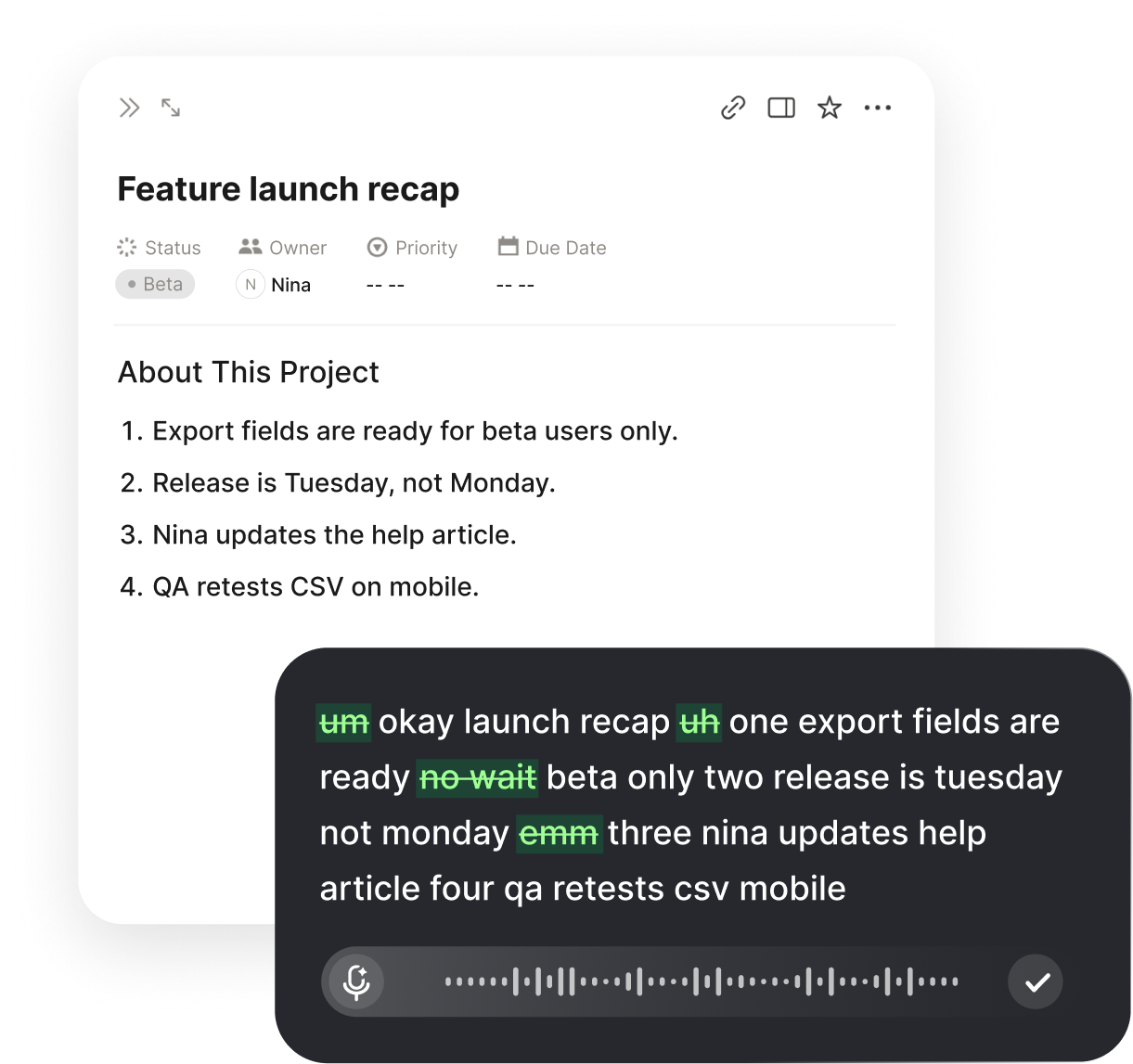
Voiskey is an AI voice typing app that works at the system level. Press a shortcut, speak, and text appears at the insertion point in any app or text field. It removes filler words, stutters, false starts, and self-corrections, and it turns spoken requests into AI-ready prompts that can include file names, paths, and commands. That means a prototype prompt arrives in the editor close to the form you intended, without a cleanup pass before you send it.
Yes. Voiskey learns names, jargon, acronyms, and spelling preferences, so repeated component names and folder names become easier to dictate accurately as the session goes on. It also supports more than one hundred languages. Saying a new name slowly once, and correcting the spelling in the editor, gives the app a clear version to follow for the rest of the build. This matters most for paths and identifiers, where one wrong character sends an edit to the wrong file.
Speak-Polish-Type-Edit is the workflow Voiskey describes for turning speech into finished text. You speak the prompt, the app polishes the result by clearing filler and shaping punctuation and phrasing to suit the task, the text is typed at the insertion point, and you edit it in place. In a prototype session this fits the narrow-step rhythm: one spoken prompt, a quick polish, a typed result in the file, and a short edit before you check the app in the browser.
Yes. Voiskey works at the system level, so you press a shortcut, speak, and the text appears at the insertion point in any app or text field. The vibe coding use is to speak the prompt directly where you are working inside the code editor. That keeps the whole loop inside the editor instead of moving between a voice note and a chat window. You still review each returned change and run the app, but the prompt itself never leaves the place where the work happens.


 Voiskey
Your voice, amplified.
Download Voiskey for Mac and Windows and speak your next prototype prompt at the cursor.
Use it across macOS, Windows, iOS, and Android