
Vibe Coding a CLI Tool from a Spoken Spec
A spoken-spec workflow for building a small command line tool with clear behavior
 Voiskey Team
State the Command in One Sentence
Vibe Coding a CLI tool starts with one sentence that a stranger could act on: the command name, what it reads, and what it produces. For example, a command that scans a folder of notes and writes one index file. Say the sentence aloud before you open the editor, then say it again with a concrete example, including the exact folder and the exact output path. If the second sentence changes the first, the idea is not ready. A command line tool is a small contract with the user, and the contract is easier to fix in a sentence than in a half-built parser.
Decide the single job the tool performs and refuse the second job for now. Tools that read, transform, and publish at the same time are hard to test and hard to explain. Write the input, the transformation, and the output as three separate lines, then say which one is the reason the tool exists. If the transformation has optional modes, name them but do not build them in the first pass. The first version should be boring and complete: one input, one behavior, one output, one clear error when the input is wrong. Boring and complete is what you can finish and verify in a session.
Describe the smallest useful invocation before describing any option. If the tool works with no flags by reading a default folder and writing a default file, say so and let the first build do exactly that. Then add one example with an explicit input and one with an explicit output. These three examples become the acceptance tests and the first lines of the help text, which means you are writing the documentation and the specification at the same time. When the examples read naturally in a terminal, the interface is probably right; when they need a paragraph of explanation, the interface is doing too much.
Choose names for the command, the subcommands, and the arguments that you can say clearly and spell reliably. Short names that collide with common words are a source of confusion in speech and in typing. Write the vocabulary list, with the exact casing, in the spec note. This list matters more than usual when the spec is spoken, because you will repeat these names in every request. If you find yourself explaining a name twice, rename it now, while the cost is one line in a note rather than a rename across the parser, the help text, and the tests.
Enumerate Flags and Defaults
List every flag with three properties: its long name, its short name if any, and its default. Then mark which flags are required, which are mutually exclusive, and which only apply when another flag is present. Speak this as a table to the editor, one row at a time, rather than as a paragraph. A flag without a stated default is a decision you have not made, and the editor will make it for you in a way you may not notice until a user complains. When the table is complete, the parser is mostly mechanical, and the remaining work is the behavior behind each flag.
Say the precedence rule once and apply it everywhere: a command line flag beats an environment setting, which beats a configuration file, which beats the built-in default. Write that sentence in the spec note and ask for it to be implemented in one place. When precedence is scattered, two flags can disagree and the result depends on the order the code happens to read them. Test the rule with a small scenario: set a value in the configuration file, override it with an environment setting, then override that with a flag, and check which value wins at each step.
Handle conflicting flags explicitly. If quiet and verbose cannot coexist, say what happens: the tool refuses with a message naming both flags, or the last one wins. Choose one and document it in the help text. For destructive flags, require an explicit confirmation flag rather than a prompt, so the tool behaves the same in a script and in a terminal. Speak the exact refusal message, because a message written after the fact tends to be vague. The goal is that a user who makes a mistake sees a sentence that tells them which two things conflict and how to fix it.
Keep the flag surface small and treat every addition as a trade. A flag that only one person needs can usually be a configuration value or a second command. Before accepting a new flag, ask whether the same result can be reached with an existing option plus a different input. When a flag must exist, add it to the table, the help text, the precedence note, and the tests in the same pass. Untracked flags are how a small tool turns into a collection of undocumented behaviors that nobody can safely change or remove with confidence later, if they are tracked at all.
Describe Output and Exit Codes
Describe the normal output as a shape, then as an example. If the tool prints a table, say the columns, their order, and how a long value is shortened. If it prints a path, say whether the path is absolute or relative. If it writes a file, say the encoding, the line ending, and whether an existing file is replaced or left alone. These details look minor until a user pipes the output into another command and the format changes without warning. Speak the example output literally, then ask for the code to produce exactly that shape in a plain, unadorned way.
Reserve the error channel for errors and keep the normal output clean. Say that progress notes and warnings go to the error channel, while results go to the normal output, so a user can redirect the result without collecting commentary. This separation matters for scripts, and it matters for your own tests, because a test that reads the result should not have to filter out a friendly message. Speak one example of each channel and check them separately. If both channels print the same text, the interface is ambiguous even when it looks fine on screen, because a reader cannot tell which line is the result.
Define exit codes before implementation: zero for success, one for a handled failure such as a missing input, two for a usage error such as an unknown flag. Add a distinct code only when a caller genuinely needs to branch on it, and write the meaning in the help text. Speak the mapping to the editor and ask for a single function that returns the code, so no branch invents its own number. Then test each path: a good run, a missing file, an unreadable file, and an unknown flag. Exit codes are the part of a command line tool that other programs read, and they are invisible in a manual demo yet decisive in automation.
Write the help text from the same sentences you used in the spec. The first line states the job, the second shows one example, then the flags with their defaults, then the exit codes. Ask for the help text to be generated from the same table that drives the parser, so a new flag cannot appear in one place and be missing in the other. Read the help text aloud as a final check. If a sentence is hard to say, it will be hard to read, and the help text is often the only documentation a user will ever open.
Rehearse the Tool on Working Files
Rehearse on copies in a scratch folder before you point the tool at anything you care about. Build three fixtures: a normal folder, an empty folder, and a folder with one malformed file. Run the normal invocation, then the explicit input and output examples from the spec, then the failure case. Read the output and the exit code for each run and compare them with the sentences you wrote. This rehearsal takes ten minutes and catches the two classic problems, a tool that works only from one directory and a tool that silently rewrites a file it should have refused.
Check the working directory assumption first. A relative path that works in your terminal may fail when the tool runs from another folder or from a scheduled job. Run the tool from a different directory with an explicit path and confirm the behavior. Then run it with a path that contains a space and a path that does not exist, and read the message in both cases. These are the conditions users meet first, and they are the conditions a quick demo never shows. Fixing them now is cheap; fixing them after a colleague depends on the tool is not.
Guard the destructive path with a rehearsal of its own. If the tool replaces or removes anything, run it against a scratch copy and confirm that a refused run leaves the original untouched. Test the interruption case: stop the tool partway through and check what remains. A tool that leaves a half-written output file is worse than one that fails before writing. Speak the safe sequence you want, such as write to a temporary name and move it into place only after a successful finish, and ask for that sequence explicitly rather than assuming the default is safe or that a partial write will be cleaned up later.
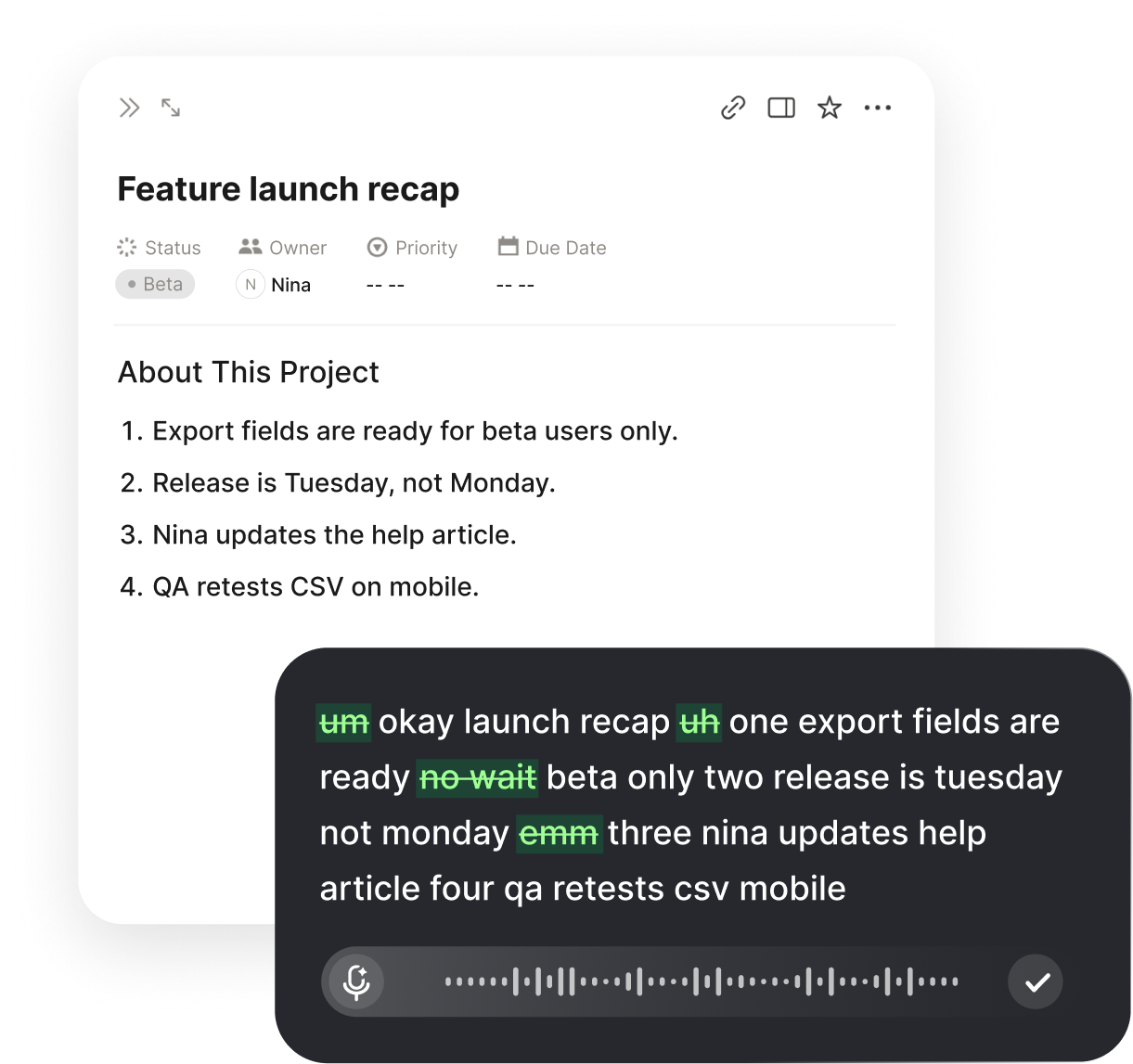
Keep the rehearsal script in the repository and run it after every change. Put it behind one command so the check is a habit rather than a decision. Use the spoken loop for the small fixes the rehearsal produces: place the insertion point in the failing test or the parser, hold the Voiskey shortcut, and say the change as one sentence with one expected result. Voiskey removes filler words and false starts, so the corrected sentence is ready to review, and the rehearsal stays a loop of one failure, one spoken fix, and one rerun instead of a long manual session.
Package the Spec With the Tool
Package the tool with its spec, not just its code. The repository should contain the vocabulary list, the flag table, the output examples, the exit code map, and the rehearsal script. A reader who has never spoken to you should be able to predict what the tool does from the first screen of the readme. Put the shortest working example at the top, because that is what most readers try first. Then list the flags and the failure behavior. The spec note you dictated is the source for this readme, which is why keeping the sentences clean during the build pays off at the end.
Write release notes that name the behavior change rather than the file change. A line such as the index command now refuses to replace an existing file unless forced tells a user what will feel different. When a flag is removed, say what replaces it and show the new example. When an exit code changes, say so plainly, because a caller may depend on it. Keep these notes in the same tone as the help text so the tool sounds like one thing rather than several. A small tool earns trust by behaving predictably across versions, and the notes are how that promise is made visible.
When you want the same spoken workflow on your own device, download Voiskey for Mac and Windows and keep the shortcut ready while your editor and terminal are open. Voiskey turns a spoken request into text at the insertion point, including file names, paths, and commands when you say them, which matches the way a CLI spec is written. It removes filler words and adapts punctuation and formatting, so a sentence about an exit code or a default value arrives in a form you can keep as documentation. That is a small gain in each request and a large one across a spec.
Finish by deciding what the tool will not do. Write the out-of-scope list in the readme: no network calls, no background process, no interactive prompt, no configuration format beyond the one file. A short refusal list protects the tool from becoming a different project one flag at a time. Then hand the spec to someone who did not build it and ask them to complete one task using only the readme. If they finish without asking a question, the package is done. If they hesitate, the sentence that confused them is the next fix, and it is probably the sentence you spoke first.
FAQ s
Voiskey is a voice typing app that works at the system level. You press a shortcut, speak the specification sentence, and the text appears at the insertion point in your editor. It removes filler words and false starts, so the command, flags, and examples can be read back and kept as notes.
Voiskey learns names, jargon, acronyms, and spelling preferences. If a flag has an unusual spelling, saying it once in context helps the app reproduce it. A short vocabulary list beside your notes gives you the same wording for every later request.
Speak each code with its meaning in one sentence, then read the list back before you send it. Voiskey adapts punctuation and formatting to the field, so the dictated list stays readable. Place the insertion point in the specification file so the sentence lands where the notes live.
Voiskey types at the insertion point in any text field, so it works wherever you are writing, including a specification file or a prompt field. You press the shortcut, speak, and the text appears. It also adapts tone and phrasing to what you are trying to do.


 Voiskey
Your voice, amplified.
Download Voiskey for Mac and Windows and dictate your next CLI spec at the prompt.
Use it across macOS, Windows, iOS, and Android