
system wide dictation shortcuts: A Practical Guide to How System-Wide Dictation Shortcuts Work
The one held shortcut that turns any app into a voice surface.
 Voiskey Team
What System-Wide Dictation Really Is
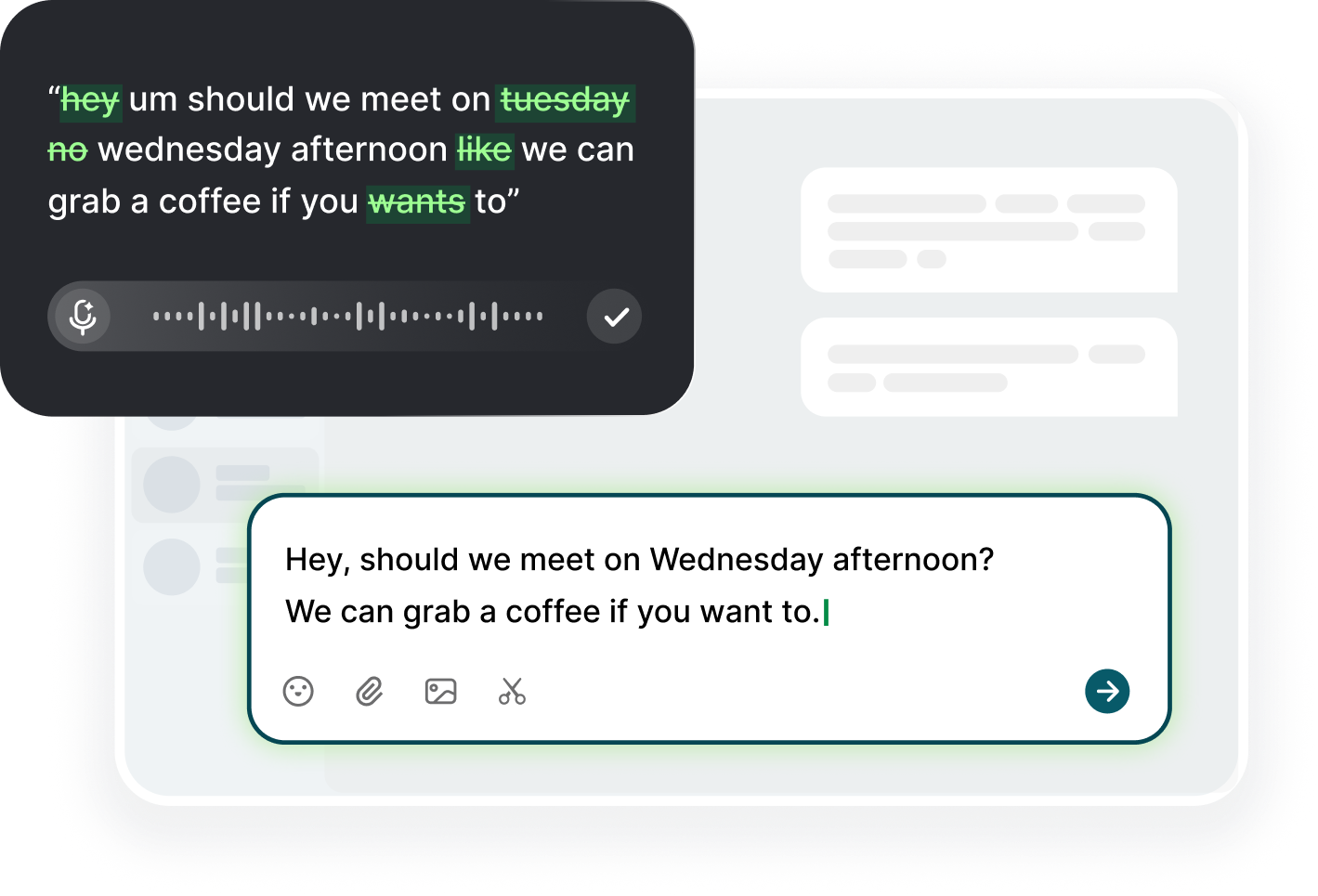
System wide dictation shortcuts are the quiet feature your computer already supports: hold a key combination, speak, release, and words appear wherever a cursor blinks. The shortcut is registered at the operating system level, so it does not care which app is on screen. Your email, your browser search box, your terminal, and your chat prompt are all the same to it, each one a field waiting for keystrokes. This is the mental shift worth making: dictation is not a feature of one program, it is an input method for the machine. Once you see it that way, the shortcut becomes the most useful key combination you own.
The mechanism is simpler than it feels. A dictation app listens to your microphone while the shortcut is held, converts the audio to text, then sends those characters to the operating system as if they had been typed on the keyboard. The app never reads the screen, never inspects your files, and never looks at the page you are on; it only produces text at the caret. That is why one setup works in every application, and it is also why the tool is predictable. The only requirements for a clean session are a granted microphone, a working engine, and a field that has focus when you speak.
Because the typing happens at the system level, the shortcut works in places you would not expect: form fields on web pages, reply boxes in forums, the address bar of a browser, and the composition window of a code editor. It also works inside apps that have no dictation support of their own, because those apps never need to know voice was involved. If a field accepts text, it accepts your words. That universal reach is the argument for spending ten minutes configuring the shortcut properly, and the same reach is what makes it dangerous to skip the click before you speak.
Spend the first session testing the shortcut against the apps you actually use, not the ones a reviewer would choose. Open your mail client, your chat, your note app, and one web form. Dictate one sentence in each and watch for the difference: most apps behave identically, one or two may steal focus, and the field that draws every click may be another app's search box. Write down the odd ones and build the habit of the double click there. The test takes ten minutes and the result is a list you will never need again, which is the best kind of setup: done once and forgotten.
The One Shortcut That Runs Everything
The one shortcut that runs everything is worth choosing deliberately, because you will press it dozens of times a day. Start with the default the tool suggests, since defaults are usually chosen to avoid the most common conflicts. If the default collides, pick a combo on the left side of the keyboard, so your right hand stays on the mouse while the left hand holds the trigger. Avoid functions your browser and your editing apps already claim, like the ones that open a new tab or a search overlay. Test the candidate in three places: a web page, a plain editor, and the game or design app you use most. If it works in all three without side effects, keep it.
Hold behavior matters as much as the keys. Decide whether you hold the shortcut for the entire phrase or toggle it on and off per sentence. Hold-to-talk is the standard pattern and the easier to learn, because the relation between pressure and sound is physical: you speak exactly while you hold. Toggle mode suits hands-free sessions, such as dictating a long document while reading from paper, but it demands discipline to end the session, since the engine keeps listening until you tap again. Choose per task and stay consistent inside a task, because switching mid-sentence is how people end up sending a transcript of their own cough.
Check that the shortcut does not compete with the operating system itself. macOS and Windows reserve a handful of combinations for global functions, and some of them only trigger in certain contexts, which makes a collision look intermittent. Test by holding your chosen combo in a fresh state: no app seems to own the keys, no menu flashes, and no window rearrangement happens. If the system reacts, move two keys over and test again. The test is trivial and saves the frustration of a shortcut that works in a note app but summons something else in a browser. A global shortcut should behave globally, and consistency is worth one minute of testing.
Once the shortcut is set, verify it survives a reboot. Some tools re-register the trigger on launch, and a machine that updated overnight may come back with the old binding or none at all. Reboot, open a plain text field, and hold the combo. If nothing happens, launch the dictation app and check its window, since a few utilities quietly unregister during boot. Note whether the app needs the login item enabled so it starts automatically, because a shortcut that requires a manual launch every morning is a shortcut you will stop using by Wednesday. Ten minutes spent on the login item is what makes the global shortcut genuinely global.
Microphones, Languages, and Privacy Modes
Microphone input is the part of the setup people check last, and it is the part that decides whether the transcript reads like your voice or like a legend. Start with the source: the dictation app's settings should list your intended device, not the last one plugged in. A headset picked up earlier, a conference sprite, or a camera mic will all listen if selected, and the wrong device produces text with missing words. Choose the device before a session and verify once with a short sentence that it is actually the one hearing you. Two seconds of verification outrank ten minutes of tuning.
The environment matters more than the hardware. A quiet carpeted room lets a laptop mic work, while a hard-walled office makes the same mic produce echoes and clipped words. Test your setup in both and note the difference, then choose the tool per situation: closer mic, slower speech, or a larger dictation distance. If the first few words of a sentence vanish, that is usually a latency or a noise-floor problem, not a serious failure. Speak half a second after you press, and let the engine see a clean rise in signal before it starts matching words. The start of your sentence is the start of the transcript's quality.
Language settings decide your whole experience, so set them explicitly rather than relying on the default. Pick the language you actually speak in the app settings and, if offered, the regional variant, because the difference between British and American handling changes the spelling of everyday words. If you dictate in multiple languages, check whether the tool supports automatic switching or whether you must change the setting per session. Note that punctuation and spacing differ per language, and search box behavior can vary. A mismatch between the language you speak and the language set will produce valid-sounding but wrong words, like a name garden.
Privacy modes are the last setting and the one worth knowing before you decide on a tool. A system dictation app listens only while the shortcut is held, and the text goes to the focused field; choose a tool whose behavior matches your expectation about recording. If you dictate sensitive material, check whether the engine allows offline processing or cloud fallback, and whether your audio is stored or treated as ephemeral. For most everyday work, the simple rule is: hold only while speaking, release when you pause, and never leave a session open. A system-wide dictation tool should be as quiet as you are, and you control the boundary from the shortcut itself.
Fields Where a Global Shortcut Saves the Day
Search bars are the fastest win for a global shortcut. When you need something, click the search box, hold the shortcut, say the phrase, release, and press Enter. Your hands stay on the desk, the query arrives complete, and keyword-heavy phrases come out with the words you intended rather than the fragments you would type. The same works in a browser's Find box, so you can dictate a term you remember in the middle of a long document instead of scrolling for it. Search is where the shortcut wins simplest, because the text is short and the payoff is immediate, which makes it the ideal first habit to build.
Long-form fields are where the shortcut justifies its configuration: an email, a document, a blog draft, or a code comment. Dictate the first pass at your natural pace, then edit by selecting and re-speaking the weak phrases. The first pass is not about perfection, it is about getting the substance out while it is still in your head, and the second pass repairs the words the engine missed. This is the workflow that makes the shortcut the tool you reach for when you have a page of ideas and no time to type them. The field does not know voice was involved, and the result reads like you wrote it by hand.
One habit saves more failures than any setting: before you press the shortcut, look for the caret. The blinking cursor is the signal that keystrokes will land here, whether they come from your hands or from your voice. If the caret is somewhere else, your words will go there instead, and the failure will read as a broken tool rather than a moved focus. The visual check is instant once you look for it, and it costs nothing. Make it a reflex with the same reliability as checking the fuel gauge, and the global shortcut will work on your first try every single time.
The other half of the field story is editing, not creation, because a shortcut is useless at the exact moment a sentence comes out wrong and you have to fix it. Learn the select-and-speak pattern: select the phrase you want to change, hold the shortcut, say the replacement, release. This works in any text field, and it is the companion to the global input, the part that makes the whole cycle hands-free where you want it. Without the editing pattern you get one-way dictation and a keyboard that still demands attention; with it you get a loop. The loop is what turns the shortcut from a trick into a system, and the system is what you will keep using for years.
Building System Dictation into Your Daily Flow
Build dictation into the morning: a two-minute start. When you open your machine, click the note app, hold the shortcut, and say three things you must do today, then release and look at the list. This one act does two things at once. It captures the plan while your head is at its clearest, and it warms up the shortcut path so that the first real session of the day is not the first test. The morning list is also the natural place to catch a misconfigured mic or a changed shortcut before it costs you an important meeting, and the cost is seconds.
The natural rhythm of the day becomes: dictation for ideas, editing for polish, and typing for the final short field. When a thought arrives, get it out with the shortcut instead of a notebook or a delaying session, because the capture is the part that saves you later. Do not insist that every word be final on the first pass, since the point of the capture is quantity and the point of the edit is quality. This triangle works for writing, for planning, and for messages, and it is the behavioral habit the shortcut enables, not any specific field. What matters is that the flow has three states instead of one.
The last task of the day is the opposite of the first: a short spoken summary of what changed, dictated into your note or a standup doc. This closes the loop that the morning list opened, and it gives the next session a place to start. The summary is not a chore, it is the way the day's thinking survives the day, and it is also the way you get better, because a week of summaries shows you the patterns in your own behavior that a scattered memory hides. The dictation itself becomes the record, and the record becomes the input for next week's planning. The tool integrates into your day in a way that typing never quite did.
Once a week, review the vocabulary list against the work of the past seven days. Add the terms you kept correcting and remove the ones you no longer use, since a curated list is what makes the engine so accurate. The review is a five-minute session, and it is the highest-leverage maintenance task in the whole system, because a term added today is fixed for every field and every app on the machine. The list is not a chore of documentation, it is the memory that makes the global shortcut specific to you, and the review is the way you keep it current. One session a week, and accuracy compounds.
FAQ s
It is a key combination registered at the operating system level that turns your microphone into a text input. Hold it while you speak, release, and the words appear at the cursor in whatever app has focus, from a browser search box to a code editor. It is an input method for the machine, not a feature of one program.
The tool types wherever the cursor is focused, so the caret is the only destination that matters. Click once in the target field and confirm the blinking cursor before you hold the shortcut. If a browser tab or a settings dialog steals focus, click the field again, since focus follows your clicks rather than your eyes.
No. Dictate in short spoken chunks of ten to fifteen seconds, stop, look at the text, then continue. Chunking keeps the rhythm stable and the errors low, and a long field is no different from a short one for the mechanics. For a full page, dictate the first pass, then edit by selecting phrases and speaking replacements.
The selected device in the tool settings must be the one hearing you, and the language must match what you speak, otherwise the engine produces plausible but wrong words. Test the mic once with a short sentence, check the language variant, and add recurring technical terms to the vocabulary list so they are transcribed exactly.


 Voiskey
Your voice, amplified.
Choose a real task, follow the steps, and review the results with your team before expanding the rollout.
Use it across macOS, Windows, iOS, and Android