
macos dictation shortcuts: A Practical Guide to Configuring Dictation Shortcuts on macOS
Five minutes of settings that make macOS dictation actually stick.
 Voiskey Team
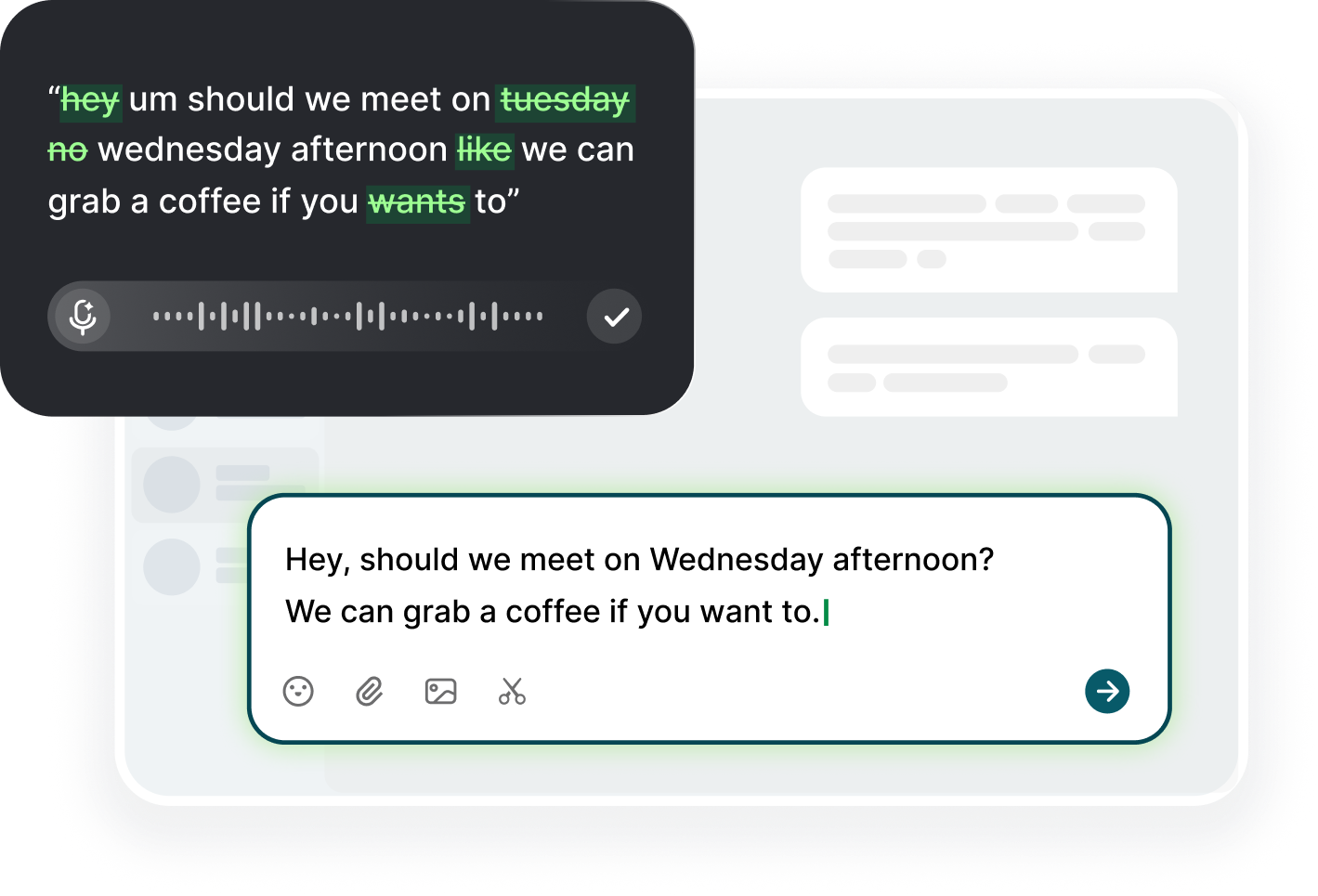
The macOS Dictation Pileup
macOS dictation shortcuts confound new users because the configuration is spread across places: built-in dictation in system settings, a dictation shortcut inside it, and then third-party apps that also claim the microphone. Add a permission toggle in Privacy and Security, and another for the keyboard if you use the on-screen input. All of these work through the same underlying audio path, and all of them can fail silently if the wrong toggle is off. So before you configure anything, open System Settings and look at the whole picture once. The setup is not nine problems to solve; it is one path with several switches on it, and only two or three of them matter for everyday dictation.
Understand what built-in macOS dictation gives you: press the dictation key twice, or the shortcut you choose, and the system hears you and types into the focused field. It is free, it is already there, and it handles ordinary prose well. Its limits are the ones you feel on day two: no custom vocabulary for technical words, a language switcher that applies per session, and an online processing mode that waits for the network before the words appear. If you dictate customer names, code identifiers, or product terms, you will soon want a tool that lets you teach it your own words. That is the honest starting point: begin with built-in, and switch when the missing vocabulary starts costing you.
A third-party dictation app changes the architecture but not the goal: it becomes the input method, and macOS just sees characters arrive. You install it, you allow the microphone, you set a shortcut that does not collide with a system one, and then it types into Mail, Slack, the browser, and the terminal alike. The advantage over built-in is normally in the vocabulary and the language handling, both settable per term rather than per session. Check the microphone permission panel after install and confirm the app is listed there, because that list is where a denied grant looks exactly like a broken app. Allow it, relaunch, and test in a plain field before you test in your calendar.
The pileup has a shape worth naming: system settings control the permission, the apps control the engine, and the shortcut controls the hand. When something fails, ask which layer owns the failure. If the shortcut does nothing, the trigger is the layer. If the shortcut works but the text is wrong, the engine or the vocabulary is the layer. If nothing appears at all, the permission is the layer. This three-layer view turns a mess of settings into three questions, each with a page to check, and each page is reachable in about ten seconds. The pileup stops being a pileup the day you can name the layer you are in.
Flipping the Right Switches
Open System Settings and start with the permission, because everything else is downstream of it. Navigate to Privacy and Security, then Microphone, and confirm your dictation app appears with a switch on. If the app is not in the list, launch it once and speak into it, since macOS registers the request at first use. On newer versions, also check Accessibility under Privacy and Security if the app needs a helper, and Input Monitoring even less often, but the microphone is the one most setups fail on. The tl;dr is: if the shortcut does nothing, the mic permission is the first thing to look at, and it is the one people skip because it looks too obvious.
Then confirm the engine is actually on. If you use built-in dictation, go to Keyboard settings, find Dictation, and flip the switch. If you use a third-party input method, make sure the app is running and not sleeping in the background, because some menu bar utilities pause themselves when you quit a parent window. The app menu should show the listening state, and the shortcut should be bound. A common two-part failure: the permission is on but the app is off, so the shortcut resolves to nothing. Checking both layers takes a moment and clears the two most frequent silent failures with one pass.
The shortcut itself lives in the app's settings or in the system keyboard pane, and this is where people fight the pileup. If you use a third-party app, bind the shortcut in the app so the app owns it. If you also enabled the built-in macOS dictation, its shortcut is separate, and having both bound to the same keys is the fastest way to discover that only one of them works. Pick one owner for the dictation trigger and keep the other app's shortcut disabled. The rule to remember is single ownership: your key combination belongs to exactly one dictation feature, and the one that owns it is the one that types.
The microphone device is the next switch. A Mac with a headset connected may switch the input to that headset, and a conferencing adapter can claim the audio and then fail on the second session. Open the dictation app's input selection and pick the device you can see, then speak a test sentence and confirm the meter moves. On newer macOS versions, the System Settings sound input pane shows the same device, so the two should match. A mismatch is the cause of a stranger symptom: the dictation works for a moment and then goes quiet, which is usually the audio devoting itself elsewhere. Align the device, and the quiet disappears.
Language and Accent Tuning
Language and accent tuning is where most of your time goes after the first week, and the return is real. Start with the language setting: built-in macOS dictation offers a limited list of languages, and third-party apps vary, so pick the one that matches your dominant speech. If you switch between English and another language in the same day, test both and note which needs a restart of the engine. Dictation engines also vary in how they treat the same language, so the correct setting for a given app is the one that produces a cleaner transcript in your actual tasks, not the one that looks the most official.
The accent problem is often the vocabulary problem wearing a costume. When you say a client's name and the transcript shows a city instead, the engine is matching sound to the most probable word, and the most probable word is a common one. Adding the name to the vocabulary list changes the probability for that string without retraining anything. Build the habit: a term fails, you add it, you say it again, it passes. The pattern takes a minute and compounds, because the more names you add, the less often you stop to fix one. People who tune accents by speaking slower forever miss that a single list entry could have fixed it permanently.
The other side of tuning is the words the engine does not hear at all. Quiet consonants and clipped endings disappear at the end of a sentence, so the transcript reads like the message lost its last words. The fix is to end the sentence with a natural pause before you release, letting the engine capture the tail. If that still fails, run the sentence with the release slightly later, because some engines stop transcribing at the moment the shortcut is released. The difference between a clean transcript and a truncated one is often half a second on the end key, and it is the simplest tuning change you can make after the settings day.
Set the punctuation behavior to match your tasks. Built-in dictation has punctuation commands you can speak; third-party apps vary in how they handle spoken punctuation. If your dictation is for prompts and messages, you may want the engine to handle punctuation automatically, with pauses as sentence ends. If your dictation is for structured output like lists or code comments, you want literal punctuation commands to work reliably. Pick the mode first, then test it on a paragraph that would need both a comma and a numbered item, and check whether the result matches your intent. Punctuation tuning is small but visible in exactly the places your writing shows.
Shortcuts That Don't Fight Your Workflow
The shortcut is the last mile of the setup, and it deserves a deliberate choice rather than an assignment. macOS reserves a set of combinations for system functions, so the app's default may collide with a Spotlight or Mission Control behavior you use twenty times a day. Test the default first, and only then move: a held pair on the left side of the keyboard, such as one modifier plus a letter, leaves your right hand free for the mouse. The trigger should feel stable under pressure, since a long dictation holds the key for a minute, and a pinky unable to hold a modifier is a real frequency problem. Choose a combo whose position fits the way you hold your hand.
Avoid the common failure where a shortcut works while an app is in focus and then does nothing after a switch. The reason is usually focus: macOS delivers the key to the focused field, and a shortcut that depends on focus follows the caret rather than the window you look at. The fix is the habit of clicking the destination field first, then pressing the shortcut. If the shortcut works in TextEdit but not in your browser, check whether the browser is capturing the combo for its own function, like a search overlay or an extension. The shortcut should behave the same across apps; if it does not, the trigger is colliding rather than misconfigured.
The dictation shortcut should be near hands but off duties: on an extended keyboard you have some freedom, on a MacBook you have less. The key next to the left command is reachable but also assigned to system functions, and the touch bar on older models reconfigures itself, so favor a plain modifier plus a letter on the left. If the app offers two stages, one for a single press and one for a long press, a long press is well suited to speech since it keeps your fingers on the trigger until the phrase is done. The physical layout of your desk, not the prestige of the shortcut, should be the deciding factor.
The uncomfortable truth about shortcuts is that they die from disuse faster than from misconfiguration. A shortcut that is not part of your daily rhythm is a setting you revisit and a muscle you cannot build, so the real workflow step is to bind the combo, then use it deliberately for one week. Set a small goal: you will dictate every message over one sentence for seven days. If a message is too short to justify the trigger, type it and move on. The goal is not performance, it is exposure, and the exposure is what converts the key from a pricey setting into a reflex. Reflexes do not need maintenance, only repetition, and a week of repetition is enough.
When macOS Dictation Misbehaves
The most common macOS misbehavior is the silent session: you press the shortcut, the app shows nothing, and the field stays empty. Check the microphone permission first, under Privacy and Security and Microphone, because a denied prompt is still the number-one cause. If the permission is on, check the input device in the sound pane, since a headset or an airplay receiver can leave the Mac with a dry input. If the device is right and the permission is on, quit and relaunch the dictation app so it re-reads the grant. This three-check sequence resolves the vast majority of silent sessions, and it is worth memorizing in order rather than randomly.
The second misbehavior is the transcript that loses the first word, which looks like the app is slow but is usually a timing setting. Raise the start delay by a small amount, or simply wait a breath after pressing the shortcut before you speak. If the end words vanish, the engine is cutting the tail at release, so hold the key for a beat after your last word. Both fixes are one-detail changes, and both are better than reconfiguring the whole setup over a half-second. Test with the same sentence after each adjustment and count the difference honestly, since two passes of tuning resolve what random changes never reach.
The third misbehavior is wrong-word output, and it usually looks like a language problem when it is a vocabulary one. If a name or a product term is consistently mistranslated, add its spelling to the app's custom vocabulary and repeat the sentence. Do this quickly, because the cost of a wrong word in the field is the cost of explaining the error to yourself a second time. If a common word, not a name, is wrong, check the language and accent setting, since a regional variation can turn a word into its homophone. Mistuned accents produce mistakes in the ten percent of words that appear in normal dictionaries, while missing vocabulary produces mistakes in the one percent you care about.
The final misbehavior is the one caused by macOS updates. A system update can quietly change the permission model, the audio path, or the shortcut registration, and your setup that worked yesterday can legitimately fail today. After each major update, run the test sentence before you need dictation, and if it fails, walk the three layers again as if it were a new install. The vocabulary and the app configuration survive, so the re-check is short, and it is the price of the system getting better. Set a calendar reminder for the first day after a known update, and treat the verification as a normal maintenance task rather than an emergency.
FAQ s
Open System Settings, go to Privacy and Security, then Microphone, and allow your dictation app. Then bind a shortcut that nothing else uses, and test with one sentence in TextEdit. If the words appear, the setup is done; if not, check the input device in the sound pane before touching anything else.
The app may not start automatically, so the shortcut is not registered until you launch it. Enable the dictation app under General, then Login Items, and it will be ready on every boot. If the shortcut still fails, quit and relaunch the app once so it re-reads its permission and reconnects the audio input.
Add each term to the app's custom vocabulary with its exact spelling, including hyphens and capitals. Say a sentence with the term, confirm it appears, and repeat for every word that fails twice. If a common word is wrong instead, check the language and accent setting rather than the vocabulary list.


 Voiskey
Your voice, amplified.
Choose a real task, follow the steps, and review the results with your team before expanding the rollout.
Use it across macOS, Windows, iOS, and Android