
Voice Drafting in Word, Outlook, and Document Systems
A short routine for drafting letters, replies, and records without switching tools.
 Voiskey Team
Choosing the Field Before You Speak
Voice Drafting in Word, Outlook, and document systems works when you pick the target field before the first syllable. A letter body, a subject line, a comment, a form field, and a caption each expect a different shape, and the shape should be decided while the insertion point is already in the right place. Open the document, click into the field, and state your intent silently: a paragraph, a list, a short reply, or a heading. That single decision stops a spoken paragraph from landing in a subject line or a signature block. The habit sounds trivial, but it is the most common cause of a clean dictation session followed by ten minutes of cutting and pasting.
Learn the difference between drafting fields and control fields. Drafting fields accept flowing prose and reward complete sentences. Control fields, such as a reference number or a date box, want a short value and punish extra words. For control fields, speak the value alone and confirm it immediately. For drafting fields, speak in paragraphs and let the punctuation follow your voice. Mixing the two in one breath is where errors cluster, because the tool cannot know that the first clause belongs in the body and the second belongs in a metadata box. Confirm the field is correct before you begin speaking.
Plan the order of work around the document's structure. It is usually better to write the body first, then the opening and closing, then the subject line or title. Speaking in that order lets you hold one audience in mind at a time and avoids the awkward pauses that occur when you switch from formal argument to a short label. For replies, decide whether you are answering one point or several before you begin, and state the count out loud if it helps. A field-by-field plan turns a vague instruction to draft the email into a series of small, finishable tasks.
Write the plan down for the document types you handle most. One line per type is enough: body first, then closing, then subject, then attachments list. Keep the plan where you keep your templates so a colleague can follow it. Review the plan after a week of use and change the order if a different sequence feels smoother. The deliverable is a small set of field plans, not a policy, and it should be short enough to memorize. When the order is automatic, the text, the voice, and the document all move in the same direction. Test the order on one document first.
Drafting Letters in the Document App
Begin a letter by speaking the structure, not the letterhead. Say the addressee, the reference, the purpose, and the three points you intend to make. Then move to the body and speak each point as a short paragraph. Keeping the plan in the document above the draft gives you a place to look when you lose the thread. When a point needs a quotation, say quote, read it, and say end quote before continuing. This keeps the quoted material visually distinct for the reviewer and prevents a long quotation from blending into your own argument. Keep the plan visible above the draft.
Use the document app's existing styles rather than describing formatting aloud. Apply the heading or paragraph style before you speak, so your words arrive inside the right structure. If you need a list, create the list items first and then dictate each one, instead of asking the tool to infer the list from your speech. This division of labor is reliable: you own the meaning and the order, and the app owns the layout. When a sentence must be emphasized, mark it with a plain note such as emphasis here and decide the formatting at review time rather than mid-sentence.
Draft the closing with the same care as the opening. Speak the request, the deadline, and the next step in that order, because readers scan the end of a letter for what they must do. If the letter refers to enclosures, list them after the closing and check each one against the actual file. When a letter needs a standard clause, read it from the approved source rather than from memory, and mark the variation points as you go. A closing assembled in this way needs far less correction than one spoken quickly at the end of a long session.
Review the letter in place before leaving the document. Read the purpose sentence, then the three points, then the request, and confirm that they still agree with each other. Check that names, dates, and references match the source material. If the letter will be sent as a file rather than printed, confirm the file name follows the firm convention before saving. Save a copy in the matter folder and note the review date. The deliverable is a letter that is structurally sound and factually checked, with formatting left to the app and judgment left to the reviewer. Fix the structure before any formatting.
Moving Text Between Systems
Documents rarely stay in one place. A paragraph drafted in a document app may need to move into a message, a form, or a shared file, and the move is where formatting breaks. Reduce movement by drafting in the destination whenever possible. If the destination is a message window, compose there; if it is a form field, write the short version there. When movement is unavoidable, copy only the text and reapply the destination's styles rather than carrying formatting across. Voiskey's system-level approach helps here, because a shortcut and a spoken sentence place text at the insertion point in any app or text field, so the destination needs no special handling.
Plan the handoff between drafting and filing. Decide which system holds the master version and which holds the copy, and write that rule down. When a document moves, note the date and the destination in the file record so a later reader can find the current version. If two people edit the same text in different systems, agree who merges and when. Handoffs fail quietly when a copy looks complete but lacks the later corrections, and the failure surfaces at the worst possible moment, usually when a client asks for the latest version. Name the destination in one short phrase before you start.
Keep language consistent across systems. Define key terms once and reuse them, because a message that calls an agreement by one name and a letter that calls it another creates confusion that no amount of proofreading fixes. Store approved wording where both systems can reach it, and read from that source rather than retyping from memory. If you work across two machines, download Voiskey for Mac and Windows so the same shortcut and the same learned names apply wherever you draft. Consistency is a workflow property, not a typing skill. Record the owner at each crossing point, not the whole workflow.
Review the crossing points, not just the text. For each document type, list the systems it touches and the person responsible at each move. Check one real example end to end and record where formatting, names, or dates changed. Fix the crossing point rather than patching the output, because the same fault will reappear on the next document. Keep the list short and revisit it when a new system joins the workflow. The deliverable is a handoff map with an owner per step, which turns a set of informal habits into a route that a new colleague can follow. Say the terms the same way each time.
Standardizing the Cross-App Routine
A routine becomes dependable when the same steps happen in the same order regardless of the app. Write the routine as a numbered list: open the destination, place the insertion point, state the intent, speak the draft, review names and dates, then file. Keep the list to one page and post it where the team drafts. Test the routine with a document app, a message window, and a form field, and note which step needs extra attention in each. The differences are usually small, but naming them prevents a routine that works in one place from being assumed to work everywhere.
Train the routine with a worked example rather than a description. Take a short letter and a short reply and walk a colleague through both, speaking the draft and reviewing it in front of them. Ask them to repeat the exercise unaided and correct only the steps that go wrong. This method surfaces the assumptions that a written guide hides, such as where the insertion point must be before speaking. Repeat the exercise with a different document type after a week, because transfer between tasks is where routines usually break. Name the person who owns the tested set and the review date.
Give the routine a maintenance rhythm. Once a month, review one document from each type and check that the steps still match the way the team works. If a step has been quietly dropped, either restore it or revise the list; a routine that describes practice it no longer follows teaches people to ignore it. When a new app joins the workflow, add it to the tested set and walk through the routine once. Voiskey adapts punctuation, formatting, tone, and word choice to what you are trying to do, which reduces the per-app adjustments, but the review step still belongs in the routine.
Close the standardization with evidence and a decision. Record the document types covered, the people trained, and the date of the last walkthrough. Note any step that consistently causes trouble and the change made in response. If a document type still needs a different approach, say so rather than forcing uniformity. Decide when to review again and who owns the routine. Download Voiskey for Mac and Windows when a new machine joins the team, and confirm that the same shortcut and habits apply before that person drafts live work. Standardization succeeds when a new colleague can follow the route without asking where anything goes.
FAQ s
Voiskey works at the system level: press a shortcut, speak, and text appears at the insertion point in any app or text field. You draft in the document that is already open, with no copy-paste step from a separate window.
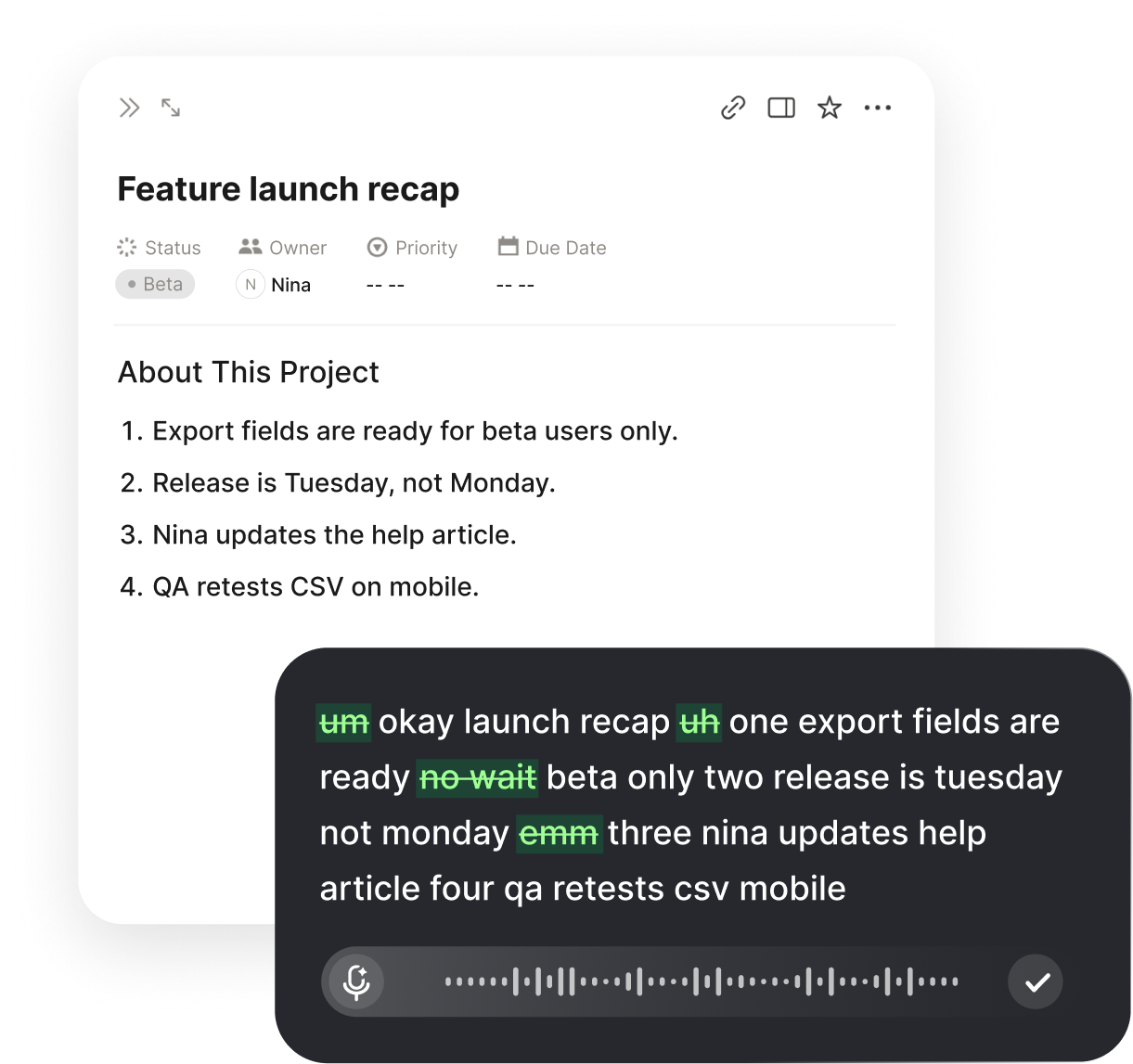
Yes. You compose in the field where you already type, so a reply is spoken where it will be sent. Voiskey removes filler words and self-corrections and adapts punctuation, formatting, tone, and phrasing to the reply you are writing before you review it.
Voiskey learns names, jargon, acronyms, and spelling preferences, so client names and defined terms arrive the way your practice spells them. That reduces the manual corrections that otherwise pile up when letters and replies use the same names repeatedly. Repeated names then stop consuming review time.
Voiskey supports up to 220+ words per minute, about five times faster than typing, so a long letter can be spoken at speaking speed. The review step still matters: check names, dates, and references before the letter leaves your desk.


 Voiskey
Your voice, amplified.
Download Voiskey for Mac and Windows to draft letters and replies at the insertion point.
Use it across macOS, Windows, iOS, and Android