
dictating browser text fields: A Practical Guide to Dictating into Browser Text Fields and Search Bars
Speak into search bars, forms, and editors without touching the keyboard.
 Voiskey Team
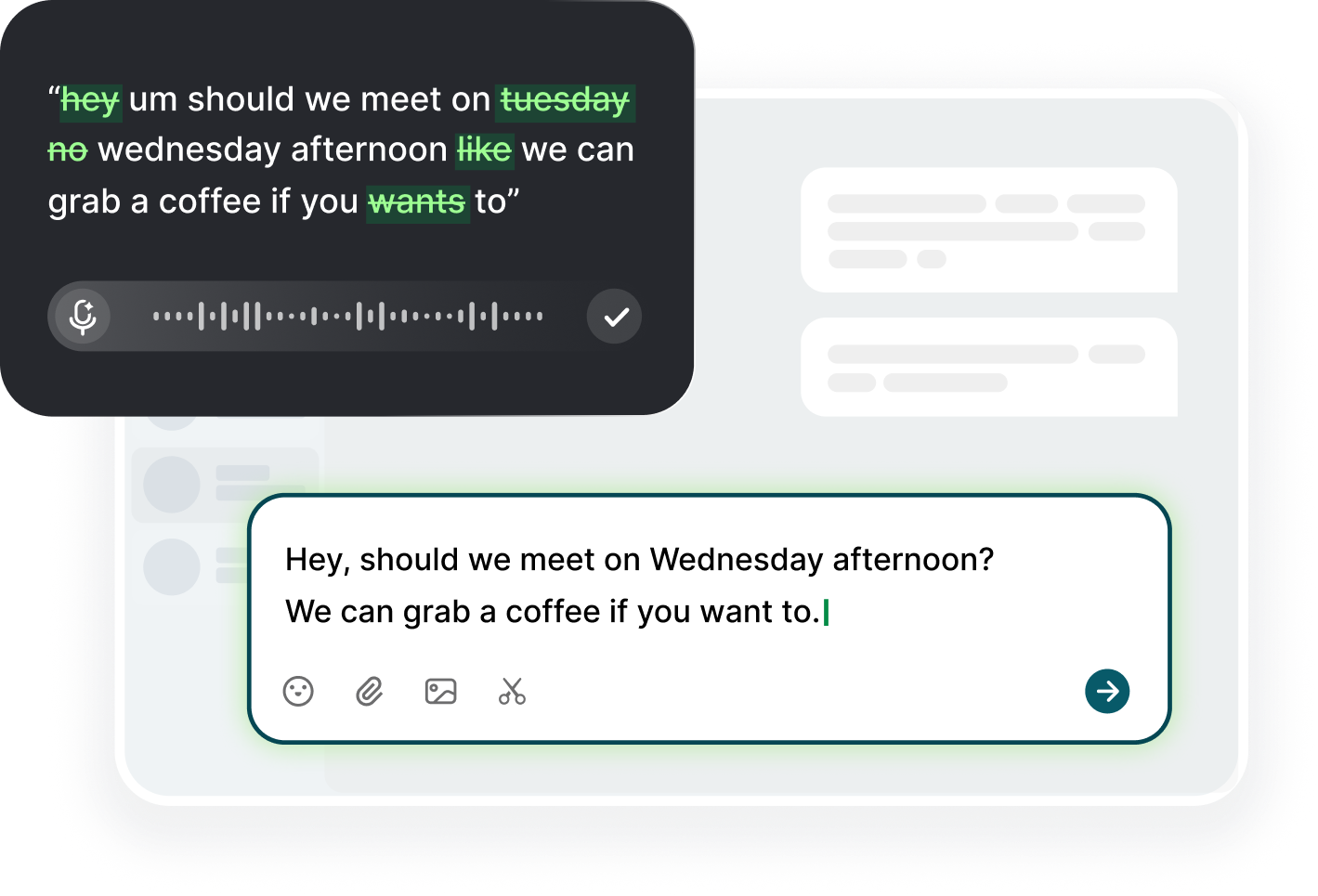
Fields You Didn't Know Accept Voice
The surprise of dictating browser text fields is that nearly every one of them accepts voice. Because a dictation tool types at the operating system level, the browser is just another window full of text fields, and the web page does not know or care that the words came from your mouth. The address bar, the search box, the comment field, the login form, the email compose window, and the giant textarea in a note app all behave the same to it. The result is that the last place people expect speech to work is the place where it needs no special support at all. The field accepts text, and text can arrive by voice.
The address bar is the most surprising one. A URL is not prose, so spelling matters less than you think once you know the start of a domain, but the bar also accepts a search, and a long spoken query lands as naturally as a short one. The practical rule is to speak only what you would type: a domain, a question, or a term. Dictation there is a convenience, not a trick, and it is the first place most people notice that the browser is a voice surface. Try it once with a search you usually type, and the habit takes a day to set.
Forms are the quiet big win. Most web forms are a series of short fields, and each field is a chance to stop typing: the name, the date, the product, the description of the problem. The rhythm is click the field, hold, speak, release, move to the next, and the whole form fills at the speed of speech. The fields need no special mode, because each one is an ordinary input element. The only habit required is the click before the speak, so the words land in the field you meant rather than the last one that had focus. The click is the whole method.
Editors hidden inside web pages are the richest fields of all. A blog editor, a ticket system, a spreadsheet cell, a chat message box, and a code review comment are all text areas that accept the same keystrokes, and dictation types into each one at the cursor. That means the same spoken paragraph that goes into a document can go into a ticket description or a reply box with no separate setup. The field never asks where the text came from. The one thing the page can do is steal focus, and the habit that defeats it is a click you can see.
Dictating in Web Forms and Search Bars
Search bars are the fastest win to practice. Click the box, confirm the caret, hold the shortcut, say the whole query, release, and press Enter. The payoff is that long keyword-heavy queries arrive complete rather than as the fragments you type under time pressure. A question phrased the way you would ask it works, and a raw string of terms works too, because the field receives exactly the words. If the engine types a word wrong, you see it in the box and can correct it before you search, which makes the pattern safe to use for real work from day one.
Forms ask for the same click first, then ask you to go field by field. Do not speak the whole form in one breath, because each field needs its own focus, and the caret moves only where you click. The pattern that works is: click the label, speak the value, check the transcript, move on. Validation fields like a date or an email address may need to be typed rather than spoken, and a quick look at the result will tell you. One field at a time keeps the transcript clean and the errors findable. This is the pattern that makes form filling feel like talking to a receptionist.
Long textareas are where the browser feels most like a regular editor, and the session works there as it does anywhere: click, speak a few sentences, pause, and continue. Break long answers into chunks, because a chunk you can see and scan is easier to fix than a wall of text that lands all at once. At the end of each chunk, glance at the transcript, since a wrong word in a long reply is cheaper to fix in the second after it lands than in the final review pass. Then pause for a beat and let the form handle the rest of the session.
The Enter key belongs to the page, not to the dictation, and knowing that saves a send you did not want. Speak, release, and then decide: on some pages Enter submits the form, so press it deliberately after you have checked the text when the field is a search. In a textarea, Enter makes a new line and is safe. The rule is to treat every web key as if it belongs to the site, because in a browser it does. Read the transcript before you submit, and the form will not surprise you. The check costs one glance, and a lost form is worse than a slow one.
Browser-Specific Quirks and Workarounds
Focus is the quirk that accounts for most browser failures. A web page can move the caret on its own: a pop-up, an autofocus script, a chat bubble, or a page that finishes loading after you clicked. The words then land somewhere you did not look, and the failure looks like a broken tool. The fix is the visible caret: click the field, wait a beat, confirm the cursor is blinking, then speak. If a page steals focus mid-sentence, stop, click back, and continue, because the transcript is the evidence of where the text went. Make the click before the speak your reflex, and this quirk disappears within a week.
Rich editors that re-render text are the second quirk. A comment box, a wiki editor, or a form with live formatting can rebuild the field while you speak, and the rebuild can drop or duplicate the words that landed. The workaround is pacing: dictate a sentence, pause, and let the editor settle before the next one. If the same field keeps corrupting your text, paste one sentence by hand and see whether the paste survives, because that tells you whether the page or the speech is at fault. A page that cannot hold a paste cannot hold dictation either. Pacing is the workaround, and it costs nothing.
Extensions are the third quirk, and they are invisible until you suspect them. A password manager, a translator, a grammar checker, or a spell rewriter can capture keystrokes, rewrite them, or swallow the shortcut before the dictation app sees it. If text appears transformed or does not appear at all, test the field in a private window with extensions off and compare. The comparison takes a minute and separates your tool from the page. Keep the note of which field needs the clean window, and the quirk stops costing you a session. The private-window test is the fastest way to identify the culprit.
The last quirk is a shortcut collision that is per-page. Some sites bind ordinary key combos for their own shortcuts, and a page can win the key before a global shortcut does, which makes the failure look random. If it happens on one site and nowhere else, open the site's own shortcut help or disable its keyboard bindings, and if there is none, use a toggle pattern for that page or dictate into a nearby plain field and paste. One site is not a broken setup; it is a page with different rules. Solve the page once, note it, and it stops costing you sessions.
Editing Inside a Spoken Paragraph
Dictation is not one-shot; a spoken paragraph can be fixed by voice. Select the phrase that came out wrong, hold the shortcut, say the replacement, and release, and the new words drop into the selected place. The pattern is the same in a web form as in a local document, because the selection and the cursor are the only things the tool needs. This is what turns a form fill into a hands-free loop instead of a one-way trick. The edit takes the same two seconds the original dictation did, and it is the reason to trust long spoken answers in the first place.
The most common edit is a name or a technical term that the engine guessed. Select the word, speak the correct spelling, and check. If the same word is wrong again, that is the moment to add it to your custom vocabulary, because the term will come back in every form, every search, and every message in that browser. The vocabulary entry fixes the future, and the replacement you speak becomes the standard. Two tries, then teach the engine, is the rule that keeps the corrections from repeating. That is the fastest topic on the list to fix, and it stays fixed everywhere.
Adding a sentence is the other common edit, and it is just as simple: put the caret where the addition belongs and speak. In a long form answer, place the cursor at the end of the prior sentence, say the next point, and keep going, with no keyboard involved. Read the phrase you are replacing before you replace it, which is what a selection needs, and it keeps the flow of the paragraph intact. The page sees the change as normal text entry, so autosave and validation do not complain. This is the edit that makes editing by voice feel complete.
There is a point where fixing by voice is more work than retyping, and knowing it is the skill. A single word is a fast fix, and a phrase is a fast fix, but a whole garbled sentence is faster to select, delete, and speak again, or just to type if the engine keeps missing the terms. The rule is to compare the two costs in the moment rather than to force a method. Dictation is your input method, not your only correction method, and the best session uses whichever fix is quicker. Keep both in the habit and neither becomes a chore.
A Web Workflow That Keeps the Keyboard Off
The workflow starts with one habit: click where you want the words, then speak. In a search, click, query, read, enter. In a form, click each field, speak each value, then submit after a scan. In an editor, click, speak a sentence, pause, continue. The click is the single repeated action, and it is the difference between words that land and words that scatter. People who skip it blame dictation for a focus problem, and the memory of the first bad session keeps them from the habit. Ten good clicks is all it takes to build it. The click is the habit; the speaking is the easy part.
The session itself takes the shape of a loop: speak a chunk, scan it, fix it, keep going. Chunks of two or three sentences match the way forms and search bars accept text, and they keep the transcript small enough to check honestly. The loop replaces the old pattern of type and re-read, because the scan is the same but the entry is faster. After a week, the loop becomes automatic, and the browser stops feeling like a typing surface. What remains is a web you operate by saying what you are doing, and the keyboard is back to only the final taps.
Vocabulary pays off doubly in the browser, because the same names appear in searches, forms, and threads. Product names, model numbers, team names, and acronyms that you keep saying are the ones to add, and a short list keeps every web field consistent. Because the list applies at the system level, the term that was fixed in a search bar is fixed in the checkout form too. Review the list weekly and cut what you no longer use, since a curated list is accurate and a bloated one starts to drift. The list is the memory of your web work.
One boundary worth remembering: a dictation tool only turns your speech into text at the cursor, and it does not read the page, open your files, or see your history. That is the exact reason a browser workflow stays simple, because the tool never decides where or what to type; you do. It also means nothing about your web session leaves the machine through the tool itself, and the only thing it touches is the field you selected. Keep that boundary in mind, hold the shortcut while you speak and release it when you stop, and the workflow stays predictable.
FAQ s
Yes, and no special support is needed. A system dictation tool types at the operating system level, so any web field that accepts keystrokes accepts your voice: search bars, forms, comment boxes, and editors. The browser does not know the words came from speech. The only requirement is the same as anywhere: a granted microphone and a click on the field before you speak.
A web page moved the focus, or you clicked something after you intended to speak. A pop-up, an autofocus script, or a page finishing its load can take the caret. Click the field again, confirm the cursor is blinking, wait a beat, then speak. If a page steals focus mid-sentence, stop, click back, and continue.
Yes. Select the phrase that came out wrong, hold your dictation shortcut, say the replacement, and release. The new text drops into the selection. If the same word keeps coming back wrong, add its spelling to the app's custom vocabulary, and every future field, search, and message will get it right.
No. Dictation happens at the system level, so no browser extension is involved and there is nothing to install in the page. Your shortcut and microphone are all it needs, and the tool only types at your cursor. It never reads the page or your browsing history, so the page and your speech stay separate.


 Voiskey
Your voice, amplified.
Choose a real task, follow the steps, and review the results with your team before expanding the rollout.
Use it across macOS, Windows, iOS, and Android