
chatgpt voice mode vs dictation: Key Differences: A Practical Guide
One talks back, the other types. Know the difference and pick correctly.
 Voiskey Team
Two Voice Features, Two Jobs
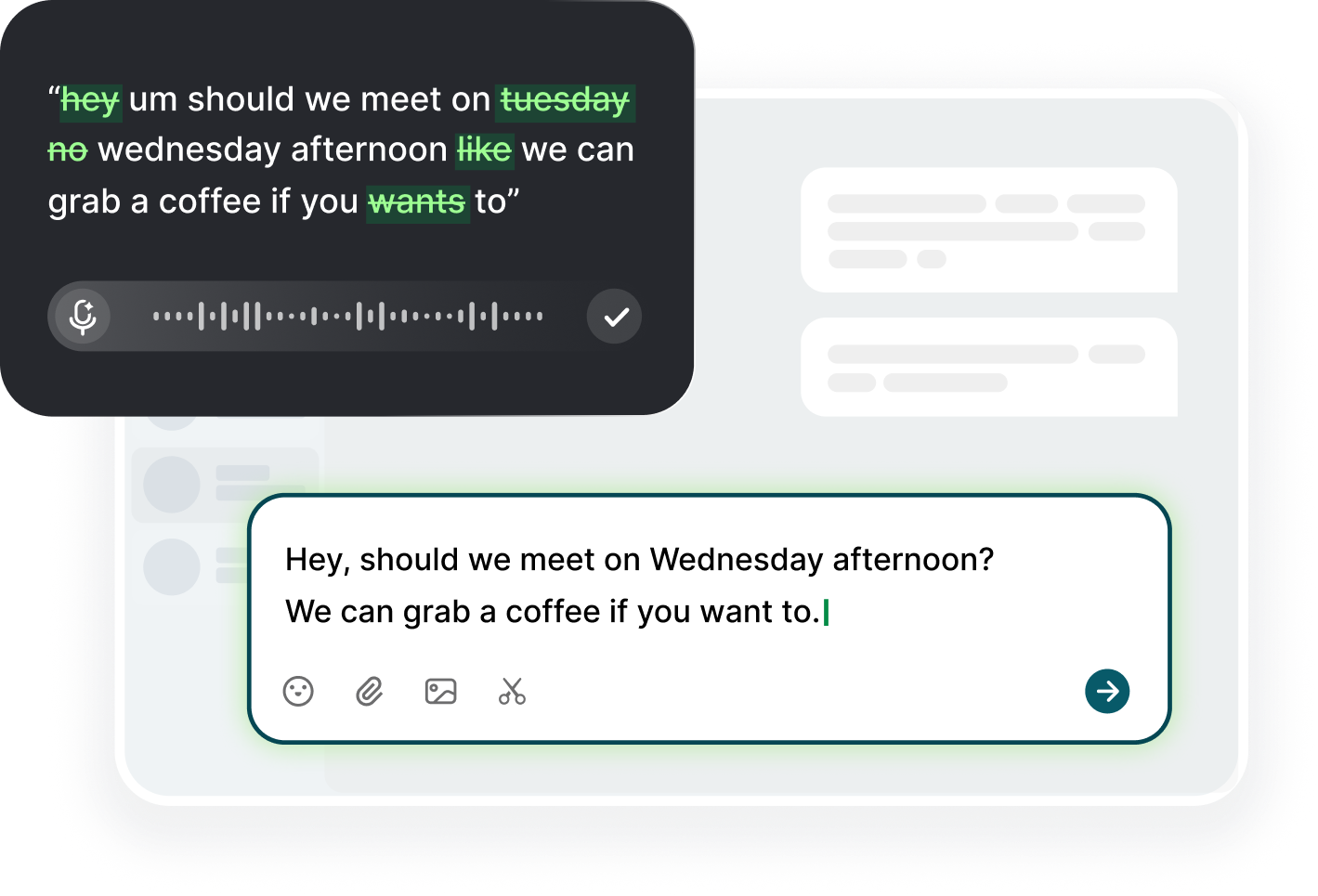
The quickest way to end a wasted evening is learning what chatgpt voice mode vs dictation actually means. Voice mode is a conversation: you speak, the assistant speaks back, and the exchange happens in real time, with your words never landing in the input box as text unless you copy them out. Dictation is transcription: your speech becomes editable characters in a text field so you can review and send them like anything you typed. One is a dialogue, the other is an input method. They are not two versions of the same feature; they run on different plumbing, and mixing them up is the single most common cause of reports that the voice feature is broken.
The confusion is understandable because both start with a microphone. The voice icon in the ChatGPT interface drives the conversational experience, while dictation usually comes from the keyboard's microphone key or from an operating-system shortcut, and on desktop it often comes from a dedicated tool, because there is no universal dictation button there. If you tapped the voice icon expecting your words to appear as text and found yourself in a spoken chat, nothing is broken; you simply used the wrong feature, so switch the control rather than switching tools. Knowing which control you pressed answers the first question of any troubleshooting session.
The intended output differs too. Voice mode is for thinking out loud and refining an idea through dialogue; dictation is for producing text you can send, edit, copy, and paste. Time is the other differentiator: voice mode enables a back-and-forth stretch of minutes, while dictation is one-directional speech into a box, so it favors fast drafting over deep exchange. If you are drafting an email, dictation wins because the result is text. If you are shaping a strategy and need the assistant to push back, voice mode wins. Choose the feature by the deliverable, not by which icon looks familiar, and you will stop feeling that the product misbehaves on you.
Once the two are clear, decode error messages from that lens, because the wording of a failure often carries the answer. A message about no speech detected points to the microphone path, while a message that the assistant missed what you said points to the conversation path, and a warning that no text was inserted points to the transcription path. Different layers, different fixes, and half of the complaints online are simply the wrong expectation attached to the right feature. When you know which feature you meant to use, you know which layer to inspect, and the diagnosis starts one step closer to the answer.
When Voice Mode Beats Dictation
Voice mode wins whenever the deliverable is understanding rather than a document. Planning a project, debugging the logic of an argument, or explaining a messy problem you cannot yet articulate: in that state, speech-to-text puts your half-formed words into a box and expects them to be final, while voice mode lets the assistant ask a question that redirects you. Speak a confusing thought into voice mode, get a clarifying question back, and you will reach a sharper version of the problem faster than by dictating three drafts and editing them into shape. Use the conversation as a thinking tool, then take its result and move on.
It also wins for anything that needs tone and follow-up. A back-and-forth lets you correct the assistant on the spot, test an idea, hear an option considered aloud, and change direction mid-sentence, none of which a transcript can do once the words are fixed on the page. Dictation cannot do any of that; it stops at transcription, and the next turn is yours alone. The practical matrix: voice mode for discovery, for framing angles, for rehearsal, and for anything where you want the conversation to change the outcome. Dictation for anything where the outcome is text, like the email in your outbox, because voice mode leaves you copying words out of a transcript and losing the formatting you intended.
Two practical notes. Voice mode is usually available on the mobile app, and the spoken conversation is where it shines; using it on a walk or in transit is a genuine advantage over reading a screen, and the hands-free session feels natural in a way desktop typing never will. Use it also when you do not want a visible draft at all, for example while discussing a sensitive topic or brainstorming with someone in the room. When the conversation ends up producing useful content, you can copy the transcript into your notes, but treat that transcript as raw material to be shaped, never as the deliverable itself, because the assistant's phrasing is not yours yet.
A good habit: end a voice session by asking the assistant to summarize the decisions made out loud. That gives you a clean, copyable paragraph instead of a sprawling dialogue you would have to trim, and it converts conversation into content with almost no editing. Ask for the summary in bullet points if you plan to turn it into a plan, and ask for it in a single paragraph if you intend to paste it into a doc. Ten seconds of asking converts an hour of talking into a reusable artifact, and it makes voice sessions feel productive rather than simply pleasant.
When Dictation Beats Voice Mode
Dictation wins the moment the deliverable is text with your name on it. Emails, status updates, meeting notes, prompts, and the first draft of a report are all transcription jobs: you want the words in the box, exactly in your voice, and ready to send. Sitting in a spoken conversation to produce a message you could have spoken directly is slower, and voice mode will also rephrase things in its own way, which is fine for thinking but wrong for a message that must sound like you. Reach for dictation when the words matter and the assistant's opinions do not.
Dictation is also the right tool for anything you need to edit afterward, because the text stays editable and in place. A transcript you can cut, paste, reorder, and fix beats a wall of spoken dialogue you have to trim by hand. Professional writing benefits most: dictate the whole thing first, then revise in a second pass, since revision on a full draft is faster than composing sentence by sentence. And for prompts, dictation is the winner, because the prompt is input, not conversation; you want it typed into the box, where the record of what you asked stays visible and repeatable.
Dedicated dictation tools push this further. Because they transcribe into whatever field has focus, they work in ChatGPT's input box, in your email client, in docs, and in chat without changing behavior, and they bypass the per-site permission patchwork that makes browser dictation inconsistent. Voiskey, for example, runs as a Chrome extension and a desktop app with high-accuracy real-time speech to text, and it keeps one consistent dictation experience across the apps you type in, with punctuation voice commands and filler-word cleanup. With a tool like that, the distinction collapses into a simple rule: want the words in the box, use dictation, and the tool will put them there.
One more edge case for dictation: anything you must send verbatim, like a quotation, a legal note, or an exact instruction to a teammate. You can review the text before sending, which a live conversation cannot offer, and you control the final wording completely, including capitalization and line breaks that matter in the destination. Dictate it, then read it once aloud to yourself, because reading the transcript back catches the errors your eye skips, and your ear flags a missing article or a swapped name much faster than a glance does. This is also the fix for the anxiety that stops people from using voice at all: what you looked at, you signed off on, and the document you send is the one you verified, not a gremlin copy.
Combining Both in One Session
The strongest workflow uses both within one task. Start in voice mode to refine what you actually want to say, then switch to dictation to produce the deliverable. For example, voice mode a muddy request back and forth until the assistant restates it crisply, then dictate the final prompt or email into the box knowing its shape already, and the second pass takes a fraction of the time of the first. Each feature does the half it is good at, and the session ends with the text where it belongs instead of with a transcript you have to rescue. This two-step habit is what experienced users settle on after weeks of frustration.
Switching mid-session is easy once you know the controls. The voice icon handles the spoken conversation; the keyboard mic or dictation shortcut handles transcription, and the two never share a state. Do not try to dictate while voice mode is running, because the assistant will simply treat your speech as conversation input rather than as text to type, and you will both be confused about who owns the microphone. End the voice session, place the cursor in the target box, and dictate. Keep one habit: when the goal flips from thinking to producing, switch features deliberately, and you will never wonder why the assistant is talking while you wanted typing.
A third option exists for the edge case where you want two outputs: dictate the whole transcript, then ask the assistant questions about it, then paste the final answer back into your document, which works because the dictation gives you a record and the conversation gives you the reasoning. That loop is the hybrid many heavy users rely on for articles and analyses, and it converts a single stretch of speech into a researched result. The important point is that the tools do not compete; they compose. Recognize which one owns the current step and pick accordingly, and the workflow becomes faster rather than more complicated, with the dictation doing the moving and the conversation doing the thinking.
Avoid the trap of doing everything in one mode all day. Mixed sessions keep you fresh: conversation gets you unstuck, transcription gets you moving, and alternating the two prevents the fatigue that comes from pure typing or pure talking. Use voice mode on the projects that are still vague and dictation on the ones that are already clear, and you will notice that your energy survives the afternoon. Track which feature you used for which task for a week, and the pattern in the log will show you the split that works for your own brain, not the one a blog post recommends. Revisit the split after a month, because the mix that fits a busy quarter is not the mix that fits a calm one, and the log makes that adjustment obvious in minutes.
Common Confusions and Their Fixes
The most frequent mix-up: you tap the voice icon expecting text and land in a spoken chat. The fix is a control choice, not a repair. To get dictation on mobile, use the keyboard's microphone key; on desktop, use OS dictation or a dedicated tool. The second mix-up: you dictate for an hour into ChatGPT and come back to find your words were never entered, because nothing transcribed them. The core point holds here: ChatGPT rarely transcribes your speech itself on desktop, so your words are captured by the OS, the browser's speech service, or an extension, and any failure lives upstream of the chat itself.
The third confusion is punctuation and formatting. Native dictation often requires you to say the punctuation or leaves a wall of unpunctuated text, and many people blame their phrasing. If you are speaking periods but the transcript shows none, you are likely on a tool that ignores spoken punctuation; a dictation tool with punctuation voice commands bridges that gap and turns your words into a sendable draft. The fourth is silence timeouts: voice mode keeps listening through your pauses because a person is on the call, while a transcription engine may drop the session, so a pause in dictation reads as a failure when it is really an engine limit.
Guard against the fifth mix-up: letting a tool outage corrupt your mental model. If one day dictation stops working, the cause is almost always permissions, a device setting, or a network path, not the feature itself, and the distinction between voice mode and dictation is still exactly what it was yesterday. Before doubting the distinction you have learned, run the checklist: system and site permissions, correct input device, then network, and the outage will resolve without you abandoning a working mental model. If the native path keeps failing, a dedicated tool gives you one consistent experience across apps, so you spend your energy dictating instead of diagnosing whether you pressed the right mode.
When teaching a colleague, lead with the deliverable question, what do you want at the end, text or a conversation. Answering that single question selects the right feature ninety percent of the time and prevents most of the confusion you have already walked through, and it converts your own hard-won lesson into a one-line rule for someone else. Add the second question only if they need it: how fast do you need the answer, since conversation is faster for decisions and dictation is faster for documents. Two questions, and the colleague is saved from the week of mix-ups you experienced.
FAQ s
Voice mode is a spoken conversation where the assistant talks back to you in real time; dictation converts your speech into editable text in the input box. Voice mode is for thinking and dialogue, dictation is for producing text you can send. The voice icon drives voice mode; the keyboard mic or a dictation tool handles transcription.
No, you used voice mode, which is conversation. To get text on mobile, use the keyboard's microphone key; on desktop there is no universal dictation button, so use operating-system dictation or a dedicated tool that types into the focused field.
Yes. Use voice mode to refine what you want to say, end it, then switch to dictation to produce the deliverable. Avoid dictating while voice mode is live, because the assistant treats your speech as conversation input rather than text to type.
Native speech engines often require you to speak punctuation like comma and period, or they add none at all. A tool with punctuation voice commands and filler-word cleanup produces text that is ready to send without a second editing pass.
The problem is usually upstream of ChatGPT. Check microphone permission at the OS and site level, confirm a valid input device, and test the network and VPN. The assistant is rarely the part that transcribes, so start your diagnosis outside the chat itself.


 Voiskey
Your voice, amplified.
Choose a real task, follow the steps, and review the results with your team before expanding the rollout.
Use it across macOS, Windows, iOS, and Android