
chatgpt voice dictation setup: A Practical Guide to Setting Up Voice Dictation in ChatGPT Step by Step
From mic permission to first spoken prompt in one session.
 Voiskey Team
What Voice Input Actually Requires
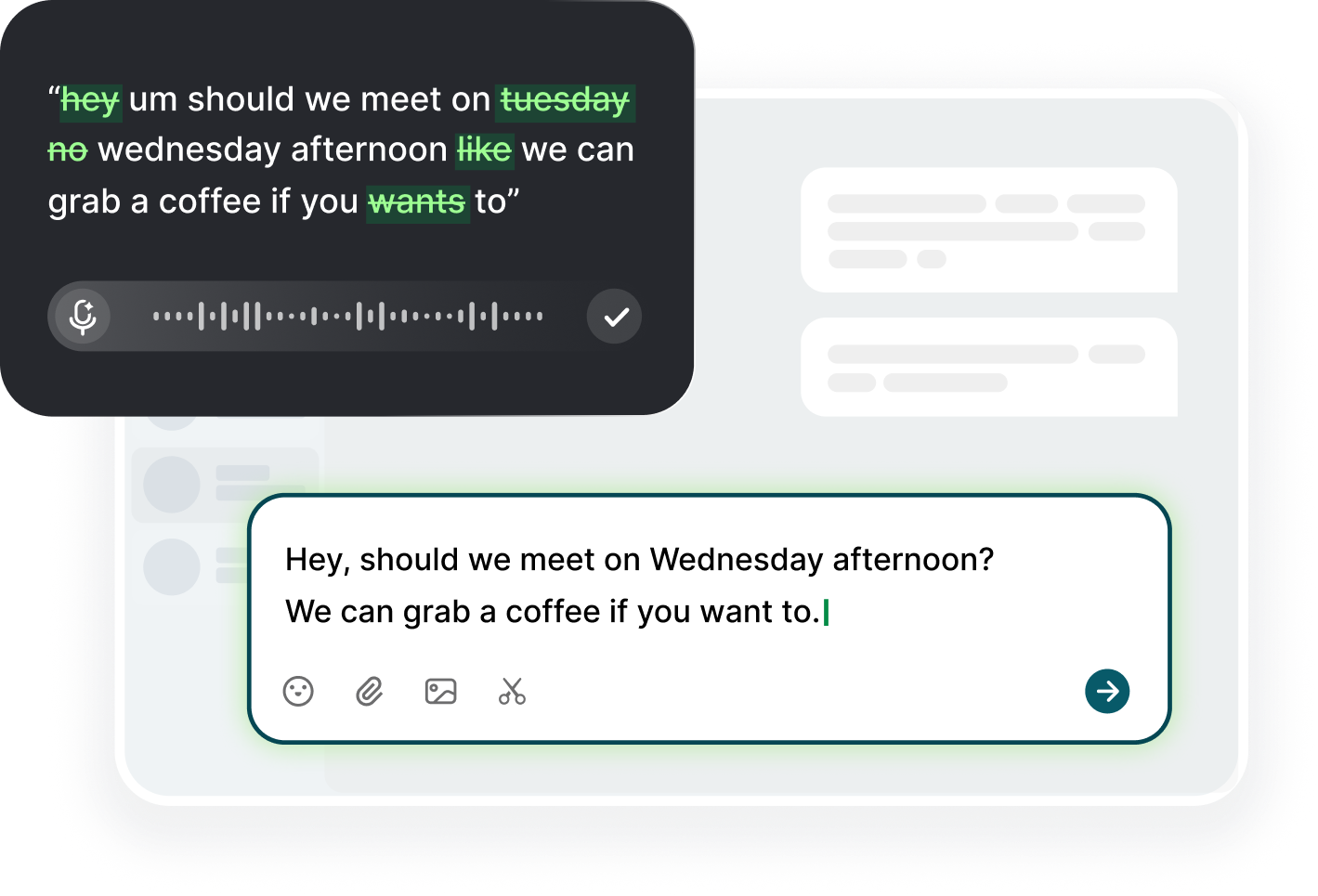
A dependable chatgpt voice dictation setup rests on three pre-checks people skip: a microphone permission that is actually granted, a shortcut that does not collide with keys you already use, and a text field that owns focus when you speak. Before installing anything, write the one sentence you want to dictate and pick the field it should land in, such as the ChatGPT message box in your browser. Test your mic in a voice memo first, so that silence does not masquerade as a broken app. Note whether ChatGPT runs in the browser or as a desktop app, because both receive voice but differ in focus behavior. Finish these three checks and the whole setup takes minutes. Skip them and you will spend an afternoon debugging a dead shortcut that is really a denied microphone or a caret sitting in the wrong window.
Now choose one real prompt you will actually send, not a toy. A useful first target is a request you type every week, like asking for a meeting summary or a follow-up email draft. Write down what a good result looks like before you start: the length, the tone, and the facts it must include. Keep the example near 100 words so the test is quick to judge. Save that prompt in a note, because you will reuse it when you verify the shortcut after a restart or an update. If the transcript comes out clean on a prompt you know well, the setup is trustworthy for longer material. If it garbles the same familiar request, fix the pipeline before expanding to anything serious.
Separate equipment problems from software problems early. A laptop built-in mic handles a desk in a quiet room, but it picks up tapping, fans, and background voices when you move around. Try a headset once and compare the transcript, because many transcription errors vanish with a closer mic rather than a different app. Watch the delay too: a Bluetooth headset adds a half second between a word and its appearance, which makes people talk too fast. Speak at the pace you would use on the phone and let the text trail you instead of racing it. If you dictate in a noisy office, choose a boom mic and close the door for longer prompts. Small acoustic changes beat big software tweaks.
Before you touch settings, decide which text field should receive the words, because a system-wide voice tool types wherever the caret is. Open the chat, click once in the message box, and watch for the blinking cursor. That caret is the contract: everything you say gets inserted there. If you click a sidebar, a settings search box, or another browser tab, your words go there instead. During testing keep only one interest field on screen and keep ChatGPT in the foreground. This single habit prevents more failures than any configuration tweak, and once it is automatic you can dictate successfully on the first try of every session.
Step by Step: Enabling and Testing
Start the install with the app you chose, then handle the permission popup the moment it appears. If you dismiss it, macOS and Windows both remember the denial, and the shortcut will look broken until you walk into system settings and flip it back. On macOS open System Settings and check Privacy and Security, then Microphone; on Windows check Settings, then Privacy and security, then Microphone. Give the app an Allow switch, quit the app, and launch it again so it re-reads the permission. Open a plain notes window for the first test and dictate one ordinary sentence about the weather. If the words land, permission and engine both work. If nothing appears, re-check the toggle before touching any other setting.
Next, set the shortcut before you need it, in a place nothing else uses. Open the dictation app settings and look at the default pair, usually two modifiers plus a letter or a space key. Try the default first, because muscle memory forms faster when the trigger is already sane. If it clashes, test the suspicious combo deliberately: press it in a browser and see whether a menu pops up instead of a dictation bar. Pick something on the left side of the keyboard so your right hand stays on the mouse while you dictate and edit. Write the chosen combo on a sticky note for the first week, then remove it once your fingers stop hesitating. A calm trigger makes every later step feel faster.
Run your first end-to-end test in ChatGPT directly. Open the chat page, click the message box, confirm the caret blinks, hold your shortcut, and speak a full request in one breath, such as: give me a three-bullet summary of the naming conventions in common OCR toolkits. Then release and wait a beat, because some engines need a moment before the final word lands. Read the transcript line by line and mark the exact words that came out wrong. Note punctuation placement, capitalization at sentence starts, and whether numbers emerged as digits or as words. Keep a short log of those errors, because the pattern tells you what to fix in vocabulary and pacing rather than in random settings. Two clean runs are your green light.
After two clean runs, add a deliberate difficulty: a term that is not in the default dictionary. Say an internal project name, a filename with hyphens and a dot, or an API method you call often, and watch what the engine guesses. This is the moment to open the app custom vocabulary list and add the words you say every day. Enter each spelling exactly as it should appear, including hyphens, then dictate the same sentence again and confirm the correction. A short list of ten terms eliminates most manual fixes for the average user. Freeze the first session only after you pass this vocabulary test, because that is the boundary between a polished demo and a dictation habit you will actually keep.
Permissions on macOS, Windows, and Mobile
Each platform hides the microphone switch in a different place, and the wording shifts with the release. On macOS the toggle lives in System Settings, under Privacy and Security, then Microphone, and the app appears in that list once it has asked at least once. On Windows go to Settings, then Privacy and security, then Microphone, where a master switch must be on before any per-app toggle counts. On phones, iOS asks per app from a permission sheet and Android asks too, usually under Apps, then the app name, then Permissions. Find both layers before blaming the dictation tool, because a test that works on your laptop and fails on your phone is almost always a platform toggle rather than a broken shortcut.
Do not grant the keyboard or browser random access on a machine you share. The permission you need is narrow: the dictation app hears audio and types text, nothing more. Review every app in the microphone list once a month and revoke entries you do not recognize, since a global mic grant is the classic mistake when people install utilities one after another. On macOS keep Input Monitoring grants minimal as well, because many voice tools register a helper there. If you lock down the mic for security and dictation stops, re-allow that single app instead of restoring everything. A small, documented grant set saves both your privacy and your debugging time.
Mobile permissions deserve a separate check if you plan to dictate prompts away from the desk. On iPhone, speech input depends on the keyboard the app exposes, and some third-party hotkeys need the app to stay open rather than get backgrounded. On Android, keyboard pickers decide which engine receives your audio, so set your preferred voice input as the active keyboard in system settings. Test once on cellular data, because some audio paths degrade on a weak connection without any visible error. Keep in mind that a phone mic sits farther from your mouth than a headset, so speak closer and slightly slower. Match your expectation to the device before you blame the software.
If you share a machine with a team or a family, assign the mic grant to one user profile instead of granting it to everyone. Both Windows and macOS keep per-user toggles, so the colleague who dislikes dictation never sees it and the one who loves it keeps a quiet session. On managed work laptops, group policy can block microphone access silently; if your machine is administered, ask before overriding a policy a security team set on purpose. Whatever you do, keep the granted scope limited to the single dictation app, because the fewer apps that can hear you, the fewer places a stray transcript can surprise you. Write the final configuration down so the next owner can restore it.
Choosing the Input Mode for Your Setup
You get to choose between two general styles, and the right one depends on where you work. In a quiet room, a desktop mic handles full sentences and you can dictate a multi-clause prompt in one pass at a conversational pace. In an open office or a train carriage, a headset plus short bursts performs better: state one intent, release, check, then continue. Test both for a day on the same prompt before deciding. Voiskey's dictation will happily take either style, because it simply transcribes whatever it hears into the focused field, but the error counts will differ. Match the mode to the room, not to the brand, and your transcripts will look cleaner without any setting change.
The second choice is between speak-and-send and speak-then-edit. Speak-and-send suits routine requests you know well, like summarize this thread or draft a short reply, where a stray word is easy to spot during a quick read-through. Speak-then-edit is for complex prompts with numbered steps, where you talk the whole brief and then scroll and adjust before hitting send. During your first week choose speak-then-edit every time, because it surfaces the transcription patterns you need to learn. Once you can predict how the engine treats model names, numbers, and clauses, you earn the right to skip the review pass on low-stakes messages. Choose deliberately, because the two styles produce very different error rates per session.
A third decision is where to dictate: in the browser or inside a desktop chat client. Browser fields accept the same system-level shortcut, and the web app is where most people first test, but a standalone desktop client keeps focus stable when the browser is buried under other windows. Try both for two days and notice how often a tab switch steals your caret, which is the main cause of words landing in a sidebar search box. If you live in the browser, pin the chat tab and close rival windows. If you prefer the desktop app, treat it as the single window you keep on top while talking. Either way the engine stays the same, so optimize for the surface you open most.
Finally, decide how much punctuation you say out loud. For ordinary prose, say almost nothing and let natural pauses insert commas and periods, then fix names and lists by hand. For structured output, speak the marks explicitly: comma, period, new line, colon, then a three on a new line. Speaking structure is slower but far more reliable for prompts that must emerge as lists or tables. Find your middle point by dictating one paragraph three ways: silent, partial marks, full marks. Compare the correction effort after each pass, then settle on the level that matches your typical message. Most people mark punctuation only where business or code formatting demands it, and that middle level takes one session to locate.
Failures, Fallbacks, and the First Good Session
When dictation produces nothing, walk the four blockers in order before touching a setting. First, focus: click the target field and confirm the caret blinks. Second, permission: reopen the microphone page and confirm the app is allowed, not merely installed. Third, the shortcut: press it in a plain notes window, because a clash with another hotkey looks identical to a dead app. Fourth, the engine: speak into a voice memo and see whether your voice registers at all. Two minutes of that order fixes nine of ten silent starts. Write the checks on a sticky note and you will stop re-diagnosing the same problem after every update or system restart.
When text lands in the wrong place, the cause is always focus and the cure is discipline. Every time you return to ChatGPT, click the message box before you speak, even when the field looks selected. Browsers are the worst offenders because a scroll, a click on a settings icon, or a notification can move focus without moving your view. The quick tell is the blinking caret: no caret means no words, or words somewhere else. Also check that no dialog has grabbed the foreground, since a modal window can swallow keystrokes. If the problem happens on one site only, test a plain notes field; when dictation is healthy there, the fault is the page, not the pipeline.
Mistranscribed jargon is the third classic failure, and it is the one people blame on accuracy when the real issue is vocabulary. The engine matches sound to words it knows, so an internal codename becomes the closest English guess. Open the dictation app custom vocabulary list and add the term with its exact spelling, including capitals and hyphens. Then say a sentence that uses it twice and verify the result. Repeat the cycle for every term that fails twice, and one short session builds a list that removes most future corrections. Keep that list small and current. Deleting entries after a project ends keeps recognition sharp for the words you actually use, instead of letting the lexicon rot around old product names.
The first good session looks like this: you open ChatGPT, click the box, hold the shortcut, and speak a long prompt in about three minutes, with one pause while the engine resolves a vocabulary word. You read the text, fix two commas, press send, and the answer comes back in line with the brief. Freeze the setup that produced it. Note the app version, the shortcut, the vocabulary list, and the permission state in a short note. When a later update breaks things, restore from that note before you touch defaults. Keep the log and judge every future change against a session you already know works. That consistency is what turns a setup into a habit.
FAQ s
A computer or phone with a working microphone, a dictation app that types into any text field, and granted microphone access. Also pick a shortcut that does not clash with keys you already use, and remember to click inside the ChatGPT message box first. Test in a plain notes field before you try the chat.
The usual cause is focus, not the app: after clicking a sidebar or another tab, the caret leaves the message box. Click once in the chat input, confirm the blinking cursor, and speak again. If text is still missing, check the microphone permission in system settings, then relaunch the app so it re-reads the grant.
Open the dictation app custom vocabulary list and add each term with its exact spelling, including hyphens and capitalization. Say the term in a sentence, verify it appears correctly, then repeat for any term that fails twice. Ten or fifteen entries cover most of what a regular prompt writer needs.
No. Dictation is an input method that types at your cursor, while ChatGPT's voice mode is a conversation feature inside the app. The same shortcut that fills the prompt box also fills a search bar or an email, and the two features simply coexist. Use whichever feels faster for the job.


 Voiskey
Your voice, amplified.
Choose a real task, follow the steps, and review the results with your team before expanding the rollout.
Use it across macOS, Windows, iOS, and Android