
Windows · Voiskey
Windows Voice Typing With Voiskey — Not Just Win+H
Voiskey is an AI-powered voice input tool for Windows — faster, more accurate, with Dictation (Alt), Translate (Win+Alt), and Ask AI (Alt+Space).
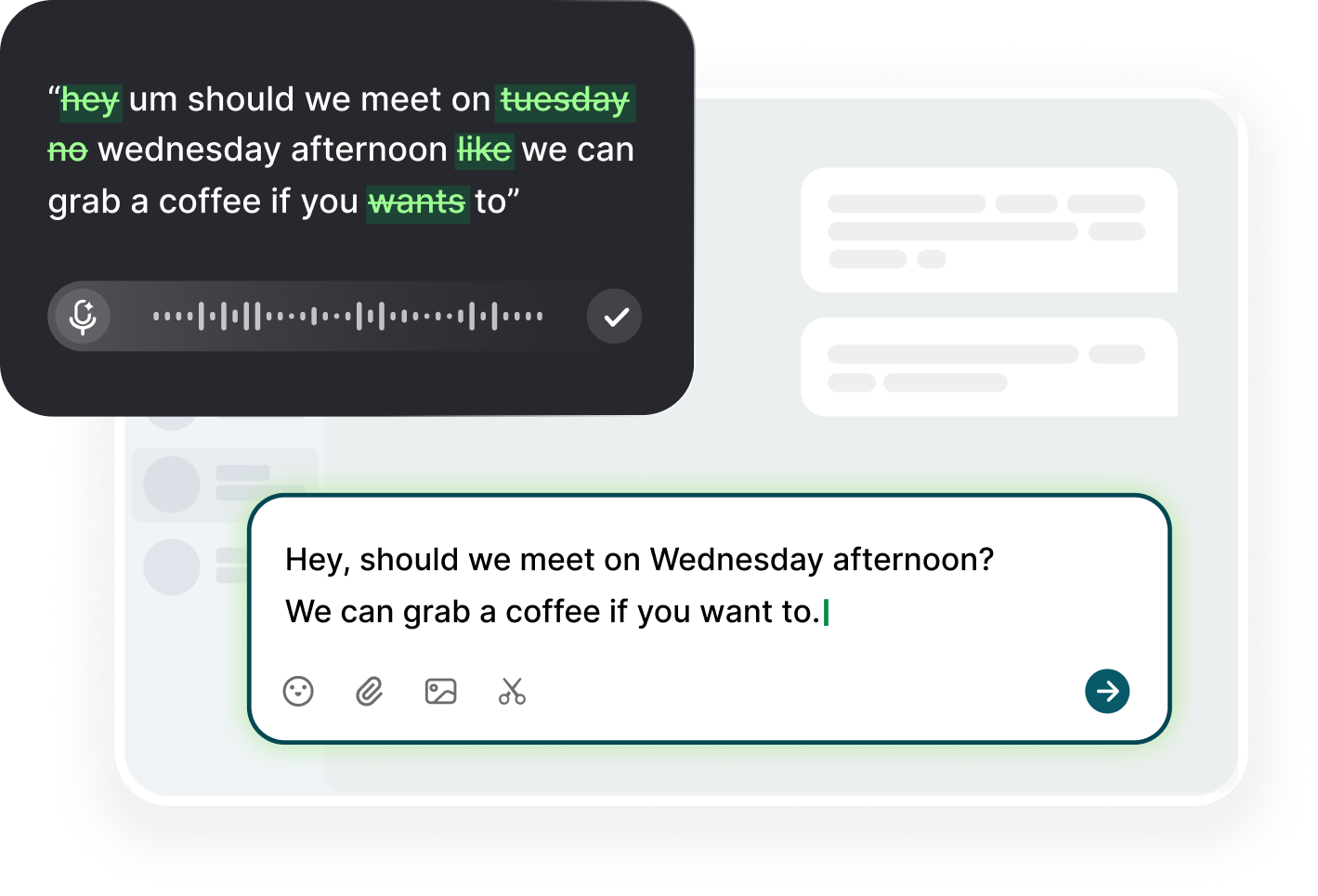
Why Voiskey Beats Stopping at Win+H
Voiskey is an AI-powered voice input tool for Windows. It is faster and more accurate than typing or basic Windows voice typing — about 220 wpm speaking versus about 45 typing (about 5× faster).
Beyond Dictation, you also get Translate and Ask AI: cross-language text at the cursor, plus voice Q&A or a rewrite of selected text. Win+H mostly transcribes; Voiskey aims for sendable writing in Word, Outlook, Teams, and Slack.
On Windows, Voiskey is voice input beside your physical keyboard — not an on-screen keyboard. Use Alt, Win+Alt, and Alt+Space wherever you already write.
Windows Shortcuts: Alt, Win+Alt, Alt+Space
Install Voiskey, focus any text field, then:
Dictation — Alt. Speak naturally; Voiskey cleans fillers so the draft is closer to sendable copy in Word, Outlook, or Slack.
Translate — Win+Alt. Say it in the language you think in; land phrasing that fits the language your reader expects.
Ask AI — Alt+Space. Ask by voice for a short draft, or select text and ask for a clearer version of that selection.
Where Voiskey Lands on Windows
Dictation (Alt)
Draft Word sections or CRM notes by voice without parking text in a side window.

Translate (Win+Alt)
Bilingual Outlook or Teams threads: speak once, send in the language they read.

Ask AI (Alt+Space)
Select a rough paragraph in Word or email, then ask for a tighter rewrite by voice.
Browser Work
Same Alt / Win+Alt / Alt+Space flow in Chrome tickets, forms, and web apps.
Optional: Built-in Voice Typing (Win+H)
For system voice typing in Windows 11: focus a text box, press Win+H, allow the mic, and speak. Useful for a one-line note when you do not need cleanup.
When Win+H fails or the draft needs to sound written, switch to Voiskey Alt at the cursor and finish the work — then debug Windows settings later.
Related workflows:
- Inbox without slow typingVoice typing for emails
- Channel updates that keep paceVoice typing for messages
- Meeting follow-ups while freshVoice typing for meetings
FAQ s
On Windows: Dictation is Alt, Translate is Win+Alt, and Ask AI is Alt+Space. Click into the field you already use, then speak — Voiskey is a voice input tool on desktop, not an on-screen keyboard.
Voiskey is an AI-powered voice input tool — faster and more accurate than Win+H alone. Beyond Dictation (Alt), you get Translate (Win+Alt) and Ask AI (Alt+Space). Win+H mostly transcribes; Voiskey aims for sendable writing.
Press Alt+Space and ask by voice for draft text, or select a block first and ask for a rewrite of that selection. It does not open files or run system actions for you.
Yes. Put the cursor in Word, Outlook, Teams, Slack, Chrome, or Edge and use Alt to dictate — the same shortcuts everywhere you write on Windows.


 Voiskey
Your voice, amplified.
Speak naturally, write effortlessly, and move faster. Turn your voice into polished, ready-to-use text wherever you work.
Use it across macOS, Windows, iOS, and Android