
How to Dictate in ChatGPT When Voice to Text ChatGPT Not Working
This ranked checklist tackles voice to text ChatGPT not working one fix at a time, starting with the fastest tweaks and ending with the most dependable long-term solution.
 Voiskey Team
Fix 1: Reload and Re-Grant Permission
When voice to text ChatGPT not working interrupts your flow, the worst thing you can do is change ten settings at once and lose track of what helped. This checklist takes the opposite approach, working through eight fixes in a deliberate order, from the fastest free tweaks to the most reliable long-term solution, so you can stop at the first one that works. Begin with the quickest possible step: reload the ChatGPT tab and allow microphone access when prompted.
Browsers sometimes drop or stall the microphone connection, and a simple reload re-establishes it with a clean permission state. If the permission dialog appears on reload, choose Allow, then try dictating again before doing anything else. After each fix in this guide, test a short prompt in ChatGPT and continue only if your words still fail to appear as editable text.
If no prompt appears, open the site permissions for the ChatGPT domain directly and confirm the microphone is set to Allow rather than Ask or Block. A single mis-set toggle here is responsible for a huge share of dictation complaints, and correcting it costs nothing. Reload once more so the change takes effect, then test.
Thirty-second starter checklist
Fix 2: Select the Right Microphone
If reloading did not help, the system may be listening to the wrong microphone. Laptops with external webcams, headsets, and docks often expose several input devices, and the default may be muted, unplugged, or physically covered. Open your sound settings, pick the device you are actually speaking into, and watch the input level meter respond as you talk.
A flat meter means the system is not hearing you at all, which is a hardware or selection problem rather than a ChatGPT issue. Unplug and reconnect headsets, check hardware mute switches, and make sure nothing is covering a built-in mic. Once the meter moves when you speak, return to ChatGPT and try dictation again.
Fix 3: Clear System-Level Mic Blocks
Both Windows and macOS have a master privacy control that decides which applications may use the microphone at all. If your browser is not on that allowed list, every site-level toggle you flip will be ignored, which makes this one of the most overlooked fixes. Open your operating system privacy settings, find the microphone section, and confirm your browser or desktop app is permitted.
After enabling access at the system level, fully quit and reopen the browser so the new permission is picked up. Some systems only apply microphone changes on a fresh launch, so a restart of the application is often the missing step. Then test dictation once more. This fix frequently resolves cases where permissions looked correct inside the browser but dictation still did nothing.
If you share the machine or it is managed by an employer, be aware that administrators can lock these controls. When the setting is greyed out or reverts after you change it, you are looking at a policy restriction, and you will need to contact your IT team or move to fix eight for a solution that does not depend on the blocked native path.
Fix 4: Make Sure You Want Dictation, Not Voice Mode
Before going deeper, rule out a feature mix-up. ChatGPT voice mode in the mobile app is a spoken conversation where the assistant talks back, while dictation simply types your words into the message box. If you expected editable text but got a back-and-forth voice chat, nothing is broken; you are using the wrong feature for the job.
For true dictation on mobile, use the keyboard's microphone key rather than the app's voice icon. On desktop there is no universal dictation button, so you are relying on browser or system dictation. Confirming which feature you are actually invoking takes a moment and prevents a great deal of wasted troubleshooting on a problem that does not exist.
Fix 5: Work Around Browser Dictation Limits
If permissions and devices all check out, the browser's built-in speech service itself may be the ceiling. These engines often enforce a short silence timeout, so a natural pause while you think ends the session and drops the rest of your sentence. Speaking in steady, continuous phrases can keep a session alive long enough to finish a thought.
Browser support is also uneven. Certain speech features exist only in specific browsers and may be limited by region or require a live connection you cannot see. If dictation works in one browser but not another, switching browsers is a legitimate quick test. It will not fix the underlying limitation, but it tells you the problem is the engine rather than ChatGPT.
Punctuation is the other sticking point. Native dictation often forces you to say every comma and period or dumps unpunctuated text that needs manual cleanup. For the long prompts people write for ChatGPT, that extra editing cancels out the speed of speaking. This limitation is exactly what a dedicated tool is designed to remove, which is where the final fixes point.
Fix 6: Rule Out Network, VPN, and Firewall Issues
Most speech recognition runs through an online service, so your connection quality shapes how reliable dictation feels. A weak or congested network shows up as transcription that lags, arrives in bursts, or cuts off mid-sentence. Testing on a stronger or wired connection is a fast way to confirm whether the network is the bottleneck.
On managed machines, security layers are the usual hidden cause. Corporate VPNs, firewalls, and proxies can quietly block the endpoints speech services rely on, so dictation that works at home fails at the office. If that matches your experience, toggle the VPN off for a quick test, and when that fixes it, ask IT which endpoints to allow. Background downloads and video calls can starve the service too, so clear those before judging the result.
Fix 7: Close Conflicting Apps and Extensions
A microphone can only serve one app at a time in many setups, so a video call, voice recorder, or another dictation extension running in the background can quietly hold the device and leave ChatGPT with nothing. Close any program that might be using the mic, then try again. This is a common cause of dictation that works first thing in the morning and fails after a meeting.
Browser extensions can also collide. Privacy tools, ad blockers, and rival speech add-ons sometimes intercept microphone access or the scripts a page needs. Temporarily disable other extensions, reload ChatGPT, and test. If dictation returns, re-enable the extensions one at a time until you find the conflicting one, then keep it off for the ChatGPT domain.
Fix 8: Switch to Voiskey for Reliable Dictation
If you have worked down the list and dictation is still unreliable, the lasting fix is to stop depending on the browser's generic engine and use a tool built for the job. This is the most dependable solution because it removes the fragile parts, the silence timeouts, uneven browser support, and manual punctuation, rather than patching around them.
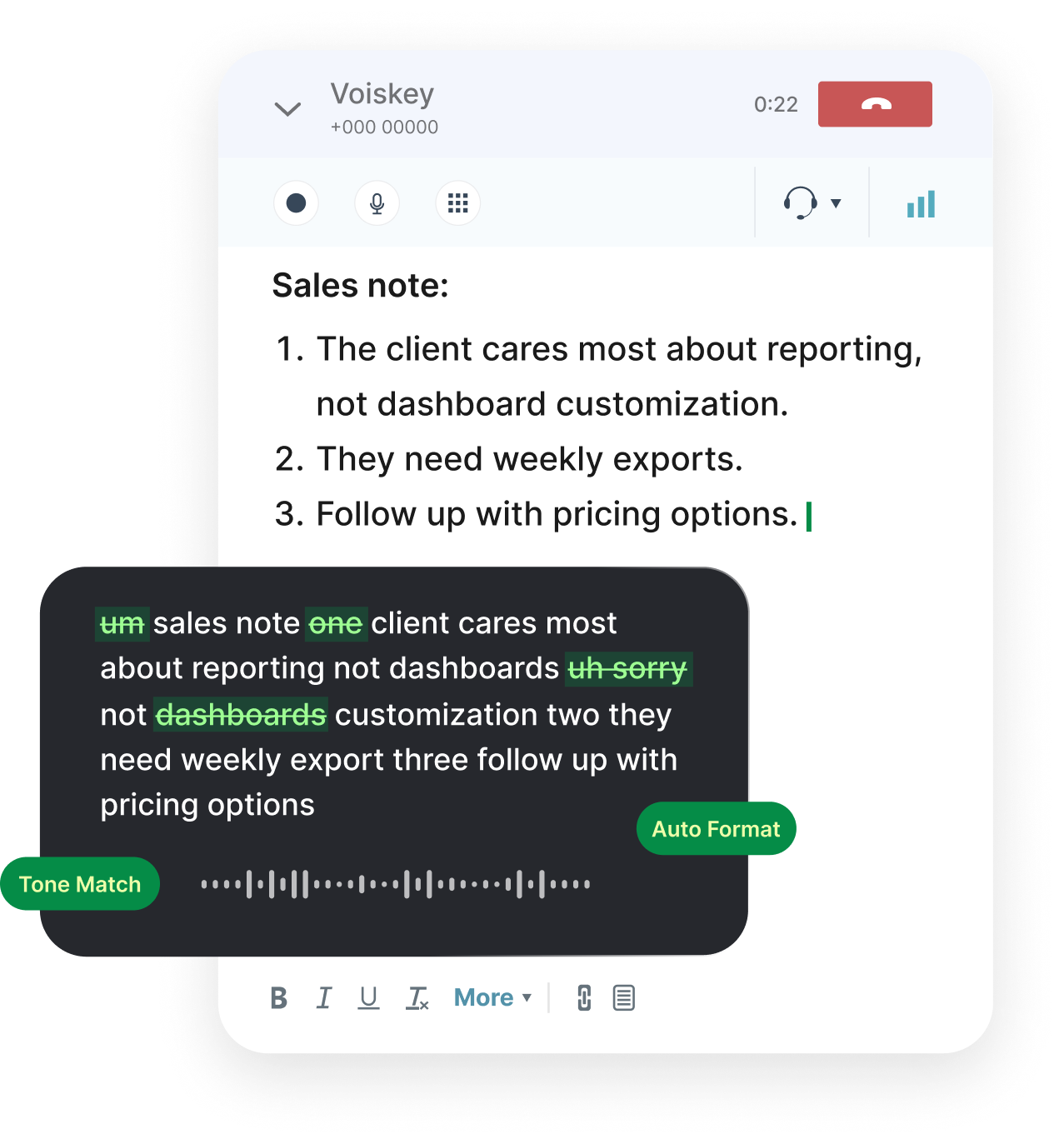
Voiskey runs as a Chrome extension and a desktop app, delivering real-time, high-accuracy speech to text directly inside ChatGPT. It behaves the same everywhere, so you get one consistent dictation experience across ChatGPT, Google Docs, Gmail, Cursor, Slack, and Notion instead of a different result on every site. Continuous transcription means natural pauses no longer cut you off mid-thought.
It also fixes the output quality that native dictation gets wrong. Punctuation voice commands let you add commas, periods, and line breaks by speaking, and automatic filler-word cleanup removes the ums and likes so your text is ready to send. With support for many languages and a privacy-conscious design, it is the step that makes voice to text ChatGPT not working a problem you no longer have to think about.
Why Voiskey is the dependable endpoint
- Works everywhereOne dictation experience across ChatGPT, Google Docs, Gmail, Cursor, Slack, and Notion.
- Real-time accuracyHigh-accuracy transcription that keeps up with long prompts, names, and technical terms.
- No manual cleanupPunctuation voice commands and filler-word removal deliver send-ready text.
- Private by designPrivacy-conscious handling with support for many languages.
FAQ s
Reload the ChatGPT tab and re-grant microphone permission. A surprising number of dictation failures clear up the moment the page reloads with a fresh permission state, because the browser re-establishes the microphone connection. It takes five seconds and resolves a large share of cases before you touch any deeper setting.
Open any other dictation surface, such as a notes app or a search box that supports voice input, and speak a test phrase. If text appears there, your microphone and permissions are fine and the issue is specific to the browser or ChatGPT. If nothing appears anywhere, the problem is your device or system permissions, and you should fix that first.
Intermittent dictation usually points to an unstable network, a silence timeout in the browser speech engine, or a background app grabbing the microphone. Native dictation is sensitive to all three, so it can feel fixed one day and broken the next. A purpose-built tool like Voiskey runs continuous real-time transcription that is far less fragile.
Many of the fixes in this checklist are free settings changes, and you should work through them first. If you dictate occasionally, they may be all you need. If you dictate heavily or across many apps, a dedicated voice-to-text tool pays for itself quickly by eliminating the repeated troubleshooting and producing clean, ready-to-send text.
The permission, device, and network fixes apply to both. The key difference is that mobile dictation runs through the keyboard microphone key while desktop relies on browser or system dictation, which is less consistent. Because of that inconsistency, desktop users benefit most from installing a dedicated extension or app.
Replace the browser's generic speech engine with a tool built for dictation. Voiskey offers real-time, high-accuracy transcription with punctuation voice commands and filler-word cleanup, works across ChatGPT, Google Docs, Gmail, Cursor, Slack, and Notion, supports many languages, and is privacy-conscious, so voice to text ChatGPT not working stops recurring.


 Voiskey
Your voice, amplified.
Skip the trial and error. Voiskey delivers accurate, real-time dictation inside ChatGPT and every app you use, so you can stop troubleshooting and start speaking.
Use it across macOS, Windows, iOS, and Android