
Voice to Text ChatGPT Not Working? Start Here
When voice to text ChatGPT not working errors keep stalling your dictation, the real cause is usually a small setting or a browser limit you can fix in minutes.
 Voiskey Team
Why Dictation Breaks Inside ChatGPT
If you have landed here because voice to text ChatGPT not working is slowing down your day, you are far from alone. Thousands of people try to dictate prompts into ChatGPT every day and run into silent microphones, text that never appears, or dictation that cuts off after a sentence or two. The good news is that the overwhelming majority of these failures trace back to a handful of fixable causes rather than a broken product.
The first thing to understand is that ChatGPT itself rarely transcribes your speech on desktop. Instead, your words are captured by your operating system, your browser's speech service, or a third-party extension, and only the finished text is handed to ChatGPT. That means when dictation fails, the problem is usually upstream of ChatGPT entirely, living in a permission dialog, a device setting, or a network path you never see.
In this guide we will walk through each likely cause in the order you should check it, from the quick permission toggles to the subtler browser and network limits. By the end you will know exactly where your setup is breaking and how to get reliable, real-time dictation back, whether you repair the native path or switch to a dedicated tool built for the job.
Step 1: Microphone Permissions and Device Selection
Permission problems are the single most common reason dictation fails in ChatGPT. When you first try to dictate, your browser or operating system should ask whether the site or app may use your microphone. If you dismissed that prompt, clicked block by mistake, or the request never appeared, speech capture will quietly do nothing while you keep talking into a dead mic.
Start at the operating-system level. On both Windows and macOS there is a master privacy setting that controls which applications may access the microphone. If your browser is not on that allowed list, no site-level toggle will help. Confirm the browser has microphone access, then move to the browser's own site permissions and make sure the ChatGPT domain is explicitly allowed rather than left on the default ask setting.
Next, check which input device is actually selected. Laptops with external webcams, headsets, or docking stations often expose several microphones, and the system may default to one that is muted, unplugged, or physically covered. Pick the correct device, speak a test phrase, and watch the input meter move. If the meter is flat, the fix is a hardware or selection issue, not anything to do with ChatGPT.
Quick permission checklist
Step 2: Voice Mode Is Not Dictation
A surprising share of voice-to-text complaints are not failures at all; they are a mix-up between two different features. ChatGPT voice mode, available in the mobile app, is a spoken conversation where the assistant talks back to you in real time. Dictation, by contrast, simply converts your speech into editable text in the input box so you can review and send it like a typed message.
If you tapped the voice icon expecting your words to appear as text and instead found yourself in a back-and-forth spoken chat, nothing is broken. You were using voice mode. To get true dictation on mobile you generally use the keyboard's microphone key, which types what you say. On desktop there is no universal dictation button, which is why people reach for operating-system dictation or a dedicated extension.
Understanding this distinction saves a lot of wasted troubleshooting. Before you blame permissions or your network, confirm that you actually want dictation and that you are using the dictation control rather than the conversational voice feature. Once the goal is clear, the remaining fixes in this guide apply cleanly to the text-entry workflow you are after.
Step 3: Browser and Built-in Dictation Limits
Even with permissions granted, the browser's built-in speech service has real limitations that make dictation feel unreliable. These engines often enforce a short silence timeout, so a natural pause while you think ends the session and drops the rest of your sentence. They can also struggle with technical vocabulary, names, and code, which matters a great deal when you are prompting ChatGPT about real work.
Browser support is uneven as well. Some speech features are available only in specific browsers, and even then they may be gated by region or require an online connection to a speech endpoint you do not control. If dictation works in one browser but not another, or on one machine but not a colleague's, you are almost certainly bumping into these built-in constraints rather than a ChatGPT bug.
Punctuation is another weak spot. Native dictation frequently forces you to say every comma and period or leaves you with a wall of unpunctuated text to clean up by hand. For long prompts that defeats the purpose of speaking in the first place. A purpose-built tool with punctuation voice commands and filler-word cleanup produces text that is ready to send, not text that needs a second editing pass.
Step 4: Network, VPN, and Firewall Checks
Most modern speech recognition depends on an online service, so your network quality directly affects dictation reliability. A weak or congested connection shows up as transcription that lags, arrives in bursts, or cuts off mid-sentence. Before assuming the feature is broken, test on a stronger or wired connection and see whether the behavior improves.
Security layers are the hidden culprit on managed machines. Corporate VPNs, firewalls, and proxies can silently block the outbound endpoints that speech services need, so dictation that works perfectly at home fails the moment you connect to a work network. If that pattern sounds familiar, try toggling the VPN off for a quick test, and if that fixes it, ask your IT team which endpoints to allow.
Captive portals and background bandwidth hogs can cause the same symptoms. A large sync, a video call, or a download running in the background may starve the speech service of the steady connection it needs. Clearing those up, or switching to a tool designed to tolerate real-world network conditions, usually restores smooth real-time transcription.
Step 5: The Reliable Fix With Voiskey
When you have checked permissions, confirmed you want dictation rather than voice mode, ruled out browser limits, and cleared your network, and dictation is still unreliable, the practical answer is to stop depending on the browser's generic engine. A dedicated voice-to-text tool gives you one consistent dictation experience that does not change from site to site or browser to browser.
Voiskey is built exactly for this. It runs as a Chrome extension and a desktop app, delivering real-time speech to text with high accuracy directly inside ChatGPT. Because it is a single tool rather than a patchwork of browser features, it behaves the same way whether you are drafting a prompt, writing an email, or taking notes, which removes the inconsistency that drives most dictation complaints.
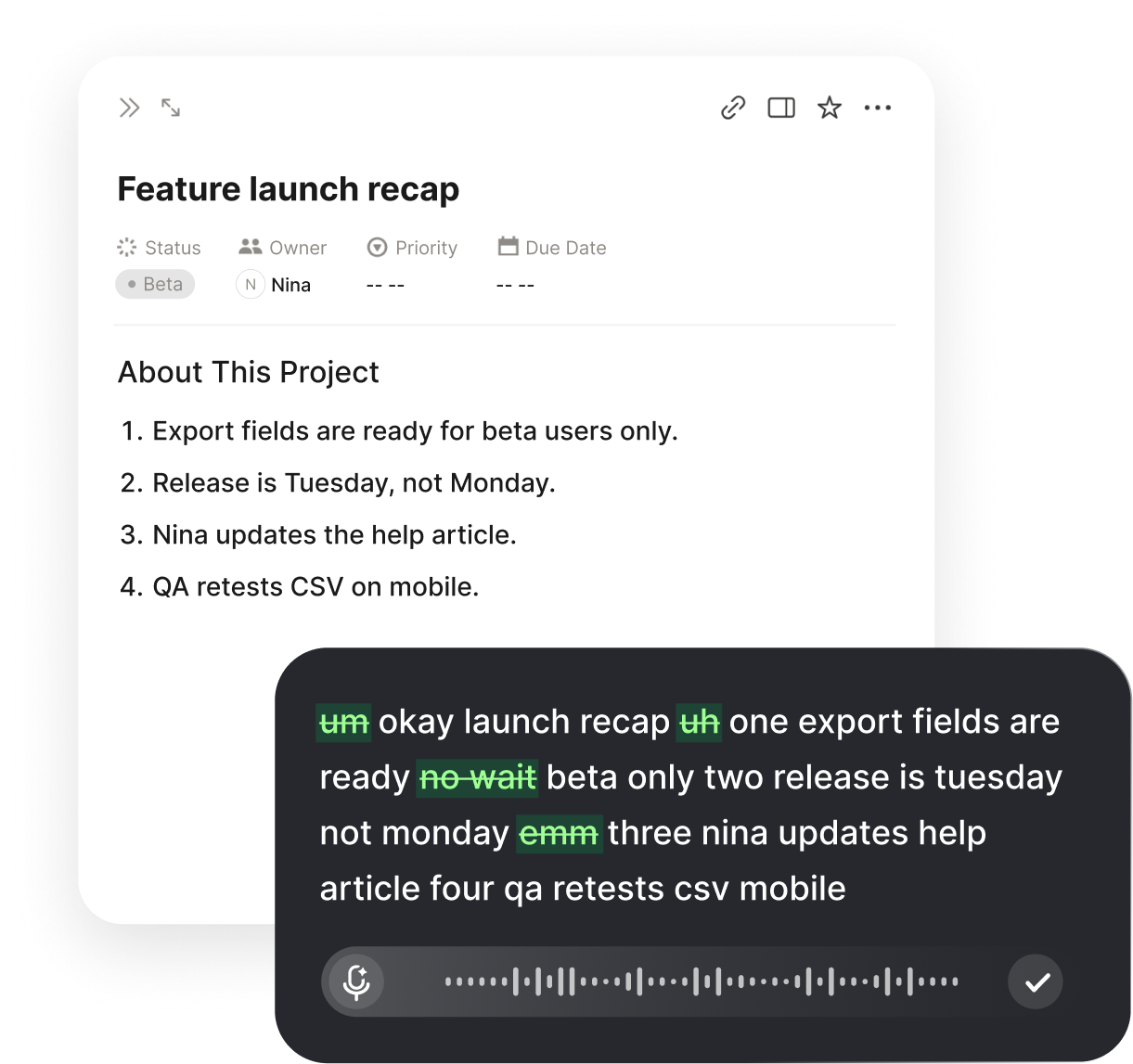
Beyond raw transcription, Voiskey handles the parts that native dictation gets wrong. Punctuation voice commands let you add commas, periods, and new lines by speaking naturally, and automatic filler-word cleanup strips the ums and likes so your text reads clean. It supports many languages and is privacy-conscious, so you get professional output without sacrificing control over your words.
What Voiskey fixes that browser dictation does not
- ConsistencyOne dictation experience across ChatGPT, Google Docs, Gmail, Cursor, Slack, and Notion, instead of a different engine on every site.
- No silence timeoutsContinuous real-time transcription that keeps going through natural pauses instead of cutting off.
- Clean outputPunctuation voice commands and filler-word cleanup produce text that is ready to send.
- AccuracyHigh-accuracy recognition that handles names, technical terms, and long prompts.
Putting It All Together
Dictation failures in ChatGPT almost always come from one of a few places, and now you have a clear order to check them. Start with microphone permissions at both the system and site level, confirm you are using dictation rather than voice mode, account for the limits of built-in browser speech, and rule out network, VPN, or firewall interference. Each of these is quick to test and quick to fix.
If you repair the native path and it serves you well, great. But if you dictate often, especially for long prompts or across many apps, the browser's generic engine will keep producing the same intermittent problems. Moving to a purpose-built tool is the difference between fighting your setup and simply speaking your ideas into place.
That is the role Voiskey plays. It turns dictation into something you can rely on, every time, in every app you work in, so the phrase voice to text ChatGPT not working stops being part of your vocabulary. Install the extension or desktop app, speak naturally, and let your words land correctly the first time.
FAQ s
The most common reason is that your browser never received microphone permission for the ChatGPT site, or another app is holding the mic. Check the site permissions, confirm the correct input device is selected, close other tabs or programs that may be using the microphone, and reload the page. If dictation still fails, the browser's built-in speech service may be unavailable in your region, which is where a dedicated tool like Voiskey helps.
No, and confusing the two is a frequent source of frustration. ChatGPT voice mode is a conversational feature inside the mobile app that talks back to you. Dictation, or voice to text, simply types your spoken words into the message box. If you expected your speech to appear as editable text but instead got a spoken conversation, you were using voice mode rather than dictation.
Short cut-offs usually come from an unstable network, an aggressive silence timeout in the browser's speech engine, or a mic that briefly loses focus. Try a wired or stronger connection, speak without long pauses, and keep the ChatGPT tab active. A tool that runs continuous real-time transcription, like Voiskey, avoids the abrupt timeouts that browser dictation often imposes.
The ChatGPT web interface does not offer a dedicated dictation button on every platform, so many people rely on the operating system or browser dictation, which varies in quality. That inconsistency is exactly why voice to text ChatGPT not working complaints are so common on desktop. Installing Voiskey's Chrome extension or desktop app gives you one reliable dictation experience everywhere.
Yes. Speech recognition services often need outbound access to specific endpoints, and a restrictive VPN, corporate firewall, or proxy can block them silently. If dictation worked at home but fails on a work network, test with the VPN off or ask your IT team about the required endpoints. Voiskey is privacy-conscious and designed to work smoothly across typical network setups.
When permissions, network, and device checks all pass but dictation is still unreliable, switch to a purpose-built voice-to-text tool instead of the browser's generic engine. Voiskey delivers real-time, high-accuracy transcription with punctuation voice commands and filler-word cleanup, and it works directly inside ChatGPT, Google Docs, Gmail, Slack, Notion, and more.


 Voiskey
Your voice, amplified.
Stop fighting flaky dictation. Voiskey brings accurate, real-time voice to text into ChatGPT and every other app you use, so your words land the first time.
Use it across macOS, Windows, iOS, and Android