
The Voice to Text ChatGPT Extension Setup Guide
A voice to text chatgpt extension lets you hold a shortcut, speak, and watch your words appear right in the ChatGPT prompt box.
 Voiskey Team
What a Voice to Text ChatGPT Extension Actually Is
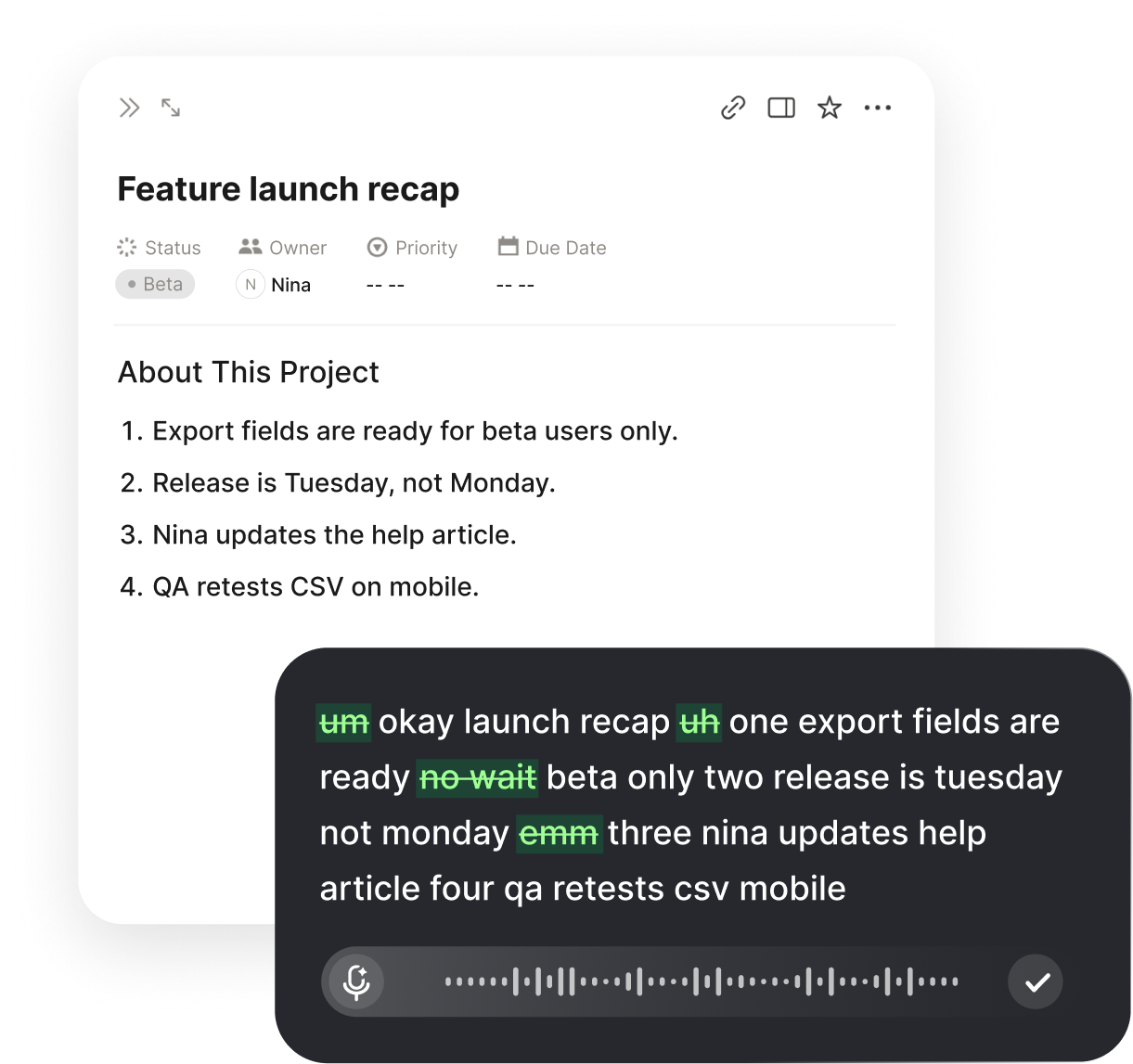
A voice to text chatgpt extension is a tool that turns your spoken words into typed text directly inside the ChatGPT prompt box. You press a keyboard shortcut, say your prompt out loud, and the words appear at your cursor as if you had typed them. There is no copying, no separate transcription window, and no pasting step. Voiskey works exactly this way: hold the shortcut, speak, release, and the text is already sitting in the field where you were about to type.
The important distinction is what the tool does and does not see. Voiskey only turns your speech into text at the cursor. It does not read your screen, open your files, or look at your browser history, and it has no view into what ChatGPT sends to its model or what the model sends back. In other words, it is a speech input method, not an assistant that watches your work. That boundary keeps the behavior predictable: the only output is the words you spoke, placed exactly where your caret sits.
Because the typing happens at the operating system level, the extension is not tied to one website. The same shortcut that dictates into the ChatGPT prompt box will dictate into an email, a document, a search bar, or a code editor. ChatGPT just happens to be one of the most natural places to use it, because prompts are often long and conversational, which is precisely the kind of text that is faster to speak than to type.
Install and Grant Microphone Permission
Getting set up takes a couple of minutes and only has to be done once. The goal of this step is to install Voiskey, let it use your microphone, and confirm that the shortcut is active system-wide. After that, every app on your machine, including ChatGPT in the browser, can receive dictated text.
Microphone permission is the one place people occasionally stumble. Modern operating systems gate the microphone behind an explicit prompt, and if you dismiss that prompt the shortcut will appear to do nothing. If dictation is silent on your first try, the permission dialog is almost always the cause, so check it before assuming anything is broken.
First-time setup, step by step
- Download and install Voiskey, then launch it so it runs in the background.
- When the system asks for microphone access, choose Allow. On macOS you may also need to enable it under System Settings and Privacy and Security.
- Note the default dictation shortcut shown in the app, or set one that does not clash with existing shortcuts.
- Open any text field, such as a notes app, and do a quick test: press the shortcut, say a sentence, and confirm the words appear.
- If nothing happens, reopen the microphone permission dialog and confirm Voiskey is allowed, then test again.
Put Your Cursor in the ChatGPT Prompt Box
Dictation always types wherever the cursor is focused, so the single most important habit is to click inside the ChatGPT prompt box before you speak. It sounds obvious, but it is the difference between your words landing in the right place and scattering into whatever field happened to have focus.
Open ChatGPT in your browser or desktop app and click once in the large message box at the bottom. You should see the text caret blinking there. That blinking caret is your confirmation that keystrokes, including the ones Voiskey generates, will go into that box. If you tab away or click elsewhere, focus moves with you, so re-click the prompt box whenever you return.
This is also why a system-wide tool is convenient. You do not need a special ChatGPT mode or a dedicated button on the page. The prompt box is just another text field to the extension, and once it has focus, dictation behaves identically to typing there by hand.
Dictate Your First Prompt
With the caret in the prompt box, you are ready to speak your first prompt. Keep it natural. You do not need to talk in a robotic, word-by-word style, and you do not need to say most punctuation out loud for ordinary sentences. Speak the way you would explain the task to a colleague, then review and send.
A good first prompt to practice with is something you would normally type anyway, such as asking ChatGPT to draft an email or explain a concept. Speaking it reveals how much faster a full, multi-clause request comes out when you are not hunting for keys. Once the text appears, read it, make any small edits, and hit send as usual.
Your first spoken prompt
- Click inside the ChatGPT prompt box and confirm the caret is blinking.
- Press and hold the dictation shortcut.
- Say something complete, for example: write a friendly follow up email to a client who has not replied in a week, keep it under 120 words.
- Release the shortcut and wait a moment for the full text to land.
- Scan the result, fix anything minor, and press send.
Why Dictation Beats Typing Long Prompts
Short prompts are easy to type, but the prompts that get the best results from ChatGPT are rarely short. They include context, constraints, examples, and the exact shape of the output you want. Typing all of that is slow and tiring, so people tend to cut corners and send a thin prompt, then spend several turns adding the context they left out.
Speaking removes that friction. You can deliver a long, multi-clause request in one breath: the goal, the background, the tone, the format, and the thing to avoid, all in a single spoken paragraph. Because talking is faster than typing for most people, the richer prompt costs you less effort, not more. The result is usually a better first answer and fewer correction rounds.
There is also a thinking benefit. Saying the request out loud forces you to articulate what you actually want, which tends to produce clearer prompts than typing fragments and trailing off. You end up front-loading the context that ChatGPT needs, instead of dribbling it out one message at a time.
Accuracy of Technical Terms and Custom Vocabulary
Everyday speech transcribes cleanly, but technical work is full of words that do not exist in ordinary dictionaries: library names, API method names, product codenames, and internal identifiers. Left alone, a speech engine will guess the closest common word, which is exactly where errors creep in. The fix is custom vocabulary.
Voiskey lets you add your own terms so they are recognized reliably. Once a term is in the list, saying it produces the correct spelling every time, instead of a phonetic approximation you then have to fix by hand. This is especially worthwhile for the handful of words you say constantly, because a small vocabulary list eliminates the majority of the corrections you would otherwise make.
What to add to custom vocabulary
- Library and framework names you mention often.
- API or method names that sound like common words but are spelled differently.
- Product names, codenames, and internal project identifiers.
- Acronyms you want expanded or kept as uppercase letters.
- Any term that keeps getting transcribed wrong after a couple of attempts.
Edit and Refine Your Prompt by Voice
Dictation is not only for the first draft of a prompt. You can also fix and extend what you already dictated without touching the keyboard. Select the phrase you want to change, then speak the replacement, and the new words drop into place. This keeps you in a hands-free flow when you are iterating quickly.
In practice this means you can dictate a prompt, read it back, and adjust a clause that did not come out the way you wanted, all by voice. The same approach works for adding a sentence to the end of a prompt before you send it: put the caret where you want the addition and speak. Editing by voice is what makes dictation feel like a complete input method rather than a one-shot trick.
Troubleshooting Common Issues
Most problems with a voice to text workflow come down to one of three things: focus, permission, or an unfamiliar term. Knowing which one you are hitting makes the fix quick. The list below covers the issues people run into on their first day and how to clear each one.
If you have checked all of these and dictation still misbehaves, restart Voiskey so it re-registers the shortcut and re-reads its permissions. A fresh launch resolves the rare cases where the shortcut stops responding after the machine has been asleep.
Quick fixes
- Nothing is typedThe microphone permission was likely denied or dismissed. Re-grant it in system settings and test in a plain text field.
- Text lands in the wrong fieldFocus was elsewhere. Click once in the ChatGPT prompt box, confirm the caret is blinking, then speak.
- A technical term is wrongAdd it to custom vocabulary so it is transcribed consistently from then on.
- Shortcut stopped respondingQuit and relaunch Voiskey to re-register the shortcut, which fixes most post-sleep glitches.
FAQ s
No. Voiskey only converts the speech it hears into text at your cursor. It does not read your screen, your files, or the responses ChatGPT returns, and it has no visibility into what ChatGPT sends to its own model. The only thing it touches is the characters it types into the field you selected.
Because dictation happens at the system cursor, it works in the ChatGPT web app, the desktop app, and any browser tab where the prompt box has focus. The same shortcut also works in other apps, so you are not locked into a single window.
No. Voiskey runs system-wide rather than as a per-browser plugin, so a single install covers Chrome, Safari, Edge, Arc, and native apps. You place your cursor, press the shortcut, and speak, regardless of which browser tab ChatGPT is open in.
General speech is accurate out of the box. For niche terms such as library names, API endpoints, or internal identifiers, add them to your custom vocabulary. Once a term is in the list, it is transcribed consistently instead of being guessed phonetically.
Yes. You can install Voiskey and begin dictating into ChatGPT without paying up front, which is enough to decide whether speaking prompts fits your workflow before considering anything paid.
Dictation always types wherever the cursor currently sits. If text appears in the wrong field, click once inside the ChatGPT prompt box to give it focus, confirm the caret is blinking there, then press the shortcut and speak again.


 Voiskey
Your voice, amplified.
Start dictating into ChatGPT today with Voiskey and leave slow typing behind.
Use it across macOS, Windows, iOS, and Android