
Voice Input for Cursor: Code Hands-Free
A practical, step-by-step guide to adding voice input for Cursor so you can dictate prompts, comments, and docs without touching the keyboard.
 Voiskey Team
Why voice input for Cursor changes how you code
Voice input for cursor is a simple idea with a large payoff: instead of typing every prompt, comment, and doc string, you speak and the words appear in the Cursor AI editor. Cursor is built around natural-language instructions, so the faster you can get those instructions into the chat and inline prompt boxes, the faster the AI can help you. Speaking is roughly three times quicker than typing for most people, which means you can describe a refactor, a bug, or a feature in one breath rather than carefully tapping it out.
Voiskey is a voice-to-text dictation tool that runs as a Chrome extension and a desktop app, converting real-time speech into clean, punctuated text wherever your cursor sits. Because it works at the system and browser level, it drops straight into Cursor's prompt fields, comment lines, and documentation files without any special plugin. The result is a hands-free way to drive an AI editor that keeps your train of thought intact and your wrists rested.
This guide walks through the full setup, from installing Voiskey to running your first dictation session, adding punctuation by voice, and getting the most out of the pairing. By the end you will be able to talk through your coding tasks and watch Cursor respond, with accurate text landing exactly where you need it.
Installing and configuring Voiskey
Getting started takes only a few minutes. Voiskey offers both a Chrome extension and a desktop application, and either one will feed text into Cursor. The desktop app is the most flexible choice for developers because it works across every window on your machine, including the native Cursor editor, your terminal, and any browser tabs you keep open for documentation.
Grant microphone access when prompted. Voiskey needs that permission to listen, and nothing is transcribed until you actively start a session. Once installed, open Cursor, place your cursor in the chat panel or an inline prompt, trigger Voiskey, and begin speaking. The transcribed text appears live as you talk.
Setup checklist
- Install the Voiskey desktop app or the Chrome extension from the official site.
- Allow microphone access when your operating system or browser asks.
- Pick a comfortable keyboard shortcut to start and stop dictation.
- Open Cursor and click into the AI chat panel or an inline prompt field.
- Set your dictation language if you work in something other than US English.
- Run a quick test sentence to confirm text lands at the cursor position.
Your first dictation session in Cursor
With Voiskey running, put your cursor in Cursor's chat box and press your start shortcut. Speak a normal instruction, such as asking the AI to add input validation to a function or to explain a block of code you just pasted. The words appear as you talk, and when you finish you can send the prompt exactly as you would after typing it.
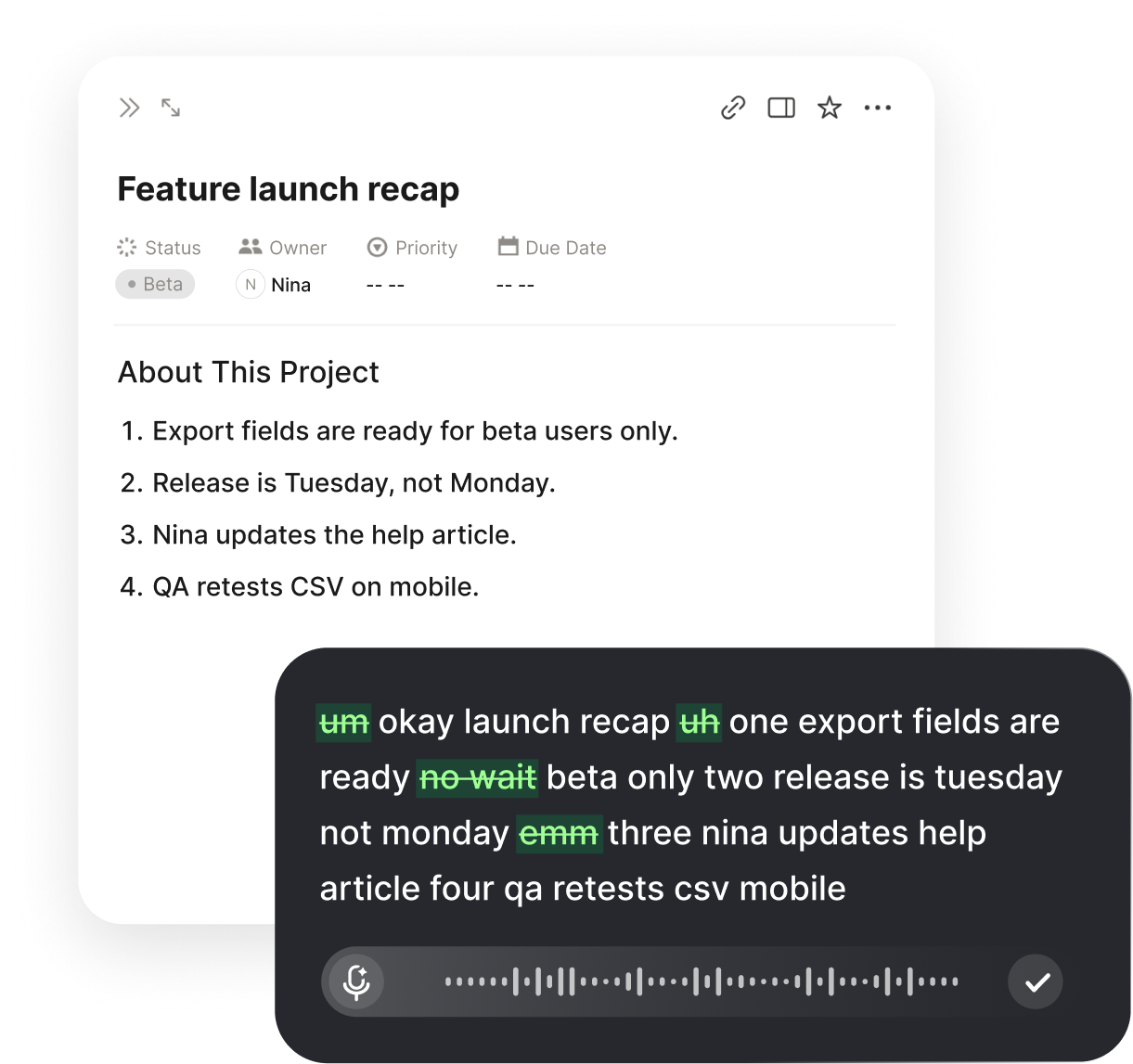
The trick to a smooth first session is to talk the way you would explain a task to a teammate. You do not need to speak in stilted, robotic phrases. Describe what you want in plain sentences, pause naturally, and let Voiskey handle the transcription. Its filler-word cleanup quietly removes the ums and uhs, so what reaches Cursor reads like deliberate, written instruction rather than a raw transcript.
Try dictating a few different kinds of input: a short bug report, a longer feature description, and a quick question about a library. Each one shows how much ground you can cover by voice before your fingers would have finished the first sentence. Once the rhythm clicks, dictating prompts becomes the default and typing becomes the exception.
Punctuation and formatting by voice
Clear prompts need punctuation, and Voiskey lets you add it without reaching for the keyboard. Voice commands insert commas, periods, question marks, and line breaks on demand, so a dictated prompt reads cleanly and parses the way you intend. This matters in Cursor because well-structured instructions produce better AI output; a prompt broken into clear sentences beats a run-on wall of text.
You can also dictate structure. Ask for a new line to separate steps, or speak a numbered list when you want the AI to follow an ordered set of changes. The same commands work when you are writing comments or documentation directly in a source file, letting you produce readable notes without stopping to format them by hand.
Common voice commands
- New lineBreaks your prompt into separate steps for clarity.
- Comma / periodAdds punctuation so sentences parse cleanly.
- Question markTurns a spoken request into a clear question.
- New paragraphSeparates long instructions into readable blocks.
Benefits for developers who dictate
The most obvious benefit is speed. Describing a change out loud is far faster than typing it, and Cursor thrives on detailed natural-language prompts. When the cost of writing a thorough instruction drops, you tend to give the AI more context, which leads to better suggestions and fewer back-and-forth corrections.
The second benefit is comfort. Long coding sessions are hard on hands and wrists, and shifting some of the typing load to your voice reduces strain. You can lean back, think through a problem, and talk Cursor through it rather than hunching over the keyboard for every prompt. Many developers find that speaking also keeps them in a higher-level, design-oriented headspace instead of getting lost in keystrokes.
A third, quieter benefit is flow. When you can speak an idea the moment it arrives, you lose less of it to the friction of typing. Describing a refactor while you still have the full picture in your head keeps your thinking continuous, and Cursor becomes a responsive partner rather than a tool you have to feed one slow line at a time.
There is also a practical benefit for getting unstuck. When you hit a confusing error or a design decision, talking it through out loud often clarifies your own thinking, and dictating that same explanation straight into Cursor turns a rubber-duck moment into an actual prompt. The AI gets a full account of the problem, and you get an answer, all from the same spoken description.
Accuracy, languages, and privacy
Voice tools only help if they get the words right, and Voiskey is built for high accuracy even with technical vocabulary. It handles the kind of mixed English that developers actually use, where product names, library names, and ordinary sentences all share the same prompt. Clean transcription means you spend time reviewing the AI's output, not fixing your own dictation.
Voiskey supports many languages, so you can dictate in the language you think in while still steering an English-first editor like Cursor. That flexibility is useful for international teams and for anyone who switches between languages during the day.
Privacy is a fair concern when a microphone is involved, and Voiskey is designed to be privacy-conscious. Transcription happens only while you have an active session, not in the background, so you stay in control of when the tool is listening. For developers working with sensitive code, that clear on-off boundary is important.
Tips for a reliable voice workflow
A few habits make voice input for Cursor dependable day to day. Start with a quiet enough space and a decent microphone; a basic headset microphone outperforms a laptop's built-in array in a noisy room. Keep your start and stop shortcut within easy reach so toggling dictation never interrupts your thinking.
Review before you send. Dictation is fast, but a quick glance at a prompt before you hit enter catches the rare misheard word and ensures the instruction says what you mean. Over time you will learn which phrasings transcribe cleanly and lean on them.
Quick wins
- Use a headset microphone for cleaner audio in shared spaces.
- Speak in full sentences so punctuation and context stay clear.
- Dictate context first, then the specific change you want.
- Glance over long prompts before sending them to the AI.
- Learn two or three voice commands you use most and make them automatic.
FAQ s
No. Voiskey works as a desktop app and a Chrome extension that feed text into whatever field holds your cursor, including Cursor's chat panel, inline prompts, and source files. There is no Cursor-specific plugin to install.
Voice input works well for natural-language prompts, comments, and documentation, which is exactly what Cursor's AI relies on. You can also dictate code comments and doc strings; for the actual code, letting the AI generate it from a spoken prompt is usually faster than dictating syntax character by character.
Voiskey supports voice commands for punctuation and formatting. You can say commas, periods, question marks, new lines, and new paragraphs so your dictated prompts read cleanly without touching the keyboard.
Voiskey is privacy-conscious and only transcribes while you have an active session. It is not listening in the background, so you control exactly when dictation is on.
No. The same dictation works across tools like ChatGPT, Google Docs, Gmail, Slack, and Notion. Cursor is one of many places your cursor can be when you dictate.
Voiskey supports many languages, so you can dictate in the language you think in. This guide and interface examples use US English, which pairs naturally with an English-first editor like Cursor.


 Voiskey
Your voice, amplified.
Install Voiskey and bring voice input for Cursor to your editor today.
Use it across macOS, Windows, iOS, and Android