
Getting Started With Voice Input for Cursor
Setting up voice input for cursor takes a couple of minutes: install, focus the chat or composer, and start speaking your intent.
 Voiskey Team
What Voice Input for Cursor Gives You
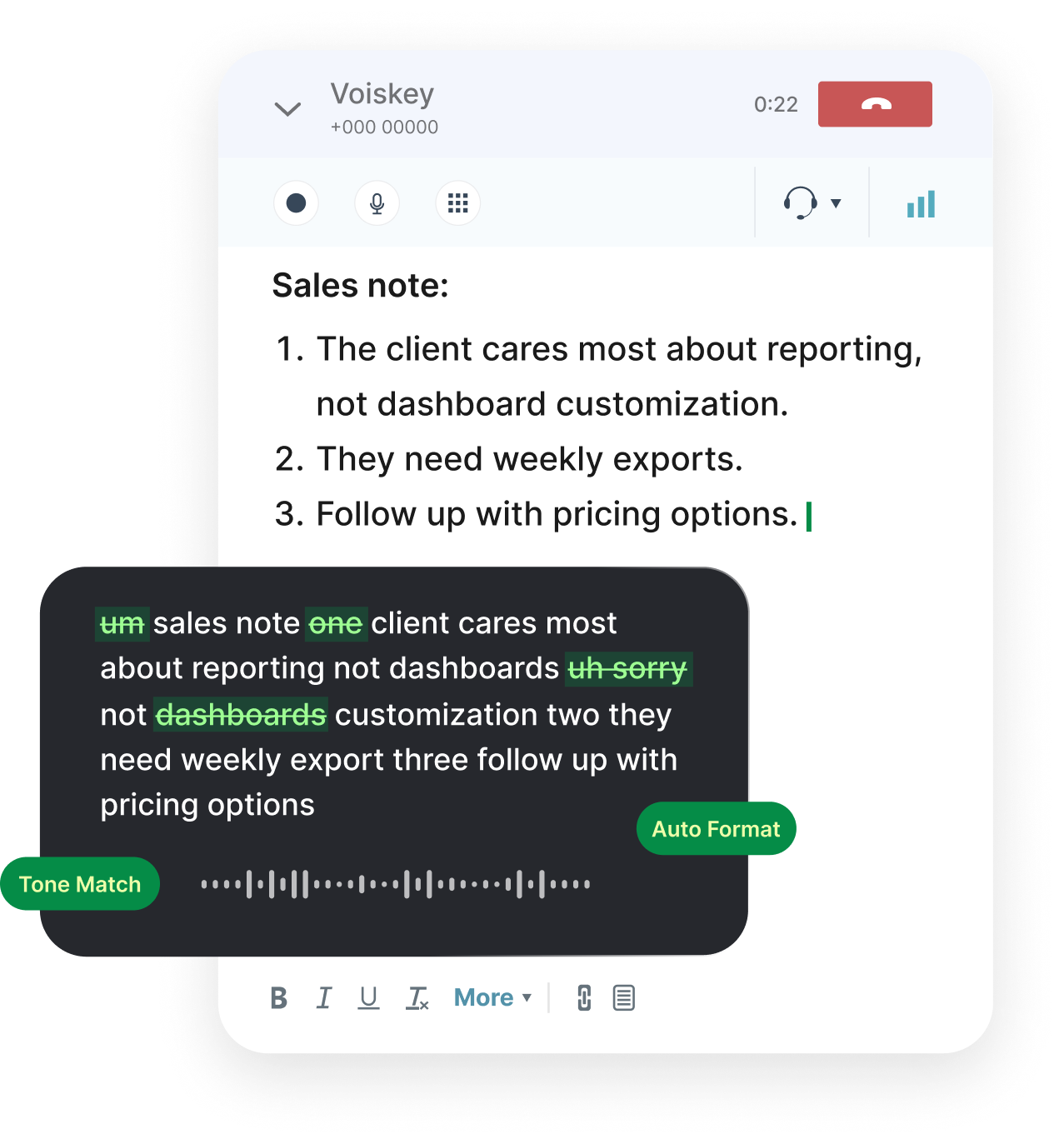
Voice input for cursor means you press a shortcut, speak what you want, and your words appear in Cursor's chat or composer as typed text. Instead of typing out a long request to the AI, you say it, and Voiskey places the transcription right where your caret sits. The point is not to dictate code character by character; it is to describe what you want built and let Cursor turn that intent into code.
This fits Cursor unusually well because the editor is already built around natural-language instructions. You tell it what to do and it writes or edits the code. Speaking that instruction is faster than typing it, especially when the instruction is a few sentences long: the feature you want, the file or component it touches, and the behavior you expect. The richer you can make that request without extra effort, the better Cursor's output tends to be.
A crucial point about scope: Voiskey only turns your speech into text at the cursor. It does not read your repository, inspect your open files, or see what Cursor sends to its model. It is purely an input method. Your code stays between you and Cursor, and the extension simply saves you the typing. The following sections walk through installing it, aiming it at the right field, and dictating intent effectively.
Install and Grant Microphone Access
Setup is a one-time job of a couple of minutes. You install Voiskey, allow it to use your microphone, and confirm the dictation shortcut is live. Because it works system-wide, that single install covers Cursor along with your browser, terminal, and every other app.
The usual snag is microphone permission. Operating systems require an explicit grant, and if the prompt is dismissed the shortcut will seem dead. If your first attempt is silent, check permission before anything else.
One-time setup
- Install Voiskey and launch it so it runs in the background.
- Allow microphone access when prompted; on macOS also enable it under System Settings, Privacy and Security.
- Check the default dictation shortcut, or set one that does not collide with Cursor's own shortcuts.
- Test in any text field by pressing the shortcut and saying a short sentence.
- If nothing appears, re-grant microphone permission and test again before moving on.
Focus Cursor's Chat or Composer
Dictation types wherever the caret is, so the habit that makes everything work is clicking into the right Cursor field before you speak. Cursor has a chat panel for conversational requests and a composer for larger multi-file edits; both are ordinary text inputs as far as the extension is concerned.
Click once inside whichever input you want, and look for the blinking caret. That caret confirms your keystrokes, including the dictated ones, will land there. If you jump into the editor to read code and then come back, click the chat or composer again to restore focus before pressing the shortcut.
There is nothing Cursor-specific to configure. Because the tool operates at the system level, the chat box and composer are just fields that receive text. That is also why the same shortcut keeps working if you switch to your browser or notes app between edits.
Dictate Your First Cursor Prompt
With the caret in Cursor's chat or composer, speak a request the way you would describe it to a teammate. Name the thing you want, where it lives, and how it should behave. Keep it natural; you do not need to dictate punctuation or syntax for Cursor to understand you.
A good first request is a small, concrete change you would make anyway. Speaking it shows how quickly a complete instruction comes out when you are not typing. Once the text is in the box, read it, fix anything minor, and send it to Cursor as usual.
Your first dictated request
- Click into Cursor's chat or composer and confirm the caret is blinking.
- Press and hold the dictation shortcut.
- Say a concrete instruction, for example: add input validation to the signup form so empty email or password shows an inline error.
- Release the shortcut and let the full text land.
- Read it over, adjust if needed, and send the request to Cursor.
Speak Intent, Not Raw Syntax
The biggest mistake new dictation users make with an AI editor is trying to speak code literally, reciting brackets, semicolons, and camelCase one token at a time. That is slow, error-prone, and pointless, because Cursor is designed to generate the syntax for you. Your job is to supply clear intent.
Describe the outcome and the constraints in plain language. Say extract this logic into a reusable hook and keep the existing function signature, rather than attempting to narrate the code. The more precisely you describe behavior, edge cases, and what should stay unchanged, the closer Cursor's output comes to what you had in mind, and the less you have to redo.
Intent phrases that work well
- Name the target: in the checkout component, in the user service, in this file.
- State the change: add, remove, rename, extract, refactor, wrap, memoize.
- Describe the behavior: so that it retries twice on failure before showing an error.
- Pin down what must not change: keep the public API the same, do not touch the styles.
- Call out edge cases: handle the empty list and the loading state explicitly.
Custom Vocabulary for Identifiers
Code is full of words a general speech engine has never seen: your function names, variables, package names, and internal project terms. Spoken aloud, many of them collide with common English words or have spellings dictation will not guess. Custom vocabulary closes that gap.
Add the identifiers and library names you say most often to Voiskey's vocabulary. From then on, those terms are transcribed exactly, so you can dictate a request full of domain-specific names without stopping to correct them. It is the single highest-leverage setup step for anyone dictating into a code editor, because a short list removes most of the errors you would otherwise fix by hand.
Accuracy and Reviewing Dictated Requests
General speech is accurate out of the box, and with custom vocabulary in place, technical terms follow. Still, a quick review before you send a request to Cursor is worth the second it takes, because a misheard identifier can send the AI in the wrong direction. Reading the dictated text back is your cheapest safeguard.
If a specialized word slips through, you do not need to retype the whole request. Select just that word and respeak it, or add it to vocabulary so it never recurs. Treating review as part of the flow keeps the speed advantage while catching the occasional slip before it reaches the model.
Keeping dictated requests accurate
- Pre-load termsAdd your common identifiers and libraries to vocabulary before a focused coding session.
- Glance before sendingRead the request once so a misheard name is caught while it is cheap to fix.
- Fix in placeSelect the wrong word and respeak it instead of retyping the whole instruction.
- Describe, do not spellLean on intent language so there is less exact syntax that could be misheard.
Privacy: Your Repo Stays Yours
A fair question about any voice tool in a code editor is what it can see. With Voiskey the answer is narrow and clear: it converts your speech to text and places it at the cursor. It does not read your repository, scan your files, or observe the data Cursor exchanges with its model. The only thing it produces is the words you said.
That boundary matters for sensitive codebases. Dictation does not add a new party that inspects your source; it replaces your keyboard for one specific action. Whatever privacy posture you already have with Cursor is unchanged, because the extension never looks at your code in the first place. You get the speed of speaking your intent without widening what any tool can access.
FAQ s
No. Voiskey only turns your speech into text at the cursor. It does not read your repository, open your files, or inspect what Cursor sends to its model. It types the words you spoke into Cursor's chat or composer, nothing more, which keeps your codebase private to you and Cursor.
Wherever your caret is focused. Click into Cursor's chat panel or the composer input, confirm the caret is blinking there, then press the shortcut and speak. The text lands in that field just as if you had typed it, so focus is the thing to watch.
No, and you should not. Speak your intent in plain language and let Cursor write the syntax. Say add a loading state to the profile component and show a spinner while data loads, rather than dictating brackets and semicolons. Describing intent is both faster and more reliable than spelling out raw code.
Add them to custom vocabulary. Function names, variables, library names, and internal identifiers often sound like common words or are spelled unusually, so adding the ones you use most means they transcribe correctly every time instead of being guessed.
Yes. Voiskey is free to start, so you can install it, grant microphone access, and dictate into Cursor without paying up front. That is enough to tell whether speaking your intent suits the way you build.
Yes. Because dictation happens at the system cursor, any text field in Cursor can receive it, including the chat panel and the composer. The same shortcut also works outside Cursor, so you are not switching tools to dictate elsewhere.


 Voiskey
Your voice, amplified.
Install Voiskey and start dictating into Cursor today, speaking intent while Cursor writes the code.
Use it across macOS, Windows, iOS, and Android