
Hand & Wrist Health
Typing Wrist Pain: Why It Happens and How to Get Relief
Fewer keystrokes, happier wrists.
Why your wrists hurt after typing
Wrist pain after a long day at the keyboard is one of the most common complaints among people who work on a computer. Usually it is an early, reversible sign of overuse: the tendons and muscles around the wrist have been working in the same position for too long without a break.
The good news is that early wrist pain often responds well to small changes. Caught early, it is a warning to adjust how you work — not necessarily a sign of lasting injury. Ignored for months, though, overuse can develop into more stubborn problems. This article is informational; sharp or persistent pain warrants a professional.
Common causes of typing wrist pain
A few factors tend to combine. Posture is the big one — wrists bent up, down, or sideways instead of held neutral put extra strain on tendons. Key force matters too: some people bottom out keys harder than they need to, adding load with every press.
Hours are the multiplier. Even good posture becomes a problem over an uninterrupted eight-hour session. Add mouse use, which keeps one wrist in a fixed grip, and the total repetitive load on the wrist can be surprisingly high by the end of the day.
Quick relief steps you can try today
Start by taking real breaks: every 30 to 45 minutes, pause and let your hands rest away from the keyboard. Gentle wrist and finger stretches, keeping wrists neutral rather than bent, and lightening how hard you strike the keys can all reduce strain quickly.
Check your setup, too. A chair height that keeps forearms roughly level, support that stops your wrists from bending back, and a keyboard position that lets your hands stay relaxed all help. If pain is sharp, persistent, or comes with numbness, see a clinician rather than pushing through.
The long-term fix: reduce typing volume
Relief steps help in the moment, but if your wrists are sore because you type all day, the most durable fix is to type less. Reducing total keystrokes gives the wrist regular breaks instead of one continuous stretch of load — which is exactly what overworked tendons need.
Much of a typical day is spent writing things you already know how to say: replies, messages, quick notes, updates. Moving that output off the keyboard is the single most effective way to lower daily wrist load without stopping work.
How voice typing takes pressure off wrists
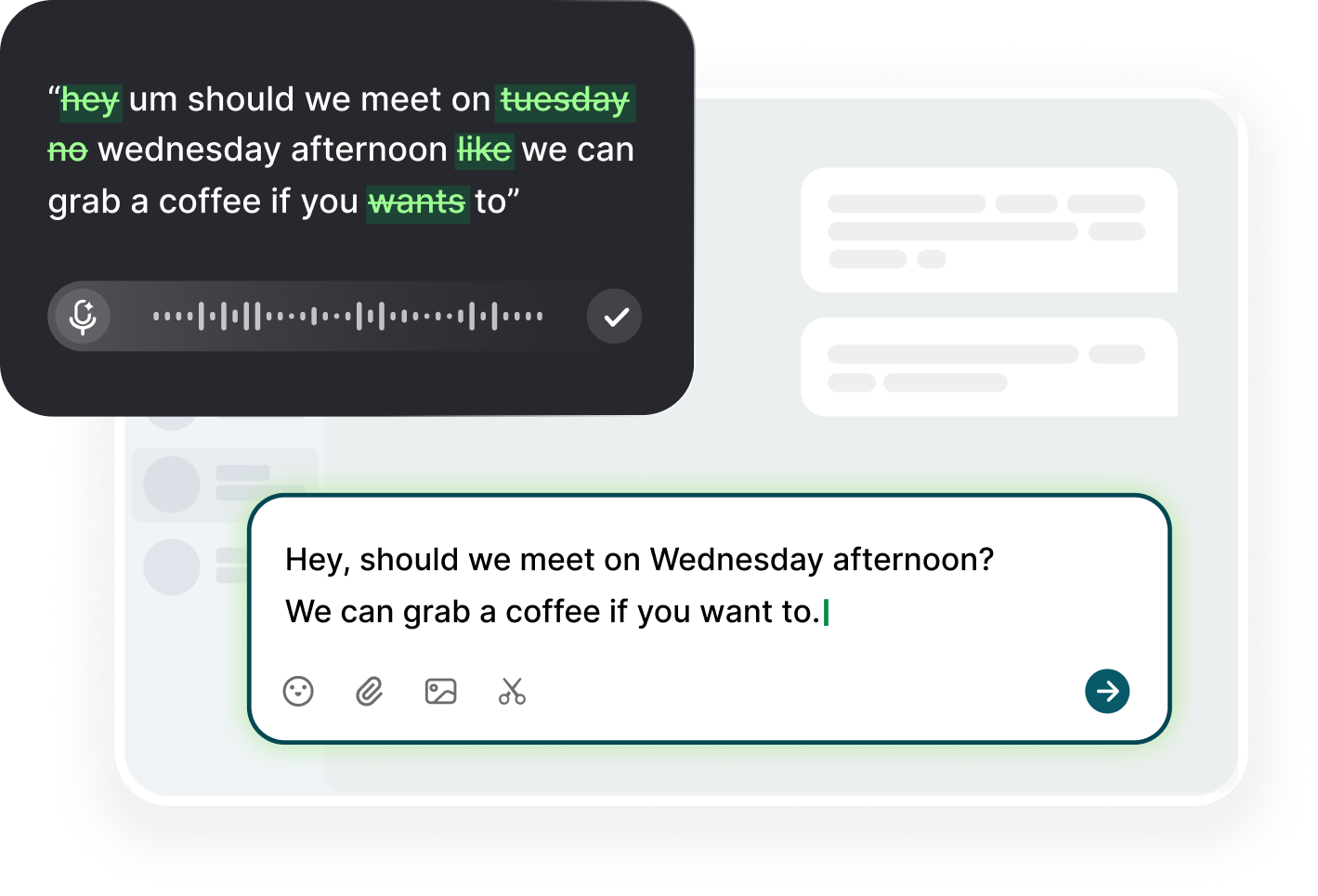
Voiskey is an AI voice typing app that turns natural speech into clean, ready-to-use text. Instead of typing a message with sore wrists, you speak it — Voiskey removes filler words, fixes punctuation, and shapes it into a polished draft you review before sending. Speaking runs around 220 words per minute versus about 45 typed, so the same message takes far fewer keystrokes.
Used through the day, voice typing turns long continuous typing into short bursts, letting your wrists rest between tasks. It handles the emails, chats, and notes you write over and over, which is where most of the repetitive load comes from.
Getting started with Voiskey
The workflow is simple: shortcut, speak, review, send. On your computer, download Voiskey for macOS or Windows, click into any text field, trigger your dictation shortcut, and talk. On your phone, install it from the App Store or Google Play, add it as a keyboard, then tap into a field and speak.
Voiskey works in the apps you already use and never sends anything on its own — you review and send every message. It supports 100+ languages, and the free plan covers 2,000 words a week, enough to give your wrists a real daily break.
FAQ s
Usually because of overuse: bent-wrist posture, striking keys too hard, and long uninterrupted sessions add up. It is often an early, reversible signal. Adjusting posture, taking breaks, and typing less all help — but sharp or lasting pain should be checked by a professional.
Take breaks every 30–45 minutes, do gentle wrist and finger stretches, keep your wrists neutral, and lighten your keystrokes. Fixing chair and keyboard height helps too. If pain is sharp, persistent, or comes with numbness, see a clinician.
Yes. Since most typing wrist pain comes from repetitive overuse, reducing your total keystrokes gives the wrist regular rest instead of continuous load. Voice typing is a practical way to cut that volume without stopping work.
You speak your emails, messages, and notes, and Voiskey turns them into clean, ready-to-use text you review and send. Speaking at ~220 words per minute versus ~45 typed means far fewer keystrokes for the same output.
Yes. Voiskey works on macOS, Windows, iOS, and Android. On mobile you add it as a keyboard, then tap into any field and speak instead of tapping out each word.


 Voiskey
Your voice, amplified.
Speak naturally, write effortlessly, and move faster. Turn your voice into polished, ready-to-use text wherever you write.
Use it across macOS, Windows, iOS, and Android