
Time Management Tools
The Best Time Management Tools Work When Capture Is Instant
The best time management tools only work if you can get thoughts out of your head fast. Say the task, the note, or the reply—Voiskey turns it into text you can paste anywhere. Free to start.
What Makes Time Management Tools Worth Keeping
Time management is personal. What works for you might not work for someone else. That said, most people want the same outcome: more of the right work in the hours they actually have.
Good time management tools solve a real everyday problem—capturing tasks, protecting focus, or clearing email—without forcing a redesign of how you already work. They should be simple on day one and flexible when your week gets messy.
A tool that needs an hour of setup before it helps is usually another shiny distraction. The ones that stick fit your workflow instead of replacing it.
Often it is not one app. It is a small collection of time management tools, plus a fast way to get words out of your head before the next meeting starts.
A Core Stack of Time Management Tools
Here is a practical stack many people land on after trying complicated systems and plain to-do lists. None of these need to be permanent. Treat them as options you can mix.
Notion holds the second brain: docs, meeting notes, and project boards in one place. Routine or Any.do catches ad hoc tasks before they vanish. Google Calendar makes time blocking and find-a-time simple. Raycast trims Mac friction with shortcuts and snippets. Forest gamifies staying off your phone. Superhuman speeds the email grind when inbox volume is the real bottleneck.
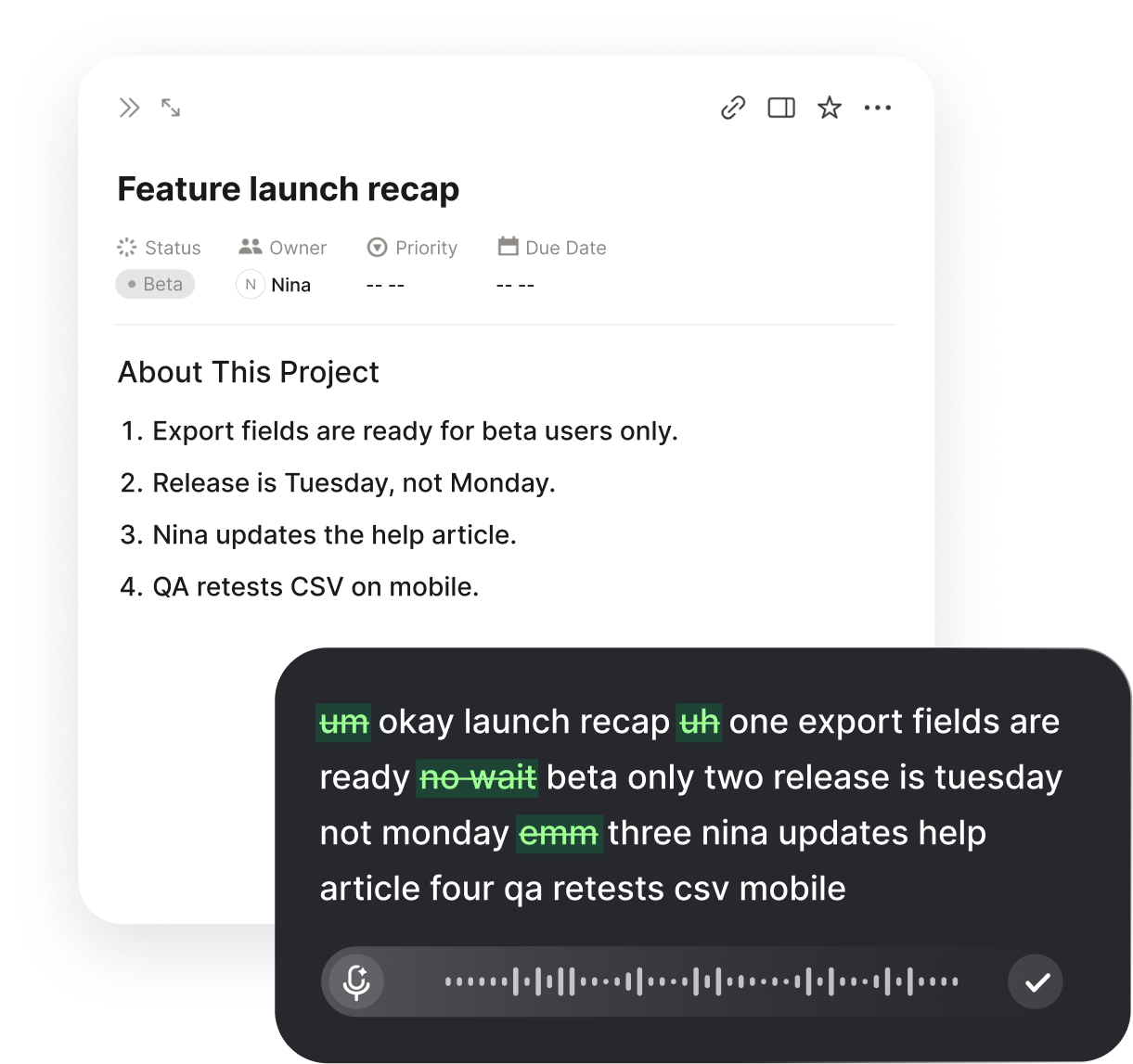
Dictation sits underneath all of them. Speaking runs at around 220 words per minute; typing at around 45. That gap decides whether a task gets logged now or never.
Stack at a glance:
- Notion — organize docs, notes, and project boards
- Routine or Any.do — capture and prioritize daily tasks
- Google Calendar — schedule and time block the day
- Raycast — keyboard shortcuts and repeatable snippets
- Forest — protect focus sessions from phone pull
- Superhuman — clear email faster when volume is high
- Voiskey — speak tasks, notes, and replies into any of the above
What to Dictate Into Your Stack
Inbox Capture on the Go
Say the task the moment it appears—context included—then drop it into your task inbox before the hallway conversation ends.
Meeting Wrap-Ups
Talk through decisions, owners, and dates while you still remember them. Paste into Notion or the calendar event note.
Calendar Block Labels
Name the focus block with the real outcome, not a vague title, so tomorrow-you knows what the hour was for.
Quick Follow-Ups
The email you meant to send after standup. Speak the point, skim once, send—without opening a blank draft for ten minutes.
Daily Priority Dump
End-of-day Ivy Lee list: speak six priorities out loud, rank them, and leave tomorrow with a clear start.
Slack Status Updates
Async team updates that would take forever to type. Say the progress, blockers, and ask—then paste into the channel.
Techniques That Pair With the Tools
Time management tools work better when a simple method sits on top of them. You do not need all five. Pick one and run it for a week.
Techniques worth trying:
- Eisenhower Matrix — sort by important vs urgent before you schedule
- Ivy Lee Method — six ranked tasks for tomorrow, nothing else first
- Time blocking — give deep work a real calendar slot
- Pomodoro — short focus intervals with deliberate breaks
- Habit stacking — attach a new habit to one you already do
Voice typing helps the methods that depend on writing things down. An Eisenhower sort goes faster when you speak every open loop into a list first. A Pomodoro session starts cleaner when the task description is already on the block.
Where Voice Typing Fits
Voiskey works anywhere you can type, so there is no new planner to migrate into. Notion for the long note. Gmail or Outlook for the follow-up. Slack for the team update. Google Calendar for the event description. Your phone for the capture between rooms.
You do not have to talk at full volume. Softer speech, including a whisper, works on an open floor. If a project name or acronym keeps coming out wrong, teach it once and it stops guessing.
Time management tools are not one-size-fits-all. Experiment, keep what sticks, and make sure capture never becomes the reason the system fails.
Workflows for a managed week:
- Daily priorities and project notesVoice typing for notes
- Follow-ups and inbox clear-downsVoice typing for emails
- Quick Slack and chat repliesVoice typing for messages
- Async status and handoffsVoice typing for teams
- Recaps after calls and standupsVoice typing for meetings
FAQ s
No. Voiskey is not a planner or a to-do list. It turns what you say into text at your cursor, so you keep using the time management tools you already trust and stop losing minutes to typing every capture.
You can speak the rough version, correct yourself mid-sentence, and still get clean text. Fillers and restarts get cleaned up so what lands in Notion, your calendar note, or Slack is ready to use.
No. Forest, Google Calendar, and similar time management tools still own focus and scheduling. Voice typing fills the gap between thinking and writing so those tools get better inputs.
Yes. Voiskey is a full keyboard on iOS and Android, so you can capture a task or meeting wrap-up in the hallway without switching apps or hunting for a quiet desk.
For most people, yes. Two thousand words a week covers daily task capture, short follow-ups, and meeting notes. The free month up front, plus referral months, is enough to see whether speaking sticks in your routine.


 Voiskey
Your voice, amplified.
Speak naturally, write effortlessly, and move faster. Turn your voice into polished, ready-to-use text wherever you work.
Use it across macOS, Windows, iOS, and Android