
How to Dictate on Mac: Speech to Text for Mac With Voiskey
Voiskey delivers speech to text for Mac and natural voice typing for Mac. Press Fn to dictate, Fn+Shift to translate, and Fn+Space to Ask AI, all without leaving the app you are in.
 Voiskey Team
What Speech to Text for Mac Actually Means
Speech to text for Mac means you talk and your Mac writes, instead of typing every character by hand. Most people speak around 150 to 220 words a minute but type closer to 40 to 45, so moving from the keyboard to your voice can be roughly four to five times quicker for a first draft. That speed gap is the real reason voice typing for Mac has turned into a daily habit rather than an accessibility afterthought.
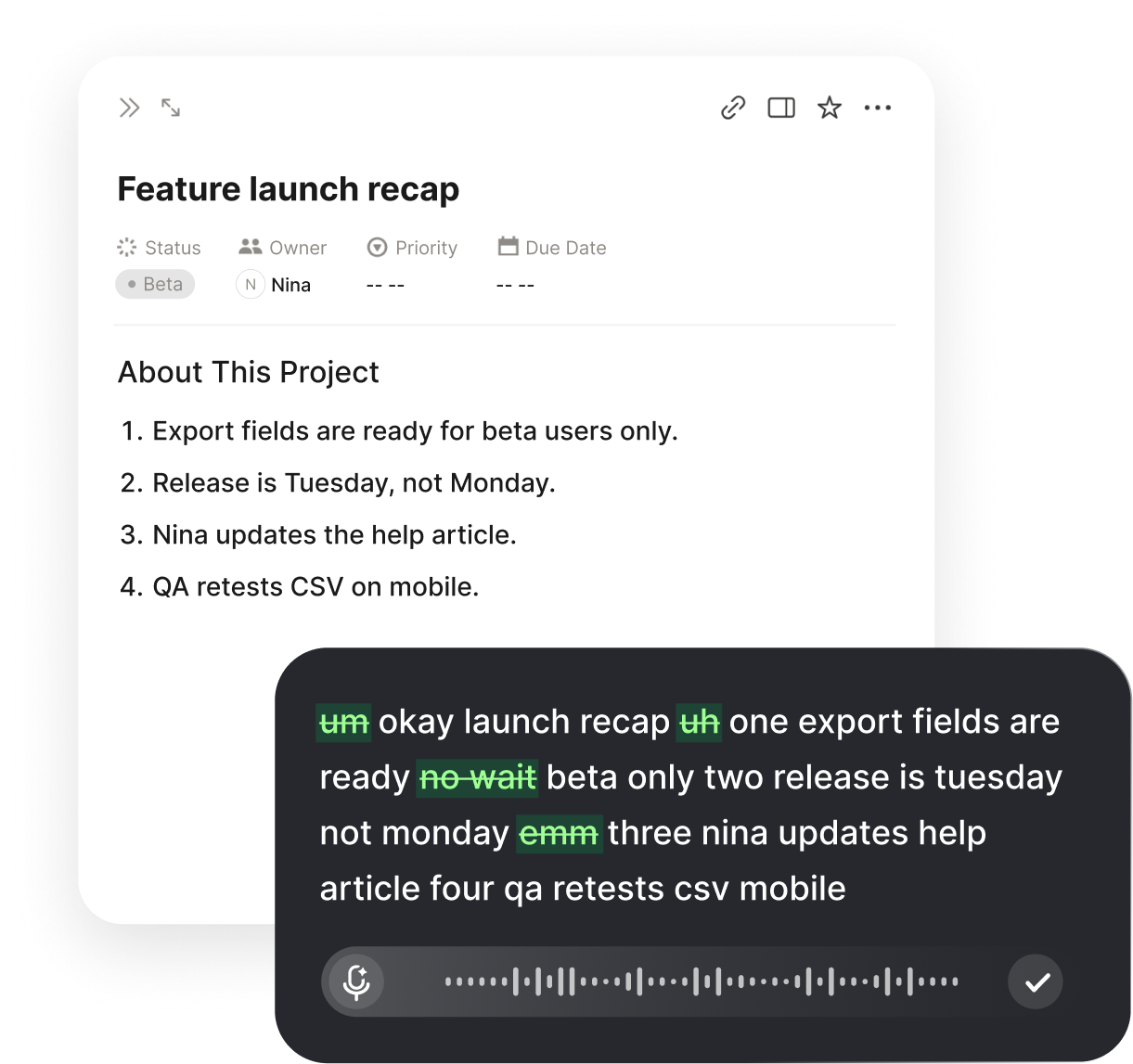
The catch is that raw transcription rarely gives you something you can send. Older tools drop in every stray filler word, mishear names, and leave the punctuation for you to clean up. Voiskey is built the other way around: it listens, strips the hesitations and false starts, and hands back a tidy paragraph, so the point of speaking is to finish a message rather than to produce a transcript you still have to rework.
Voiskey runs as voice input that sits beside your keyboard instead of replacing it. There is no separate on-screen keyboard to switch into and no window you have to keep in front. You stay in Notes, Mail, Slack, or a Google Doc, press one key, and the words appear exactly where your cursor already is, formatted and punctuated so you can keep moving instead of stopping to fix the basics.
Setting Up Voiskey for Dictation
Download Voiskey for macOS and grant the microphone and accessibility permissions it asks for on first launch. macOS requires these so a voice tool can place text into any other app, and the whole setup takes a couple of minutes that you only spend once. Nothing you dictate is tied to a single document, so the first field you try and the hundredth behave the same way.
After it is running, the routine never changes: click into whatever field you want to fill, tap the shortcut, and speak. Because Voiskey works at the system level, the same muscle memory carries across native apps, browser tabs, and chat windows, so you are never locked into a single editor.
If you want it ready the instant you log in, let Voiskey start at launch. From then on, speech to text for Mac is always one key away, with no app to hunt for and no mode to flip on before you begin.
Three Ways to Speak: Dictate, Translate, Ask AI
Voiskey is not a single button. It gives you three separate voice actions, each on its own shortcut, so one tool covers quick capture, cross-language writing, and on-the-spot drafting without you learning a new app for each job. The modes share the same microphone and the same clean-up engine, so whichever one you reach for, the output quality stays consistent and you never have to think about which window is in focus.
Dictate (Fn): tap Fn and talk. This is the core of voice typing for Mac. Voiskey smooths out hesitations and loose phrasing and drops a readable draft straight into your document or message.
Translate (Fn+Shift): speak in whichever language you think fastest in and get back natural-sounding text in the language you need. It reshapes word order and tone instead of swapping words one at a time, so a note to an overseas teammate does not read like machine output.
Ask AI (Fn+Space): voice a short instruction to draft something fresh, or highlight a clumsy paragraph first and ask for a tighter rewrite. It helps you shape text you already have on screen; it does not run commands or open files on your behalf.
Where Voice Typing for Mac Earns Its Keep

Notes and Docs
Brain-dump a meeting recap or an outline at talking speed, then let Voiskey tidy it into something readable.
Mail and Inbox
Clear replies in Gmail, Outlook web, or Apple Mail by speaking the gist and sending a clean draft.

Slack and Teams
Fire off chat updates without typing, using the same Fn habit and no scratch pad to copy from.

Across Languages
Use Fn+Shift for bilingual threads so one spoken message lands correctly for a global team.
Getting Cleaner Speech to Text on Mac
Accuracy on Mac depends less on talking slowly and more on a few small habits. Speak in full thoughts rather than isolated words, because Voiskey leans on the surrounding sentence to punctuate and to choose the right spelling for names and homophones. If you pause awkwardly after every word, the tool has less context to work with, so a steady, conversational pace usually produces a cleaner result than careful, clipped speech.
A basic headset or your MacBook built-in microphone is usually plenty, and cutting background noise helps most in open offices. You do not need to raise your voice either: Voiskey can pick up quieter, close-mic speech, so softly spoken dictation still comes through clearly.
For recurring jargon such as product names, teammates, and internal acronyms, add them to your custom vocabulary once. That dictionary syncs across your devices, so the same terms are recognized whether you are on a desktop or a laptop, and your voice typing for Mac keeps getting sharper the more you rely on it.
Voiskey Versus Built-In Apple Dictation
macOS ships its own dictation. To switch it on, open System Settings, choose Keyboard, and enable Dictation; from there a key press starts Apple transcription. It is fine for a quick phrase when the raw words are all you need.
The gap shows up the moment the text has to leave your Mac looking finished. Apple mostly transcribes what it hears, while Voiskey removes filler, repairs rough phrasing, and layers translation and Ask AI on top. That is why most people treat Voiskey as their main speech to text for Mac and keep Apple Dictation only as a throwaway backup.
Related workflows:
- Capture notes without a blank pageVoice typing for notes
- Answer your inbox fasterVoice typing for emails
- Message at speaking speedVoice typing for chat
Who Voice Typing for Mac Helps Most
Speech to text for Mac is not only an accessibility feature, though it remains invaluable for anyone who finds a keyboard slow or painful. The people who adopt it fastest tend to write all day: support agents clearing a queue of replies, managers who live in Slack and email, writers who think out loud, and anyone drafting in a second language where speaking is more natural than typing.
A common pattern is the long first draft. Staring at a blank document is the slow part of writing, so dictating a messy out-loud version and letting Voiskey clean it up gets you to an editable draft in a fraction of the time. From there you edit with the keyboard as usual, which means voice typing for Mac fits into how you already work instead of forcing a new habit.
It also helps when your hands are busy or your wrists need a break. You can talk through a note while you reference a spreadsheet, or rest from a day of typing while still answering messages. Because the shortcut is always the same, switching between voice and keyboard mid-sentence feels natural rather than like changing tools. Over a full week, those small switches add up: the drafts that used to eat your afternoon get spoken in minutes, and the keyboard goes back to being for edits, not for grinding out every first sentence.
FAQ s
Install Voiskey, allow microphone and accessibility access, click into any text field, and press Fn to speak. Your words land as clean text right where the cursor is, with no separate window and no mode to toggle first.
Fn dictates, Fn+Shift translates as you speak, and Fn+Space opens Ask AI for a quick draft or rewrite. All three work inside the app you already have open.
Voiskey is more accurate for sendable text because it cleans fillers and rough phrasing instead of only transcribing. Apple Dictation is fine for quick phrases; Voiskey aims for a draft you can send as is.
Yes. Because Voiskey works at the system level, the same Fn habit works in Gmail, Outlook web, Apple Mail, Slack, and Teams, plus Notes and Docs, anywhere you can place a cursor.
Yes. Voiskey picks up quieter, close-mic speech, so you can dictate softly in a shared space without raising your voice.
Both. Voiskey is speech to text for Mac and voice typing for Mac in one tool: press Fn and speak, and your words arrive as clean, ready-to-send text in whatever app you are using.


 Voiskey
Your voice, amplified.
Speak naturally, write effortlessly, and move faster. Turn your voice into polished, ready-to-use text wherever you work.
Use it across macOS, Windows, iOS, and Android