
Mac · Voiskey
How to Use Dictation on Mac With Voiskey
Voiskey is an AI-powered voice input tool for Mac — faster, more accurate, with Dictation (Fn), Translate (Fn+Shift), and Ask AI (Fn+Space).
Why Voiskey on Mac, Not Only Apple Dictation
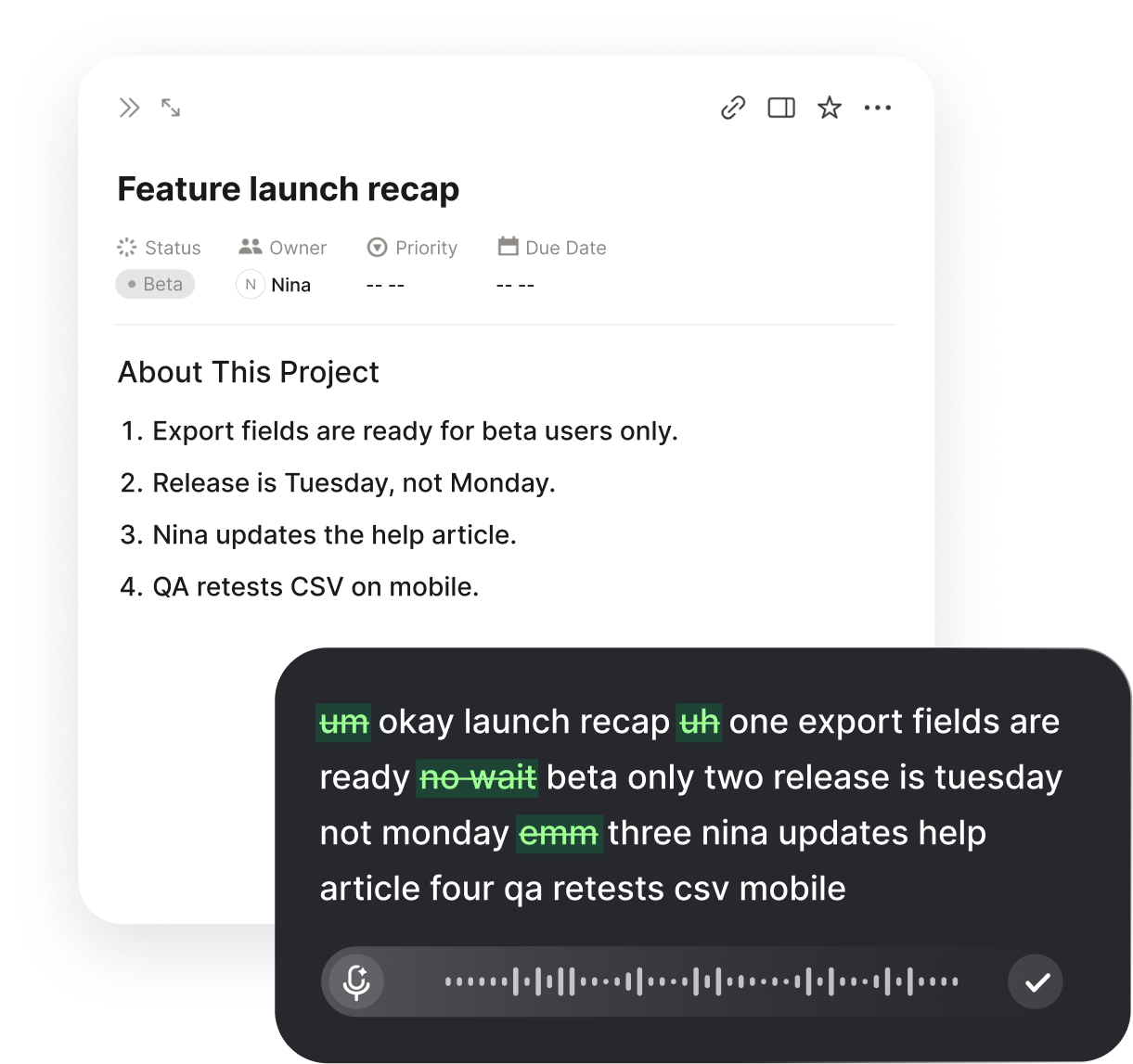
Voiskey is an AI-powered voice input tool for Mac. It is faster and more accurate than typing or basic Apple Dictation — speaking is about 220 words per minute versus about 45 when you type (about 5× faster).
Beyond Dictation, Voiskey also gives you Translate and Ask AI: say it in the language you think in, or ask by voice for a draft / rewrite. System dictation mostly dumps raw words; Voiskey aims for text you can send.
On Mac, Voiskey is voice input beside your physical keyboard — not a separate keyboard you have to switch to. Use Fn, Fn+Shift, and Fn+Space in Notes, Mail, Slack, Docs, and more.
Mac Shortcuts: Fn, Fn+Shift, Fn+Space
Install Voiskey on macOS, click into Notes, Mail, Slack, Docs, or any text field, then use these shortcuts:
Dictation — press Fn and speak. Voiskey cleans fillers and rough phrasing so the draft is closer to something you can send.
Translate — press Fn+Shift, speak in the language you think in, and land native-sounding text in the language you need. It adjusts order and politeness; it is not a stiff word swap.
Ask AI — press Fn+Space to ask by voice for a draft, or select text first and ask for a clearer rewrite of that selection.
Dictate, Translate, and Ask AI in Real Apps

Dictation (Fn)
Capture Notes, Docs, or a Slack update at speaking speed — cleaned, not a raw transcript.
Translate (Fn+Shift)
Say it in your language; land sendable copy for a bilingual Mail or chat thread.

Ask AI (Fn+Space)
Voice a prompt for a short draft, or select a rough paragraph and ask for a tighter version.
Email and Chat
Same Fn habit in Gmail, Outlook web, Teams, and Slack — no separate notepad to copy from.
Optional: Turn On Apple Dictation
For the system path: System Settings → Keyboard → Dictation, turn it on, and use Apple’s shortcut when you only need a quick phrase. That covers how to turn on dictation on Mac for the built-in tool.
Keep Apple Dictation for throwaway lines. Use Voiskey Fn / Fn+Shift / Fn+Space when the text has to leave your Mac looking written — with custom vocabulary synced across your devices.
Related workflows:
- Notes without a blank pageVoice typing for notes
- Faster inbox repliesVoice typing for emails
- Chat at speaking speedVoice typing for messages
FAQ s
On macOS: Dictation is Fn, Translate is Fn+Shift, and Ask AI is Fn+Space. Put the cursor in the app you already have open, then use the shortcut — Voiskey is a voice input tool on Mac, not a separate keyboard.
Voiskey is an AI-powered voice input tool — faster and more accurate than Apple Dictation, with Dictation (Fn), Translate (Fn+Shift), and Ask AI (Fn+Space). Apple mainly transcribes; Voiskey aims for sendable text and cleans fillers and rough phrasing.
Press Fn+Space and ask by voice for usable draft text, or select a paragraph first and ask Voiskey to rewrite or tighten that selection. It is not an agent that opens files or runs actions for you.
Yes. Voiskey can pick up quieter speech, including when you talk softly, so you are not forced to dictate at full volume in an open office.


 Voiskey
Your voice, amplified.
Speak naturally, write effortlessly, and move faster. Turn your voice into polished, ready-to-use text wherever you work.
Use it across macOS, Windows, iOS, and Android