
iPhone · Voiskey
How to Dictate on iPhone With Voiskey
Voiskey is an AI-powered voice input tool for iPhone — faster, more accurate, with Dictation and Translate beyond Apple’s mic.
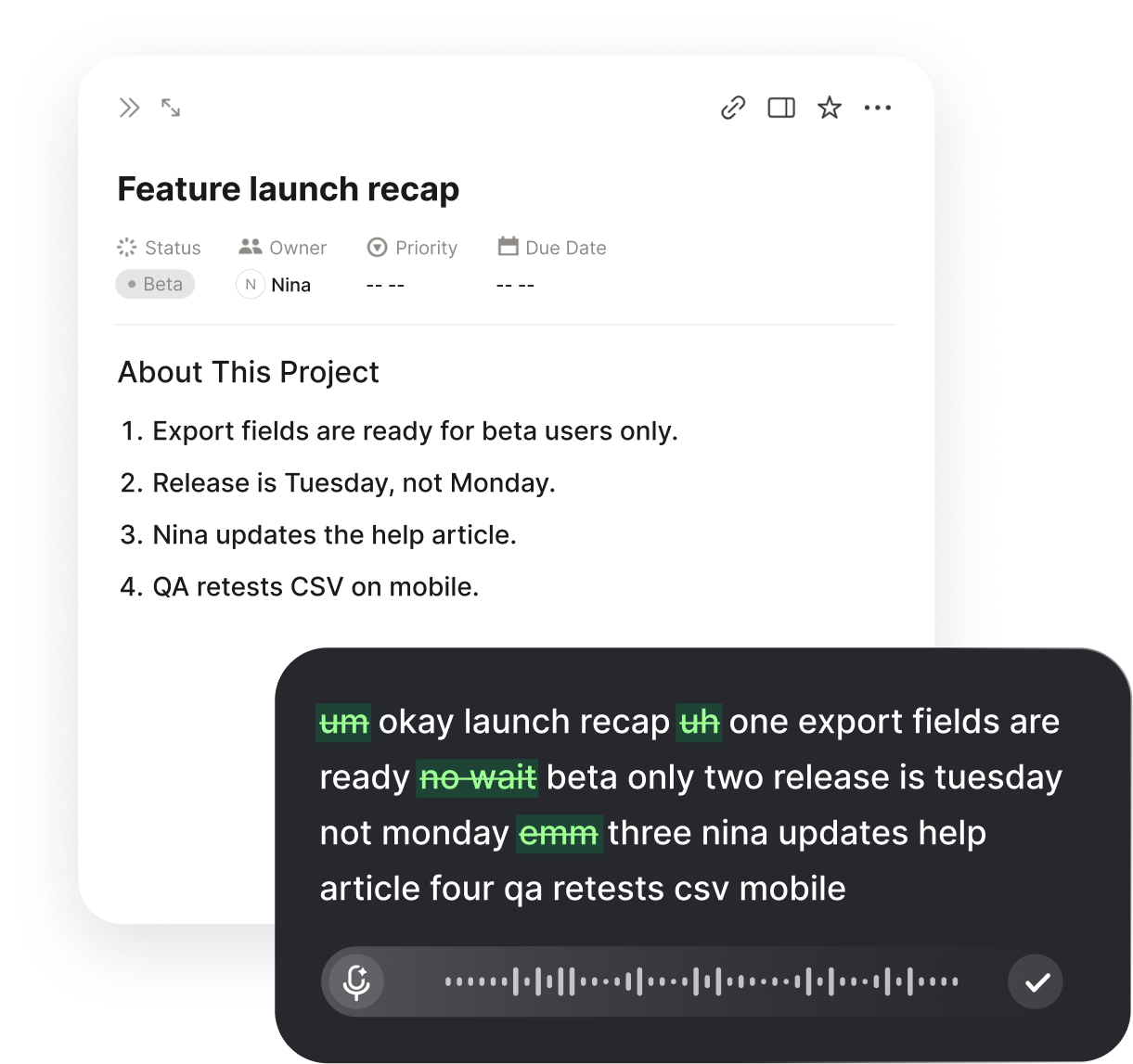
Why Voiskey for iPhone Voice to Text
Voiskey is an AI-powered voice input tool. On iPhone it is faster and more accurate than thumb-typing or basic Apple Dictation — about 220 wpm speaking versus about 45 typing (about 5× faster).
Beyond Dictation, Voiskey also includes Translate: speak in the language you think in, land sendable text in another. System voice to text mostly dumps raw words; Voiskey aims for messages and Mail you can send. On Mac or Windows you also get Ask AI (Fn+Space / Alt+Space) for voice Q&A and rewrites.
Switch to the Voiskey keyboard, then short-press the toolbar for Dictation — or long-press space and drag left for Dictation, right for Translate.
Dictation and Translate Gestures
Install Voiskey, enable the keyboard under Settings → General → Keyboard → Keyboards, and switch to Voiskey in any text field.
Dictation — short-press the dictation button on the keyboard toolbar, or long-press the space bar and drag left. Speak; land cleaner text at the cursor.
Translate — long-press the space bar and drag right. Say it in the language you think in; get sendable text in the language you need, with natural phrasing — not a stiff word swap.
Messages, Mail, Notes, Chat

Dictation → Messages
Reply while walking; send something that still reads like you, not a raw mic dump.
Translate → Chat
WhatsApp or iMessage across languages without a separate translate tab.
Mail on the Go
Speak the update before the meeting; land a clearer draft than rushed thumb-typing.
Notes Capture
Drop ideas into Notes by voice before they disappear between errands.
Optional: Enable Apple Dictation
Settings → General → Keyboard → Enable Dictation covers how to turn on voice to text on iPhone for Apple’s built-in mic. Use it for throwaway phrases.
For everyday chat and email, stay on the Voiskey keyboard: toolbar Dictation, space-left Dictation, space-right Translate — and vocab that syncs when you sit down at a Mac.
Related workflows:
- Chat without slow thumbsVoice typing for messages
- Inbox on the commuteVoice typing for emails
- Ideas before they fadeVoice typing for notes
FAQ s
Switch to the Voiskey keyboard, then short-press the dictation button on the keyboard toolbar — or long-press the space bar and drag left for Dictation. Long-press space and drag right for Translate.
On iPhone, Voiskey includes a keyboard you switch to for voice-first writing. Flip back to the system keyboard anytime for typing or another layout. Voice and typing live in the same input method.
Apple Dictation mainly transcribes. Voiskey cleans fillers and rough phrasing, can shape chat versus email tone, and Translate lands cross-language text you can send — with custom names synced to Mac and Windows.
Privacy Mode. With it on, your voice input is not collected and is not used to train AI models, and your history stays on your own device.


 Voiskey
Your voice, amplified.
Speak naturally, write effortlessly, and move faster. Turn your voice into polished, ready-to-use text wherever you work.
Use it across macOS, Windows, iOS, and Android