
How to Dictate an Email in Outlook Across Every Device You Use
This guide covers how to dictate an email in Outlook on every surface you use, from desktop to web to phone, with practical productivity tips.
 Voiskey Team
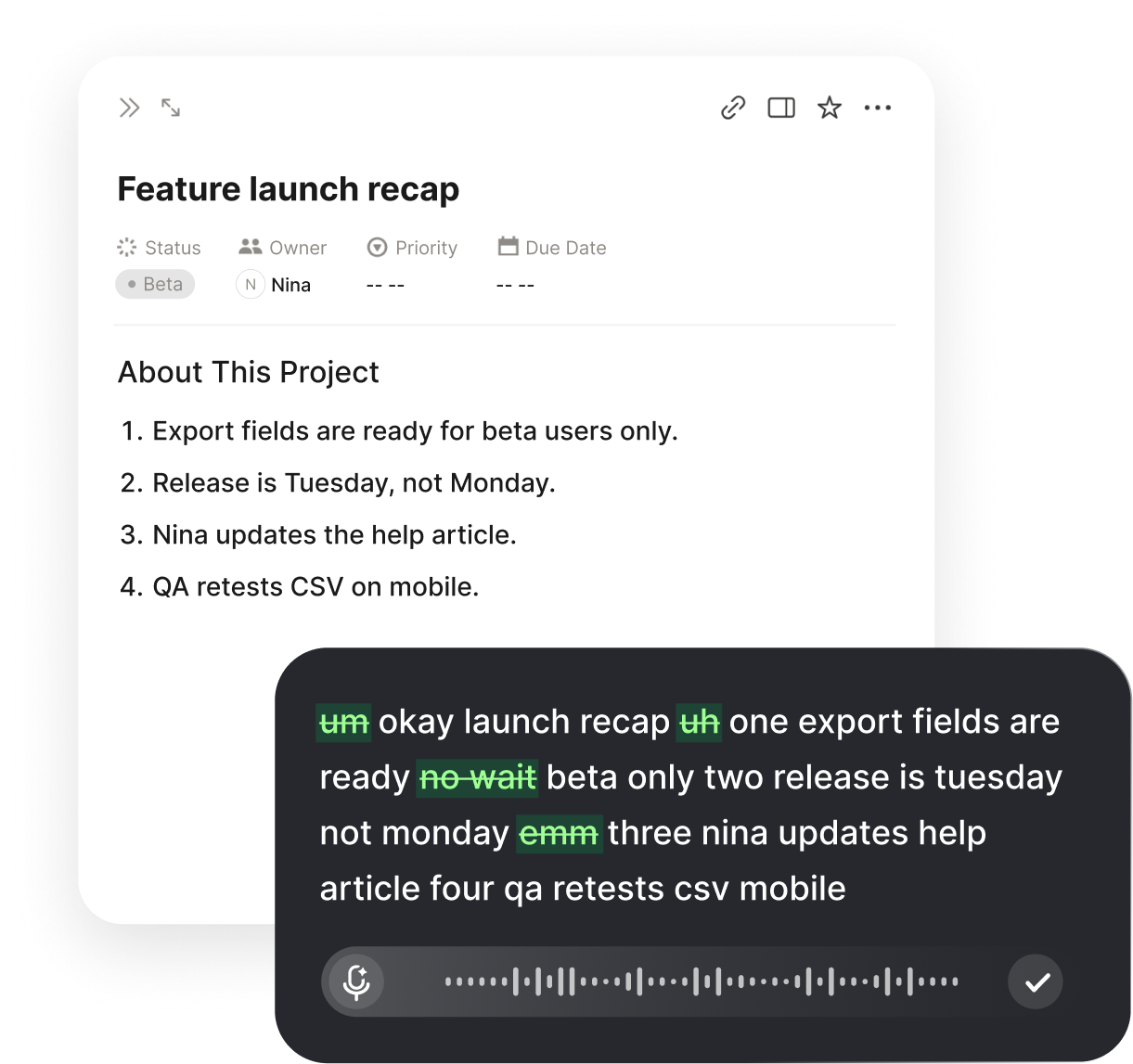
Dictating Email On Every Surface
Most guides stop at a single device, but real work happens on a desktop at your desk, in a browser on a borrowed laptop, and on a phone between meetings. This article is about how to dictate an email in Outlook across all of them, so your voice becomes the common thread no matter which screen is in front of you. Knowing how to dictate an email in Outlook on every surface means you are never stuck typing with your thumbs again.
The promise of dictation is speed and comfort, and that promise only holds if it travels with you. A workflow that works beautifully on your office computer but falls apart on the train is only half a solution. The goal here is consistency: the same mental model, the same punctuation commands, and ideally the same shortcut everywhere.
Along the way we will cover spoken templates for repetitive messages, dictating to-dos and calendar invites, handling tricky names and acronyms with custom vocabulary, and fixing the microphone problems that trip people up. Where the built-in tools stop, a system-wide option like Voiskey keeps the experience identical from device to device.
Desktop, Web, And Phone In Practice
On the desktop app, dictation lives on the Message ribbon. Open a new email, click into the body, and use the Dictate button in the Voice group to start talking. This is the surface where most heavy email work happens, so it pays to get comfortable with the start-stop rhythm of clicking the button on and off between thoughts.
In the browser, Outlook on the web mirrors the experience. Click New message, place the cursor in the body, and click the Dictate microphone in the compose toolbar, allowing the browser to use your microphone when prompted. It behaves the same as the desktop, which means moving between the two requires no relearning at all.
On the phone, the Outlook mobile app lets you dictate directly in a message, and the phone keyboard's own microphone is a fallback. The catch is that each surface has its own button in its own place. That fragmentation is exactly why many people adopt a single system-wide shortcut, so the trigger never changes even when the device does.
Where Dictation Lives On Each Surface
- Desktop appDictate button in the Voice group on the Message ribbon.
- Outlook on the webDictate microphone in the compose toolbar of a new message.
- Mobile appDictate within the message body, or use the keyboard mic.
- EverywhereVoiskey's single shortcut works the same on every surface.
Templates You Can Speak
Much of email is repetition: the same greeting, the same structure, the same closing. Rather than dictate those from scratch every time, build a small set of spoken templates. A template is simply a fixed phrasing you say the same way each time, so the recurring parts come out consistently while you focus your attention on the unique details.
A status-update template might open with a greeting, state what is done, what is next, and what you need, then close with your sign-off. Because you say it the same way daily, the words flow automatically and you only vary the specifics. Combine spoken templates with any saved-snippet feature your setup offers and the repetitive scaffolding writes itself.
Templates also keep your tone consistent across a team. If everyone dictates updates in the same shape, they are faster to read and easier to scan. Decide on two or three structures you use most, practice saying them until they are automatic, and your dictated email will feel both quicker and more professional.
Build A Spoken Status Template
- Say your greeting, such as 'Hi team', then a comma and a new line.
- Say 'Done colon' and list what you completed.
- Say 'new line' then 'Next colon' and list what comes next.
- Say 'new line' then 'Need colon' and state any blockers.
- Say 'new paragraph' then your sign-off and name.
- Dictate only the changing details each day and keep the frame fixed.
Dictating To-Dos And Calendar Invites
Email rarely travels alone; it spawns tasks and meetings. The good news is that anything with a text field can be dictated. When you create a task, place the cursor in the title and speak it, then move to the notes field and dictate the detail. The same applies to the body of a calendar invite, where you can lay out an agenda by voice.
The trick is to treat each field as its own little dictation target. Click or tap into the field, trigger dictation, speak, and stop. Because you are only ever dictating into wherever the cursor sits, a to-do title, a reminder note, and a meeting description all work the same way, with no special per-field feature to learn.
This is where a system-wide tool really earns its place. Outlook's built-in Dictate is scoped to email composition, but a tool like Voiskey types wherever your cursor is, so the invite body, the task notes, and the follow-up email all use one identical motion. Your capture workflow stays seamless from message to meeting to task.
Capture Tasks And Invites By Voice
- Open a new task or calendar invite and click into the title field.
- Trigger dictation and speak the title clearly.
- Move the cursor to the notes or description field.
- Dictate the details, voicing new lines for each agenda point.
- Review the fields, then save or send the item.
Handling Names And Acronyms With Vocabulary
Nothing breaks the flow of dictated email faster than seeing a colleague's name spelled three different wrong ways. Speech engines handle common words well but stumble on proper nouns, product names, and acronyms, because those do not follow ordinary spelling patterns. Left unaddressed, you end up correcting the same handful of terms in every single message.
Custom vocabulary is the durable fix. By adding the names, brands, and acronyms you use, along with their exact spelling, you teach the tool to render them correctly on sight. Outlook's built-in Dictate does not offer a personal dictionary, so this is a strong reason to pair it with Voiskey, which supports custom vocabulary across every app.
Spell acronyms the way you want them to appear, whether that is all capitals or a specific mix of letters. For names, add the versions you actually use, including short forms. A short investment in building this list pays back constantly, because the same names recur in email after email and each correct spelling is one correction you never have to make.
Tame Tricky Terms
- List the names, brands, and acronyms you type most often.
- Add each one to Voiskey's custom vocabulary with exact spelling.
- Set the capitalization you want for acronyms up front.
- Include common short forms and nicknames you actually use.
- Dictate a test message to confirm each term is recognized.
Troubleshooting Microphone Issues
A microphone that does not cooperate will stop dictation before it starts, and the fix is usually quick once you know where to look. The first checkpoints are permission and device selection: the app or browser must be allowed to use the microphone, and the correct input device must be chosen in your system's sound settings, especially if you switch between a headset and built-in mics.
If permissions are fine but accuracy is poor, the environment is doing the damage. Background chatter, a fan, or a microphone placed too far away all muddy the signal. Move to a quieter spot, bring the mic closer and keep it at a steady distance, and speak at an even pace. These small adjustments often transform recognition quality more than any software setting.
On the phone, remember that cases and fingers can cover the mic opening, and that a weak connection degrades cloud-based recognition. Test the microphone in another app to isolate whether the problem is hardware or the dictation feature itself. Methodically ruling out each cause is faster than randomly toggling settings and hoping something sticks.
Microphone Troubleshooting Order
- PermissionAllow the app or browser to use the microphone.
- DeviceSelect the correct input device in system settings.
- HardwareUnmute, uncover the mic, and test it in another app.
- EnvironmentReduce noise and keep the mic at a steady distance.
- ConnectionConfirm a stable internet link for cloud recognition.
One Shortcut For Every Surface With Voiskey
The common thread through every tip above is consistency, and consistency is exactly what a system-wide tool delivers. Voiskey gives you a single keyboard shortcut that types your speech wherever the cursor is, whether that is the Outlook desktop app, Outlook on the web, a task field, a calendar invite, or an entirely different program. One trigger, learned once, used everywhere.
Voiskey only turns your speech into text at the cursor. It does not read your screen, your files, or your messages; it listens when you press the shortcut and types what you said. That keeps the behavior predictable across surfaces, and it means your custom vocabulary, punctuation habits, and editing commands follow you instead of resetting every time you switch apps.
It is free to start, supports speaking punctuation and formatting, lets you edit by voice, and complements rather than replaces Outlook's built-in Dictate. If your day spans a desktop, a browser, and a phone, that single consistent shortcut is what finally makes dictation feel effortless no matter where you happen to be working.
Make Dictation Consistent Everywhere
- Install Voiskey and sign in to the free plan.
- Pick one activation shortcut you will use on every device.
- Add your custom vocabulary once so it applies across apps.
- Dictate Outlook email, tasks, and invites with that same shortcut.
- Carry the identical habit into chat, docs, and web forms.
Building A Dictation Habit That Sticks
New habits stick when they start small. Pick one category of email, perhaps short internal replies, and commit to dictating only those for a week. Keeping the scope tiny removes the pressure to be perfect and lets you build the punctuation reflexes on low-stakes messages before you tackle anything important.
Expect a short adjustment period. The first day feels slower because you are learning to voice punctuation and to speak in complete sentences. By the end of the week, those commands fade into the background and you simply talk, which is the point at which dictation starts genuinely saving you time rather than costing it.
Once the habit is established on one surface, let it spread naturally to the others. Because a single shortcut works on your desktop, in the browser, and on your phone, there is nothing new to learn as you expand. Within a couple of weeks, reaching for your voice instead of the keyboard becomes the default, and your inbox stops feeling like a chore.
FAQ s
Yes. The Outlook mobile app lets you dictate in the body of a message, and your phone's built-in keyboard microphone is another route. For a consistent experience across phone and computer, a system-wide tool keeps the same habits on every device.
It does. The Microsoft 365 desktop app has a Dictate button on the Message ribbon, and Outlook on the web has a Dictate microphone in the compose toolbar. Both convert speech to text in the body of the email while you compose.
You can speak a reusable structure every time, such as a standard greeting, body skeleton, and sign-off. Pairing spoken templates with saved snippets means the repetitive parts come out identically while you dictate only the details that change.
Yes. Because dictation types wherever the cursor is, you can speak the title, notes, and details of a calendar invite or a task just as you dictate an email body, as long as the field accepts typed text.
Names and acronyms are the usual weak spot for any dictation engine. Adding them to Voiskey's custom vocabulary tells the tool exactly how to spell them, so they are correct every time instead of being guessed at repeatedly.
Start with permissions and device selection: confirm the app or browser is allowed to use the microphone, that the right input device is chosen, and that the mic is not muted. A quick test in another app tells you whether the hardware itself is fine.


 Voiskey
Your voice, amplified.
Dictate email, tasks, and invites with one shortcut on any surface. Voiskey works everywhere and is free to start.
Use it across macOS, Windows, iOS, and Android