
Dictation for Google Docs When Google Docs Voicetyping Not Working
If you keep searching "google docs voicetyping not working" and nothing you try seems to help, this guide walks through every common cause and a reliable fix.
 Voiskey Team
Google Docs Voice Typing Not Working: Where To Start
If you have landed here after typing "google docs voicetyping not working" into a search box, you are not alone, and the good news is that most of these failures come from a short list of predictable causes. Voice typing in Google Docs is convenient when it behaves, but it is a browser feature with real limits, and when any one of those limits is tripped the whole experience falls apart. This guide walks through each cause in the order you should check it, so you can get back to dictating quickly.
Before you change any settings, take a moment to describe the problem precisely. Does the microphone button fail to appear at all, or does it appear but never capture words? Does transcription start and then stop after a few seconds, or does it produce garbled text? The symptom points to the cause, and matching the right fix to the right symptom saves you from random trial and error. We will move from the simplest checks to the deeper ones.
Throughout this guide we will also point out where native voice typing is simply doing what it was designed to do, even when that design gets in your way. Knowing the difference between a bug you can fix and a limitation you cannot is the fastest route to a dependable dictation setup, and it explains why many people eventually move to a dedicated tool like Voiskey.
The Most Common Reasons It Fails
Google Docs voice typing depends on a chain of conditions working together: the right browser, an allowed microphone, a steady network, no conflicting extensions, and an active document tab. Break any link in that chain and the feature either refuses to start or quietly stops mid sentence. That is why a single symptom can have several different root causes, and why a structured check beats guessing.
The quickest way to narrow things down is to separate client problems from service problems. Client problems live on your machine and include permissions, hardware selection, and extensions. Service and environment problems include browser support, network quality, and the way Google Docs times out. Once you know which category you are in, the remaining steps are straightforward.
Fast triage checklist
- Confirm you are using Chrome on a desktop computer.
- Check that the microphone is allowed for docs.google.com.
- Make sure no other app is holding the microphone.
- Test your internet connection for stability.
- Disable extensions and retry in an incognito window.
- Keep the document tab focused while you speak.
Microphone Permissions And Device Selection
The single most frequent reason voice typing will not start is a blocked or misdirected microphone. When you first click the voice typing button, Chrome asks whether Google Docs may use your microphone. If you dismissed that prompt, clicked block, or the setting was changed later, voice typing will fail silently or show a device error. Open the small camera and microphone icon in the Chrome address bar, set docs.google.com to allow, and reload the page.
Device selection is the second half of this problem. Many desktops and laptops expose several input devices: a built in mic, a webcam mic, a headset, and virtual audio devices from conferencing software. If the wrong one is set as the system default, Google Docs may listen to a device that is muted or not picking up your voice. Open your operating system sound settings, pick the microphone you actually speak into, and speak a test sentence to confirm the input meter moves.
Finally, remember that only one application can use the microphone reliably at a time on many systems. If a video call, a recording app, or another browser tab has already claimed the mic, Google Docs cannot access it. Close those apps or end the call, then return to your document and try again. A quick restart of the browser clears most lingering device locks.
The Chrome Only Limitation
This is the limitation that surprises people the most: Google Docs voice typing is supported only in the Chrome browser. If you are in Firefox, Safari, Edge, or a privacy focused Chromium fork, the feature may be missing from the Tools menu, greyed out, or present but non functional. No amount of permission tinkering will help, because the capability was never enabled for those browsers in the first place.
If you prefer a different browser for everyday work, you have two realistic choices. The first is to keep Chrome installed purely for Google Docs dictation, which is workable but clumsy if you live in another browser. The second is to use a dictation tool that is not tied to one browser at all. This is exactly where native voice typing hits a wall and a cross browser solution becomes attractive.
It is worth stressing that this is by design, not a bug you can report and wait to be fixed. Treat the Chrome requirement as a fixed boundary. Once you accept it, you can decide whether to work within it or to move to a tool that follows you across every browser and app rather than living inside a single one.
Network And Connectivity Problems
Google Docs voice typing is not fully local. Your speech is streamed to Google servers for recognition and the text is streamed back, which means a shaky connection directly degrades the experience. Symptoms include words appearing several seconds late, whole phrases going missing, or transcription stopping entirely after a brief burst. If you are on crowded public Wi Fi or a weak mobile hotspot, the network is a likely culprit.
To rule this out, run a quick connection test and try loading a few pages to confirm things are responsive. Then reload your document and dictate a short test sentence. If accuracy and speed improve on a stronger connection, you have found the problem. For important work, a wired connection or a reliable network removes a surprising amount of voice typing frustration.
Signs the network is the problem
- High latencyText trails far behind what you just said.
- Dropped wordsPhrases vanish even though you spoke clearly.
- Sudden stopsTranscription halts and will not resume.
Extension And Privacy Conflicts
Browser extensions are powerful, and that power sometimes collides with the microphone pipeline Google Docs relies on. Ad blockers, privacy guards, script blockers, audio enhancers, and accessibility tools can all intercept or restrict the audio stream. The result is voice typing that worked yesterday and refuses to work today after an extension updated itself in the background.
The cleanest test is an incognito window, which disables most extensions by default. Open Google Docs in incognito, start voice typing, and speak. If it works there, an extension is the problem. Re-enable your extensions one at a time, testing after each, until the offending one reveals itself. You can then disable it on docs.google.com or remove it if you no longer need it.
Corporate and managed devices add another layer here. Security policies can block microphone access at the browser or operating system level, and those policies are not something you can override on your own. If you are on a work machine and nothing else explains the failure, your IT administrator may have restricted the feature intentionally.
A More Reliable Alternative: Voiskey
When you have worked through permissions, browsers, networks, and extensions and still fight with dictation, the honest conclusion is that native Google Docs voice typing is simply fragile. It was built as a convenient extra, not as a dependable daily driver, and its browser lock and timeouts make it hard to trust for serious writing. This is the point where a dedicated tool pays for itself.
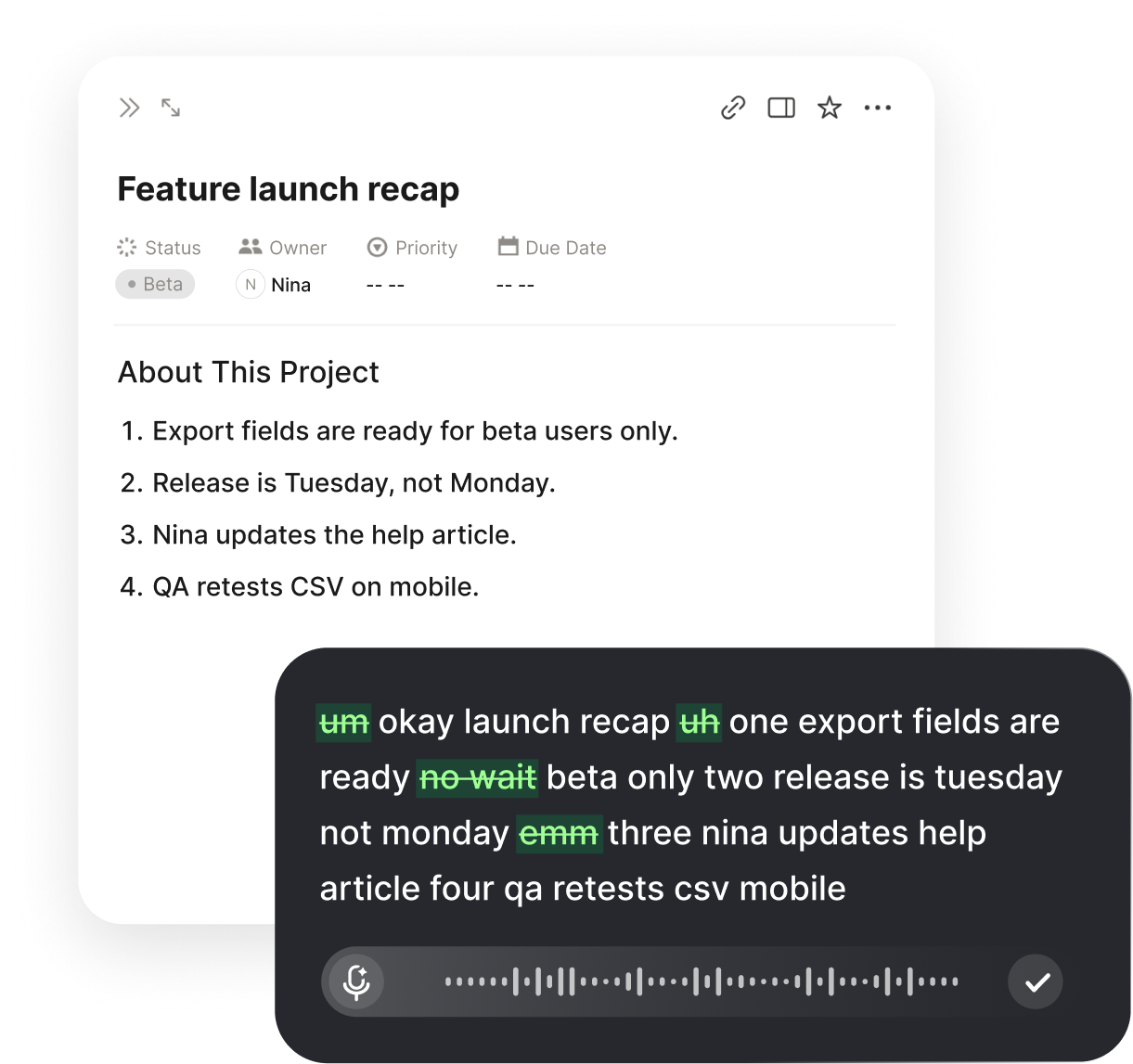
Voiskey is a voice to text tool designed to work everywhere you type, through a Chrome extension and a desktop app rather than a single browser feature. It transcribes your speech in real time with high accuracy, supports punctuation voice commands so you can add commas, periods, and new lines by voice, and automatically cleans up filler words so your drafts read smoothly. It supports many languages and is built to be privacy conscious.
Crucially, Voiskey is not confined to Google Docs or to Chrome alone. It works in Gmail, ChatGPT, Cursor, Slack, Notion, and the other apps where you actually get work done, so your dictation setup stays consistent no matter where you are writing. Instead of restarting a timed out microphone or switching browsers just to dictate, you speak and the clean text appears. For anyone who hit this page frustrated, that reliability is the real fix.
FAQ s
This message almost always means the browser does not have permission to use your microphone, or another program is already holding the device. Check the camera and microphone icon in the address bar, make sure Google Docs is allowed, close other apps that might be using the mic, and reload the document. If you are on a desktop with several input devices, confirm that the correct microphone is selected as the system default.
No. Google Docs voice typing is officially supported only in Chrome. Firefox, Safari, and some Chromium forks either disable the feature or give unreliable results. If you rely on another browser, that single limitation is often the reason voice typing never appears or stops responding, and switching to a tool like Voiskey removes the browser lock entirely.
Google Docs voice typing times out when it does not detect speech for a short period, and it also stops if the document tab loses focus. If you pause to think, the microphone can switch off without warning. You then have to click the mic button again to resume, which breaks your flow during longer dictation sessions.
Yes. Google Docs voice typing sends audio to Google servers for processing, so a weak or intermittent connection produces dropped words, long delays, or a complete stop. If your transcription lags far behind your speech, test your network first, then try again on a stable connection before assuming the feature itself is broken.
Extensions that manage audio, privacy, ad blocking, or accessibility can interfere with the microphone stream that Google Docs needs. Open an incognito window with extensions disabled and test voice typing there. If it works, re-enable your extensions one at a time until you find the one causing the conflict.
Voiskey is a voice to text tool that works across apps and browsers through a Chrome extension and a desktop app. It transcribes speech in real time with high accuracy, supports punctuation voice commands, cleans up filler words, and works in Google Docs, Gmail, ChatGPT, Cursor, Slack, and Notion. Because it is not tied to a single browser feature, it keeps running even when native Google Docs voice typing fails.


 Voiskey
Your voice, amplified.
Stop fighting flaky browser dictation. Voiskey turns your speech into clean, accurate text in Google Docs, Gmail, Slack, Notion, and anywhere else you type, so you can get back to writing.
Use it across macOS, Windows, iOS, and Android