
Voice Writing Guide
Email Dictation App Alternative for Notes and Replies
An email dictation app alternative for note taking: capture spoken details as readable text, keep names and follow-ups visible, and turn conversations into organized notes without switching between a collection of disconnected tools.
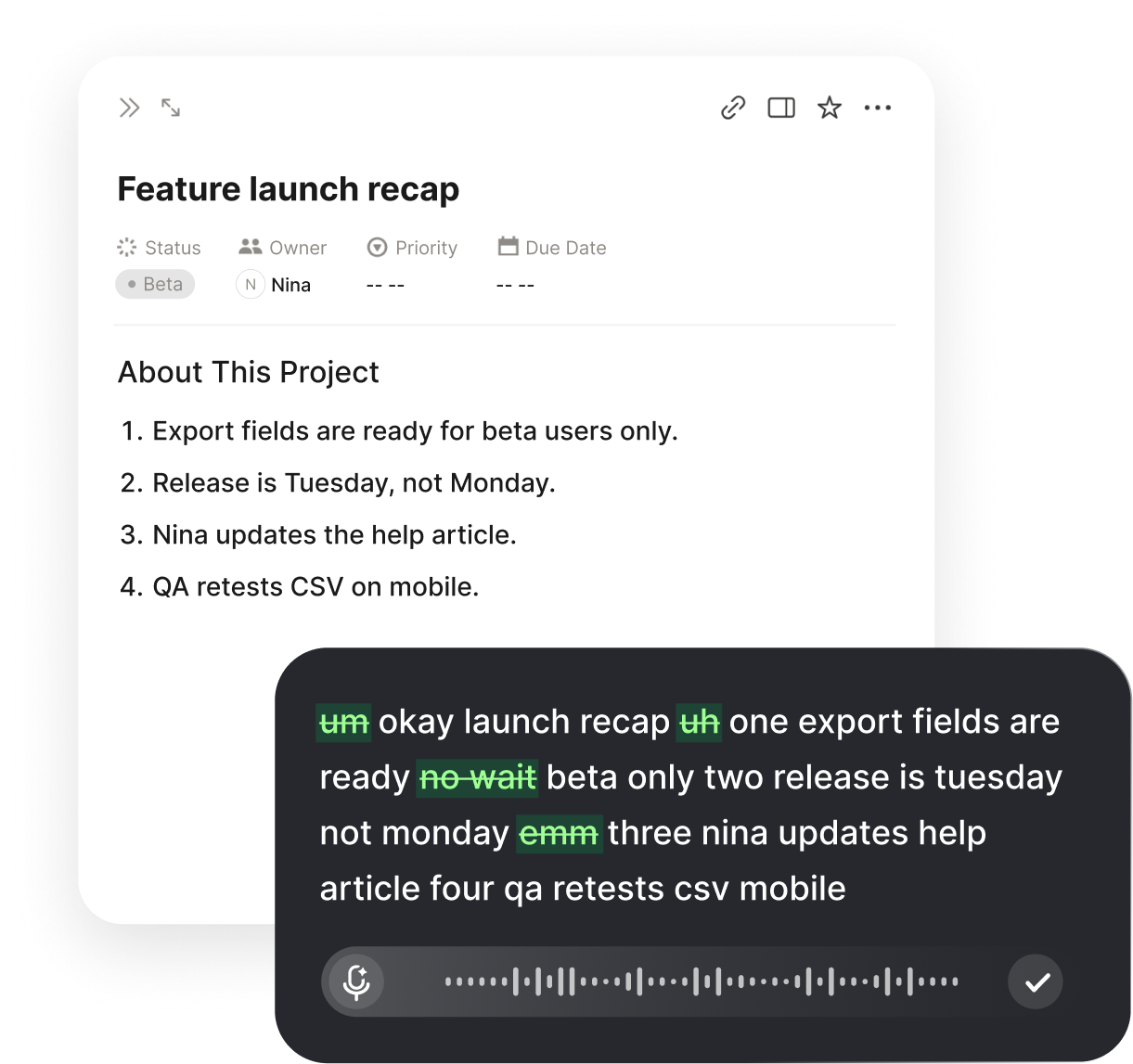
Why This Matters
The debate over dictation app alternative comes down to a simple question: what is the fastest way to get clear ideas out of your head and into notes and replies without wearing yourself out. For people who capture notes and short replies by voice, the keyboard is not always the limiting factor on quality; the limiting factor is often how long you can keep going before your attention or your hands give out. Voice input changes that balance by letting you produce a first draft at the speed of speech, then clean it up in a second pass.
Most people speak far faster than they type, often two to three times faster, and speaking uses a different kind of effort. You are not hunting for keys or holding a fixed posture; you are talking through an idea the way you would explain it to a colleague. That difference is what makes voice worth trying for notes and replies, especially on days when a long writing block feels heavier than the work itself.
This guide is practical rather than promotional. It walks through how voice input actually behaves for notes and replies, where it clearly helps, where the keyboard still wins, and how to set up a routine you can repeat tomorrow. The goal is a workflow that holds up over real tasks, not a one-time demo that looks good and then falls apart the first time a sentence comes out wrong.
Keep your expectations grounded. Voice input will not turn a weak argument into a strong one, and it will not remove the need to think about structure. What it does is lower the cost of producing a draft so you spend more of your energy on the ideas and less on the mechanics. For people who capture notes and short replies by voice, that shift alone is often enough to make notes and replies feel manageable instead of daunting.
When Voice Beats the Keyboard, and When It Does Not
Voice shines when you have something to say and the main cost is getting it down. First drafts, long explanations, notes and replies, brainstorming, and anything conversational all flow well out loud. If you can picture yourself explaining the content to a coworker, you can probably dictate it faster than you can type it, and with less strain.
The keyboard still wins for dense, highly technical text full of code, symbols, tables, or precise formatting, where saying the punctuation out loud is slower than typing it. It also wins in places where you simply cannot speak freely, such as a situations where speaking is not practical, and for very short edits that are not worth the switch.
Most people land on a blend. They dictate the bulk of notes and replies, then type the parts that are faster by hand. Treat the two methods as tools in the same kit rather than rivals, and reach for whichever fits the task in front of you. The right question is never which one is better in theory, only which one finishes this piece of work sooner.
A useful rule of thumb: if you would say it out loud to explain it, dictate it; if you would draw it, type it. Prose, narrative, and notes and replies fall on the speaking side, while structured layouts and precise layout fall on the typing side. Keeping that line in mind saves you from forcing voice onto a task it was never going to handle well, which is where most disappointment starts.
How to Get Started This Week
Pick one real task for notes and replies and commit to dictating the first draft, no matter how rough it comes out. Give yourself permission to produce something messy, because the whole point is to prove that a spoken draft plus a quick edit beats staring at a blank page. One honest attempt on real work tells you more than an hour of reading reviews.
Run the same task three days in a row. The first day will feel clumsy, the second noticeably easier, and by the third the basic commands and pacing start to feel natural. Keep a note of the words the tool keeps missing and add them to your dictionary as you go, so accuracy climbs a little with each session rather than staying flat.
After three sessions, compare honestly: did notes and replies get done faster, did it feel lighter, and did the quality hold up after editing. If the answer is yes, fold voice into your normal routine for the tasks where it helped and keep the keyboard for the rest. That evidence-based blend is the outcome worth aiming for, not an all-or-nothing switch.
Share what you learn with one colleague who faces the same workload. Explaining your setup forces you to notice which steps actually mattered, and a second person often spots a shortcut you missed. Small, repeatable habits spread this way, and notes and replies becomes something your whole team can speed up rather than a trick that only works for the person who first tried it.
How Voice Input Actually Works
Modern voice input listens to short stretches of speech, converts them to text, and inserts that text wherever your cursor sits. Good tools add light punctuation automatically and let you speak commands such as new line or new paragraph, so the output already looks like prose rather than one long run-on sentence. You can start with a short passage, review the result, and correct what needs attention.
The important mental shift is to treat the first pass as raw material. When you dictate, you are capturing the shape of an idea quickly, knowing that some words will be misheard and some sentences will wander. That is fine. A messy spoken draft that exists is more useful than a polished paragraph that never gets written because starting felt like too much work.
Accuracy depends on a few things you control: a decent microphone, a space where your voice can be heard clearly, and the habit of speaking in complete thoughts rather than trailing off. Names, acronyms, and technical terms are the usual trouble spots, and every tool handles them a little differently. Knowing that up front lets you plan a short editing pass instead of being surprised by it.
It also helps to understand that recognition improves with context. When you speak in full sentences, the tool has more to work with and guesses better than when you feed it one hesitant word at a time. The practical takeaway is to talk the way you would to a person, in connected phrases, and let the small corrections wait for the pass you have set aside for them.
Setting Up Voice Input the Right Way
Start on your main device by choosing one microphone and sticking with it. A wired headset or a dedicated USB microphone will almost always beat a laptop's built-in array, because it sits close to your mouth and ignores most of the room. Position it slightly below your lips rather than directly in front, so hard consonants do not pop, and set a comfortable input level before you rely on it for real work.
Next, decide where the text needs to land. If you draft in one place and paste elsewhere, pick a tool that types directly into any text field so you are not copying between windows. Spend five minutes learning the handful of voice commands you will use constantly: new paragraph, delete that, and a way to insert punctuation. These few commands remove most of the friction that makes people give up in the first hour.
Finally, build a tiny personal dictionary. Add the names, product terms, and acronyms you use every day so the tool stops guessing them wrong. This one step does more for day-to-day accuracy than almost anything else, and it takes only a minute whenever you hit a word the system keeps missing. Treat setup as a short investment that pays back on every session.
Do a two-minute sound check before you depend on it. Dictate a few sentences, read the result, and adjust the microphone distance or input level until the text comes back clean. A little tuning now prevents a frustrating first session later, and it gives you confidence that the tool is ready when you sit down to work rather than something you are still fighting with.
A Voice-First Routine for Notes And Replies
The routine that works for notes and replies is draft loudly, edit quietly. Open your document, say one sentence out loud in your head to find the thread, then speak the whole section without stopping to fix small errors. Resist the urge to correct mid-flow; every time you stop to fix a word you lose the thought you were building. Let the draft be rough and keep moving to the end of the idea.
When the spoken pass is done, switch modes. Read the text from the top, fix the misheard words, and tighten the sentences that rambled. This is where the keyboard earns its place: short, precise edits are faster by hand. For people who capture notes and short replies by voice, splitting the job into a fast spoken pass and a calm written pass usually beats doing both at once, because each mode uses a different part of your attention and neither gets overloaded.
Keep a simple structure in front of you while you speak. Three or four bullet points are enough to stop a spoken draft from wandering, and they give you a natural place to pause between sections. Over a week this rhythm becomes automatic, and notes and replies stops feeling like a wall you have to push through and starts feeling like a conversation you are writing down.
If you get stuck mid-section, say what you are trying to do out loud and let that become part of the draft; you can delete the scaffolding later. Talking through the problem often unlocks the next sentence faster than staring at the screen would. For people who capture notes and short replies by voice, this trick turns the blank-page moment into just another thing you say, which is exactly where voice input helps most.
Keeping Accuracy High Without Slowing Down
Accuracy problems almost always trace back to input, environment, or pace. If a tool keeps mishearing you, check the microphone first, then the the clarity of your input, then your own delivery. Speaking a little slower and finishing each word clearly fixes more errors than any setting, and it costs you almost nothing once it becomes a habit.
Expect proper nouns and jargon to need help. The reliable fix is the personal dictionary plus a quick visual scan for the specific words you know are risky. Rather than re-reading everything in detail during the spoken pass, flag the likely trouble spots and confirm them in editing. This keeps the draft moving while still catching the errors that matter most.
Do not chase perfect recognition. A tool that gets ninety-five percent of your words right and lets you fix the rest quickly will out-perform a slower, fussier setup every time. The measure that counts is total time to a finished, correct result, not the raw error rate on the first pass. Optimize for the finish line, not for a flawless opening sprint.
Keep a short list of the words the tool gets wrong most often and review it once a week. Many errors are repeat offenders, and a handful of dictionary entries removes them for good. This turns accuracy from a daily annoyance into a solved problem, and it means each session starts a little cleaner than the last instead of repeating the same corrections over and over.
FAQ s
For first drafts and conversational text, speaking is usually two to three times faster than typing, and it feels lighter. The keyboard still wins for dense technical text and very short edits, so most people use a blend and let the task decide.
A close headset or USB microphone, a space where your voice can be heard clearly, and the habit of speaking in complete thoughts on your device. Add the names and terms you use often to a personal dictionary, and recognition improves quickly.
Keep drafting without stopping, then fix mistakes in a separate editing pass. Use voice to restate whole sentences and the keyboard for small, exact corrections. A read-aloud check at the end catches sentences that look fine but do not flow.
Voice input can be used in a range of environments. A close-talking headset and a steady voice can help in busier rooms, while the keyboard remains useful when speaking is not practical, such as in an open office or quiet carriage.
Most people feel clumsy on day one, noticeably better by day two, and comfortable after about three sessions. Running the same real task three days in a row is the fastest way to get past the awkward stage.


 Voiskey
Your voice, amplified.
Pick one real task, dictate the first draft, and edit it in a quick second pass.
Use it across macOS, Windows, iOS, and Android