
Android Voice Typing Not Working: Causes and Fixes, Step by Step
When android voice typing not working interrupts a message, the cause is usually Gboard, a permission, or a language pack rather than the phone itself. The microphone icon can vanish, the text can stop mid-sentence, or nothing can happen at all. This guide explains the common causes and gives you a numbered fix for each one, with a test after every step.
 Voiskey Team
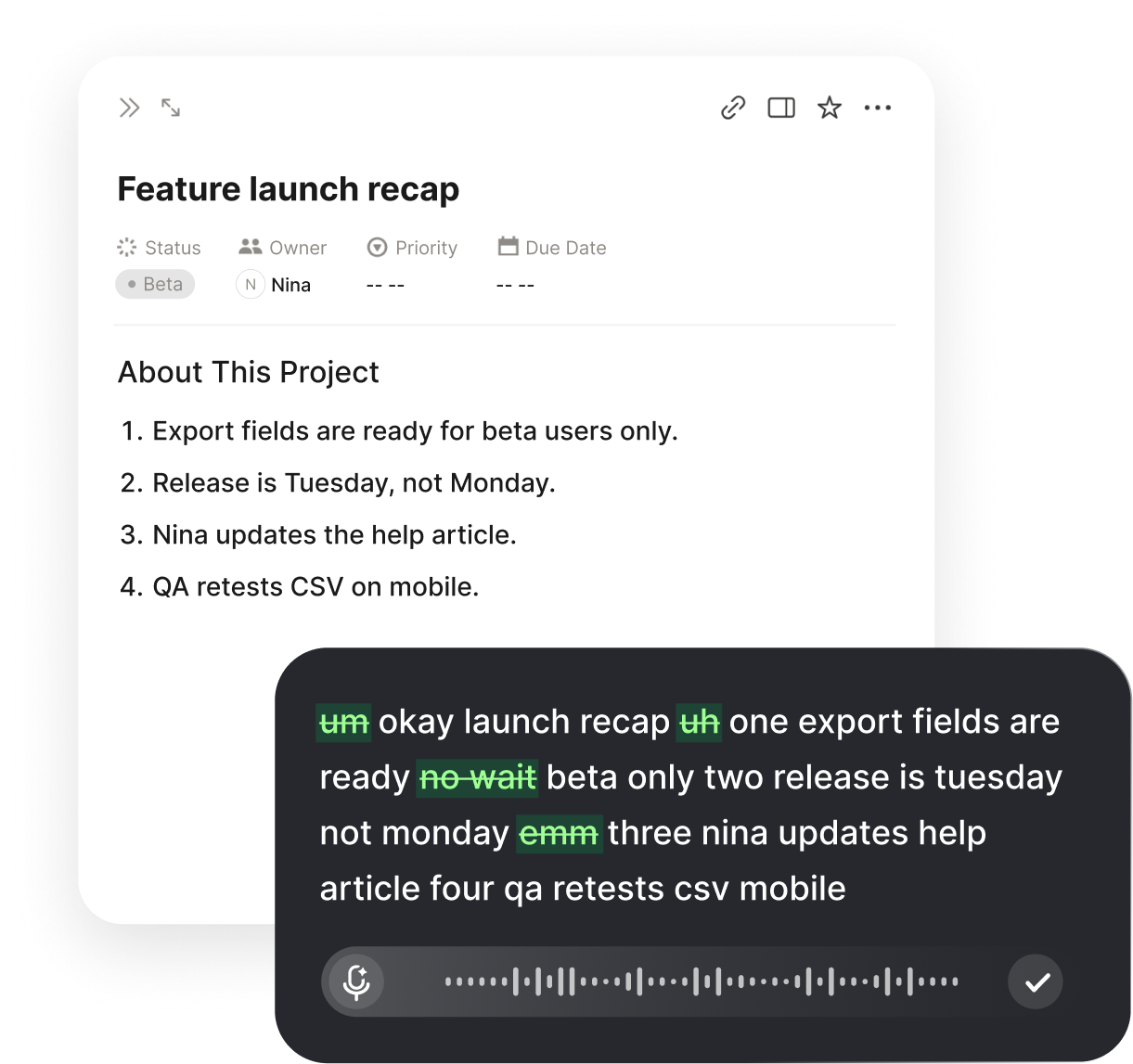
Why Android Voice Typing Stops Working
When android voice typing not working appears on your screen, the phone is usually fine and the keyboard is the problem. Voice typing on Android is handled by Gboard and the Google app, so it depends on a switch inside the keyboard, microphone permission, an active keyboard, a downloaded language, and a working connection. A failure in any one of those places can hide the microphone icon or leave it silent.
The symptoms tell you where to look. A missing microphone icon usually means voice typing is switched off or the wrong keyboard is active. An icon that appears but produces nothing points to permission, the Google app, or the network. Text that stops mid-sentence often means the language pack is incomplete or the connection dropped, which is why the fixes below start with the keyboard and then move outward.
The six causes below cover most failures. Follow the fixes in order and test in a simple messaging app after each one, because voice typing can behave differently in a browser or a work app. One short sentence is enough to confirm whether the microphone is working.
If you have already restarted the phone and updated the apps, work through the remaining checks in order rather than changing everything at once. A single change followed by a test tells you what fixed the problem, which makes it much easier to solve if the issue returns later. A change that works in one app may appear to fail in another even though nothing about the phone has changed, so test in the simplest app you have.
Common causes of Android voice typing failure:
- The Gboard voice typing switch is off
- The keyboard or Google app lacks microphone permission
- The Google app or Play services are disabled or outdated
- A different keyboard is active
- The voice typing language is not downloaded
- The network is unavailable for a language that needs it
Fix 1: Turn On Voice Typing in Gboard
Open Settings > System > Languages & input > On-screen keyboard > Gboard. On some phones the same menu sits under Settings > General management > Language and input > On-screen keyboard > Gboard. Look for Voice typing and make sure Use voice typing is turned on.
You can also open Gboard settings from the keyboard itself. Tap a text field, press the gear icon on the keyboard toolbar, and choose Voice typing. This shortcut is useful when the Settings menu is hard to find, and it shows the same switch that controls the microphone icon.
If the switch is already on, turn it off, wait a second, and turn it back on. This resets the keyboard service and can restore a microphone icon that disappeared after an update. Then open a message app, tap the field, and look for the microphone icon on the keyboard before you change anything else.
After you turn the switch on, give the keyboard a moment to reload. If the microphone icon still does not appear, close the app and open it again so the keyboard starts fresh, because a keyboard that was already open when you changed the setting can keep the old layout until it is reopened. Test in two different apps to be sure the switch took effect everywhere, and remember that the microphone icon only appears on the Gboard keyboard, not on every keyboard you might switch to. If the icon appears but stays gray, go to the permission check next.
Fix 2: Check Microphone Permissions
Gboard needs microphone access before it can listen. Open Settings > Apps > Gboard > Permissions > Microphone and choose Allow while using the app. If Gboard is not listed, open Settings > Privacy > Permission manager > Microphone and find Gboard in the list. The permission screen can take a few seconds to load, so wait for the full list before you conclude the entry is missing.
The Google app also needs microphone access because voice typing uses Google services. Open Settings > Apps > Google > Permissions > Microphone and allow it. If you recently denied a prompt, the denial can stick, so set the permission to Allow and restart the app you are testing.
On a phone managed by an employer, a work profile can block microphone access even when the personal side looks correct. Check whether the app you are using runs inside a work profile and whether your administrator allows microphone use. If the permission controls are grayed out, ask your IT team before you change anything else.
If the microphone icon appears but the text stays empty, revoke the permission and grant it again. That forces the app to request access fresh and clears a stale denial. Then close the keyboard, reopen it in the same app, and test one sentence before you move on. If the app still behaves as if it has no permission, restart the phone so the permission state is rebuilt from scratch.
Fix 3: Update Gboard and the Google App
An outdated keyboard or a disabled Google app can break voice typing without any error message. Open the Play Store, go to Manage apps and device, and install any updates for Gboard, the Google app, and Google Play services. Updates sometimes restart the keyboard in the background, so finish the batch before you test.
If the Google app is disabled, voice typing may fail even when Gboard looks healthy. Open Settings > Apps > Google and choose Enable if the option is available. Then restart the phone so the speech service reloads with the updated components.
After the updates finish, test dictation again in a message app. If the microphone icon is back but the text is still wrong, move to the language and network checks, because an updated keyboard with a missing language pack will still struggle.
Fix 4: Confirm the Right Keyboard Is Active
Voice typing only works through the keyboard that is currently active. If you installed a different keyboard, or if the system switched to one after an update, the Gboard microphone icon will not appear. Open Settings > System > Languages & input > Current keyboard and select Gboard. If the list shows more than one keyboard, pick the Gboard entry that matches the keyboard you actually use.
You can also switch keyboards from the keyboard itself. Tap the keyboard switcher icon at the bottom of the screen and choose Gboard. If Gboard is missing from the switcher, enable it under Settings > System > Languages & input > On-screen keyboard and turn on its toggle.
Some apps remember the last keyboard you used, so a switch in one app may not carry to another. Test the message app you actually use after you change the active keyboard. If the icon appears there but not in a browser, the browser may be using a different input field rather than a different keyboard.
A physical keyboard can also change the picture. If a Bluetooth keyboard is connected, Android may treat it as the active input and hide the on-screen keyboard. Disconnect the physical keyboard and test the on-screen one before you continue. After you disconnect it, wait a moment for the on-screen keyboard to return, because the switch can take a second.
Fix 5: Download the Language Pack and Check the Network
Open Gboard settings, choose Voice typing, then Languages. Add the language you speak and let the download finish before you test. A language that is selected but not downloaded can leave the microphone icon active while producing no words.
Some languages need a connection for voice typing, while downloaded languages can work offline. Turn on airplane mode for a moment and test a sentence to see whether your language works without a network. If it fails offline, reconnect and check the download again. Then test a longer sentence before you change other settings.
If voice typing works on Wi-Fi but not on mobile data, check that background data is allowed for Gboard and the Google app under Settings > Apps. A restricted connection can make dictation start and then stop after a word or two.
If you speak more than one language, decide whether you want the keyboard to switch automatically or only when you choose. Automatic switching is convenient but can guess wrong in a noisy room, and a wrong guess is one of the most common reasons voice typing looks broken. Keeping one language selected gives more predictable results for short messages, and you can add the other language back when you need it for a longer conversation. The goal is fewer wrong words, not more languages enabled at once.
Test in a Message App and Confirm the Fix
A messaging app is the best place to confirm the fix because it has a simple text field and no special formatting rules. Open Messages, start a new conversation, tap the text field, and press the microphone icon. Speak one sentence and wait for the text before you try a longer one.
If voice typing works there but fails in one specific app, check that app's permissions and whether it uses its own keyboard. Some apps run in a work profile or block microphone access for privacy, so the failure is app-level rather than system-wide.
Once dictation works, send one short message and dictate one longer paragraph to make sure it does not stop midway. If you also dictate on a computer or an iPhone, the same step-by-step approach applies, and our guides to dictation not working Mac and iPhone dictation not working cover those settings.
Keep a note of the settings you changed. If voice typing breaks again after an update or a restart, you can check the same three places first: the Gboard switch, the microphone permission, and the active keyboard. A stuck cache can also stop voice typing after an update. Open Settings > Apps > Gboard > Storage and tap Clear cache, then reopen the keyboard and test. Clearing the cache does not remove your saved words, so it is a safe step before you consider clearing data or reinstalling updates. Test dictation right away, because a cache clear often restores a keyboard that opens but refuses to listen. If the icon is still missing after that, go back to the switch and permission checks rather than clearing data, because lost settings are harder to rebuild than a simple toggle. A quick restart after the cache clear also helps the keyboard reload cleanly.
FAQ s
Open Gboard settings and confirm that Use voice typing is turned on, then check that Gboard is the active keyboard. If the icon is still missing, restart the phone and switch keyboards once with the keyboard switcher. A disabled Google app can also remove the icon, so enable and update it if needed.
The language pack may be incomplete, the connection may have dropped, or background data may be restricted for Gboard. Download the voice typing language again, test on a stable Wi-Fi connection, and allow background data for Gboard and the Google app. If it only stops on long sentences, test a short one to separate a language issue from a network one.
Downloaded voice typing languages can work offline, while languages that are not downloaded usually need a connection. Add the language under Gboard settings > Voice typing > Languages, let the download finish, and test in airplane mode. If it fails offline, reconnect and confirm the download completed.
The Gboard voice typing language list probably contains a language you are not speaking. Open Gboard settings > Voice typing > Languages and keep only the languages you use. Remove the extra ones, then test one language at a time so the keyboard stops guessing.
A work profile can restrict microphone access or keyboard features through an administrator policy. Check whether the app you are using runs inside the work profile, and try the same app in your personal profile to confirm. If the controls are locked, ask your IT team whether microphone and voice typing are allowed.


 Voiskey
Your voice, amplified.
When you want clean, formatted text in the apps you already use, Voiskey turns your voice into writing at the cursor. Try it on the device where you work.
Use it across macOS, Windows, iOS, and Android