
Dictation for Gmail: The Complete Voice-to-Text Guide
Everything you need to start using dictation for Gmail today: setup, composing, replying, punctuation, corrections, and custom names.
 Voiskey Team
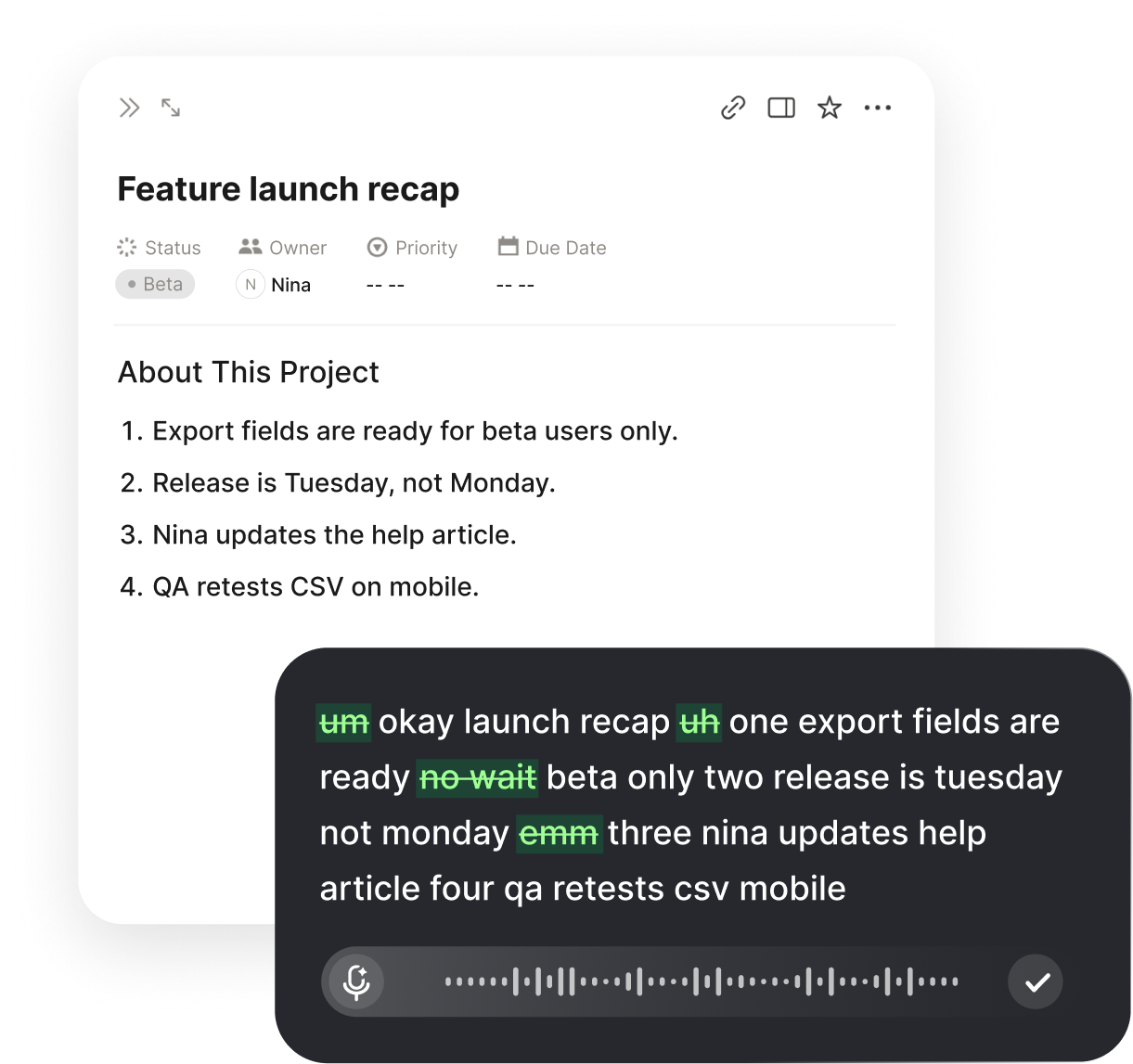
Why Dictation for Gmail Changes How You Write Email
If you spend hours every day inside your inbox, dictation for Gmail is one of the simplest changes you can make to get that time back. Instead of typing every sentence with your fingers, you press a keyboard shortcut, speak naturally, and watch your words appear right where your cursor is sitting in the Gmail compose box or reply box. Most people talk far faster than they type, so the moment you start dictating, your throughput jumps without any extra effort.
Voiskey is a voice-to-text tool built around exactly this idea. You press a shortcut, say what you mean, and it types the text at your cursor. It does not read your screen, open your files, scan your inbox, or send your messages anywhere on your behalf. It only turns your speech into text at the point where you are already typing, which keeps the mental model refreshingly simple: your voice becomes letters, nothing more.
Because it works at the cursor rather than inside one specific app, the same muscle memory you build in Gmail carries everywhere else. The shortcut that writes an email also fills in a search bar, a document, a chat box, or a form field. You learn it once and it follows you across the web and your desktop apps, so Gmail becomes the place where the habit starts rather than the only place it works.
What You Get From Dictating in Gmail
Setting Up Dictation Before Your First Email
Getting ready to dictate takes only a couple of minutes, and you only have to do it once. The goal of setup is simple: install Voiskey, grant it permission to use your microphone, and confirm the keyboard shortcut that triggers dictation. After that, Gmail is ready and so is every other text field on your machine.
The single most important part of setup is choosing a shortcut you can reach without thinking. A good shortcut is one your fingers can find while your eyes stay on the screen, so you can start and stop dictating in the middle of a sentence without breaking your train of thought. Spend a moment testing it in a scratch field before you rely on it for real email.
Once the microphone permission is granted and the shortcut is set, open a new Gmail message, click once inside the body so the cursor is blinking there, and you are ready. There is no separate window to manage and no transcript to copy and paste; the words land directly in the compose box.
First-Time Setup Steps
- Install Voiskey and open it so it is running in the background.
- When prompted, allow microphone access so your speech can be captured.
- Open the shortcut settings and pick a trigger key you can press comfortably.
- Open a blank note or search bar and press the shortcut to confirm it activates.
- Say a short test sentence and check that the text appears at your cursor.
- Open Gmail, click inside a new message, and you are ready to dictate for real.
Composing a Brand-New Email by Voice
Composing a fresh message is where dictation feels the most liberating. Click Compose, place your cursor in the body, press your shortcut, and simply talk the way you would if the recipient were sitting across from you. The trick is to think in whole thoughts rather than individual words; speak a full sentence, pause, then speak the next one. That rhythm produces cleaner text than stop-start muttering.
You do not have to get everything perfect in one pass. Many people like to dictate the entire draft first, letting the ideas flow without stopping to judge each line, and then read it back and tidy a few phrases at the end. Because speaking is so fast, dumping the whole message and polishing afterward is often quicker than typing carefully from the start.
The subject line works the same way. Click into the subject field, press the shortcut, and say your subject. Because Voiskey types wherever the cursor is, there is nothing special to configure for different fields; moving your cursor is all it takes to redirect where the words go.
A Smooth New-Email Routine
- Click Compose and then click once inside the message body.
- Press your dictation shortcut and wait a beat for it to start listening.
- Say your greeting, for example, Hi Sarah comma new line.
- Speak the body in full sentences, pausing briefly between each one.
- Move your cursor to the subject field and dictate a short, clear subject.
- Read the draft once, fix anything by voice, and send.
Dictating Fast, Natural Replies
Replies are where dictation pays off every single day, because most inbox time is spent answering rather than starting new threads. Open the message, click in the reply box, press your shortcut, and respond out loud. Since you have just read the incoming note, your answer is fresh in your mind, and speaking it is almost always faster than retyping the same thought.
Short replies benefit the most. A sentence like Thanks for sending this over, I will review it today and get back to you by end of day takes only a few seconds to say and would have taken much longer to type. Over dozens of messages, those seconds add up to real time saved.
For longer replies that quote or address several points, dictate your response point by point, pausing between each so the structure stays clear. You can say new line twice to create a blank line between paragraphs, which keeps a detailed reply readable instead of turning it into a wall of text.
Punctuation and Formatting by Voice
Good email is readable email, and that means punctuation. With Voiskey you speak your punctuation out loud and it appears as the symbol rather than the word. Say period and you get a full stop; say comma, question mark, or exclamation mark and each lands in place. This feels strange for about one minute and then becomes completely automatic.
Line breaks and paragraphs work the same way. Say new line to drop to the next line, or say new line twice in a row to leave a blank line between paragraphs. For lists, start a new line for each item and speak them in sequence. The result reads like something you typed deliberately, not a run-on transcript.
The smoother your delivery, the better the punctuation sits. If you naturally pause where a comma belongs and drop your tone where a sentence ends, saying the punctuation out loud simply reinforces what your voice is already signalling, and the finished email reads clean on the first pass.
Say This, Get That
- Say periodends the sentence with a full stop
- Say commainserts a comma inline
- Say question markcloses a question cleanly
- Say new linemoves the cursor to the next line
- Say new line twicecreates a blank line between paragraphs
- Say open quote and close quotewraps text in quotation marks
Fixing Mistakes Without Touching the Keyboard
No dictation is perfect every time, and the real skill is correcting quickly. Voiskey lets you edit by voice: you can select a piece of text and say the replacement, so a wrong word becomes the right word without reaching for the mouse or backspace. This keeps you in the flow instead of breaking rhythm to hunt for a typo.
The habit to build is to keep dictating and fix at the end rather than stopping for every small slip. When you finish the draft, read it back, find the one or two phrases that came out wrong, select each one, and speak the correction. Because corrections are quick, a near-final draft becomes a finished email in seconds.
If a name or an unusual term keeps coming out wrong no matter how clearly you say it, that is a signal to add it to your custom vocabulary rather than correcting it by hand every time. Fixing the root cause once beats fixing the same word in every message.
Correcting a Line by Voice
- Finish dictating the whole message first instead of stopping mid-sentence.
- Read the draft and spot the word or phrase that came out wrong.
- Select the incorrect text so it is highlighted.
- Press your shortcut and say the correct words to replace it.
- Glance at the result to confirm the swap landed cleanly.
- Repeat for any other slips, then send without touching the keyboard.
Custom Vocabulary for Names and Jargon
Email is full of proper nouns, and proper nouns are exactly what generic transcription struggles with. Colleague names, client companies, product codenames, and industry jargon rarely sound like common dictionary words, so they come out misspelled unless you give the tool a hand. Voiskey lets you add custom vocabulary so these terms transcribe consistently every time you say them.
Start by listing the words you type most often that are unusual: the people you email daily, your product names, the acronyms your team lives by. Add each of them once. From then on, when you say the name of a teammate or a product, it appears spelled the way you intend instead of a close-but-wrong guess.
This small investment compounds. The more of your real working vocabulary the tool knows, the less correcting you do, and the more dictation feels like it was built specifically for your inbox rather than a generic transcriber bolted onto Gmail.
Building Your Vocabulary List
- Names of the people you email most often, spelled exactly as they prefer
- Your company and product names, including any unusual capitalization
- Acronyms and internal codenames your team uses in writing
- Technical terms or jargon specific to your field that keep coming out wrong
Putting It All Together Into a Daily Habit
The pieces above become powerful when they turn into a single smooth routine. Open a message, click where you want to write, press the shortcut, speak in full sentences with punctuation, fix a line or two by voice at the end, and send. After a few days this stops being a sequence of steps and becomes the default way you handle email.
A useful way to build the habit is to commit to dictating every reply for one full day. The friction of the first hour gives way to real speed by the afternoon, and by the end of the day the shortcut feels as natural as hitting reply. Once Gmail is comfortable, the same habit spreads to documents, chat, and search without any relearning.
The goal is not to never touch your keyboard again; it is to stop typing being the bottleneck between a thought and a sent email. Dictation for Gmail, used consistently, quietly removes that bottleneck and gives you a calmer, faster inbox in return.
FAQ s
No. You click inside the Gmail compose or reply box so your cursor is there, press your shortcut, and speak. The words appear directly at the cursor, so there is no separate window to manage and nothing to copy and paste.
No. Voiskey only turns your speech into text at your cursor. It does not read your screen, open your messages, scan your inbox, or send your data anywhere. Its one job is converting what you say into typed text where you are already writing.
Say the punctuation out loud. Say period, comma, question mark, or exclamation mark and the symbol appears instead of the word. Say new line to move down a line, and say new line twice to leave a blank line between paragraphs.
You can fix it by voice. Finish the draft, select the incorrect word or phrase, press your shortcut, and say the correct words to replace it. If the same name keeps coming out wrong, add it to your custom vocabulary so it transcribes correctly from then on.
Generic transcription often misspells unusual names, but you can add them to your custom vocabulary. Once a name, product, or acronym is on the list, it transcribes the same way every time you say it, which removes most of the correcting you would otherwise do.
No. Because Voiskey types at your cursor, the same shortcut works in any text field: documents, chat apps, search bars, and web forms. Gmail is a great place to build the habit, but it carries over everywhere you type.


 Voiskey
Your voice, amplified.
Start dictating your Gmail today and watch your inbox move at the speed of speech.
Use it across macOS, Windows, iOS, and Android