
How to Dictate on Windows: Comparing a Dictation App for Windows
Learning how to dictate on Windows means weighing the built-in Voice Typing feature against a dedicated dictation app for windows, and this comparison shows where each one fits so you can pick with intent.
 Voiskey Team
Two Paths to Dictation on Windows
When people ask how to dictate on Windows, they are usually choosing between two very different paths, and picking a dictation app for windows wisely starts with understanding that split. The first path is the tool already built into the operating system, Windows Voice Typing, which costs nothing and is one keyboard shortcut away. The second is a dedicated dictation product that you install and use across everything you do.
Both turn speech into text, so on the surface they look interchangeable. In practice they behave differently enough that the right answer depends on how often you dictate, where you dictate, and how polished you need the output to be. A quick note dashed off once a week has very different demands from hours of daily writing spread across a dozen apps.
This comparison lays the two approaches side by side, honestly. You will see what the built-in feature does well, where it runs into limits, what a dedicated tool like Voiskey adds, and a simple framework for deciding which to reach for. The goal is not to crown a winner for everyone, but to help you match the tool to your own workflow.
How Windows Voice Typing Works
Windows Voice Typing is the dictation feature baked into modern Windows. You open it with the Windows key plus H, a small toolbar appears, and whatever you say is typed into the active text field. There is nothing to buy and nothing to install, which is a genuine advantage: it is right there on every Windows machine, ready the first time you need to capture a sentence or two by voice.
It covers the basics competently. You can dictate into most standard text fields, speak common punctuation, and get reasonable results for short, casual passages when your microphone is clear and the room is quiet. For someone who dictates occasionally, a quick reminder note, a short message, a search query, it does the job without any setup effort at all.
Because it is part of the operating system, it also stays consistent with system updates and requires no separate account to start. For light, infrequent use that convenience is hard to beat, and it is a sensible place to begin before deciding whether you need something more capable. The question is what happens when your needs grow beyond the occasional sentence.
Where the Built-in Feature Runs Out of Room
The limits of Voice Typing show up once you lean on it for real work. Accuracy on casual speech is fine, but names, acronyms, and technical vocabulary trip it more often, and those errors are easy to miss until you reread the whole passage. For long documents or detailed prompts, the correction overhead can quietly cancel out the speed you gained by speaking.
Session behavior is another friction point. Built-in dictation tends to stop after a stretch of silence, so a natural pause while you gather a thought can end the session and drop the rest of your sentence. Punctuation and formatting control are thinner than a dedicated tool offers, and there is no automatic cleanup of filler words, so you often end up hand-editing the ums and false starts out of the text.
Coverage can also be uneven. The feature works most reliably in standard fields and can feel inconsistent across the mix of browser tabs and specialized apps where modern work actually happens. None of this makes Voice Typing bad; it makes it a light-duty tool. The moment dictation becomes a core part of your day, those rough edges start to matter a great deal.
What a Dedicated Dictation App Adds
A dedicated dictation tool is built to erase exactly those rough edges. Voiskey, for example, delivers high-accuracy, real-time transcription that is tuned for natural speech, names, and technical terms, so the text is right the first time rather than something you comb through afterward. That accuracy is the difference between trusting your dictation and double-checking it line by line.
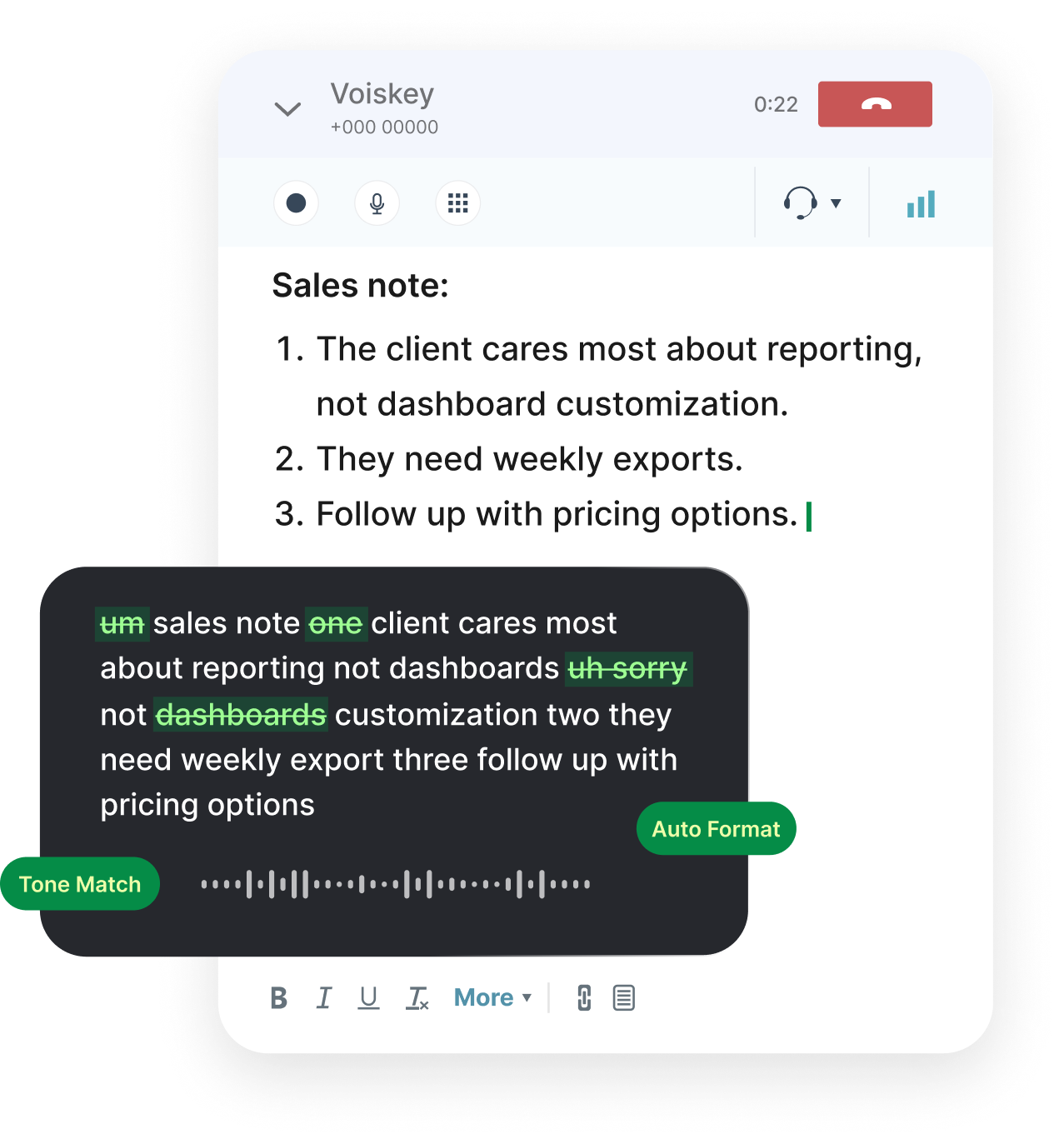
It also runs continuous transcription that keeps going through natural pauses instead of cutting off, and it handles punctuation through voice commands so you can speak commas, periods, question marks, and new lines without touching the keyboard. Automatic filler-word cleanup strips the ums and you-knows, leaving clean text that is ready to send in a single pass rather than after a round of editing.
Crucially, a dedicated app is not tied to one window. Voiskey works as a Chrome extension and a Windows desktop app, so the same dictation and commands follow you into ChatGPT, Google Docs, Gmail, Cursor, Slack, Notion, and more. It supports many languages and is privacy-conscious in how it handles your speech, which matters once dictation becomes something you rely on for sensitive, everyday writing.
Built-in Voice Typing vs a Dedicated App, Side by Side
Laying the two approaches next to each other makes the trade-off concrete. The built-in feature wins on zero cost and zero setup, while a dedicated app wins on accuracy, session stability, output polish, and reach across apps. Neither is universally right; the sensible choice depends on how much and how widely you dictate on a typical day.
The comparison below summarizes the main dimensions so you can see at a glance where each option earns its place. Read it against your own habits rather than in the abstract, because the factor that tips the decision for a heavy daily writer is often irrelevant to someone who dictates a short note once in a while.
How the two approaches compare
- Cost and setupVoice Typing is free and instant; a dedicated app like Voiskey needs a quick one-time install.
- AccuracyBuilt-in is fine for casual speech; Voiskey is tuned for names, technical terms, and long passages.
- PausesBuilt-in can time out on silence; Voiskey runs continuous transcription through natural pauses.
- OutputBuilt-in offers basic punctuation; Voiskey adds voice commands and automatic filler-word cleanup.
- CoverageBuilt-in is uneven across apps; Voiskey works the same in the browser and on the desktop.
When to Use Which
If you dictate rarely, a sentence here, a quick note there, and you do not need polished formatting, Windows Voice Typing is a perfectly reasonable choice. It is free, already installed, and good enough for light tasks, so there is no reason to add anything until you feel a concrete limit. Starting there costs you nothing and teaches you how much you actually dictate.
The signal to move up is when the friction becomes routine: you keep correcting names, sessions drop out on pauses, you spend time inserting punctuation by hand, or you want the same experience in your inbox, your docs, and your chat tools instead of just one field. Once those annoyances recur daily, a dedicated tool stops being a luxury and becomes the thing that saves you real time.
That is the point where a dictation app for windows like Voiskey pays off. It carries the accuracy, continuous capture, voice-driven punctuation, filler-word cleanup, multilingual support, and cross-app reach that heavy, everyday dictation demands. If your work spans many apps and you speak more than you want to type, the dedicated path is the one that keeps up with you.
Putting It Together
Knowing how to dictate on Windows really comes down to matching the tool to the job. The built-in Voice Typing feature is a free, convenient entry point that handles occasional, casual dictation without any setup, and for light use it is genuinely all you need. There is no shame in starting and staying there if your demands are modest.
But when dictation becomes central to your day, the limits around accuracy, timeouts, formatting, and app coverage start to cost more than the convenience is worth. A dedicated tool removes those limits and turns voice input into something you can trust everywhere, which is exactly the gap Voiskey is built to close across the browser and the desktop alike.
The practical move is to try both against your own routine. Use Voice Typing for a few quick notes, then spend a few days dictating your real emails, documents, and prompts through Voiskey, and let the difference in speed, accuracy, and reach make the decision for you. The tool that fits how you actually work is the one worth keeping.
FAQ s
The quickest way to try dictation on Windows is the built-in Voice Typing feature: press the Windows key plus H in any text field and start speaking. It needs no setup and is ideal for occasional notes. For heavier, cross-app use, install a dedicated dictation app for windows like Voiskey, which runs as a Chrome extension and a desktop app and works the same way everywhere.
For light, casual dictation it often is. It is free, already installed, and handles short passages well when your microphone is clear. Its limits show up with technical vocabulary, long documents, silence timeouts, and uneven coverage across apps. If those issues come up regularly, a dedicated tool such as Voiskey will feel noticeably more reliable.
Voiskey is tuned for high accuracy on natural speech, names, and technical terms, runs continuous transcription that does not cut off on pauses, supports punctuation voice commands, and cleans up filler words automatically. It also works across the apps and browsers you use rather than one field at a time, so the experience stays consistent from ChatGPT to Google Docs to Slack.
Yes. With Voiskey you can speak commas, periods, question marks, and new lines, and the app inserts them correctly instead of typing the words. It also strips filler words like um and uh, so the text that appears is clean and ready to send. Built-in dictation offers only basic punctuation and no automatic cleanup, which usually means more hand-editing.
Built-in Voice Typing works in standard fields but can feel inconsistent across the mix of browser tabs and specialized apps most people use. Voiskey is designed for exactly that mix: as a Chrome extension and a Windows desktop app it brings the same dictation and voice commands into Gmail, Google Docs, ChatGPT, Cursor, Slack, Notion, and more.
It depends on the tool, so it is worth checking before you rely on it for sensitive material. Voiskey is privacy-conscious by design and keeps you in control of your words, which matters when you dictate confidential emails or internal notes. If a product is unclear about how it treats your audio and text, treat that as a reason to look more closely.


 Voiskey
Your voice, amplified.
Ready to dictate everywhere, not just in one window? Try Voiskey and get accurate, real-time voice to text across ChatGPT, Google Docs, Gmail, Slack, and the rest of your Windows apps.
Use it across macOS, Windows, iOS, and Android