
Dictation for Windows: Picking a Dictation App for Windows
Choosing a dictation app for windows comes down to a few practical questions about accuracy, app coverage, voice commands, and control, and this guide walks through each one so you can decide with confidence.
 Voiskey Team
Dictation on Windows, Without the Guesswork
If you are evaluating a dictation app for windows, you probably want one simple thing: speak naturally and watch clean, accurate text appear in whatever you happen to be working on. That sounds straightforward, yet the experience varies enormously between tools, and the wrong choice leaves you correcting errors, fighting timeouts, or switching methods every time you move to a different app. This guide cuts through that noise.
Rather than ranking products, it focuses on the questions that actually determine whether a tool fits your day. How accurate is it on real sentences, not just demo phrases? Does it work across the apps and browsers you already use, or only inside one editor? Can you punctuate and format by voice? And how does it treat your audio and text? Answer those and the decision becomes obvious.
Along the way you will see how Voiskey approaches each question, how it runs on Windows as both a Chrome extension and a desktop app, and how to set it up in about a minute. By the end you will have a clear mental checklist and a practical sense of what reliable, real-time dictation feels like when the tool is built for the way people really work.
What Actually Matters in a Dictation Tool
It is easy to get distracted by long feature lists, but only a handful of factors separate a tool you keep from one you quietly abandon after a week. The first is accuracy under real conditions: casual phrasing, names, acronyms, and the occasional technical term. A tool that forces you to stop and fix every third sentence costs more time than it saves, no matter how impressive its marketing sounds.
The second factor is reach. Your writing is scattered across email, chat, documents, and browser-based tools, so a tool that only works inside a single word processor is close to useless for a modern workflow. The third is control over output, meaning voice commands for punctuation and line breaks plus automatic cleanup of filler words. The fourth is how the product handles your data, which matters whenever you dictate anything sensitive.
Grade any option against those four, and the picture clears quickly. A tool can be dazzling in a thirty-second demo and still fail the daily test because it stumbles on names, drops out between apps, or leaves you hand-editing punctuation. The sections below take each criterion in turn so you know precisely what to look for before you commit your time.
Four questions to ask of any dictation app for windows
- AccuracyDoes it transcribe natural speech, names, and technical terms cleanly with little correction?
- CoverageDoes it work across the apps and browsers you use, or only inside one editor?
- ControlCan you add punctuation and line breaks by voice, with filler words cleaned up automatically?
- PrivacyIs the handling of your audio and text clear and respectful of your control?
Accuracy and Recognition Quality
Accuracy is the foundation everything else rests on, because a tool that misfires on common words quietly trains you to distrust it. The question is not whether an engine can handle a slow, careful demo sentence, but whether it keeps up with the way you actually speak: quick phrasing, the occasional restart, proper nouns, and the vocabulary of your field. A strong engine takes those in stride and gets the words right the first time.
Older and generic speech services tend to struggle exactly where it counts. They misread names, mangle technical terms, and insert odd substitutions that are easy to miss until you reread the whole passage. For short messages that is an annoyance; for long documents or detailed prompts it becomes a real editing burden that erases the time dictation was supposed to save you.
Voiskey is built for high-accuracy, real-time transcription that holds up across long passages and specialized language. It is tuned to recognize natural speech rather than forcing you into a stilted, robotic cadence, which means you can think out loud and still get text that reads the way you intended. Accuracy at that level is what turns dictation from a gimmick into a dependable part of your writing routine.
App and Browser Coverage
A dictation tool is only as useful as the places it works. Plenty of options perform acceptably inside a single editor and then fall silent the moment you switch to your inbox, a chat window, or a browser tab. That inconsistency is exhausting, because you end up juggling one method here and another there, and you never build a single reliable habit you can trust everywhere.
The better model is one experience that follows you across your whole workflow. Voiskey runs as a Chrome extension and as a Windows desktop app, so the same dictation and the same voice commands work in ChatGPT, Google Docs, Gmail, Cursor, Slack, Notion, and the many other tools you open during the day. You learn the behavior once, and it stays the same no matter where your cursor lands.
That breadth is what makes dictation practical rather than situational. When speaking works in every text field, you stop thinking about which app supports it and simply talk whenever talking is faster than typing. The friction of switching tools disappears, and voice input becomes a default you reach for automatically instead of a feature you remember only in one narrow place.
Voice Commands and Clean Text
Raw transcription is only half the job. If a tool captures your words but leaves you to insert every comma, period, and line break by hand, you have not really saved any effort; you have just moved the work from typing to editing. The tools worth keeping let you shape the text as you speak, so what lands on the screen is ready to use rather than a rough block you still have to format.
Voiskey supports punctuation voice commands, which means you can speak commas, periods, question marks, and new lines naturally while you dictate, and the app inserts them correctly instead of printing the literal words. That keeps you hands-free and lets you produce properly structured paragraphs in a single pass, whether you are drafting an email or laying out a longer document.
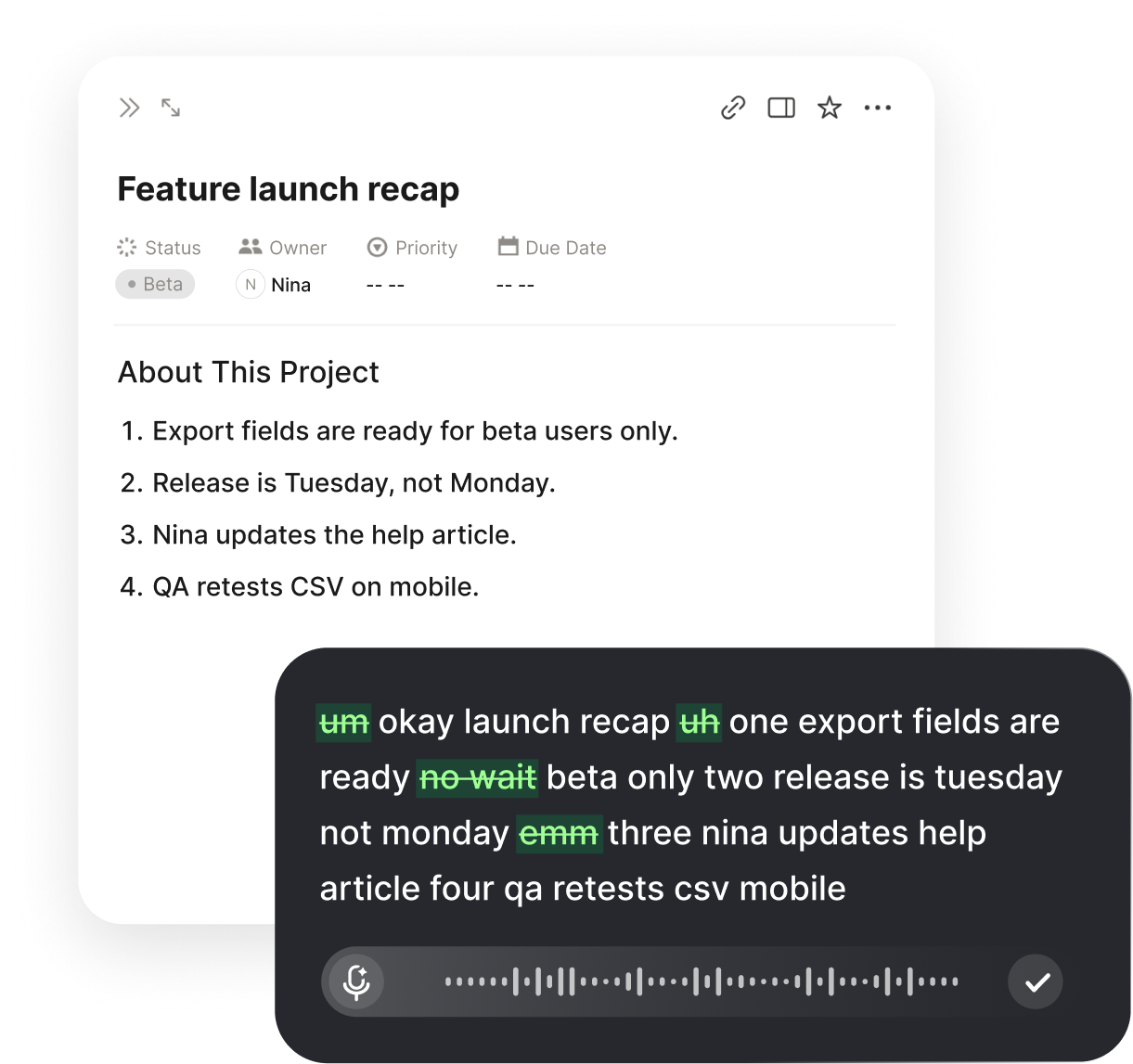
It also cleans up filler words automatically, stripping the ums, uhs, and you-knows that creep into natural speech. The result reads as if you had carefully composed it, not as if a microphone captured your every hesitation. Combined with accurate recognition, this clean-output behavior is what lets you move straight from speaking to sending without a tedious second editing pass.
Privacy and Staying in Control
Dictation often touches sensitive material: client emails, internal notes, early drafts of things not meant for other eyes. That makes the way a tool handles your audio and text a real consideration, not an afterthought. If a product is vague about what happens to your words, treat that ambiguity as a reason to look more closely before you build it into your daily routine.
Voiskey is privacy-conscious by design and keeps you in control of your words, which matters precisely when the stakes are higher than a quick chat message. Being able to dictate a confidential note without second-guessing where it goes is part of what makes a tool trustworthy enough to use all day, across every app, rather than only for low-stakes text.
Control also means the tool stays out of your way. You decide when to dictate and when to type, you choose your language, and you keep ownership of the output. A dictation app that respects those boundaries earns a permanent place in your workflow, because trust, once established, is what lets you rely on voice input without a nagging hesitation every time you start speaking.
How Voiskey Works on Windows
Pulling those threads together, here is how Voiskey behaves in practice on a Windows machine. You install it once, either as a Chrome extension for browser work or as the desktop app for everything else, and from then on your voice becomes text wherever your cursor already is. There is no separate writing environment to learn and no need to copy results from one window into another.
In day-to-day use you click into a field, start speaking, and watch real-time text appear with punctuation handled by voice and filler words cleaned up as you go. Because the behavior is identical in the browser and on the desktop, switching from a Google Docs draft to a Slack reply to a ChatGPT prompt never changes how you dictate. That consistency is the quiet feature that makes the habit stick.
Setup is deliberately short, because front-loaded friction is the main reason people never adopt dictation. A decent headset or a reasonably quiet room is enough for clean results; you do not need studio equipment. The steps below get you from install to your first real dictation in about a minute, in an actual email or document rather than a practice sandbox.
Setting up Voiskey on Windows
- Install the Voiskey Chrome extension or the Windows desktop app from the official source.
- Grant microphone permission once when prompted so dictation can capture your voice.
- Choose your language and, if you use several, confirm the one you want to start with.
- Click into any text field, start speaking, and use voice commands for punctuation and new lines.
- Review the clean, filler-free text and send it, with the same workflow ready in every other app.
Everyday Ways People Put It to Work
Once dictation is reliable and works everywhere, the use cases multiply on their own. Knowledge workers clear crowded inboxes by speaking replies instead of typing them, often at roughly three times their typing speed. Writers capture messy first drafts quickly, then refine, because getting rough ideas down fast is usually the hardest part of writing anything worth keeping.
It is also a genuine comfort and accessibility tool. For anyone managing wrist strain or a repetitive stress injury, voice input is not merely convenient; it is what makes long stretches of digital work sustainable. Even without any physical constraint, trading keyboard time for speaking lowers fatigue and keeps your energy for the thinking that actually matters rather than the mechanics of typing.
For most people, though, the real win is simply speed and flow across a busy day. A dictation app for windows that keeps up with your voice, works in every app, punctuates on command, and respects your privacy stops being a novelty and becomes the default way you get words onto the screen. Install Voiskey, dictate your real work for a few days, and let the habit prove itself.
FAQ s
Focus on four practical areas: recognition accuracy on real sentences, how many apps and browsers the tool supports, whether you can add punctuation and formatting by voice, and how the product handles your data. A dictation app for windows that scores well across all four will fit into your day instead of becoming another thing to troubleshoot. Voiskey is designed around exactly these priorities.
That depends on the tool. Some only work inside a single browser or a single editor, which forces you to switch methods as you move between apps. Voiskey runs as both a Chrome extension and a Windows desktop app, so the same dictation experience follows you into ChatGPT, Google Docs, Gmail, Cursor, Slack, Notion, and more without changing how you work.
Modern speech recognition is accurate enough for emails, documents, prompts, and notes when the engine is strong and handles names and technical terms well. Accuracy drops with generic engines that were not tuned for real work. Voiskey delivers high-accuracy, real-time transcription that holds up across long passages and specialized vocabulary, so you spend your time writing rather than correcting.
Yes, with the right tool. Voiskey supports punctuation voice commands, so you can speak commas, periods, question marks, and new lines naturally while you dictate. It also cleans up filler words like um and uh automatically, which means the text that lands is ready to send rather than something you have to edit line by line.
Privacy varies widely between tools, so it is worth checking before you commit. Voiskey is privacy-conscious by design and keeps you in control of your words, which matters when you dictate sensitive emails, client notes, or internal documents. If a tool is vague about how it treats your audio and text, treat that as a reason to look closer.
Install either the Chrome extension or the Windows desktop app, grant microphone permission once, pick your language, and start speaking in any text field. There is no complicated setup. Within a minute you can dictate a prompt, draft an email, or capture notes, and the same workflow carries over to every other app you use on Windows.


 Voiskey
Your voice, amplified.
Turn talking into typing everywhere you work on Windows. Voiskey brings accurate, real-time voice to text into ChatGPT, Google Docs, Gmail, Slack, and every other app on your desktop.
Use it across macOS, Windows, iOS, and Android