
How to Dictate on Mac: Comparing a Dictation App for Mac
If you are weighing built-in macOS Dictation against a dedicated dictation app for mac, the right approach depends on how often you dictate and how many apps you move between.
 Voiskey Team
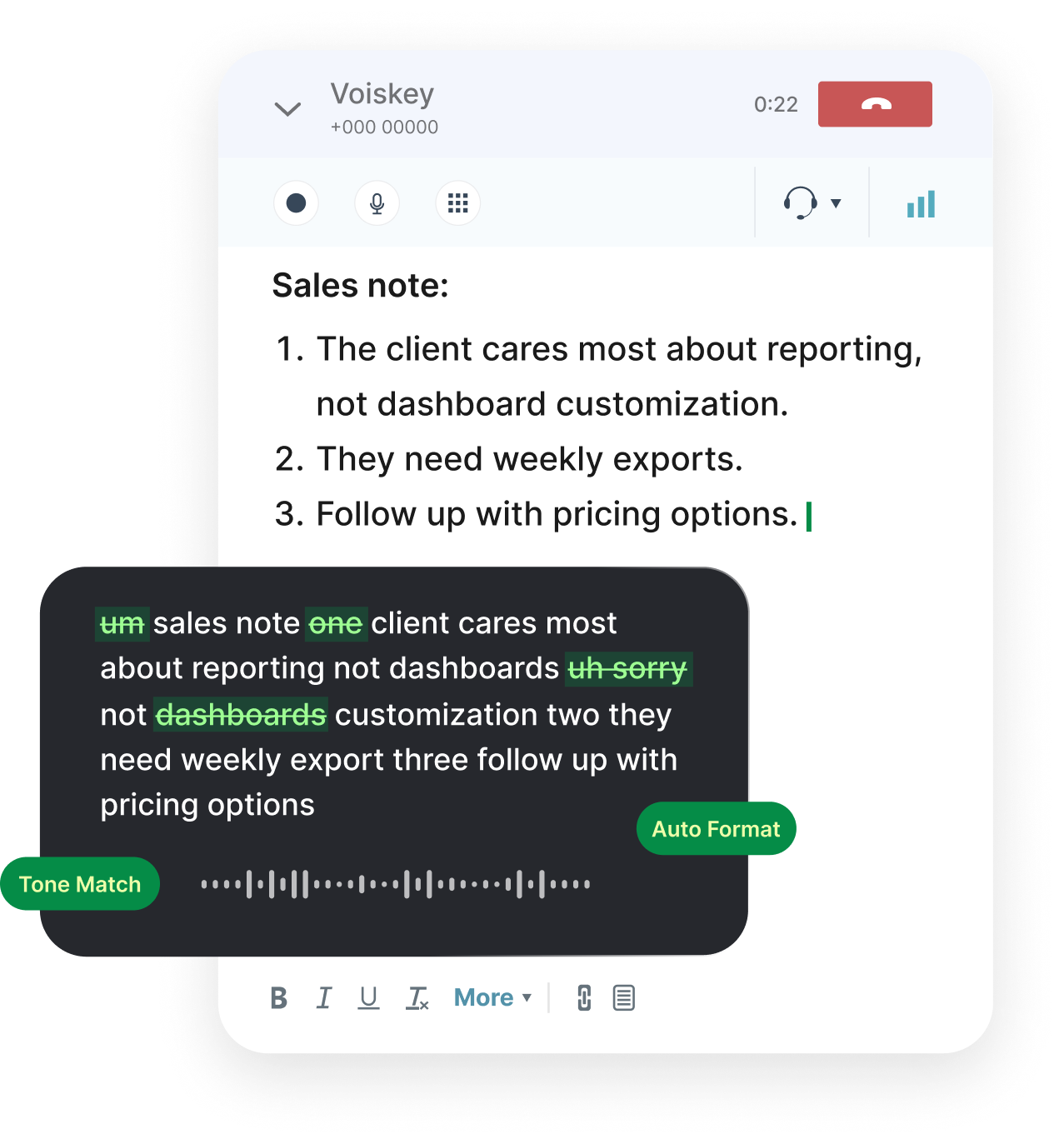
Two Ways to Dictate on a Mac
There are two realistic ways to dictate on a Mac, and choosing between built-in macOS Dictation and a dedicated dictation app for mac is the decision most people face once they decide to talk instead of type. Both turn your speech into text, but they take different paths to get there, and the gap between them shows up quickly the moment your writing moves beyond a quick note. This comparison lays out how each one works, where each shines, and how to tell which fits your day.
Apple's built-in Dictation lives inside macOS itself, so it is always available and costs nothing. A dedicated tool is a separate app or browser extension you install on top of the system, trading that simplicity for accuracy, reach, and features the native option does not offer. Neither is automatically the correct answer. The right pick depends on how often you dictate, how long your text runs, and how many apps you bounce between.
Rather than crown a winner, this guide walks through the honest strengths and limits of each approach so you can match them to your own routine. By the end you will know when the free built-in path is plenty and when a dedicated option earns its place, plus how Voiskey approaches Mac dictation for people who live across many apps at once.
How Built-in macOS Dictation Works
macOS Dictation is baked into the operating system and can be switched on from System Settings under Keyboard. Once enabled, you press a shortcut, usually a double tap of a chosen key, and start speaking into almost any text field. The words appear as you talk, and because the feature is part of the system, it shows up in Mail, Notes, Safari, and most native apps without any extra installation. For a lot of people that convenience is the whole appeal.
Apple also offers a more powerful sibling called Voice Control, aimed originally at accessibility. Voice Control adds spoken commands for editing, navigation, and clicking, so you can correct text or move around the screen entirely by voice. It is more capable than plain Dictation for hands-free control, though it carries a steeper learning curve and is built around command phrases rather than fast, flowing drafting.
For short, everyday tasks, built-in Dictation is genuinely useful. Firing off a quick message, jotting a reminder, or filling a search box by voice all work well, and the price is unbeatable since it ships with the machine. The questions start to appear when your text gets longer, your vocabulary gets more specialized, or your work spreads across tools the native feature handles unevenly.
Where Built-in Dictation Falls Short
The native feature is convenient, but it was designed for light, general use, and that shows under pressure. Accuracy on names, technical terms, and industry jargon can be inconsistent, so professionals who dictate specialized content often spend as much time correcting as they saved by speaking. Punctuation is another friction point: you usually have to say every comma and period by name, and the results can still need a cleanup pass before the text is ready to send.
Consistency across apps is the deeper limitation. Built-in Dictation behaves differently depending on the app and the field you are typing into, and it can cut off after a stretch of speech or lose focus when you pause to think. If you work partly in native apps and partly in the browser, you end up with an experience that changes from one window to the next, which is exactly the kind of unpredictability that makes people give up on voice input.
Common limits of the built-in option
- Inconsistent accuracy on names, jargon, and technical vocabulary.
- Manual punctuation that often needs a cleanup pass afterward.
- Behavior that changes from app to app and between native apps and the browser.
- Timeouts or dropped focus during natural pauses in longer dictation.
- No automatic filler-word cleanup, so ums and false starts land in the text.
- Limited help with formatting and editing for longer documents.
What a Dedicated Dictation App Adds
A dedicated dictation app sets out to fix the exact gaps the native feature leaves open. The first difference is accuracy that holds up on real, conversational speech, including the names and technical terms that trip up a general engine. When the first pass is clean, dictation finally becomes faster than typing instead of a trade between speaking and correcting.
The second difference is a smoother writing flow. Dedicated tools let you speak punctuation and new lines naturally, and many automatically strip filler words so the transcript reads like finished text rather than a raw recording. That cleanup is the quiet feature people end up relying on most, because it removes the editing pass that makes native dictation feel like extra work.
The third difference is reach. A strong dedicated app inserts text wherever your cursor sits, across native apps and browser tabs alike, so the experience stays identical no matter where you are writing. Instead of relearning quirks in each app, you build one habit that carries everywhere, which is what turns voice input from an occasional trick into a dependable part of the day.
Built-in vs Dedicated: A Head-to-Head
Laying the two approaches side by side makes the trade-off clear. Built-in Dictation wins on zero cost and zero setup, while a dedicated app wins on accuracy, clean output, and a consistent experience across everything you use. Neither is universally correct; the right call depends on which of those strengths matters more for the writing you actually do.
The summary below compares the dimensions that tend to decide the question in practice. Read it against your own habits rather than as a scoreboard, because a feature that is decisive for a lawyer dictating long documents may be irrelevant for someone who only fires off the occasional voice note.
Side-by-side at a glance
- Cost and setupBuilt-in is free and already installed; a dedicated app is a quick install, sometimes with a paid tier.
- AccuracyBuilt-in is fine for general speech; a dedicated tool like Voiskey handles names and jargon more reliably.
- Punctuation and cleanupBuilt-in leans on manual punctuation; Voiskey adds voice commands and automatic filler-word cleanup.
- App coverageBuilt-in varies app to app; a dedicated tool keeps one experience across apps and browsers.
- Ideal fitBuilt-in for short, occasional use; a dedicated app for frequent, cross-app, professional writing.
When to Use Which
Stick with built-in macOS Dictation when your needs are light and occasional. If you mostly dictate short messages, search queries, or quick notes inside native Apple apps, the free feature is more than enough, and installing anything extra would be overkill. It is also a sensible starting point if you simply want to try dictation before deciding whether voice input fits your workflow at all.
Reach for a dedicated dictation app for mac when you dictate often, write longer text, or move between many apps during the day. The moment you find yourself correcting the same misheard terms, manually adding punctuation, or noticing that dictation behaves differently in your browser than in a native app, you have outgrown the built-in option. At that point the accuracy, clean output, and consistency of a dedicated tool pay for themselves in saved editing time.
Many people land on a hybrid approach, and that is perfectly reasonable. You might lean on built-in Dictation for a fast reply in Notes while using a dedicated tool for the serious writing that fills most of your day. The two are not mutually exclusive, so you can let each handle the work it does well without forcing one tool to cover every situation.
How Voiskey Approaches Mac Dictation
Voiskey is a dedicated option built for the many-apps reality of a modern Mac. It runs as a Chrome extension and a desktop app for Mac and Windows, so your voice becomes a consistent input method everywhere rather than a feature that behaves differently in each window. Whether you are in Gmail, Google Docs, ChatGPT, Cursor, Slack, or Notion, you press the same shortcut, speak, and clean text appears where your cursor already sits.
Under the hood it pairs real-time, high-accuracy speech to text with voice commands for punctuation, so periods, commas, and new lines come out as you speak them. Automatic filler-word cleanup removes the ums, likes, and false starts that clutter raw transcripts, which means the output is closer to send-ready than what the built-in feature typically produces. It supports many languages and is designed to be privacy-conscious, a detail that matters when you dictate client notes or internal plans.
Compared with the native path, the practical payoff is consistency and less editing. You are not relearning quirks from app to app or stopping to fix punctuation and misheard terms. For people who dictate daily and work across a mix of native apps and the browser, that steadiness is what makes voice input a habit worth keeping rather than a feature they try once and abandon.
Making the Call
Choosing how to dictate on a Mac comes down to matching the tool to the work. Built-in macOS Dictation is free, instant, and perfectly capable for short, occasional text inside native apps, and it is a smart place to begin. A dedicated dictation app for mac earns its keep once you dictate frequently, write longer pieces, or need one reliable experience across every app and browser you touch.
If that second description sounds like your day, Voiskey is worth a look. It brings real-time accuracy, punctuation voice commands, and filler cleanup to the whole Mac, across native apps and the browser alike, with support for many languages and a privacy-conscious design. Try the native feature first to see where it stops serving you, then let a dedicated tool pick up from there so speaking stays faster than typing no matter what you are writing.
FAQ s
Yes. Dictation is part of macOS and costs nothing beyond the Mac you already own. You turn it on in System Settings under Keyboard, then press a shortcut to start speaking into most text fields. Because it ships with the system, there is no separate install, which is a big part of why it is the default starting point for people who want to try dictating without committing to another app.
Dictation converts your speech into text in whatever field you are typing in, while Voice Control adds a broader layer of spoken commands for editing, navigation, and clicking around the screen. Voice Control was built with accessibility in mind and is more powerful for hands-free operation, but it has a steeper learning curve and centers on command phrases rather than fast, flowing drafting. For straightforward text entry, plain Dictation is the simpler choice.
Switch when you notice yourself correcting the same misheard terms, manually adding punctuation, or getting different behavior in your browser than in native apps. Those are the signs you have outgrown a feature built for light, general use. If you dictate often, write longer text, or work across many apps, a dedicated dictation app for mac like Voiskey saves enough editing time to be worth the install.
A strong dedicated tool does. Voiskey, for example, offers both a Chrome extension and a desktop app, so it inserts clean text across browser tabs and native apps alike, including Google Docs, Gmail, ChatGPT, Cursor, Slack, and Notion. That cross-app consistency is the main advantage over built-in Dictation, which can behave differently depending on the app and field you are typing into.
Absolutely, and many people do. You might use built-in Dictation for a quick note in a native Apple app and reach for Voiskey when you are drafting longer, higher-stakes writing or working across the browser and multiple tools. The two are not mutually exclusive, so you can let each handle the kind of task it does well without forcing a single option to cover everything.
Voiskey is built for real-time, high-accuracy transcription of natural, conversational speech, and it tends to handle names, jargon, and technical terms more reliably than the general-purpose built-in engine. It also adds punctuation voice commands and automatic filler-word cleanup, so the output needs less editing. Built-in Dictation is fine for general speech, but a dedicated tool usually produces cleaner text for professional, everyday writing.


 Voiskey
Your voice, amplified.
Give Voiskey a try on your Mac and feel the difference between built-in dictation and a tool built to work everywhere you type.
Use it across macOS, Windows, iOS, and Android