
Best Note Taker App for Windows in 2026
Windows users juggle more apps and more windows than anyone. The best note taker works across the desktop instead of adding another silo.
 Voiskey Team
Why Windows Note Taking Feels Fragmented
Windows note taking feels fragmented for a structural reason. The average workday spans a browser, an email client, a chat app, a spreadsheet, and at least one meeting window. A note taker app for Windows that only works inside its own window adds a sixth place to check. That is why the best Windows note taker is usually the one that stays out of the way and writes wherever the cursor already is.
The fragmentation is not a discipline problem. It is a design problem. Notes about a spreadsheet belong next to the spreadsheet. Notes about a client email belong in the reply or the CRM. When the note tool lives somewhere else, the context gets copied, pasted, and eventually lost.
A Windows-first note taker should therefore be judged by coverage, not by feature count. Can it capture a thought in Outlook, a decision in Teams, a summary in Notion, and a quick line in a text file without asking you to switch tools? If the answer is no, the tool is creating work rather than removing it.
Consider the apps a typical Windows workday touches: Outlook for email, Teams for chat and calls, Excel for numbers, a browser for research, and a document editor for output. Notes about those activities belong next to them. A tool that requires a separate window for every note is fighting the operating system's own workflow.
Start by measuring how many notes you fail to write, not how fast you type. Most Windows users type reasonably well. The loss happens at the transition: the meeting ends, a window closes, and the note that should have followed never gets written. A note taker that removes that transition is valuable even if it saves no keystrokes at all, because it changes whether the note exists.
Review Criteria for Windows Note Takers
The first criterion is desktop-wide capture. Windows users switch apps constantly, and a note taker should follow the cursor rather than the window title. Test it in three different apps before deciding. If the capture shortcut works in one place and not another, the habit will break.
The second criterion is output quality. A Windows note taker should produce finished text with punctuation and phrasing, not a raw word stream. This matters more on Windows because notes often become emails, tickets, or shared documents. Text that needs editing before it can be sent is text that waits.
The third criterion is startup and stop friction. A global shortcut that is easy to reach, a clear recording indicator, and a quick way to cancel are worth more than a long feature list. Windows users tend to work with many windows open, and a tool that steals focus will be uninstalled quickly.
The fourth criterion is export and ownership. Check whether notes live in standard files or inside a proprietary library. If the tool disappears, your notes should not. This is especially important for teams that share documents across Windows, Mac, and web apps.
Test three contexts, not three features. Dictate into an email draft, dictate into a document, and dictate into a chat window. If the text arrives cleanly in all three, the tool has passed the only compatibility test that matters for Windows. If one context fails, find out why before building a habit around it.
Time to first character matters. If text appears only after you finish speaking, the tool is transcribing rather than assisting. Short latency keeps you in the sentence and lets you correct course mid-thought. Test it with a two-sentence capture before judging overall speed.
A useful benchmark is how the tool behaves when you are interrupted. Real dictation stops mid-sentence, resumes after a question, and changes direction. Test that pattern rather than a clean paragraph. A tool that handles interruptions without merging two thoughts into one broken sentence is more valuable than a tool that scores well on continuous speech but fails in a real office.
The Cost of App-Specific Note Tools
App-specific note tools look convenient because they integrate deeply with one platform. The convenience is real inside that platform and disappears everywhere else. If your meeting notes live in one tool and your project notes live in another, you end up with two search boxes and two backup habits.
The hidden cost is context switching. Every time you move a note from the tool to the place where the work happens, you spend attention on logistics instead of thinking. Over a week, that is a meaningful amount of time, and over a quarter it is the reason people stop taking notes consistently.
Desktop-wide capture avoids the cost by removing the move. The note is created where it will be used, in the format that app already understands. You do not need to decide which system owns the note, because there is only one system: the app you were already in.
The copy-paste tax is real and easy to underestimate. Every time you move text from a transcription window into the real destination, you spend a few seconds and a little attention. Ten notes a day is a minute of pure logistics, plus the risk of pasting into the wrong place. Desktop-wide capture removes both.
Desktop-Wide Voice Capture Explained
Desktop-wide voice capture works by listening to your microphone and typing into the focused app, the same way a keyboard would. You press a shortcut, speak, and release. The text appears at the cursor with punctuation and capitalization already applied.
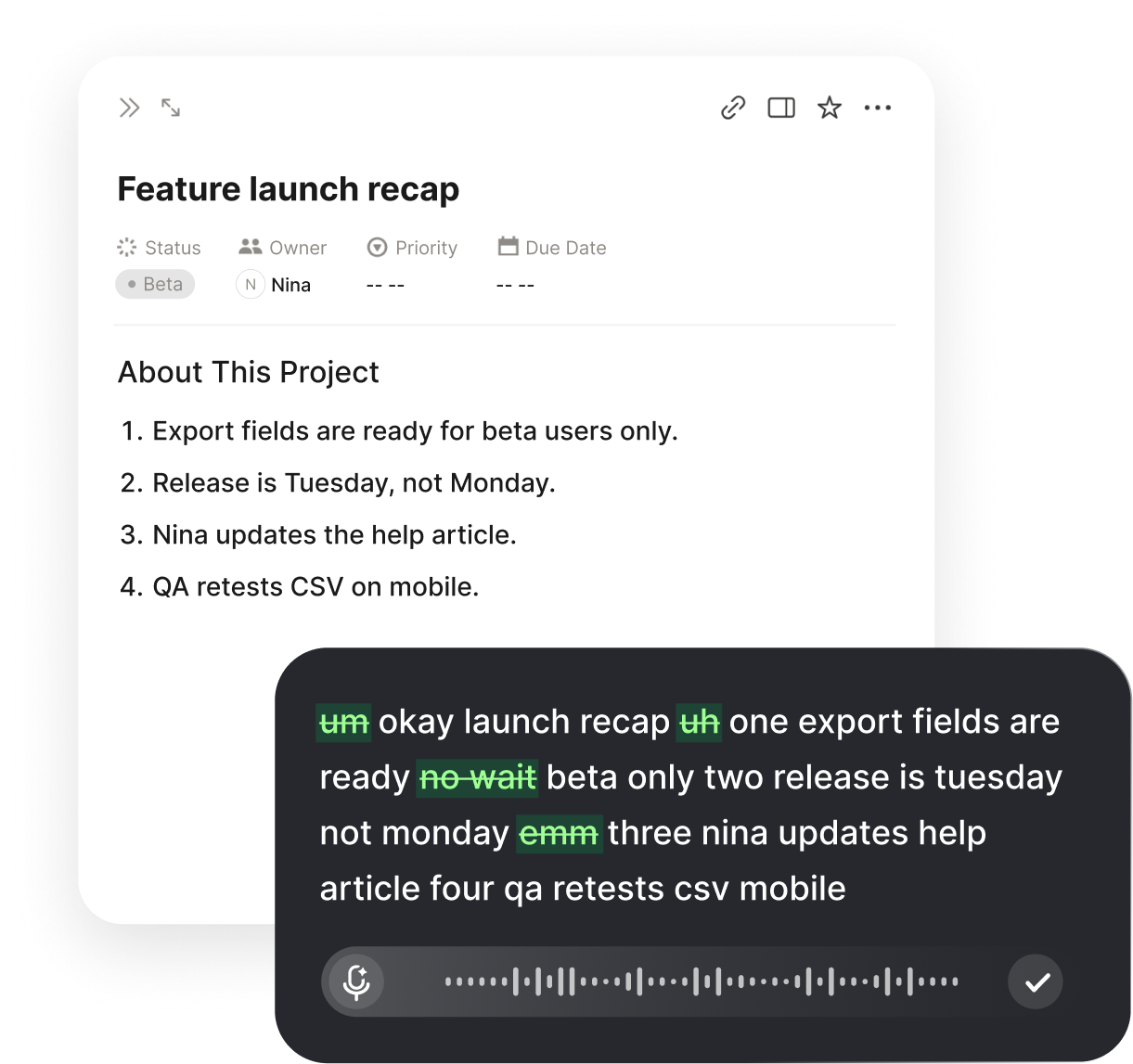
The key technical difference is not the microphone but the finishing layer. Raw recognition produces words. A finished-text engine produces sentences. That distinction is why a Windows note taker can be accurate on a test paragraph and still unusable in real work: the missing piece is the cleanup, not the transcription.
A personal dictionary is the second technical difference. Windows workdays are full of product names, client names, ticket prefixes, and acronyms. Correcting the same term every day is a hidden subscription cost paid in attention. A dictionary turns that into a one-time setup.
Finally, speed determines whether capture happens at all. Typing at roughly 45 words per minute is slower than the thought. Voiskey reports voice input above 220 words per minute, which is fast enough to capture a decision before the next window steals your attention.
Audio quality matters less than placement. A decent headset microphone is enough for dictation, and most Windows laptops have adequate built-in microphones for short notes. The bigger variable is whether the tool types where you are looking. A perfect transcript in the wrong window is still a failed note.
A desktop-wide tool should also fail gracefully. If the target app does not accept input, the text should remain available somewhere rather than disappearing. Check what happens when you dictate into a password field, a read-only document, or an app that blocks automation. A clear failure is easier to handle than a silent one.
Voiskey on Windows: Setup and Daily Use
Voiskey on Windows is designed around the desktop-wide model. It runs as a PC app, types into whatever app has the cursor, and does not require you to move your notes. Outlook, Teams, Notion, Obsidian, a spreadsheet cell, or a plain text file all work the same way.
A typical day looks like this. During a call, capture the decision and the owner in the document you are already using. Between calls, speak a two-sentence recap into the project note. Before signing off, dictate the follow-up email while the context is still fresh. None of these steps require opening a second app or copying text.
The app is free to start, and the dictionary improves as you use it. If your Windows note-taking problem is that notes live in too many places, the fix is to keep the places and change the input. You can download Voiskey for Windows by opening the official website and clicking the download button in the top right corner.
Set up one global shortcut and use it for a week before adding anything else. Do not customize every app, do not build templates, and do not reorganize your folder structure. The first goal is to prove that capture works everywhere. Optimization can wait until the habit exists.
A Realistic Switching Plan
Do not migrate your entire note system in one day. Start with one app and one recurring note, such as the recap you write after a weekly meeting. Use voice for that note only, and keep typing for everything else until the habit feels natural.
In week two, add a second app. If the first note was in a document, make the second one an email or a chat reply. The goal is to prove that capture works across windows, not to maximize the number of notes. Two apps are enough to test the model.
In week three, review what changed. Compare the notes that existed before with the notes that exist now. If the volume went up but the quality did not, narrow the use case. If both improved, expand to a third app. A realistic switching plan is one app at a time, measured by whether the note gets written and used.
If you manage a team, measure adoption rather than licenses. Ask how many notes each person produced in the first week and how many were used in a follow-up. A tool that everyone installed and nobody uses is a failed rollout, even if the invoice looks small.
For a team rollout, start with volunteers. Give the app to three people who write a lot and ask them to report one success and one failure after a week. Use those reports to decide the default shortcut and the default destination app. A small pilot produces better settings than a central configuration meeting.
FAQ s
Yes. Voiskey works anywhere on your computer, so you can dictate into email, a document, a note app, or a browser field without changing tools.
Voiskey is built to catch fillers, stumbles, changes of mind, and grammar slips, then tailor formatting, tone, and word choice to your intent.
Yes. Voiskey learns your names, jargon, and spelling preferences.
Voiskey is available across macOS, Windows, iOS, and Android.


 Voiskey
Your voice, amplified.
Download Voiskey for Windows and dictate into Outlook, Teams, Notion, or any app with a cursor. Free to start.
Use it across macOS, Windows, iOS, and Android